
Owner's Manual




29
Playback and Backup
5 A confirmation window appears, showing information about the backup file you are about to
create. Click Backup to confirm. Wait for the file to be saved.
Backup
For details on viewing backed up video, see “Lorex Player 11: Playing Backed up Video on
PC” on page 92 or see “Lorex Player for Mac: Viewing Backed up Video on Mac”
on page 94.
Backing Up Video
You can back up video to a USB flash drive (not included) connected to the rear panel of the
DVR.
To back up video:
1 Connect
a USB flash
drive to one of the USB ports on the rear panel of the DVR.
2 Right-click to open the Menu Bar and click the Record Search button (
).
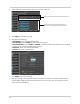
3 Click the Backup tab.
4 Configure th
e following:
• Search Date: Ent
er the desired month, date, and year
• Search Time: En
ter the time range you wish to search.
• CH: Select the channel you wish to search. To search all channels, select Al
l.
• Type: Sel
ect the type of recording you wish to search. Choose from All, Continuous, or Alarm.
5 Click Search.
A list of videos populate in the window.
Click the BAK checkbox to select
video to back up
Click Backup