
Owner's Manual





Connections and settings 37
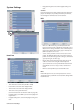
Update
The update feature allows you to upgrade DVR software
and add/upgrade PTZ protocols. In this case, the current
DVR settings are not deleted or replaced during the update
process.
1. Select one of the following:
Select SYSTEM S/W to upgrade DVR system soft-
ware.
Select PTZ PROTOCOL to update the DVR protocols.
2.
Choose the media from which to perform the update:
USB: Select USB, and then insert the USB drive into
the DVR. All USB devices must be disconnected
before you can use the USB drive.
NETWORK: Select NETWORK, and then do following:
1) S
elect the update server settings box. The vir-
tual keyboard is displayed.
2) En
ter the update server IP address. The DVR net-
work settings must be configured and you must
know the update server’s IP address.
3.
Select [Update] and press ENTER to start the update
process.
4.
Select [OK] and press ENTER to begin the update pro-
cess or select [Cancel] to stop and exit. After the update
process is completed, the system displays the dialogue
box for system restarting.
5. S
elect [OK] and press ENTER to restart the DVR.
Note:
You should install one of the formatted HDD for update. If
you do not install the HDD, the update will not work prop-
erly.
•
•
•
•
Hard Disk
Format: Initializes the HDD (Hard Disk Drive). All data on
the selected HDD will be erased.
How to format the HDD
1.
Select the [Event Partition] option and set the event
partition rate of the HDD. If you set the event parti-
tion to 60%, the remaining space of 40% is set to
normal partition automatically.
Event Partition: To save space of the HDD for
motion and sensor recording data.
Normal Partition: To save space of the HDD for
instant or normal recording data.
2.
Select the [Format] icon and press ENTER.
3. Select [OK] and press ENTER to start format.
Overwrite:
ALL: Overwrite recording is possible when the nor-
mal partition and event partition of HDD have fully
recorded.
NORMAL PARTITION: Overwrite recording is possible
for normal partition of HDD when the normal parti-
tion of HDD has fully recorded.
EVENT PARTITION: Overwrite recording is possible
for event partition of HDD when the event partition
of HDD has fully recorded.
OFF: Do not use overwriting.
Full Warning: When the HDD has overflowed a warning
message is displayed.
Event Partition: Set the space of event partition for
event recording.
Note
The motion and sensor recording data are saved in the
event partition area of the HDD. You should set the
space of event partition before event recording.
Auto Delete: Set the auto delete date (OFF, 1 DAY, 2
DAYS, 5 DAYS, 10 DAYS, 20 DAYS, 30 DAYS, 40 DAYS, 50
DAYS or 60 DAYS). If you set the auto delete date, the
recorded data will be deleted except the data within
the selected date period of time. The Auto Delete func-
tion is activated every 35 minutes.
•
-
-
•
-
-
-
-
•
•
•