
Owner's Manual




34
V
ideo Input
2
Image Mode Selection
Direct Operation
Select the desired image mode by pressing Image
Mode button on the Remote Control.
Menu Operation
1
Press the MENU button on the Re mote Control
to display on screen menu. Press ▲▼ buttons to
select Image Select and then press Point ►button or
theSELECT button.
Use the Point ▲▼ buttons to select the desired item
and then press the SELECT button .
Remote Control
Image Mode
button
Dynamic
This mode enhance the white-black contrast, you can get a
good effect even showed characters in a bright room.
Normal
It is the preset mode of the projector. It balanced the brightness
and color, it is good for showing Computer signal to white screen.
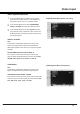
Image Select Menu
Cinema
This mode limited the brightness, and more detail can be seen.
It is suitable for seeing a film in a dark environment.
Blackboard (Green)
For the image projected on a blackboard.
This mode help enhance the image projected on a
blackboard. This is mainly effective on a green colored
board, not truly effective on a black colored board.
Colorboard
At the time of simple projection on the colored wall, you can
get the close color image to the color image projected on a
white screen by selecting the similar color to the wall color
from the preset four colors.
USER Image
For viewing with the user preset image mode in the Image
Adjust Menu.