Lexmark E320 User Guide Compiled by: Brent Runnells, EPSCoR-ITER Last modified 7/13/04 1 \\ . . .\sdal\How-To\ht_lexmark_e320.
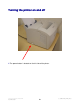
Turning the printer on and off 1-The power button is located on the left side of the printer. Compiled by: Brent Runnells, EPSCoR-ITER Last modified 7/13/04 2 \\ . . .\sdal\How-To\ht_lexmark_e320.
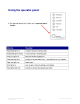
Using the operator panel 1-The operator panel has 6 lights and 1 operator panel button. Compiled by: Brent Runnells, EPSCoR-ITER Last modified 7/13/04 3 \\ . . .\sdal\How-To\ht_lexmark_e320.
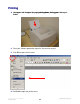
Printing 1- Load paper with the top of the page pointing down, facing you in the tray as shown. 2- From your software application, open the file you want to print. 3- Click File to open the file menu. 4- Click Print to open the printer menu. Compiled by: Brent Runnells, EPSCoR-ITER Last modified 7/13/04 4 \\ . . .\sdal\How-To\ht_lexmark_e320.
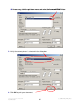
- If necessary, click the pull down menu and select the Lexmark E320 Printer. 5- Verify the correct printer is selected in the dialog box. 6- Click OK to print your document. Compiled by: Brent Runnells, EPSCoR-ITER Last modified 7/13/04 5 \\ . . .\sdal\How-To\ht_lexmark_e320.
Canceling a print job From the printer operator panel 1- If the job you want to cancel is printing and the Ready/Data light is blinking, Press the reset button for approximately 3 seconds This will reset the printer and cancel the job. From a Windows computer 1- Click Start → Settings → Printers Compiled by: Brent Runnells, EPSCoR-ITER Last modified 7/13/04 6 \\ . . .\sdal\How-To\ht_lexmark_e320.
3- A list of available printers appears. Double-click the printer icon you are using to print the job. 4- A list of print jobs appear. Click the job you want to cancel. Press the delete key. Compiled by: Brent Runnells, EPSCoR-ITER Last modified 7/13/04 7 \\ . . .\sdal\How-To\ht_lexmark_e320.
Clearing paper jams In Hawaii, due to the high humidity, paper can absorb moisture from the air. Moist paper can stick to each other causing paper jams. To avoid paper jams be sure to use fresh, dry paper. If print media jams in the printer, the Paper Jam light prompts you to clear the paper path.
B -Press the operator panel button to resume printing. 2- If the jam occurs inside the printer: A- Grasp the finger tabs on both sides of the printer cover and pull toward you. Compiled by: Brent Runnells, EPSCoR-ITER Last modified 7/13/04 9 \\ . . .\sdal\How-To\ht_lexmark_e320.
B- Grasp the cartridge handle and pull the print cartridge straight up and then towards you. CAUTION: Handle the printer cartridge carefully and avoid touching it. IT MAY BE HOT! C- Set the printer cartridge down carefully. D- Carefully remove the paper. E- Reinstall the print cartridge and close the cover. Compiled by: Brent Runnells, EPSCoR-ITER Last modified 7/13/04 10 \\ . . .\sdal\How-To\ht_lexmark_e320.
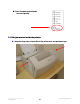
2- If the media is jammed tightly behind the roller, or if you just can’t get a grip on it. A- Open the front output door by pulling on the center tab B- Pull out the paper. Compiled by: Brent Runnells, EPSCoR-ITER Last modified 7/13/04 11 \\ . . .\sdal\How-To\ht_lexmark_e320.