MX310 Series User's Guide June 2012 Machine type(s): 7015 Model(s): 270 www.lexmark.
Contents 2 Contents Safety information.......................................................................................6 Learning about the printer...........................................................................8 Finding information about the printer......................................................................................................8 Selecting a location for the printer.......................................................................................................
Contents 3 Printing information pages......................................................................................................................54 Canceling a print job................................................................................................................................54 Copying......................................................................................................56 Making copies..........................................................................
Contents 4 Help menu.............................................................................................................................................144 Saving money and the environment.........................................................146 Saving paper and toner.........................................................................................................................146 Saving energy...........................................................................................
Contents 5 [x]‑page jam, clear manual feeder. [25y.xx]..........................................................................................178 [x]‑page jam, open automatic feeder top cover. [28y.xx].....................................................................179 Troubleshooting.......................................................................................181 Understanding printer messages.................................................................................................
Safety information 6 Safety information Connect the power cord to a properly grounded electrical outlet that is near the product and easily accessible. Do not place or use this product near water or wet locations. CAUTION—SHOCK HAZARD: Do not use the fax feature during a lightning storm. Do not set up this product or make any electrical or cabling connections, such as the fax feature, power cord, or telephone, during a lightning storm.
Safety information 7 CAUTION—SHOCK HAZARD: If you are accessing the controller board or installing optional hardware or memory devices sometime after setting up the printer, then turn the printer off, and unplug the power cord from the electrical outlet before continuing. If you have any other devices attached to the printer, then turn them off as well, and unplug any cables going into the printer.
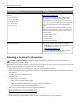
Learning about the printer 8 Learning about the printer Finding information about the printer What are you looking for? Find it here Initial setup instructions: Setup documentation—The setup documentation came with the printer and is also available on the Lexmark Web site at http://support.lexmark.com.
Learning about the printer 9 What are you looking for? Find it here The latest supplemental information, updates, and customer support: Lexmark Support Web site— http://support.lexmark.com • • • • • Documentation Note: Select your country or region, and then select your product to view the appropriate support site. Driver downloads Support telephone numbers and hours of operation for your country or region can be found on the Support Web site or on the printed warranty that came with your printer.
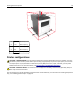
Learning about the printer 1 Right side 30.48 cm (12 in.) 2 Front 50.8 cm (20 in.) 3 Left side 20.32 cm (8 in.) 4 Rear 20.32 cm (8 in.) 5 Top 54 cm (21 in.) 10 Printer configurations CAUTION—TIPPING HAZARD: Floor-mounted configurations require additional furniture for stability. You must use either a printer stand or printer base if you are using a high-capacity tray and an input option, or more than one input option.
Learning about the printer 1 Printer control panel 2 Automatic document feeder (ADF) 3 ADF tray 4 ADF bin 5 Front door release button 6 Standard 250‑sheet tray 7 Optional 250‑ or 550‑sheet tray 8 50‑sheet multipurpose feeder 9 Paper stop 10 Standard bin Understanding the basic functions of the scanner • • • • • Make quick copies or set the printer to perform specific copy jobs. Send a fax using the printer control panel. Send a fax to multiple fax destinations at the same time.
Learning about the printer 12 Using the ADF and scanner glass Automatic document feeder (ADF) Scanner glass Use the ADF for multiple‑page documents including two-sided (duplex) pages. Use the scanner glass for single‑page documents, book pages, small items (such as postcards or photos), transparencies, photo paper, or thin media (such as magazine clippings). Using the ADF • • • • • Load the document into the ADF tray faceup, short edge first. Load up to 50 sheets of plain paper into the ADF tray.
Learning about the printer 13 Using the printer control panel 2 1 13 Use the 3 4 5 12 11 6 7 10 9 8 To 1 Display 2 Arrow buttons 3 Select button 4 Address book button View all the stored addresses. 5 Redial button View the last number dialed. 6 Keypad Enter numbers, letters, or symbols. 7 Sleep button Enable Sleep mode or Hibernate mode. • View the printer status and messages. • Set up and operate the printer. Scroll up and down or left and right. • Select menu options.
Learning about the printer 14 Indicator light color and its corresponding printer status Indicator light Printer status Off The printer is off or in Hibernate mode. Blinking green The printer is warming up, processing data, or printing. Solid green The printer is on, but idle. Blinking red The printer requires user intervention. Sleep button light color and its corresponding printer status Sleep button light Printer status Off The printer is idle or in Ready state.
Additional printer setup Additional printer setup Installing internal options CAUTION—SHOCK HAZARD: If you are accessing the controller board or installing optional hardware or memory devices sometime after setting up the printer, then turn the printer off, and unplug the power cord from the electircal outlet before continuing. If you have any other devices attached to the printer, then turn them off as well, and unplug any cables going into the printer.
Additional printer setup 16 2 Open the controller board shield using the green handle. 1 2 3 Use the following illustration to locate the option card connector. Warning—Potential Damage: Controller board electronic components are easily damaged by static electricity. Touch something metal on the printer before touching any controller board electronic components or connectors. 4 Close the shield, and then the access door.
Additional printer setup Installing an optional card CAUTION—SHOCK HAZARD: If you are accessing the controller board or installing optional hardware or memory devices sometime after setting up the printer, then turn the printer off, and unplug the power cord from the electrical outlet before continuing. If you have other devices attached to the printer, then turn them off as well, and unplug any cables going into the printer.
Additional printer setup 18 4 Push the card firmly into place as shown in the illustration. Warning—Potential Damage: Improper installation of the card may cause damage to the card and the controller board. Note: The entire length of the connector on the card must touch and be flushed against the controller board. 5 Close the controller board shield, and then the controller board access door.
Additional printer setup 19 Installing hardware options Order of installation CAUTION—POTENTIAL INJURY: The printer weight is greater than 18 kg (40 lb) and requires two or more trained personnel to lift it safely. CAUTION—SHOCK HAZARD: If you are accessing the controller board or installing optional hardware or memory devices sometime after setting up the printer, then turn the printer off, and unplug the power cord from the electrical outlet before continuing.
Additional printer setup 20 1 2 2 Unpack the tray, and then remove all packing material. 3 Pull out the tray from the base. 4 Remove any packing material from inside the tray. 5 Insert the tray into the base. 6 Place the tray near the printer. 7 Align the printer with the tray, and then slowly lower the printer into place. Note: Optional trays lock together when stacked.
Additional printer setup 21 8 Connect the power cord to the printer, then to a properly grounded electrical outlet, and then turn on the printer. 2 1 Notes: • When the printer software and any hardware options are installed, you may need to manually add the options in the printer driver to make them available for print jobs. For more information, see “Updating available options in the printer driver” on page 23.
Additional printer setup 22 Attaching cables CAUTION—SHOCK HAZARD: Do not use the fax feature during a lightning storm. Do not set up this product or make any electrical or cabling connections, such as the fax feature, power cord, or telephone, during a lightning storm. Connect the printer to the computer using a USB cable or to the network using an Ethernet cable.
Additional printer setup 23 Setting up the printer software Installing the printer software Note: If you installed the printer software on the computer before but need to reinstall the software, then uninstall the current software first. For Windows users 1 Close all open software programs. 2 Insert the Software and Documentation CD. If the installation dialog does not appear after a minute, then launch the CD manually: a Click , or click Start and then click Run.
Additional printer setup 24 c Press Enter, or click OK. 2 Select the printer. 3 Right‑click the printer, and then select Printer properties (Windows 7) or Properties (earlier versions). 4 Click the Configuration tab. 5 Do either of the following: • Click Update Now ‑ Ask Printer. • Under Configuration Options, manually add any installed hardware options. 6 Click Apply.
Additional printer setup 25 Installing the printer on an Ethernet network For Windows users 1 Insert the Software and Documentation CD. If the installation dialog does not appear after a minute, then launch the CD manually: a Click , or click Start and then click Run. b In the Start Search or Run dialog, type D:\setup.exe, where D is the letter of the CD or DVD drive. c Press Enter, or click OK. 2 Click Install, and then follow the instructions on the computer screen.
Additional printer setup 26 • For AppleTalk printing: Notes: – Make sure AppleTalk is activated on your printer. – This feature is supported only in Mac OS X version 10.5. a From the Apple menu, navigate to: System Preferences > Print & Fax b Click +, and then navigate to: AppleTalk > select your printer > Add Preparing to set up the printer on a wireless network Notes: • Make sure your wireless network adapter is installed in your printer and working properly.
Additional printer setup 27 security information for your network, then see the documentation that came with the access point, or contact your system support person. – To find the WPA/WPA2 preshared key or passphrase for the wireless network, see the documentation that came with the access point, see the Embedded Web Server associated with the access point, or consult your system support person.
Additional printer setup 28 Using the Push Button Configuration (PBC) method 1 From the printer control panel, navigate to: > Settings > >Network/Ports > Wi‑Fi Protected Setup > > Network [x] > > Network [x] Setup > > Wireless > > > Start Push Button Method > 2 Follow the instructions on the printer display.
Additional printer setup 29 5 Turn off the printer, and then disconnect the Ethernet cable. Then wait for at least five seconds, and then turn the printer back on. 6 To verify if your printer is connected to the network, print a network setup page. Then in the Network Card [x] section, see if the status is Connected.
Loading paper and specialty media 30 Loading paper and specialty media The selection and handling of paper and specialty media can affect how reliably documents print. For more information, see “Avoiding jams” on page 168 and “Storing paper” on page 49.
Loading paper and specialty media 31 2 Squeeze, and then slide the width guide tab to the correct position for the size of the paper you are loading.
Loading paper and specialty media 32 3 Unlock the length guide. Squeeze, and then slide the length guide tab to the correct position for the size of the paper you are loading. 1 2 A4 EXE LTR C B5 3 A5 Notes: • For some paper sizes like letter, legal, and A4, squeeze and slide the length guide tab backward to accommodate their length. • When loading legal‑size paper, the length guide extends beyond the base leaving the paper exposed to dust.
Loading paper and specialty media 33 A4 EXE C LTR B5 A5 4 Flex the sheets back and forth to loosen them, and then fan them. Do not fold or crease the paper. Straighten the edges on a level surface. 5 Load the paper stack. Notes: • Load with the printable side facedown when using recycled or preprinted paper. • Load prepunched paper with the holes on the top edge toward the front of the tray.
Loading paper and specialty media 34 • Load letterhead facedown, with the top edge of the sheet toward the front of the tray. For two‑sided printing, load letterhead faceup with the bottom edge of the sheet toward the front of the tray. • Make sure the paper is below the maximum paper fill indicator located on the side of the width guide. 6 Insert the tray. 7 From the printer control panel, set the paper size and paper type in the Paper menu to match the paper loaded in the tray.
Loading paper and specialty media 35 Loading the multipurpose feeder Use the multipurpose feeder when printing on different paper sizes and types or specialty media, such as card stock, transparencies, paper labels, and envelopes. You can also use it for single‑page print jobs on letterhead. 1 Open the multipurpose feeder. a Pull the multipurpose feeder extender.
Loading paper and specialty media 36 b Pull the extender gently so that the multipurpose feeder is fully extended and open. 2 Squeeze the tab on the left width guide, and then move the guides for the paper you are loading. 1 2 3 Prepare the paper or specialty media for loading. • Flex sheets of paper back and forth to loosen them, and then fan them. Do not fold or crease the paper. Straighten the edges on a level surface. • Hold transparencies by the edges.
Loading paper and specialty media 37 • Flex the stack of envelopes back and forth to loosen them, and then fan them. Straighten the edges on a level surface. 4 Load the paper or specialty media. Notes: • Do not force paper or specialty media into the multipurpose feeder. • Make sure the paper or specialty media is below the maximum paper fill indicator located on the paper guides. Overfilling may cause paper jams.
Loading paper and specialty media Note: When loading A6‑size paper, make sure the multipurpose feeder extender rests lightly against the edge of the paper so that the last few sheets of paper remain in place. • Load letterhead faceup with the top edge entering the printer first. For two‑sided (duplex) printing, load letterhead facedown with the bottom edge entering the printer first.
Loading paper and specialty media 39 • Load envelopes with the flap on the left side facedown. Warning—Potential Damage: Never use envelopes with stamps, clasps, snaps, windows, coated linings, or self‑stick adhesives. These envelopes may severely damage the printer. 5 From the printer control panel, set the paper size and paper type in the Paper menu to match the paper or specialty media loaded in the multipurpose feeder.
Loading paper and specialty media 40 Creating a custom name for a paper type Using the Embedded Web Server 1 Open a Web browser, and then type the printer IP address in the address field. Notes: • View the printer IP address in the TCP/IP section in the Network/Ports menu. The IP address appears as four sets of numbers separated by periods, such as 123.123.123.123. • If you are using a proxy server, then temporarily disable it to load the Web page correctly. 2 Click Settings > Paper Menu > Custom Names.
Loading paper and specialty media 41 Using the printer control panel 1 From the printer control panel, navigate to: > Settings > > Paper Menu > > Custom Names 2 Type a name for the paper type, and then press . Assigning a custom paper type Using the Embedded Web Server 1 Open a Web browser, and then type the printer IP address in the address field. Notes: • View the printer IP address in the TCP/IP section in the Network/Ports menu.
Paper and specialty media guide 42 Paper and specialty media guide Additional information for printing on speciality media may be found in the Card Stock and Label Guide available at http://support.lexmark.com. Paper guidelines Selecting the correct paper or specialty media reduces printing problems. For the best print quality, try a sample of the paper or specialty media before buying large quantities. Paper characteristics The following paper characteristics affect print quality and reliability.
Paper and specialty media guide 43 Grain direction Grain refers to the alignment of the paper fibers in a sheet of paper. Grain is either grain long, running the length of the paper, or grain short, running the width of the paper. For 60–90‑g/m2 (16–24‑lb) bond paper, grain long paper is recommended. Fiber content Most high‑quality xerographic paper is made from 100% chemically treated pulped wood.
Paper and specialty media guide 44 • Avoid papers with rough or heavily textured surfaces. Use papers printed with heat‑resistant inks designed for use in xerographic copiers. The ink must be able to withstand temperatures up to 230°C (446°F) without melting or releasing hazardous emissions. Use inks that are not affected by the resin in toner. Inks that are oxidation‑set or oil‑based generally meet these requirements; latex inks might not. When in doubt, contact the paper supplier.
Paper and specialty media guide 45 Supported paper sizes, types, and weights For information on card stock and labels, see the Card Stock & Label Guide. Supported paper sizes Paper size and dimension Standard 250‑sheet tray Optional 250‑ or Multipurpose 550‑sheet tray feeder Business card X X 3 x 5 in. X 4 x 6 in. X X ADF Scanner glass Duplex mode X X X X X X X X A4 210 x 297 mm (8.27 x 11.7 in.) A5 X 148 x 210 mm (5.83 x 8.27 in.) A6 105 x 148 mm (4.13 x 5.83 in.
Paper and specialty media guide 46 Paper size and dimension Standard 250‑sheet tray Optional 250‑ or Multipurpose 550‑sheet tray feeder ADF Scanner glass Statement Duplex mode X 139.7 x 215.9 mm (5.5 x 8.5 in.) Universal* 76.2 x 76.2 mm to 215.9 x 359.92 mm (3 x 3 in. to 8.5 x 14.17 in.) 7 3/4 Envelope (Monarch) X X X X X X X X X X X X X X X X X X X X X X X X X B5 Envelope 176 x 250 mm (6.93 x 9.84 in.) X X X X X Other Envelope X X X X X 98.4 x 190.5 mm (3.
Paper and specialty media guide Paper type 47 250‑ or 550‑sheet tray Multipurpose feeder Duplex mode ADF Scanner glass Plain paper Card stock X Transparencies X 1 X Recycled X Paper labels2 Bond Envelope3 X X X Rough envelope X X X Letterhead Preprinted Colored paper Light paper Heavy paper Rough/Cotton X Custom Type [x] 1 Transparencies are supported only in 250‑sheet tray. 2 One‑sided paper labels designed for laser printers are supported for occasional use.
Paper and specialty media guide 48 Tips on using transparencies • Print a test page on the transparencies being considered for use before buying large quantities. • Feed transparencies from the standard tray, or the multipurpose feeder. • Use transparencies designed specifically for laser printers. Transparencies must be able to withstand temperatures up to 185°C (365°F) without melting, discoloring, offsetting, or releasing hazardous emissions.
Paper and specialty media guide 49 When printing on labels: • Use labels designed specifically for laser printers. Check with the manufacturer or vendor to verify that: – The labels can withstand temperatures up to 240°C (464°F) without sealing, excessive curling, wrinkling, or releasing hazardous emissions. – Label adhesives, face sheet (printable stock), and topcoats can withstand up to 25‑psi (172‑kPa) pressure without delaminating, oozing around the edges, or releasing hazardous fumes.
Paper and specialty media guide 50 • Do not store anything on top of individual paper packages. • Take paper out of the carton or wrapper only when you are ready to load it in the printer. The carton and wrapper help keep the paper clean, dry, and flat.
Printing 51 Printing Printing a document Printing a document 1 From the Paper menu on the printer control panel, set the paper type and size to match the paper loaded. 2 Send the print job: For Windows users a With a document open, click File > Print. b Click Properties, Preferences, Options, or Setup. c Adjust the settings, if necessary. d Click OK > Print. For Macintosh users a Customize the settings in the Page Setup dialog if necessary: 1 With a document open, choose File > Page Setup.
Printing 52 Using the printer control panel 1 From the printer control panel, navigate to: > Settings > > Print Settings > > Quality Menu > 2 Adjust the toner darkness, and then press > Toner Darkness .
Printing 53 Printing confidential and other held jobs Note: Confidential and Verify print jobs are automatically deleted from memory after printing. Repeat and Reserve jobs are held in the printer until you choose to delete them. For Windows users 1 With a document open, click File > Print. 2 Click Properties, Preferences, Options, or Setup. 3 Click Print and Hold. 4 Select the print job type (Confidential, Repeat, Reserve, or Verify), and then assign a user name.
Printing 54 • If you are using a proxy server, then temporarily disable it to load the Web page correctly. 2 Click Configuration > Other Settings tab > Security > Confidential Print Setup. 3 Modify the settings: • Set a maximum number of PIN entry attempts. When a user exceeds a specific number of PIN entry attempts, all of the jobs for that user are deleted. • Set an expiration time for confidential print jobs.
Printing 3 Select the print job you want to cancel. 4 Click Delete. For Macintosh users 1 From the Apple Menu, navigate to either of the following: • System Preferences > Print & Scan > select a printer > Open Print Queue • System Preferences > Print & Fax > select a printer > Open Print Queue 2 From the printer window, select the print job you want to cancel, and then click Delete.
Copying 56 Copying Automatic document feeder (ADF) Scanner glass Use the ADF for multiple‑page documents including two-sided (duplex) pages. Use the scanner glass for single-page documents, book pages, small items (such as postcards or photos), transparencies, photo paper, or thin media (such as magazine clippings). Making copies Making a quick copy 1 Load an original document faceup, short edge first into the ADF tray or facedown on the scanner glass.
Copying 57 • The ADF indicator light comes on when the paper is loaded properly. 2 Adjust the paper guides. 3 From the printer control panel, use the keypad to enter the number of copies, and then press . Copying using the scanner glass 1 Place an original document facedown on the scanner glass in the upper left corner. 2 From the printer control panel, use the keypad to enter the number of copies, and then press .
Copying 58 3 From the printer control panel, navigate to: > Copy > > Copy from > select the size of the original document 4 Navigate to: Copy to > > select the tray containing the transparencies > > select the number of copies or enter a number on the keypad > 5 If there are no trays that contain transparencies, then do the following: a Navigate to: > Manual Feeder > Copy to > > select the size of the transparencies > b Load transparencies into the multipurpose feeder, and then press > Transpare
Copying 59 5 If there are no trays that contain letterhead, then do the following: a Navigate to: Copy to > > Manual Feeder > > select the size of the letterhead > Letterhead b Place the letterhead faceup, top edge first into the multipurpose feeder, and then press . Note: If you want to copy another document, then place it on the scanner glass, press the left or right arrow button to scroll to Scan the Next Page, and then press .
Copying 60 • The ADF indicator light comes on when the paper is loaded properly. 2 If you are loading a document into the ADF tray, then adjust the paper guides.
Copying 61 Reducing or enlarging copies Copies can be scaled from 25% to 400% of the original document size. 1 Load an original document faceup, short edge first into the ADF tray or facedown on the scanner glass. Notes: • Do not load postcards, photos, small items, transparencies, photo paper, or thin media (such as magazine clippings) into the ADF tray. Place these items on the scanner glass. • The ADF indicator light comes on when the paper is loaded properly.
Copying 62 Notes: • Do not load postcards, photos, small items, transparencies, photo paper, or thin media (such as magazine clippings) into the ADF tray. Place these items on the scanner glass. • The ADF indicator light comes on when the paper is loaded properly. 2 If you are loading a document into the ADF tray, then adjust the paper guides.
Copying 63 To select a Collate setting: 1 Load an original document faceup, short edge first into the ADF tray or facedown on the scanner glass. Notes: • Do not load postcards, photos, small items, transparencies, photo paper, or thin media (such as magazine clippings) into the ADF tray. Place these items on the scanner glass. • The ADF indicator light comes on when the paper is loaded properly. 2 If you are loading a document into the ADF tray, then adjust the paper guides.
Copying 64 Notes: • Make sure the paper size is set to letter, legal, A4, or JIS B5. • The copy size must be set to 100%. 1 Load an original document faceup, short edge first into the ADF tray or facedown on the scanner glass. Notes: • Do not load postcards, photos, small items, transparencies, photo paper, or thin media (such as magazine clippings) into the ADF tray. Place these items on the scanner glass. • The ADF indicator light comes on when the paper is loaded properly.
Copying 65 5 Select the number of copies or enter a number on the keypad, and then press . Note: If you want to copy another document, then place it on the scanner glass, press the left or right arrow button to scroll to Scan the Next Page, and then press . 6 Press the left or right arrow button to scroll to Finish the Job, and then press . Canceling a copy job Canceling a copy job from the printer control panel From the printer control panel, press .
Copying 66 • If the paper type or size you want to use is not loaded in one of the trays, then press the left or right arrow button to scroll to Manual Feeder, press feeder. , and then manually load the paper in the manual feeder or multipurpose • To match each copy to the paper size of the original document, set “Copy to” to Auto Size Match.
Copying • • • • • 67 Photo/Film—The original document is a photo from a film. Magazine—The original document is from a magazine. Newspaper—The original document is from a newspaper. Press—The original document was printed using a printing press. Other—The original document was printed using an alternate or unknown printer. Advanced Duplex This option lets you specify the document orientation, whether documents are one-sided or two-sided, and how documents are bound.
E-mailing 68 E-mailing Automatic document feeder (ADF) Scanner glass Use the ADF for multiple‑page documents including two-sided (duplex) pages. Use the scanner glass for single-page documents, book pages, small items (such as postcards or photos), transparencies, photo paper, or thin media (such as magazine clippings). You can use the printer to e‑mail scanned documents to one or more recipients. There are three ways to send an e‑mail from the printer.
E-mailing 69 • If you are using a proxy server, then temporarily disable it to load the Web page correctly. 2 Click Settings > E-mail/FTP Settings > E-mail Settings. 3 Enter the appropriate information, and then click Submit. Creating an e-mail shortcut Creating an e-mail shortcut using the Embedded Web Server 1 Open a Web browser, and then type the printer IP address in the address field. Notes: • View the printer IP address in the TCP/IP section in the Network/Ports menu.
E-mailing 70 Notes: • Do not load postcards, photos, small items, transparencies, photo paper, or thin media (such as magazine clippings) into the ADF tray. Place these items on the scanner glass. • The ADF indicator light comes on when the paper is properly loaded. 2 If you are loading a document into the ADF tray, then adjust the paper guides.
Faxing 71 Faxing Automatic document feeder (ADF) Scanner glass Use the ADF for multiple‑page documents including two-sided (duplex) pages. Use the scanner glass for single-page documents, book pages, small items (such as postcards or photos), transparencies, photo paper, or thin media (such as magazine clippings). Setting up the printer to fax CAUTION—SHOCK HAZARD: Do not use the fax feature during a lightning storm.
Faxing 72 Initial fax setup Many countries and regions require outgoing faxes to contain the following information in a margin at the top or bottom of each transmitted page, or on the first page of the transmission: fax name (identification of the business, other entity, or individual sending the message) and fax number (telephone number of the sending fax machine, business, other entity, or individual).
Faxing 73 Choosing a fax connection Scenario 1: Standard telephone line Setup 1: Printer is connected to a dedicated fax line To connect: 1 Connect one end of the telephone cable that came with the printer to the port of the printer. 2 Connect the other end of the telephone cable to an active analog wall jack. Tips for this setup: • You can set the printer to receive faxes automatically (Auto Answer On) or manually (Auto Answer Off).
Faxing 74 Setup 2: Printer is sharing the line with an answering machine Connected to the same telephone wall jack PHONE LINE To connect: 1 Connect one end of the telephone cable that came with the printer to the 2 Connect the other end of the telephone cable to an active analog wall jack. 3 Connect the answering machine to the port of the printer. port of the printer.
Faxing 75 Connected to different wall jacks PHONE LINE To connect: 1 Connect one end of the telephone cable that came with the printer to the port of the printer. 2 Connect the other end of the telephone cable to an active analog wall jack. Tips for this setup: • If you have only one telephone number on your line, then you need to set the printer to receive faxes automatically (Auto Answer On). • Set the printer to pick up calls two rings after the answering machine.
Faxing 76 Setup 3: Printer is sharing the line with a telephone subscribed to voice mail service 02 To connect: 1 Connect one end of the telephone cable that came with the printer to the port of the printer. 2 Connect the other end of the telephone cable to an active analog wall jack. 3 Connect the telephone to the port of the printer. Tips for this setup: • This setup works best if you subscribe to a distinctive ring service.
Faxing 77 Scenario 2: Digital Subscriber Line (DSL) A Digital Subscriber Line splits your regular telephone line into two channels: voice and Internet. Telephone and fax signals travel through the voice channel, and Internet signals pass through the other channel. This way, you can use the same line for analog voice calls (including faxes) and digital Internet access.
Faxing 78 Scenario 3: VoIP telephone service To connect: 1 Connect one end of the telephone cable that came with the printer to the port of the printer. 2 Connect the other end of the cable to the port labeled Phone Line 1 or Phone Port on the VoIP adapter. Note: The port labeled Phone Line 2 or Fax Port is not always active. VoIP providers may charge additional cost for activation of the second phone port. 3 Connect the telephone to the port of the printer.
Faxing 79 Scenario 4: Digital telephone service through a cable provider Setup 1: Printer is connected directly to a cable modem 1 Connect one end of the telephone cable that came with your printer to the port of the printer. 2 Connect the other end of the cable to the port labeled Phone Line 1 or Phone Port on the cable modem. Note: The port labeled Phone Line 2 or Fax Port is not always active. VoIP providers may charge additional cost for activation of the second phone port.
Faxing 80 Setup 2: Printer is connected to a wall jack; cable modem is installed elsewhere in the facility 1 Connect one end of the telephone cable that came with your printer to the port of the printer. 2 Connect the other end of the telephone cable to an active analog telephone wall jack. 3 Connect your analog telephone to the port of the printer.
Faxing 81 If the wall jack or equipment in your facility is not compatible with this type of connection, then you need to use a telephone adapter. An adapter for your country or region may not come with your printer, and you may need to purchase it separately. There may be an adapter plug installed in the port of the printer. If you are using a telephone adapter or a facility port of the printer.
Faxing 82 Connecting the printer to a non‑RJ‑11 wall jack LINE EXT 1 Connect one end of the telephone cable that came with printer to the port of the printer. 2 Connect the other end of the cable to the RJ‑11 adapter, and then connect the adapter to the wall jack. 3 If you want to connect another device (telephone or answering machine) to the same wall jack, and if the device has a non‑RJ‑11 connector, then connect it directly to the telephone adapter.
Faxing 83 Connecting the printer to a wall jack in Germany The German wall jack has two kinds of ports. The N ports are for fax machines, modems, and answering machines. The F port is for telephones. N F N Connect the printer to any of the N ports.
Faxing 84 1 Connect one end of the telephone cable that came the printer to the port of the printer. 2 Connect the other end of the telephone cable to the RJ‑11 adapter, and then connect the adapter to an N port. 3 If you want to connect a telephone and answering machine to the same wall jack, then connect the devices as shown. Note: Do not remove the adapter plug from the telephone system.
Faxing 85 Setting the date and time You can set the date and time so that they are printed on every fax you send. If there is a power failure, then you may have to reset the date and time. 1 Open a Web browser, and then type the printer IP address in the address field. Notes: • View the printer IP address in the TCP/IP section in the Network/Ports menu. The IP address appears as four sets of numbers separated by periods, such as 123.123.123.123.
Faxing 86 3 From the printer control panel, navigate to: > Fax > > enter a fax or shortcut number on the keypad > > Original Size > Note: If you want to fax another document, then place it on the scanner glass, press the left or right arrow button to scroll to Scan the Next Page, and then press . 4 Press the left or right arrow button to scroll to Finish the Job, and then press .
Faxing 87 • The ADF indicator light comes on when the paper is loaded properly. 2 If you are loading a document into the ADF tray, then adjust the paper guides. 3 Press # , and then enter the shortcut number on the keypad. 4 Press . Sending a fax using the address book The address book feature lets you search for bookmarks and network directory servers. 1 Load an original document faceup, short edge first into the ADF tray or facedown on the scanner glass.
Faxing 88 Notes: • View the printer IP address in the TCP/IP section in the Network/Ports menu. The IP address appears as four sets of numbers separated by periods, such as 123.123.123.123. • If you are using a proxy server, then temporarily disable it to load the Web page correctly. 2 Click Settings > Manage Shortcuts > Fax Shortcut Setup. Note: A password may be required. If you do not have an ID and password, then contact your system support person.
Faxing 89 • The ADF indicator light comes on when the paper is loaded properly. 2 If you are loading a document into the ADF tray, then adjust the paper guides. 3 From the printer control panel, navigate to: Fax > > enter the fax number > > Darkness > adjust the darkness of the fax > Viewing a fax log 1 Open a Web browser, and then type the printer IP address in the address field. Notes: • View the printer IP address in the TCP/IP section in the Network/Ports menu.
Faxing 90 Canceling a fax job after scanning the original documents 1 From the printer control panel, press . 2 Press the left or right arrow button to scroll to the job you want to cancel. 3 Press > Delete Selected Jobs. Holding and forwarding faxes Holding faxes This option lets you hold received faxes from printing until they are released. Held faxes can be released manually or at a scheduled day or time. 1 Open a Web browser, and then type the printer IP address in the address field.
Faxing 91 5 In the “Forward to Shortcut” field, enter the shortcut number where you want the fax forwarded. Note: The shortcut number must be valid for the setting selected in the “Forward to” menu. 6 Click Submit. Understanding the fax options Original Size This option lets you choose the size of the documents you are going to fax. 1 From the Fax area of the printer control panel, press the Options button. Original Size appears. 2 Press .
Faxing 92 Content Source This option lets you set the original document source. Select from the following content sources: • • • • • • • • Color Laser—The original document was printed using a color laser printer. Black/White Laser—The original document was printed using a mono laser printer. Inkjet—The original document was printed using an inkjet printer. Photo/Film—The original document is a photo from a film. Magazine—The original document is from a magazine.
Scanning 93 Scanning Scanning to an FTP address Automatic document feeder (ADF) Scanner glass Use the ADF for multiple‑page documents including Use the scanner glass for single-page documents, book pages, small two-sided (duplex) pages. items (such as postcards or photos), transparencies, photo paper, or thin media (such as magazine clippings). The scanner lets you scan documents directly to a File Transfer Protocol (FTP) server. Only one FTP address may be sent to the server at a time.
Scanning 94 4 Enter a shortcut number. If you enter a number that is already in use, then you are prompted to select another number. 5 Click Add. Scanning to an FTP address Scanning to an FTP address using a shortcut number 1 Load an original document faceup, short edge first into the ADF tray or facedown on the scanner glass. Notes: • Do not load postcards, photos, small items, transparencies, photo paper, or thin media (such as magazine clippings) into the ADF tray.
Scanning 95 Scanning to a computer Automatic document feeder (ADF) Scanner glass Use the ADF for multiple‑page documents. Use the scanner glass for single pages, small items (such as postcards or photos), transparencies, photo paper, or thin media (such as magazine clippings). The scanner lets you scan documents directly to a computer. The computer does not have to be directly connected to the printer for you to receive Scan to PC images.
Scanning 96 Notes: • Do not load postcards, photos, small items, transparencies, photo paper, or thin media (such as magazine clippings) into the ADF tray. Place these items on the scanner glass. • The ADF indicator light turns on when the paper is loaded properly. b If you are loading a document into the ADF tray, then adjust the paper guides.
Understanding printer menus 97 Understanding printer menus Menus list Paper Menu Reports Network/Ports Security Settings Default Source Menu Settings Page Active NIC Confidential Print General Settings Paper Size/Type Device Statistics Security Audit Log Copy Settings Set Date and Time Fax Settings Standard Network2 Configure MP Network Setup Substitute Size Shortcut List E‑mail Settings Paper Texture Fax Job Log FTP Settings Paper Weight Fax Call Log Copy Shortcuts Print Setti
Understanding printer menus 98 Paper menu Default Source menu Use To Default Source Tray [x] MP Feeder Manual Paper Manual Envelope Set a default paper source for all print jobs. Notes: • Tray 1 (standard tray) is the factory default setting. • From the Paper menu, set Configure MP to “Cassette” for MP Feeder to appear as a menu setting. • If the same size and type of paper are in two trays and the paper size and paper type settings match, then the trays are automatically linked.
Understanding printer menus 99 Use To MP Feeder Size A4 A5 A6 JIS B5 Letter Legal Executive Oficio (Mexico) Folio Statement Universal 7 3/4 Envelope 9 Envelope 10 Envelope DL Envelope C5 Envelope B5 Envelope Other Envelope Specify the size of the paper loaded in the multipurpose feeder.
Understanding printer menus 100 Use To Manual Paper Size A4 A5 A6 JIS B5 Letter Legal Executive Oficio (Mexico) Folio Statement Universal Specify the size of the paper being manually loaded. Manual Paper Type Plain Paper Card Stock Transparency Recycled Labels Bond Letterhead Preprinted Colored Paper Light Paper Heavy Paper Rough/Cotton Custom Type [x] Specify the type of the paper being manually loaded.
Understanding printer menus 101 Configure MP menu Use To Configure MP Cassette Manual First Determine when the printer selects paper from the multipurpose feeder. Notes: • Cassette is the factory default setting. Cassette configures the multipurpose feeder as the automatic paper source. • Manual sets the multipurpose feeder only for manual‑feed print jobs. • First configures the multipurpose feeder as the primary paper source.
Understanding printer menus 102 Use To Labels Texture Smooth Normal Rough Specify the relative texture of the labels loaded. Bond Texture Smooth Normal Rough Specify the relative texture of the bond paper loaded. Envelope Texture Smooth Normal Rough Specify the relative texture of the envelopes loaded. Rough Envelope Texture Rough Specify the relative texture of the rough envelopes loaded. Letterhead Texture Smooth Normal Rough Specify the relative texture of the letterhead loaded.
Understanding printer menus 103 Paper Weight menu Use To Plain Weight Light Normal Heavy Specify the relative weight of the plain paper loaded. Card Stock Weight Light Normal Heavy Specify the relative weight of the card stock loaded. Transparency Weight Light Normal Heavy Specify the relative weight of the transparencies loaded. Recycled Weight Light Normal Heavy Specify the relative weight of the recycled paper loaded.
Understanding printer menus 104 Use To Colored Weight Light Normal Heavy Specify the relative weight of the colored paper loaded. Light Weight Light Specify that the relative weight of the paper loaded is light. Heavy Weight Heavy Specify the relative weight of the paper loaded is heavy. Rough/Cotton Weight Light Normal Heavy Specify the relative weight of the cotton or rough paper loaded. Custom [x] Weight Light Normal Heavy Specify the relative weight of the custom paper loaded.
Understanding printer menus 105 Use To Light Loading Duplex Off Determine and set two‑sided printing for all print jobs that specify Light as the paper type. Heavy Loading Duplex Off Determine and set two‑sided printing for all print jobs that specify Heavy as the paper type. Custom [x] Loading Duplex Off Determine and set two‑sided printing for all print jobs that specify Custom [x] as the paper type. Note: Custom [x] Loading is available only if the custom type is supported.
Understanding printer menus 106 Custom Scan Sizes menu Use To Custom Scan Size [x] Scan Size Name Width Height Orientation Portrait Landscape 2 scans per side Off On Specify a custom scan size name and page orientation. Notes: • The custom scan size name replaces Custom Scan Size [x] in the printer menus. • ADF Media Type is the factory default setting for custom scan sizes 3, 4, 5, and 6. • 8.5 inches is the U.S. factory default setting for Width.
Understanding printer menus 107 Use To Feed Direction Short Edge Long Edge Specify the feed direction if the paper can be loaded in either direction. Notes: • Short Edge is the factory default setting. • Long Edge appears only when the longest edge is shorter than the maximum width supported in the tray.
Understanding printer menus 108 Network/Ports menu Active NIC menu Use To Active NIC Auto [list of available network cards] Notes: • Auto is the factory default setting. • This menu item appears only when an optional network card is installed. Standard Network or Network [x] menu Note: Only active ports appear in this menu. All inactive ports are omitted.
Understanding printer menus 109 Use To Network Buffer Auto 3KB to [maximum size allowed] Set the size of the network input buffer. Notes: • Auto is the factory default setting. • The value can be changed in 1KB increments. • The maximum size allowed depends on the amount of memory in the printer, the size of the other link buffers, and whether Resource Save is set to On or Off.
Understanding printer menus 110 Use To View Card Status Connected Disconnected View the connection status of the network card. View Card Speed View the speed of an active network card. Network Address UAA LAA View the network addresses. Job Timeout Set the amount of time it takes for a network print job to be canceled. 0–255 seconds Notes: • 90 seconds is the factory default setting. • A setting value of 0 disables the timeout. • If a value of 1–9 is selected, then the setting is saved as 10.
Understanding printer menus 111 Use To Enable AutoIP Yes No Specify the Zero Configuration Networking setting. Enable FTP/TFTP Yes No Enable the built-in FTP server, which lets you send files to the printer using File Transfer Protocol. Enable HTTP Server Yes No Enable the built-in Web server (Embedded Web Server). When enabled, the printer can be monitored and managed remotely using a Web browser. WINS Server Address View or change the current WINS server address.
Understanding printer menus 112 Use To View Hostname Set the host name. View Address Note: These settings can be changed only from the Embedded Web Server. View Router Address Enable DHCPv6 On Off Enable DHCPv6 in the printer. Note: On is the factory default setting. Wireless menu Note: This menu is available only in printers connected to an Ethernet network and printers with a wireless network adapter attached.
Understanding printer menus 113 AppleTalk menu Note: This menu is available only in printer models connected to a wired network or when an optional network card is installed. To access the menu, navigate to any of the following: • Network/Ports > Standard Network > Standard Network Setup > AppleTalk • Network/Ports > Network Setup [x] > AppleTalk Use To Activate Yes No Enable or disable AppleTalk support. View Name Show the assigned AppleTalk name. Note: Yes is the factory default setting.
Understanding printer menus 114 Use To SMTP Server Authentication No authentication required Login/Plain CRAM‑MD5 Digest‑MD5 NTLM Kerberos 5 Specify the type of user authentication required for scan to e‑mail privileges. Device‑Initiated E‑mail None Use Device SMTP Credentials Specify what credentials will be used when communicating to the SMTP server. Note: “No authentication required” is the factory default setting.
Understanding printer menus 115 Set Date and Time menu Use To Current Date and Time View the current date and time settings for the printer. Manually Set Date and Time [input date/time] Enter the date and time. Notes: • Manually setting the date and time sets Enable NTP to No. • The wizard lets you set the date and time in YYYY‑MM‑DD‑HH:MM format. Time Zone [list of time zones] Select the time zone.
Understanding printer menus 116 Settings menu General Settings menu Use To Display Language English Francais Deutsch Italiano Espanol Dansk Norsk Nederlands Svenska Portuguese Suomi Russian Polski Greek Magyar Turkce Cesky Simplified Chinese Traditional Chinese Korean Japanese Set the language of the text appearing on the printer display.
Understanding printer menus 117 Use To Run Initial setup Yes No Run the setup wizard. Notes: • Yes is the factory default setting. • After completing the setup wizard by selecting Done at the country or region selection screen, the default becomes No. Paper Sizes US Metric Specify the unit of measurement for paper sizes. Notes: • U.S. is the factory default setting. • The initial setting is determined by your country or region selection in the initial setup wizard.
Understanding printer menus 118 Use To Alarms Alarm Control Cartridge Alarm Set an alarm to sound when the printer requires user intervention. When activated, Alarm Control lets you set the number of times that the alarm sounds, while Cartridge Alarm lets you stop printing when a cartridge‑low condition occurs. For each alarm type, select from the following options: Off Single Continuous Notes: • Single is the factory default setting for Alarm Control. This sounds three quick beeps.
Understanding printer menus 119 Use To Timeouts Screen Timeout 15–300 sec Set the amount of time in seconds the printer waits before returning the display to the Ready state. Timeouts Print Timeout Disabled 1–255 sec Set the amount of time in seconds the printer waits to receive an end‑of‑job message before canceling the remainder of the print job. Note: “30 sec” is the factory default setting. Notes: • “90 sec “is the factory default setting.
Understanding printer menus 120 Use To Print Recovery Jam Assist On Off Set the printer to automatically check for jammed paper. Print Recovery Page Protect Off On Let the printer successfully print a page that may not have printed otherwise. Note: On is the factory default setting. Notes: • Off is the factory default setting. This prints a partial page when there is not enough memory to print the whole page. • On sets the printer to process the whole page so that the entire page prints.
Understanding printer menus 121 Copy Settings menu Use To Content Type Text Graphics Text/Photo Photo Specify the content of the original document. Content Source Black/White Laser Inkjet Photo/Film Magazine Newspaper Press Other Specify how the original document was produced.
Understanding printer menus 122 Use To Original Size Letter Legal Executive Folio Statement Oficio (Mexico) Universal Auto Size Sense A4 A5 A6 JIS B5 Custom Scan Size [x] Book Original Business Card 3 x 5 in. 4 x 6 in. ID Card Specify the paper size of the original document. Copy To Source Tray [x] Auto Size Match Manual Feeder Specify the paper source for copy jobs. Transparency Separators On Off Place a sheet of paper between transparencies.
Understanding printer menus 123 Use To Overlay Confidential Copy Draft Urgent Custom Off Specify the overlay text printed on each page of the copy job. Allow priority copies On Off Allow interruption of a print job to copy a page or document. Allow Save as Shortcut On Off Save custom copy settings as shortcuts. Background Removal ‑4 to 4 Adjust the amount of background visible on a copy. Auto Center Off On Automatically align the content at the center of the page.
Understanding printer menus 124 Fax Settings menu Fax Mode (Analog Fax Setup) menu Analog Fax Setup mode sends the fax job through a telephone line. Use To Fax Name Specify the name of the fax in the printer. Fax Number Specify the number assigned to the fax. Fax ID Fax Name Fax Number Specify how the fax is identified. Enable Manual Fax On Off Set the printer to fax manually, which requires a line splitter and a telephone handset. Notes: • Off is the factory default setting.
Understanding printer menus 125 Use To Fax Cover Page Fax Cover Page Off by default On by default Never use Always use Include to Field On Off Include from Field On Off Include Message Field On Off Include Logo On Off Configure the fax cover page. Note: “Off by default” is the factory default setting for all Fax Cover Page options. Fax Send Settings Use To Resolution Standard Fine 200 dpi Super Fine 300 dpi Specify quality in dots per inch (dpi).
Understanding printer menus 126 Use To Content Type Text Graphics Text/Photo Photo Specify the content of the original document. Content Source Black/White Laser Inkjet Photo/Film Magazine Newspaper Press Other Specify how the original document was produced. Darkness 1–9 Lighten or darken the output. Dial Prefix Enter a dialing prefix, such as 99. A numeric entry field is provided. Automatic Redial 0–9 Specify the number of times the printer tries to send the fax to a specified number.
Understanding printer menus 127 Use To Max Speed 2400 4800 9600 14400 33600 Specify the maximum speed in baud at which faxes are sent. Custom Job scanning On Off Scan a document that contains mixed paper sizes into a single file. Background Removal ‑4 to 4 Adjust the amount of background visible on a scanned image. Contrast 0–5 Best for content Specify the contrast in the scanned image. Mirror Image Off On Create a mirror image of the original document.
Understanding printer menus 128 Use To Auto Reduction On Off Scale an incoming fax job so that it fits the size of the paper loaded in the designated fax source. Paper Source Auto Tray [x] Multi‑Purpose Feeder Specify the paper source for printing incoming fax jobs. Fax Footer On Off Print the transmission information at the bottom of each page from a received fax. Max Speed 2400 4800 9600 14400 33600 Specify the maximum speed in baud at which faxes are received.
Understanding printer menus 129 Use To Auto Print Logs On Off Enable automatic printing of fax logs. Log Paper Source Tray [x] Manual Feeder Specify the source of the paper used for printing logs. Logs Display Remote Station Name Dialed Number Specify whether printed logs display the dialed number or fax name returned. Enable Job Log On Off Enable access to the Fax Job log. Enable Call Log On Off Enable access to the Fax Call log. Notes: • On is the factory default setting.
Understanding printer menus 130 Answer On Use All Rings Single Ring Only Double Ring Only Triple Ring Only Single or Double Rings Only Single or Triple Rings Only Double or Triple Rings Only To Specify ring patterns when the printer is answering calls. Note: All Rings is the factory default setting. E‑mail Settings menu Use To E‑mail Server Setup Send me a copy Never appears On by default Off by default Always On Send a copy of the e-mail to the sender.
Understanding printer menus 131 Use To Resolution 75 dpi 150 dpi 200 dpi 300 dpi 400 dpi 600 dpi Specify the resolution of the scan in dots per inch. Darkness 1–9 Lighten or darken the output. Orientation Portrait Landscape Specify the orientation of the scanned image. Original Size Letter Legal Executive Folio Statement Oficio (Mexico) Universal Auto Size Sense Mixed Sizes A4 A5 A6 JIS B5 Custom Scan Size [x] Book Original Business Card 3 x 5 in. 4 x 6 in.
Understanding printer menus 132 Use To JPEG Quality Best for content 5–90 Set the quality of a JPEG photo image in relation to file size and quality of the image. Notes: • • • • “Best for content” is the factory default setting. 5 reduces the file size and quality of the image. 90 provides the best image quality, but the file size is very large. This menu setting applies to all scan functions. Text Default 5–90 Set the quality of a text image in relation to file size and quality of the image.
Understanding printer menus 133 Use To Contrast 0–5 Best for content Specify the contrast of the output. Mirror Image Off On Create a mirror image of the original document. Negative Image Off On Create a negative image of the original document. Shadow Detail ‑4 to 4 Adjust the amount of shadow detail visible on a scanned image. ADF Skew Fix Auto Off On Correct slight skew in the scanned image. Scan edge to edge Off On Specify whether the original document is scanned edge-to-edge.
Understanding printer menus 134 Use To Content Source Black/White Laser Inkjet Photo/Film Magazine Newspaper Press Other Specify how the original document was produced. Resolution 75 dpi 150 dpi 200 dpi 300 dpi 400 dpi 600 dpi Specify the quality of the scan in dots per inch (dpi). Darkness 1–9 Lighten or darken the output. Orientation Portrait Landscape Specify the orientation of the scanned image.
Understanding printer menus 135 Use To Sides (Duplex) Off Long Edge Short Edge Specify the page orientation of text and graphics. Notes: • Off is the factory default setting. • Long Edge sets binding along the long edge of the page (left edge for portrait and top edge for landscape). • Short Edge sets binding along the short edge of the page (top edge for portrait and left edge for landscape).
Understanding printer menus 136 Use To Background Removal ‑4 to 4 Adjust the amount of background visible on a copy. Contrast 0–5 Best for content Specify the contrast of the output. Mirror Image Off On Create a mirror image of the original document. Negative Image Off On Create a negative image of the original document. Shadow Detail ‑4 to 4 Adjust the amount of shadow detail visible on a scanned image. ADF Skew Fix Auto Off On Correct slight skew in the scanned image.
Understanding printer menus 137 Use To Resource Save On Off Specify how the printer handles temporary downloads, such as fonts and macros stored in the RAM, when the printer receives a job that requires more memory than is available. Notes: • Off is the factory default setting. This sets the printer to retain the downloads only until memory is needed. Downloads are deleted in order to process print jobs. • On retains the downloads during language changes and printer resets.
Understanding printer menus 138 Use To Separator Sheets Off Between Copies Between Jobs Between Pages Specify whether or not blank separator sheets are inserted. Notes: • Off is the factory default setting. • Between Copies inserts a blank sheet between each copy of a print job if Collate is set to “(1,2,3) (1,2,3).” If Collate is set to “(1,1,1) (2,2,2),” then a blank page is inserted between each set of printed pages, such as after all page 1's and after all page 2's.
Understanding printer menus 139 Quality menu Use To Print Resolution 300 dpi 600 dpi 1200 dpi 1200 Image Q 2400 Image Q Specify the printed output resolution in dots per inch. Pixel Boost Off Fonts Horizontally Vertically Both directions Isolated Enable more pixels to print in clusters for clarity, in order to enhance images horizontally or vertically, or to enhance fonts. Toner Darkness 1–10 Lighten or darken the printed output. Note: 600 dpi is the factory default setting.
Understanding printer menus 140 XPS menu Use To Print Error Pages Off On Print a page containing information on errors, including XML markup errors. Note: Off is the factory default setting. PDF menu Use To Scale to Fit Yes No Scale page content to fit the selected paper size. Annotations Do Not Print Print Print annotations in a PDF. Note: No is the factory default setting. Note: Do Not Print is the factory default setting.
Understanding printer menus 141 Use To PCL Emulation Settings Pitch 0.08–100.00 Specify the font pitch for scalable monospaced fonts. Notes: • 10 is the factory default setting. • Pitch refers to the number of fixed‑space characters per inch (cpi). This can be increased or decreased in 0.01‑cpi increments. • For non‑scalable monospaced fonts, the pitch appears on the display but cannot be changed.
Understanding printer menus 142 Use To Tray Renumber Assign MP Feeder Off None 0–199 Assign Tray [x] Off None 0–199 Assign Manual Paper Off None 0–199 Assign Manual Envelope Off None 0–199 Configure the printer to work with printer software or programs that use different source assignments for trays and feeders.
Understanding printer menus 143 HTML menu Use Font Name Albertus MT Antique Olive Apple Chancery Arial MT Avant Garde Bodoni Bookman Chicago Clarendon Cooper Black Copperplate Coronet Courier Eurostile Garamond Geneva Gill Sans Goudy Helvetica Hoefler Text Intl CG Times Intl Courier Intl Univers To Joanna MT Letter Gothic Lubalin Graph Marigold MonaLisa Recut Monaco New CenturySbk New York Optima Oxford Palatino StempelGaramond Taffy Times TimesNewRoman Univers Zapf Chancery NewSansMTCS NewSansMTCT New S
Understanding printer menus 144 Use To Margin Size 8–255 mm Set the page margin for HTML documents. Notes: • 19 mm is the factory default setting. • Margin size can be increased in 1‑mm increments. Backgrounds Do Not Print Print Specify whether to print backgrounds on HTML documents. Note: Print is the factory default setting. Image menu Use To Auto Fit On Off Select the optimal paper size, scaling, and orientation. Invert On Off Invert bitonal monochrome images.
Understanding printer menus 145 Menu item Description E‑mail Guide Provides information about sending e‑mails using addresses, shortcut numbers, or the address book, and about changing settings Fax Guide Provides information about sending faxes using fax numbers, shortcut numbers, or the address book, and about changing settings FTP Guide Provides information about scanning documents directly to an FTP server using an FTP address, shortcut numbers, or the address book, and about changing settings
Saving money and the environment 146 Saving money and the environment Lexmark is committed to environmental sustainability and is continually improving its printers to reduce their impact on the environment. We design with the environment in mind, engineer our packaging to reduce materials, and provide collection and recycling programs. For more information, see: • The Notices chapter • The Environmental Sustainability section of the Lexmark Web site at www.lexmark.
Saving money and the environment 147 Saving energy Using Eco‑Mode 1 Open a Web browser, and then type the printer IP address in the address field. Notes: • View the printer IP address in the TCP/IP section in the Network/Ports menu. The IP address appears as four sets of numbers separated by periods, such as 123.123.123.123. • If you are using a proxy server, then temporarily disable it to load the Web page correctly. 2 Click Settings > General Settings > Eco‑Mode. 3 Select a setting.
Saving money and the environment 148 Use To On Reduce printer noise. Notes: • Print jobs process at a reduced speed. • Printer engine motors do not start until a document is ready to print. There is a short delay before the first page is printed. • The alarm control and cartridge alarm sounds are turned off. • The printer ignores the Advance Start command. Off Use factory default settings. Note: This setting supports the performance specifications of the printer. 3 Press .
Saving money and the environment 149 Using Hibernate mode Hibernate is an ultra‑low‑power operating mode. When operating in Hibernate mode, all other systems and devices are powered down safely. Notes: • Make sure to wake the printer from Hibernate mode before sending a print job. A hard reset or a long press of the Sleep button wakes the printer from Hibernate mode. • The Hibernate mode can be scheduled. For more information, see “Using Schedule Power Modes” on page 150.
Saving money and the environment 150 Notes: • View the printer IP address in the TCP/IP section in the Network/Ports menu. The IP address appears as four sets of numbers separated by periods, such as 123.123.123.123. • If you are using a proxy server, then temporarily disable it to load the Web page correctly. 2 Click Settings > General Settings. 3 In the Screen Brightness field, enter the brightness percentage you want for the display. 4 Click Submit.
Saving money and the environment 151 Recycling Lexmark packaging Lexmark continually strives to minimize packaging. Less packaging helps to ensure that Lexmark printers are transported in the most efficient and environmentally sensitive manner and that there is less packaging to dispose of. These efficiencies result in fewer greenhouse emissions, energy savings, and natural resource savings. Lexmark cartons are 100% recyclable where corrugated recycling facilities exist.
Securing the printer 152 Securing the printer Statement of Volatility Your printer contains various types of memory that can store device and network settings, and user data. Type of memory Description Volatile memory Your printer uses standard random access memory (RAM) to temporarily buffer user data during simple print jobs. Non-volatile memory Your printer may use two forms of non-volatile memory: EEPROM and NAND (flash memory).
Securing the printer 153 The printer will perform a power‑on reset, and then return to normal operating mode. Finding printer security information In high-security environments, it may be necessary to take additional steps to make sure that confidential data stored in the printer cannot be accessed by unauthorized persons. For more information, visit the Lexmark security Web page. You can also see the Embedded Web Server Administrator’s Guide for additional information: 1 Go to http://support.lexmark.
Maintaining the printer 154 Maintaining the printer Cleaning the printer parts Cleaning the printer Note: You may need to perform this task after every few months. Warning—Potential Damage: Damage to the printer caused by improper handling is not covered by the printer warranty. 1 Make sure that the printer is turned off and unplugged from the electrical outlet.
Maintaining the printer Cleaning the scanner glass Clean the scanner glass if you encounter print quality problems, such as streaks on copied or scanned images. 1 Slightly dampen a soft, lint-free cloth or paper towel with water. 2 Open the scanner cover. 3 Clean all the areas shown, and then let them dry. 1 White underside of the scanner cover 2 Scanner glass 3 ADF glass 4 White underside of the ADF cover 4 Close the scanner cover.
Maintaining the printer 156 Checking the status of parts and supplies A message appears on the display when a replacement supply item is needed or when maintenance is required. Checking the status of parts and supplies on the printer control panel From the printer control panel, navigate to: > Status/Supplies > > View Supplies > Checking the status of parts and supplies from the Embedded Web Server Note: Make sure the computer and printer are connected to the same network.
Maintaining the printer 157 Ordering supplies To order parts and supplies in the U.S., contact Lexmark at 1-800-539-6275 for information about Lexmark authorized supplies dealers in your area. In other countries or regions, visit the Lexmark Web site at www.lexmark.com or contact the place where you purchased the printer.
Maintaining the printer 158 Item Regular cartridge Worldwide High Yield Toner Cartridge 600HA Ordering a maintenance kit Notes: • Using certain types of paper may require more frequent replacement of the maintenance kit. • The separator roller, fuser, pick rollers, transfer roller, and redrive assembly are all included in the maintenance kit and can be individually ordered and replaced if necessary. • Contact your service representative to replace the maintenance kit.
Maintaining the printer 159 Storing supplies Choose a cool, clean storage area for the printer supplies. Store supplies right side up in their original packing until you are ready to use them. Do not expose supplies to: • • • • • • Direct sunlight Temperatures above 35°C (95°F) High humidity above 80% Salty air Corrosive gases Heavy dust Replacing supplies Replacing the toner cartridge 1 Press the button on the right side of the printer, and then open the front door.
Maintaining the printer 160 2 Pull the toner cartridge out using the handle. 3 Unpack the toner cartridge, and then remove all packing materials. 4 Shake the new cartridge to redistribute the toner. 5 Insert the toner cartridge into the printer by aligning the side rails of the cartridge with the arrows on the side rails inside the printer. Warning—Potential Damage: Do not expose the imaging unit to direct light for more than 10 minutes. Extended exposure to light may cause print quality problems.
Maintaining the printer Replacing the imaging unit 1 Press the button on the right side of the printer, and then open the front door. 2 Pull the toner cartridge out using the handle. 3 Lift the green handle, and then pull the imaging unit out of the printer.
Maintaining the printer 162 4 Unpack the new imaging unit, and then shake it. 5 Remove all packing materials from the imaging unit. Warning—Potential Damage: Do not expose the imaging unit to direct light for more than 10 minutes. Extended exposure to light may cause print quality problems. Warning—Potential Damage: Do not touch the photoconductor drum. Doing so may affect the print quality of future print jobs.
Maintaining the printer 163 7 Insert the toner cartridge into the printer by aligning the side rails of the cartridge with the arrows on the side rails inside the printer. 8 Close the front door. Moving the printer CAUTION—POTENTIAL INJURY: The printer weight is greater than 18 kg (40 lb) and requires two or more trained personnel to lift it safely.
Maintaining the printer 164 • Use the handholds located on both sides of the printer to lift it. • Make sure your fingers are not under the printer when you set it down. • Before setting up the printer, make sure there is adequate clearance around it. Use only the power cord provided with this product or the manufacturer's authorized replacement. Warning—Potential Damage: Damage to the printer caused by improper moving is not covered by the printer warranty.
Managing the printer 165 Managing the printer Finding advanced networking and administrator information This chapter covers basic administrative support tasks using the Embedded Web Server. For more advanced system support tasks, see the Networking Guide on the Software and Documentation CD or the Embedded Web Server Administrator's Guide on the Lexmark Web site at http://support.lexmark.com. Checking the virtual display 1 Open a Web browser, and then type the printer IP address in the address field.
Managing the printer 166 Notes: • View the printer IP address in the TCP/IP section in the Network/Ports menu. The IP address appears as four sets of numbers separated by periods, such as 123.123.123.123. • If you are using a proxy server, then temporarily disable it to load the Web page correctly. 2 Click Reports, and then click the type of report you want to view.
Managing the printer 167 Restoring factory default settings If you want to keep a list of the current menu settings for reference, then print a menu settings page before restoring the factory default settings. For more information, see “Printing a menu settings page” on page 29. If you want a more comprehensive method of restoring the printer factory default settings, then perform the Wipe All Settings option. For more information, see “Erasing non‑volatile memory” on page 152.
Clearing jams 168 Clearing jams Jam error messages appear on the printer display and include the area of the printer where the jam occurred. When there is more than one jam, the number of jammed pages is displayed. Avoiding jams Load paper properly • Make sure paper lies flat in the tray. Correct loading of paper • • • • Incorrect loading of paper Do not remove a tray while the printer is printing. Do not load a tray while the printer is printing.
Clearing jams 169 • Make sure the guides in the tray or the multipurpose feeder are properly positioned and are not pressing tightly against the paper or envelopes. • Push the tray firmly into the printer after loading paper. Use recommended paper • Use only recommended paper or specialty media. • Do not load wrinkled, creased, damp, bent, or curled paper. • Flex, fan, and straighten paper before loading it. • • • • Do not use paper that has been cut or trimmed by hand.
Clearing jams Jam access area 170 Printer control panel message What to do 1 Automatic document [x]‑page jam, open automatic feeder (ADF) feeder top cover. [28y.xx] Remove all paper from the ADF tray, and then remove the jammed paper. 2 Standard bin [x]‑page jam, clear standard bin. [20y.xx] Remove the jammed paper. 3 Front door [x]‑page jam, open front door. [20y.xx] Open the front door, then remove the toner cartridge and imaging unit, and then the jammed paper.
Clearing jams [x]‑page jam, open front door. [20y.xx] CAUTION—HOT SURFACE: The inside of the printer might be hot. To reduce the risk of injury from a hot component, allow the surface to cool before touching it. 1 Press the button on the right side of the printer, and then open the front door. 2 Pull the toner cartridge out using the handle.
Clearing jams 172 3 Lift the green handle, and then pull the imaging unit out of the printer. Warning—Potential Damage: Do not touch the shiny blue photoconductor drum under the imaging unit. Doing so may affect the quality of future print jobs. 4 Place the imaging unit aside on a flat, smooth surface. Warning—Potential Damage: Do not expose the imaging unit to direct light for more than 10 minutes. Extended exposure to light may cause print quality problems.
Clearing jams 173 6 Firmly grasp the jammed paper on each side, and then gently pull it out. Note: Make sure all paper fragments are removed. 7 Insert the imaging unit by aligning the arrows on the side rails of the unit with the arrows on the side rails inside the printer, and then insert the imaging unit into the printer. 8 Insert the toner cartridge by aligning the side rails of the cartridge with the arrows on the side rails inside the printer, and then insert the cartridge into the printer.
Clearing jams 174 9 Close the front door. 10 From the printer control panel, touch models, select Next > to clear the message and continue printing. For non‑touch‑screen printer > Clear the jam, press OK > . [x]‑page jam, open rear door. [20y.xx] 1 Open the front door to loosen the jammed paper in the rear door. 2 Gently pull down the rear door. CAUTION—HOT SURFACE: The inside of the printer might be hot. To reduce the risk of injury from a hot component, allow the surface to cool before touching it.
Clearing jams 175 4 Close the rear door, and then the front door. 5 From the printer control panel, touch models, select Next > to clear the message and continue printing. For non‑touch‑screen printer > Clear the jam, press OK > . [x]‑page jam, clear standard bin. [20y.xx] 1 Firmly grasp the jammed paper on each side, and then gently pull it out. Note: Make sure all paper fragments are removed. 2 From the printer control panel, touch models, select Next > to clear the message and continue printing.
Clearing jams [x]‑page jam, remove tray 1 to clear duplex. [23y.xx] CAUTION—HOT SURFACE: The inside of the printer might be hot. To reduce the risk of injury from a hot component, allow the surface to cool before touching it. 1 Pull the tray completely out of the printer. 2 Locate the blue lever, and then pull it down to release the jam. 3 Firmly grasp the jammed paper on each side, and then gently pull it out. Note: Make sure all paper fragments are removed.
Clearing jams 177 4 Insert the tray. 5 From the printer control panel, touch models, select Next > to clear the message and continue printing. For non‑touch‑screen printer > Clear the jam, press OK > . [x]‑page jam, open tray [x]. [24y.xx] 1 Pull the tray completely out of the printer. Note: The message on the printer display indicates the tray where the jammed paper is located. 2 Firmly grasp the jammed paper on each side, and then gently pull it out. Note: Make sure all paper fragments are removed.
Clearing jams 178 3 Insert the tray. 4 From the printer control panel, touch models, select Next > to clear the message and continue printing. For non‑touch‑screen printer > Clear the jam, press OK > . [x]‑page jam, clear manual feeder. [25y.xx] 1 From the multipurpose feeder, firmly grasp the jammed paper on each side, and then gently pull it out. Note: Make sure all paper fragments are removed. 2 Flex the sheets of paper back and forth to loosen them, and then fan them.
Clearing jams 179 3 Reload paper into the multipurpose feeder. Note: Make sure the paper guide lightly rests against the edge of the paper. 4 From the printer control panel, touch models, select Next > to clear the message and continue printing. For non‑touch‑screen printer > Clear the jam, press OK > . [x]‑page jam, open automatic feeder top cover. [28y.xx] 1 Remove all original documents from the ADF tray. Note: The message is cleared when the pages are removed from the ADF tray.
Clearing jams 180 5 Straighten the edges of the original documents, then load the original documents into the ADF, and then adjust the paper guide. 6 From the printer control panel, touch models, select Next > to clear the message and continue printing. For non‑touch‑screen printer > Clear the jam, press OK > .
Troubleshooting 181 Troubleshooting Understanding printer messages Cartridge, imaging unit mismatch [41.xy] 1 Check if the toner cartridge and imaging unit are both MICR (Magnetic Imaging Content Recording) or non-MICR supplies. Note: For a list of supported supplies, see the “Ordering supplies” section of the User's Guide or visit www.lexmark.com. 2 Change the toner cartridge or imaging unit so that both are MICR or non‑MICR supplies.
Troubleshooting 182 Change [paper source] to [custom type name] load [orientation] Try one or more of the following • Load the correct paper size and type in the tray, verify the paper size and type settings are specified in the Paper menu on the printer control panel, and then select Finished changing paper. For non‑touch‑screen printer models, press to confirm. • Cancel the print job.
Troubleshooting 183 Complex page, some data may not have printed [39] Try one or more of the following: • From the printer control panel, select Continue to ignore the message and continue printing. For non‑touch‑screen printer models, press to confirm. • Cancel the current print job. For non‑touch‑screen printer models, press • Install additional printer memory. to confirm. Defective flash detected [51] Try one or more of the following: • Replace the defective flash memory card.
Troubleshooting 184 Fax Station Name not set up. Contact system administrator. Try either of the following: • From the printer control panel, select Continue to clear the message. For non‑touch‑screen printer models, press to confirm. • Complete the Analog Fax Setup. If the message appears again after completing the setup, then contact your system support person. Fax Station Number not set up. Contact system administrator.
Troubleshooting 185 • Make sure the paper size and type are specified in the Paper menu on the printer control panel. • Make sure that the paper size is correctly set. For example, if MP Feeder Size is set to Universal, then make sure the paper is large enough for the data being printed. • Cancel the print job.
Troubleshooting 186 Load manual feeder with [custom string] [paper orientation] Try one or more of the following: • Load the feeder with the correct size and type of paper. • Depending on your printer model, touch Continue or press to clear the message and continue printing. is selected, then the printer automatically Note: If no paper is loaded in the feeder when Continue or overrides the request, and then prints from an automatically selected tray. • Cancel the current job.
Troubleshooting 187 Load [paper source] with [custom string] [paper orientation] Try one or more of the following: • Load the tray or feeder with the correct size and type of paper. • To use the tray that has the correct size or type of paper, select Finished loading paper on the printer control panel. For non‑touch‑screen printer models, press to confirm. Note: If the printer finds a tray that has the correct size and type of paper, then it feeds from that tray.
Troubleshooting 188 • Cancel the current job. Maintenance kit low [80.xy] You may need to order a maintenance kit. For more information, contact customer support at http://support.lexmark.com or your service representative. If necessary, select Continue to clear the message and continue printing. For non‑touch‑screen printer models, press to confirm. Maintenance kit nearly low [80.xy] For more information, contact customer support at http://support.lexmark.com or your service representative.
Troubleshooting 189 Network [x] software error [54] Try one or more of the following: • From the printer control panel, select Continue to continue printing. For non‑touch‑screen printer models, press to confirm. • Turn off the printer, wait for about 10 seconds, and then turn the printer back on. • Update the network firmware in the printer or print server. For more information, contact customer support. No analog phone line connected to modem, fax is disabled.
Troubleshooting 190 Printer had to restart. Last job may be incomplete. From the printer control panel, touch models, press to clear the message and continue printing. For non‑touch‑screen printer to confirm. For more information, visit http://support.lexmark.com or contact customer support. Reinstall missing or unresponsive cartridge [31.xy] Try one or more of the following: • Check if the toner cartridge is missing. If missing, install the toner cartridge.
Troubleshooting 191 Replace cartridge, 0 estimated pages remain [88.xy] Replace the toner cartridge to clear the message and continue printing. For more information, see the instruction sheet that came with the supply or see the “Replacing supplies” section of the User’s Guide. Note: If you do not have a replacement cartridge, then see the “Ordering supplies” section of the User’s Guide or visit www.lexmark.com. Replace cartridge, printer region mismatch [42.
Troubleshooting 192 Replace jammed originals if restarting job. From the printer control panel, try one or more of the following: • Select Cancel job to clear the message and cancel the scan job. For non‑touch‑screen printer models, press to confirm. • Select Scan from automatic feeder to continue scanning from the ADF immediately after the last successful scan job. For non‑touch‑screen printer models, press to confirm.
Troubleshooting 193 Scanner disabled. Contact system administrator if problem persists. [840.02] From the printer control panel, try one or more of the following: • Select Continue with scanner disabled to return to the home screen, and then contact your system support person. • Select Reboot and automatically enable scanner to cancel the job. Note: This attempts to enable the scanner. • For non‑touch‑screen printer models, press to confirm. Scanner jam, remove all originals from the scanner [2yy.
Troubleshooting 194 Standard USB port disabled [56] From the printer control panel, select Continue to clear the message. For non‑touch‑screen printer models, press to confirm. Notes: • The printer discards any data received through the USB port. • Make sure the USB Buffer menu is not set to Disabled. Supply needed to complete job Do either of the following: • Install the missing supply to complete the job. • Cancel the current job. Too many flash options installed [58] 1 Turn off the printer.
Troubleshooting 195 Weblink server not set up. Contact system administrator. Select Continue to clear the message. For non‑touch‑screen printer models, press to confirm. Note: If the message appears again, then contact your system support person. Solving printer problems • “Basic printer problems” on page 195 • “Hardware and internal option problems” on page 197 • “Paper feed problems” on page 199 Basic printer problems The printer is not responding Action Yes No Step 1 Go to step 2.
Troubleshooting 196 Action Yes No Step 5 Go to step 6. Make sure to match the following: Check if the cables connecting the printer and the computer are inserted in the correct ports. • The USB symbol on the cable with the USB symbol on the printer Are the cables inserted in the correct ports? • The appropriate Ethernet cable with the Ethernet port Step 6 Make sure the electrical outlet is not turned off by a switch or breaker. Turn on the switch or reset the breaker. Go to step 7.
Troubleshooting 197 Printer display is blank Action Yes No Step 1 Press the Sleep button on the printer control panel. The problem is solved. Go to step 2. Does Ready appear on the printer display? Step 2 Turn off the printer, then wait for about 10 seconds, and then turn the printer back on. The problem is solved. Turn off the printer, and then contact customer support.
Troubleshooting 198 Action Yes Step 4 The problem is solved. Contact customer support. a Check if the internal option is selected. No It may be necessary to manually add the internal option in the printer driver to make it available for print jobs. For more information, see “Updating available options in the printer driver” on page 23. b Resend the print job.
Troubleshooting 199 Paper feed problems Jammed pages are not reprinted Action Yes No The problem is solved. Contact customer support. a Turn on jam recovery. 1 From the printer control panel, navigate to: Settings > General Settings > Print Recovery > Jam Recovery 2 Select On or Auto. 3 Depending on your printer model, press or touch Submit. b Resend the pages that did not print.
Troubleshooting 200 Paper jam message remains after jam is cleared Action Yes No Contact customer support. The problem is solved. Action Yes No Step 1 Deactivate Hex Trace mode. Go to step 2. Contact customer support. The problem is solved. Action Yes No Step 1 a Check if you are printing on paper that is supported by the tray. The problem is solved. Go to step 2. a Do either of the following: • For touch‑screen printer models, touch or Done.
Troubleshooting 201 Action Yes No Step 2 The problem is solved. Go to step 3. a From the Paper menu on the printer control panel, set the paper size and type to match the paper loaded in the tray. b Resend the print job. Did the job print from the correct tray or on the correct paper? Step 3 The problem is solved. Go to step 4. a Depending on your operating system, open Printing Preferences or the Print dialog, and then specify the paper type. b Resend the print job.
Troubleshooting 202 Multiple‑language PDF files do not print Action Yes No Step 1 The problem is solved. Go to step 2. a Check if the print options for the PDF output are set to embed all fonts. For more information, see the documentation that came with Adobe Acrobat. b Generate a new PDF file, and then resend the print job. Do the files print? Step 2 a Open the document you want to print in Adobe Acrobat. The problem is solved. Contact customer support.
Troubleshooting 203 Action Yes No Step 4 The problem is solved. Go to step 5. a Check if the ports (USB, serial, or Ethernet) are working and if the cables are securely connected to the computer and the printer. Note: For more information, see the setup documentation that came with the printer. b Resend the print job. Do the jobs print? The problem is solved. Go to step 6. Step 5 a Turn off the printer, then wait for about 10 seconds, and then turn the printer back on. b Resend the print job.
Troubleshooting 204 Action Yes No Step 3 The problem is solved. Go to step 4. a Remove held jobs stored in the printer memory. b Resend the print job. Did the job print? Step 4 a Disable the Page Protect feature. The problem is solved. Go to step 5. From the printer control panel, navigate to: Settings > General Settings > Print Recovery > Page Protect > Off b Resend the print job.
Troubleshooting 205 Tray linking does not work Notes: • The trays can detect paper length. • The multipurpose feeder does not automatically detect the paper size. You must set the size from the Paper Size/Type menu. Action Yes No Step 1 The problem is solved. Go to step 2. a Open the trays, and then check if they contain paper of the same size and type. • Check if the paper guides are in the correct positions for the size of the paper loaded in each tray.
Troubleshooting 206 Print quality problems Characters have jagged or uneven edges Action Yes Step 1 Go to step 2. a Print a font sample list to check if the fonts you are using are supported by the printer. No Select a font that is supported by the printer. 1 From the printer control panel, navigate to: Menus > Reports > Print Fonts 2 Select PCL Fonts or PostScript Fonts. b Resend the print job. Are you using fonts that are supported by the printer? The problem is solved. Contact customer support.
Troubleshooting 207 Action Yes No Step 2 Go to step 3. Do one or more of the following: From the printer control panel, set the paper size and type in the Paper menu to match the paper loaded in the tray. • Specify the paper size from the tray settings to match the paper loaded in the tray. Do the paper size and type match the paper loaded in the tray? • Change the paper loaded in the tray to match the paper size specified in the tray settings.
Troubleshooting 208 Action Yes Step 2 The problem is solved. Contact customer support. a Replace the fuser. For more information on installing the fuser, see No the instruction sheet that came with the part. b Resend the print job. Do compressed images still appear? Gray background on prints Leading edge ABCDE ABCDE ABCDE Trailing edge Action Yes No Step 1 a From the Quality Menu on the printer control panel, decrease the toner darkness. The problem is solved. Go to step 2.
Troubleshooting 209 Horizontal voids appear on prints Leading edge Trailing edge Action Yes No Step 1 Go to step 2. The problem is solved. Step 2 Go to step 3. a Load the specified tray or feeder with a recommended type of paper. The problem is solved. a Make sure your software program is using a correct fill pattern. b Resend the print job. Do horizontal voids appear on prints? b Resend the print job. Do horizontal voids appear on prints? Step 3 a Redistribute the toner in the imaging unit.
Troubleshooting 210 Incorrect margins on prints ABCD ABCD ABCD Action Yes No Step 1 The problem is solved. Go to step 2. a Move the width and length guides in the tray to the correct positions for the paper size loaded. b Resend the print job. Are the margins correct? Step 2 From the printer control panel, set the paper size in the Paper menu to match the paper loaded in the tray. Does the paper size match the paper loaded in the tray? Go to step 3.
Troubleshooting 211 Paper curl Action Yes Go to step 2. Step 1 Move the width and length guides in the tray to the correct positions for the size of the paper loaded. No Adjust the width and length guides. Are the width and length guides positioned correctly? Step 2 Go to step 3. From the printer control panel, set the paper type and weight in the Paper menu to match the paper loaded in the tray.
Troubleshooting Action 212 Yes Step 1 Go to step 2. a Move the width and length guides in the tray to the correct positions for the size of the paper loaded in the tray. b Resend the print job. No The problem is solved. Do print irregularities still appear? Step 2 Go to step 3. Specify the paper size and type from the tray settings to match the paper loaded in the tray. Go to step 4. The problem is solved.
Troubleshooting 213 Print is too dark Action Yes Step 1 Go to step 2. a From the Quality menu on the printer control panel, reduce the toner darkness. No The problem is solved. Note: 8 is the factory default setting. b Resend the print job. Is the print still too dark? Go to step 3. Step 2 a From the printer control panel, set the paper type, texture and weight in the Paper menu to match the paper loaded in the tray. b Resend the print job.
Troubleshooting 214 Action Yes No Step 5 Go to step 6. The problem is solved. Contact customer support. The problem is solved. Action Yes No Step 1 Go to step 2. The problem is solved. Step 2 Go to step 3. From the printer control panel, set the paper type, texture, and weight in the Paper menu to match the paper loaded in the tray. Change the paper type, texture, and weight to match the paper loaded in the tray. a Load paper from a fresh package.
Troubleshooting 215 Action Yes Step 4 From the printer Go to step 5. control panel, change the texture settings in the Paper Texture menu to match the paper you are printing on. Make sure that the paper has no texture or rough finishes. Are you printing on textured or rough paper? Step 5 a Load paper from a fresh package. No Go to step 6. The problem is solved. Go to step 7. The problem is solved. Contact customer support. The problem is solved.
Troubleshooting 216 Action Yes No Step 1 a Check if there is packing material left on the imaging unit. Go to step 2. The problem is solved. Go to step 3. The problem is solved. Contact customer support. The problem is solved. 1 Remove the toner cartridge, and then the imaging unit. 2 Check if the packing material is properly removed from the imaging unit. Warning—Potential Damage: Do not expose the imaging unit to direct light for more than 10 minutes.
Troubleshooting 217 Action Yes No Step 1 a Reinstall the imaging unit. Go to step 2. The problem is solved. Contact customer support. The problem is solved. Action Yes No Step 1 Go to step 2. 1 Remove the toner cartridge, and then the imaging unit. Warning—Potential Damage: Do not expose the imaging unit to direct light for more than 10 minutes. Extended exposure to light may cause print quality problems. 2 Install the imaging unit, and then the cartridge. b Resend the print job.
Troubleshooting 218 Shadow images appear on prints Leading edge A AB BC CD D A B C D ABCD Trailing edge Action Yes No Step 1 Go to step 2. Load paper with the correct paper type and weight in the tray. Go to step 3. Change the paper loaded in the tray to match the paper type and weight specified in the tray settings. Go to step 4. The problem is solved. Contact customer support. The problem is solved. Load paper with the correct paper type and weight in the tray.
Troubleshooting Action 219 Yes Step 1 Go to step 2. a Move the width and length guides in the tray to the correct positions for the size of the paper loaded. b Resend the print job. No The problem is solved. Is the print still skewed? Step 2 a Check if you are printing on a paper that is supported by the tray. Contact customer support. The problem is solved. Yes No b Resend the print job.
Troubleshooting 220 Action Yes No Step 4 Go to step 5. The problem is solved. Contact customer support. The problem is solved. Yes No a Reinstall the imaging unit. 1 Remove the toner cartridge, and then the imaging unit. Warning—Potential Damage: Do not expose the imaging unit to direct light for more than 10 minutes. Extended exposure to light may cause print quality problems. 2 Install the imaging unit, and then the cartridge. b Resend the print job.
Troubleshooting 221 Action Yes No Step 3 Go to step 4. The problem is solved. Go to step 5. The problem is solved. a Load paper from a fresh package. Note: Paper absorbs moisture due to high humidity. Store paper in its original wrapper until you use it. b Resend the print job. Do streaked vertical lines appear on prints? Step 4 a Reinstall the imaging unit. 1 Remove the toner cartridge, and then the imaging unit.
Troubleshooting 222 Toner rubs off Leading edge ABC DEF Trailing edge Action Yes No Step 1 Go to step 2. Specify the paper type and weight from the tray settings to match the paper loaded in the tray. From the Paper menu on the printer control panel, set the paper texture. Contact customer support. Action Yes No Replace the imaging unit, and then resend the print job. Contact customer support. The problem is solved. Action Yes No Step 1 Go to step 2.
Troubleshooting 223 Uneven print density Action Yes No Replace the imaging unit, and then resend the print job. Contact customer support. The problem is solved. Action Yes No Step 1 Go to step 2. The problem is solved. Step 2 Go to step 3. a From the printer control panel, set the paper type and weight in the Paper menu to match the paper loaded in the tray. The problem is solved.
Troubleshooting 224 Action Yes No Step 4 Go to step 5. The problem is solved. Contact customer support. The problem is solved. Action Yes No Step 1 Clear the error or status Go to step 2. message. a Redistribute the toner in the imaging unit. 1 Remove the toner cartridge, and then the imaging unit. 2 Firmly shake the imaging unit. Warning—Potential Damage: Do not expose the imaging unit to direct light for more than 10 minutes. Extended exposure to light may cause print quality problems.
Troubleshooting 225 Scanner unit does not close Action Yes No Check if there are no obstructions between the scanner unit and the printer. a Lift the scanner unit. The problem is solved. Contact customer support. b Remove any obstruction that keeps the scanner unit open. c Lower the scanner unit. Did the scanner unit close properly? Poor copy quality Action Yes Step 1 Clear the error or status Go to step 2. message. Check if an error or status message appears on the display.
Troubleshooting 226 Action Yes No Step 6 Go to step 7. Change the Content Type and Content Source settings to match the document being scanned. Go to step 8. The problem is solved. Go to step 9. The problem is solved. Contact customer support. The problem is solved. Action Yes No Step 1 Go to step 2. Place the document or photo facedown on the scanner glass in the upper left corner. Check the copy settings.
Troubleshooting 227 Action Yes No Step 2 Go to step 3. Change the paper size setting to match the paper loaded in the tray, or load the tray with paper that matches the paper size setting. Check if the paper size setting matches the size of the paper loaded in the tray. From the Paper menu on the printer control panel, check the Paper Size setting. Does the paper size setting match the size of the paper loaded in the tray. Step 3 The problem is solved. Contact customer support.
Troubleshooting 228 Action Yes The problem is solved. Contact customer support. a From the printer control panel, navigate to: > Settings > No > General Settings > > Run initial setup > > b Turn off the printer, and then turn it back on. The “Select your language” screen appears on the printer display. c Select a language, and then press . d Select a country or region, and then press . e Select a time zone, and then press .
Troubleshooting 229 Cannot send or receive a fax Action Yes Step 1 Clear the error or status Go to step 2. message. Check if an error or status message appears on the display. No Is there an error or status message on the display? Step 2 Go to step 3. Connect the power cord to the printer and a properly grounded electrical outlet. Go to step 4. Turn on the printer, and then wait until Ready appears on the display. Go to step 5. Securely connect the cables.
Troubleshooting 230 Action Yes No Step 6 Go to step 7. Connect the printer to an analog phone service or the correct digital connector. Go to step 8. • Try calling the fax Check if the printer is connected to an analog phone service or the correct digital connector. The fax modem is an analog device. Certain devices can be connected to the printer so that digital telephone services can be used.
Troubleshooting 231 Action Yes No Step 10 The problem is solved. Go to step 11. a Temporarily disable voice mail service. For more information, contact your telephone company. Note: If you want to use both voice mail and the printer, then consider adding a second telephone line for the printer. b Try sending or receiving a fax. Can you send or receive a fax? Step 11 Scan the original document one page at a time. a Dial the fax number. The problem is solved. Contact customer support.
Troubleshooting 232 Action Yes Step 3 The problem is solved. Contact customer support. Replace the toner cartridge. For more information, see the instruction sheet that came with the supply. No Can you receive faxes? Can receive but not send faxes Action Yes No Step 1 The problem is solved. Go to step 2. Check if the printer is in Fax mode. From the printer control panel, press Fax to put the printer in fax mode, and then resend the fax job. Can you send faxes? Step 2 The problem is solved.
Troubleshooting 233 Received fax has poor print quality Action Yes No Step 1 The problem is solved. Go to step 2. Ask the person who sent you the fax to: a Check if the quality of the original document is satisfactory. b Increase the fax scan resolution, if possible. c Resend the fax. There may have been a problem with the quality of the telephone line connection. Is the fax print quality satisfactory? Step 2 The problem is solved. Go to step 3. Decrease the incoming fax transmission speed.
Troubleshooting 234 • “Scanning takes too long or freezes the computer” on page 235 • “Poor scanned image quality” on page 236 • “Partial document or photo scans” on page 237 The scanner does not respond Action Yes No Step 1 Go to step 2. Turn on the printer. Go to step 3. Connect the printer cable securely to the printer and the computer, print server, option, or other network device. Go to step 4. Connect the power cord to the printer and a properly grounded electrical outlet.
Troubleshooting 235 Scan job was not successful Action Yes No Step 1 Go to step 2. Connect the cables properly. Change the file name. Go to step 3. Close the file you are scanning. Go to step 4. Check the cable connections. Make sure the Ethernet or USB cable is securely connected to the computer and the printer. Are the cables securely connected? Step 2 Check if the file name is already in use.
Troubleshooting 236 Action Yes No Step 2 Contact customer support. The problem is solved. Action Yes No Step 1 Check if an error message appears on the display. Clear the error message. Go to step 2. Go to step 3. Increase the scan resolution settings for a higher‑quality output. Go to step 4. See “Cleaning the scanner glass” on page 155. Go to step 5. Place the document or photo facedown on the scanner glass in the upper left corner. Go to step 6.
Troubleshooting 237 Action Yes No Step 7 Problem solved. Contact customer support. Yes No Increase the scan resolution settings for a higher‑quality output. Did the increased resolution produce a higher‑quality output? Partial document or photo scans Action Check the placement of the document or photo. Contact customer support. Make sure the document or photo is loaded facedown on the scanner glass in the upper left corner.
Troubleshooting 238 Action Yes No Step 3 The problem is solved. Go to step 4. Check if the network is working. a Print a network setup page. b Check the first section of the network setup page and confirm that the status is Connected. Note: If the status is Not Connected, then the connection may be intermittent, or the network cable may be defective. Contact your system support person for a solution, and then print another network setup page.
Troubleshooting Live chat 239 You can chat directly with a service representative. They can work with you to solve your printer problem or provide assistance through Assisted Service where the service representative can remotely connect to your computer through the Internet to troubleshoot problems, install updates, or complete other tasks to help you successfully use your Lexmark product. Telephone support is also available. In the U.S. or Canada, call 1-800-539-6275.
Notices 240 Notices Product information Product name: Lexmark MX310dn Machine type: 7015 Model(s): 270 Edition notice June 2012 The following paragraph does not apply to any country where such provisions are inconsistent with local law: LEXMARK INTERNATIONAL, INC., PROVIDES THIS PUBLICATION “AS IS” WITHOUT WARRANTY OF ANY KIND, EITHER EXPRESS OR IMPLIED, INCLUDING, BUT NOT LIMITED TO, THE IMPLIED WARRANTIES OF MERCHANTABILITY OR FITNESS FOR A PARTICULAR PURPOSE.
Notices 241 Licensing notices All licensing notices associated with this product can be viewed from the root directory of the installation software CD. Trademarks Lexmark, Lexmark with diamond design, and MarkVision are trademarks of Lexmark International, Inc., registered in the United States and/or other countries. Mac and the Mac logo are trademarks of Apple Inc., registered in the U.S. and other countries. PCL® is a registered trademark of the Hewlett-Packard Company.
Notices 242 Noise emission levels The following measurements were made in accordance with ISO 7779 and reported in conformance with ISO 9296. Note: Some modes may not apply to your product. 1-meter average sound pressure, dBA Printing 52 dBA Scanning 45 dBA Copying 54 dBA Ready N/A Values are subject to change. See www.lexmark.com for current values. Temperature information Ambient operating temperature 15.6 to 32.
Notices 243 Static sensitivity notice This symbol identifies static-sensitive parts. Do not touch in the areas near these symbols without first touching the metal frame of the printer. ENERGY STAR Any Lexmark product bearing the ENERGY STAR emblem on the product or on a start-up screen is certified to comply with Environmental Protection Agency (EPA) ENERGY STAR requirements as configured when shipped by Lexmark. Laser notice The printer is certified in the U.S.
Notices 244 DANGER - Invisible laser radiation when cartridges are removed and interlock defeated. Avoid exposure to laser beam. PERIGO - Radiação a laser invisível será liberada se os cartuchos forem removidos e o lacre rompido. Evite a exposição aos feixes de laser. Opasnost - Nevidljivo lasersko zračenje kada su kasete uklonjene i poništena sigurnosna veza. Izbjegavati izlaganje zracima. NEBEZPEČÍ - Když jsou vyjmuty kazety a je odblokována pojistka, ze zařízení je vysíláno neviditelné laserové záření.
Notices 245 Sleep Mode This product is designed with an energy-saving mode called Sleep Mode. The Sleep Mode saves energy by lowering power consumption during extended periods of inactivity. The Sleep Mode is automatically engaged after this product is not used for a specified period of time, called the Sleep Mode Timeout. Factory default Sleep Mode Timeout for this product (in minutes): 30 By using the configuration menus, the Sleep Mode Timeout can be modified between 1 minute and 120 minutes.
Notices 246 European Community (EC) directives conformity This product is in conformity with the protection requirements of EC Council directives 2004/108/EC, 2006/95/EC and 2009/125/EC on the approximation and harmonization of the laws of the Member States relating to electromagnetic compatibility, safety of electrical equipment designed for use within certain voltage limits and the ecodesign of energyrelated products. The manufacturer of this product is: Lexmark International, Inc.
Notices 247 This equipment contains no user serviceable parts. For repair and warranty information, contact Lexmark International, Inc. See the previous paragraph for contact information. Connection to party line service is subject to state tariffs. Contact the state public utility commission, public service commission, or corporation commission for information.
Notices 248 la prise de courant à laquelle l’équipement est connecté. Utilisez un parasurtenseur répondant à des caractéristiques nominales satisfaisantes et certifié par le laboratoire d’assureurs UL (Underwriter’s Laboratories), un autre laboratoire agréé de type NRTL (Nationally Recognized Testing Laboratory) ou un organisme de certification agréé dans votre région ou pays. Ceci prévient tout endommagement de l’équipement causé par les orages et autres surtensions électriques.
Notices 249 Uso del prodotto in Svizzera Questo prodotto richiede un filtro toni Billing svizzero, (codice Lexmark 80D1877) da installare su tutte le linee che ricevono impulsi remoti in Svizzera. È necessario utilizzare il filtro poiché gli impulsi remoti sono presenti su tutte le linee analogiche in Svizzera.
Notices 250 Notice to users in Brazil Este equipamento opera em carater secundario, isto e, nao tem direito a protecao contra interferencia prejudicial, mesmo de estacoes do mesmo tipo, e nao pode causar interferencia a sistemas operando em carater primario. (Res.ANATEL 282/2001). Industry Canada (Canada) This device complies with Industry Canada specification RSS-210.
Notices 251 Taiwan NCC RF notice statement Notice to users in the European Union This product is in conformity with the protection requirements of EC Council directives 2004/108/EC, 2006/95/EC, 1999/5/EC, and 2009/125/EC on the approximation and harmonization of the laws of the Member States relating to electromagnetic compatibility, safety of electrical equipment designed for use within certain voltage limits, radio equipment and telecommunications terminal equipment and on the ecodesign of energy-relat
Notices 252 AT BE BG CH CY CZ DE DK EE EL ES FI FR HR HU IE IS IT LI LT LU LV MT NL NO PL PT RO SE SI SK TR UK Česky Společnost Lexmark International, Inc. tímto prohlašuje, že výrobek tento výrobek je ve shodě se základními požadavky a dalšími příslušnými ustanoveními směrnice 1999/5/ES. Dansk Lexmark International, Inc. erklærer herved, at dette produkt overholder de væsentlige krav og øvrige relevante krav i direktiv 1999/5/EF.
Notices 253 Polski Niniejszym Lexmark International, Inc. oświadcza, że niniejszy produkt jest zgodny z zasadniczymi wymogami oraz pozostałymi stosownymi postanowieniami Dyrektywy 1999/5/EC. Português A Lexmark International Inc. declara que este este produto está conforme com os requisitos essenciais e outras disposições da Diretiva 1999/5/CE. Slovensky Lexmark International, Inc. týmto vyhlasuje, že tento produkt spĺňa základné požiadavky a všetky príslušné ustanovenia smernice 1999/5/ES.
Notices 254 To obtain warranty service you may be required to present proof of original purchase. You may be required to deliver your product to the Remarketer or Lexmark, or ship it prepaid and suitably packaged to a Lexmark designated location. You are responsible for loss of, or damage to, a product in transit to the Remarketer or the Lexmark designated location. When warranty service involves the exchange of a product or part, the item replaced becomes the property of the Remarketer or Lexmark.
Notices 255 Limitation of liability Your sole remedy under this limited warranty is set forth in this document. For any claim concerning performance or nonperformance of Lexmark or a Remarketer for this product under this limited warranty, you may recover actual damages up to the limit set forth in the following paragraph. Lexmark's liability for actual damages from any cause whatsoever will be limited to the amount you paid for the product that caused the damages.
Index 256 Index Numerics B 250‑sheet tray installing 19 550‑sheet tray installing 19 back button printer control panel 13 binding fax options 92 blocking junk faxes 89 Symbols [x]‑page jam, clear manual feeder. [25y.xx] 178 [x]‑page jam, clear standard bin. [20y.xx] 175 [x]‑page jam, open automatic feeder top cover. [28y.xx] 179 [x]‑page jam, open front door. [20y.xx] 171 [x]‑page jam, open rear door. [20y.xx] 174 [x]‑page jam, open tray [x]. [24y.xx] 177 [x]‑page jam, remove tray 1 to clear duplex.
Index using the Embedded Web Server 28 using wireless setup wizard 27 conservation settings brightness, adjusting 149 conserving supplies 146 Eco‑Mode 147 Hibernate mode 149 Quiet mode 147 Schedule Power Modes 150 Sleep mode 148 conserving supplies 146 contacting customer support 238 control panel, printer indicator light 13 Sleep button light 13 controller board accessing 15 copies copy options 65 copy from copy options 65 copy job canceling 65 copy options advanced duplex 67 collate 66 copies 65 copy fro
Index Schedule Power Modes 150 Sleep mode 148 erasing non‑volatile memory 152 erasing volatile memory 152 Error reading USB drive. Remove USB. 183 Error reading USB hub. Remove hub.
Index imaging unit ordering 158 replacing 161 Imaging unit low [84.xy] 184 Imaging unit nearly low [84.xy] 184 Imaging unit very low, [x] estimated pages remain [84.
Index 260 N P Network [x] menu 108 Network [x] software error [54] 189 Network Card menu 109 Network Reports menu 109 network settings Embedded Web Server 165 network setup page printing 29 Networking Guide where to find 165 No analog phone line connected to modem, fax is disabled. 189 noise emission levels 242 noise, printer reducing 147 Non‑Lexmark [supply type], see User’s Guide [33.
Index print troubleshooting incorrect characters print 200 incorrect margins on prints 210 jammed pages are not reprinted 199 job prints from wrong tray 200 job prints on wrong paper 200 jobs do not print 202 Large jobs do not collate 201 multiple‑language PDF files do not print 202 paper curl 211 paper frequently jams 199 print job takes longer than expected 203 tray linking does not work 205 unexpected page breaks occur 205 printer minimum clearances 9 moving 9, 163, 164 selecting a location 9 shipping 1
Index Printer had to restart. Last job may be incomplete. 190 Reinstall missing or unresponsive cartridge [31.xy] 190 Reinstall missing or unresponsive imaging unit [31.xy] 190 Remove paper from standard output bin 190 Replace all originals if restarting job. 190 Replace cartridge, 0 estimated pages remain [88.xy] 191 Replace cartridge, printer region mismatch [42.xy] 191 Replace defective imaging unit [31.xy] 191 Replace imaging unit, 0 estimated pages remain [84.
Index scanner unit does not close 225, 235 scanning takes too long or freezes the computer 235 scanner Automatic document feeder (ADF) 12 functions 11 scanner glass 12 Scanner automatic feeder cover open 192 Scanner disabled by admin [840.01] 192 Scanner disabled. Contact system administrator if problem persists. [840.02] 193 scanner glass cleaning 155 copying using 57 Scanner jam, remove all originals from the scanner [2yy.xx] 193 Scanner jam, remove jammed originals from the scanner [2yy.
Index toner cartridges ordering 157 recycling 151 toner darkness adjusting 51 Too many flash options installed [58] 194 Too many trays attached [58] 194 transparencies copying on 57 loading, multipurpose feeder 35 tips 48 trays linking 39 loading 30 unlinking 39 troubleshooting cannot open Embedded Web Server 237 checking an unresponsive printer 195 contacting customer support 238 fax function is not set up 227 solving basic printer problems 195 the scanner does not respond 234 troubleshooting, copy copier
Index volatility statement of 152 W Wireless menu 112 wireless network configuration information 26 wireless network setup using the Embedded Web Server 28 wireless setup wizard using 27 X XPS menu 140 265