Quick Reference
Contents Learning about the printer...........................................................................5 Using the printer control panel.................................................................................................................5 Understanding the printer control panel light sequences........................................................................6 Loading paper and specialty media..............................................................
Cartridge very low [88.xy].................................................................................................................................41 Non-Printer Manufacturer cartridge, see User’s Guide [33.xy]........................................................................42 Replace cartridge, 0 estimated pages remain [88.xy].......................................................................................43 Replace cartridge, printer region mismatch [42.xy] ...........................
Too many trays attached [58]...........................................................................................................................
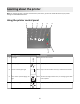
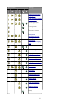
Learning about the printer Note: For network printers or printers connected to a print server, you can also check the status of your printer through the Embedded Web Server. Using the printer control panel 1 2 3 4 5 6 8 7 Light or button Color Description 1 Error light Yellow An error has occurred. 2 Paper jam light Yellow A paper jam has occurred. 3 Load or remove paper light Yellow Paper must be loaded in the tray or removed from the bin.
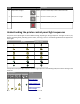
Light or button Color Description 6 Sleep button and light Amber Use this to enable Sleep mode or Hibernate mode. 7 Start button and light Green Use this to initiate a print job. 8 Stop or cancel button Red Use this to cancel a print job. Understanding the printer control panel light sequences The printer control panel lights can mean different things, depending on the light sequence. The lights can be on, off, blinking, or blinking slowly, indicating a printer status, a warning, or an error.
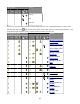
Light sequence Message Replace unsupported imaging unit Toner cartridge, imaging unit mismatch Canceling print job Flushing buffer Resolution reduced Non-printer manufacturer toner cartridge Non-printer manufacturer imaging unit Printer had to restart Toner cartridge very low Imaging unit very low Toner cartridge nearly low Imaging unit nearly low Service error Load paper Remove paper from standard bin Change paper Toner cartridge low Imaging unit low Ready 7
Light sequence Message Waiting Busy Not ready If the printer control panel light sequence matches a light sequence in the “Primary light sequence” column of the twice quickly on the printer control panel. Search for a matching light sequence in the following table, then press “Supplemental light sequence” column, and then see the message in the same row.
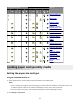
Primary light sequence Supplemental light sequence Message Incorrect paper size Memory full Paper jam, clear standard bin Paper jam, remove standard tray to clear duplex Paper jam, open rear door Paper jam, remove standard tray to clear duplex Paper jam, remove standard tray to clear duplex Paper jam, open front door Paper jam, remove standard tray Paper jam, remove optional tray Paper jam, manual feeder Loading paper and specialty media Setting the paper size and type Using the Embedded Web Server 1 Op
Using the printer settings on the computer Depending on your operating system, access the Paper menu using the Local Printer Settings Utility or Printer Settings. Note: The paper size and type settings will be saved until you reset factory default settings. Configuring Universal paper settings The Universal paper size is a user‑defined setting that lets you print on paper sizes that are not preset in the printer menus. Notes: • The largest supported Universal size is 216 x 355.6 mm (8.5 x 14 inches).
To open the paper stop, pull it so that it flips forward. Note: Close the paper stop when moving the printer to another location. Loading trays CAUTION—POTENTIAL INJURY: To reduce the risk of equipment instability, load each tray separately. Keep all other trays closed until needed. 1 Pull out the tray completely. Note: Do not remove trays while a job prints or while the following light sequence appears on the printer control panel. Doing so may cause a jam.
‑ Blinking LGL EXEC B5 2 Squeeze and then slide the width guide tab to the correct position for the size of the paper you are loading.
3 Squeeze and then slide the length guide tab to the correct position for the size of the paper you are loading. 1 A5 LG L A6 B 5 E X E C 2 A 5 Notes: • For some paper sizes like letter, legal, and A4, squeeze and slide the length guide tab backward to accommodate their length. • If you are loading A6‑size paper in the standard tray, then squeeze and slide the length guide tab toward the center of the tray to the A6‑size position.
4 Flex the sheets back and forth to loosen them, and then fan them. Do not fold or crease the paper. Straighten the edges on a level surface. 5 Load the paper stack. Note: Make sure the paper is below the maximum fill indicator located on the side of the width guide. 1 2 Notes: • Load recycled or preprinted paper with the printable side facedown. • Load prepunched paper with the holes on the top edge toward the front of the tray.
Notes: • If the printer is not connected to a network, then access the Paper menu using Local Printer Settings Utility or Printer Settings, depending on your operating system. • Set the correct paper size and type to avoid paper jams and print quality problems. Loading the multipurpose feeder Use the multipurpose feeder when printing on different paper sizes and types or specialty media, such as card stock, transparencies, and envelopes. You can also use it for single‑page print jobs on letterhead.
b Pull the extender gently so that the multipurpose feeder is fully extended and open. 2 Squeeze the tab on the left width guide, and then move the guides for the paper you are loading. 1 2 3 Prepare the paper or specialty media for loading. • Flex sheets of paper back and forth to loosen them, and then fan them. Do not fold or crease the paper. Straighten the edges on a level surface. • Hold transparencies by the edges. Flex the stack of transparencies back and forth to loosen them, and then fan them.
• Flex the stack of envelopes back and forth to loosen them, and then fan them. Straighten the edges on a level surface. 4 Load the paper or specialty media. Notes: • Do not force paper into the multipurpose feeder. Overfilling may cause paper jams. • Make sure the paper or specialty media is below the maximum paper fill indicator located on the paper guides. • Load paper, transparencies, and card stock with the recommended printable side faceup and the top edge entering the printer first.
• Load letterhead faceup with the top edge entering the printer first. For two‑sided (duplex) printing, load letterhead facedown with the bottom edge of the sheet entering the printer first. • Load envelopes with the flap on the left side facedown. Warning—Potential Damage: Never use envelopes with stamps, clasps, snaps, windows, coated linings, or self‑stick adhesives. These envelopes may severely damage the printer.
Linking and unlinking trays When the paper size and paper type for any trays are the same, the printer will link those trays. When one linked tray becomes empty, paper will feed from the next linked tray. It is recommended to give all unique paper, such as letterhead and different colored plain papers, a different custom type name so that the trays they are in will not automatically link.
Using the printer settings on the computer (Windows only) Access the Custom menu using the Local Printer Settings Utility. Configuring a custom paper type Using the Embedded Web Server 1 Open a Web browser, and then type the printer IP address in the address field. Notes: • Print a network setup page or menu settings page, and then locate the IP address in TCP/IP section. The IP address appears as four sets of numbers separated by periods, such as 123.123.123.123.
Printing Printing documents Printing a document 1 From the Embedded Web Server or your computer, set the paper size and type in the Paper menu to match the paper loaded in the tray. Note: If the printer is not connected to a network, then access the Paper menu using Local Printer Settings Utility or Printer Settings, depending on your operating system. 2 Send the print job. For Windows users a With a document open, click File > Print. b Click Properties, Preferences, Options, or Setup.
• If you are using a proxy server, then temporarily disable it to load the Web page correctly. 2 Click Settings > Print Settings > Quality Menu. 3 Adjust the toner darkness setting. 4 Click Submit. Using the printer settings on the computer Depending on your operating system, adjust the toner darkness settings using the Local Printer Settings Utility or Printer Settings. Canceling a print job Canceling a print job from the computer For Windows users 1 Open the printers folder.
Clearing jams Accessing jam areas Open the doors and pull out the trays to access jam areas. 1 2 6 5 3 4 Access area Description 1 Standard bin 2 Rear door 3 Standard 250‑sheet tray (Tray 1) 4 Optional 250‑ or 550‑sheet tray (Tray 2) 5 Multipurpose feeder door 6 Front door Notes: • When Jam Assist is set to On, the printer automatically flushes blank pages or pages with partial prints to the standard bin after a jammed page has been cleared.
[x]‑page jam, open front door. [20y.xx] ‑ On ‑ On If the printer control panel light sequence matches the light sequence in the preceding illustration, then press twice quickly to see the supplemental light sequence.
If the supplemental light sequence matches the light sequence in the preceding illustration, then do the following. CAUTION—HOT SURFACE: The inside of the printer might be hot. To reduce the risk of injury from a hot component, allow the surface to cool before touching it. 1 Press the button on the right side of the printer, and then open the front door. 1 2 2 Pull out the toner cartridge using the handle. 3 Lift the green handle, and then pull out the imaging unit from the printer.
4 Place the imaging unit aside on a flat, smooth surface. Warning—Potential Damage: Do not expose the imaging unit to direct light for more than 10 minutes. Extended exposure to light can cause print quality problems. 5 Lift the green flap in front of the printer. 6 Firmly grasp the jammed paper on each side, and then gently pull it out. Note: Make sure all paper fragments are removed.
7 Insert the imaging unit by aligning the arrows on the side rails of the unit with the arrows on the side rails inside the printer, and then insert the imaging unit into the printer. 8 Insert the toner cartridge by aligning the side rails of the cartridge with the arrows on the side rails inside the printer, and then insert the cartridge into the printer. 9 Close the front door. 10 From the printer control panel, press to clear the message and continue printing.
[x]‑page jam, open rear door. [20y.xx] ‑ On ‑ On If the printer control panel light sequence matches the light sequence in the preceding illustration, then press twice quickly to see the supplemental light sequence.
If the supplemental light sequence matches the light sequence in the preceding illustration, then do the following. 1 Press the button on the right side of the printer, and then open the front door. 1 2 2 Gently pull down the rear door. CAUTION—HOT SURFACE: The inside of the printer might be hot. To reduce the risk of injury from a hot component, allow the surface to cool before touching it. 3 Firmly grasp the jammed paper on each side, and then gently pull it out.
4 Close the rear and front doors. 5 From the printer control panel, press to clear the message and continue printing. [x]‑page jam, clear standard bin. [20y.
If the printer control panel light sequence matches the light sequence in the preceding illustration, then press twice quickly to see the supplemental light sequence. ‑ On ‑ On ‑ On If the supplemental light sequence matches the light sequence in the preceding illustration, then do the following. 1 Firmly grasp the jammed paper on each side, and then gently pull it out. Note: Make sure all paper fragments are removed. 2 From the printer control panel, press to clear the message and continue printing.
[x]‑page jam, remove tray 1 to clear duplex. [23y.xx] ‑ On ‑ On If the printer control panel light sequence matches the light sequence in the preceding illustration, then press twice quickly to see the supplemental light sequence.
Light sequence ‑ On ‑ Blinking ‑ On ‑ On ‑ On ‑ On If the supplemental light sequence matches any of the light sequences in the preceding illustrations, then do the following. CAUTION—HOT SURFACE: The inside of the printer might be hot. To reduce the risk of injury from a hot component, allow the surface to cool before touching it. 1 Pull out the tray completely.
2 Locate the blue lever, and then pull it down to release the jam. Note: If the jammed paper is not visible in the duplex area, then open the rear door, and then gently remove the jammed paper. Make sure all paper fragments are removed. 3 Firmly grasp the jammed paper on each side, and then gently pull it out. Note: Make sure all paper fragments are removed. 4 Insert the tray. 5 From the printer control panel, press to clear the message and continue printing.
[x]‑page jam, remove tray [x]. [24y.xx] ‑ On ‑ On If the printer control panel light sequence matches the light sequence in the preceding illustration, then press twice quickly to see the supplemental light sequence.
Light sequence ‑ On ‑ On ‑ On ‑ On If the supplemental light sequence matches any of the light sequences in the preceding illustrations, then do the following. 1 Pull out the tray completely. 2 Firmly grasp the jammed paper on each side, and then gently pull it out. Note: Make sure all paper fragments are removed.
3 Insert the tray. 4 From the printer control panel, press to clear the message and continue printing. [x]‑page jam, clear manual feeder. [250.xx] ‑ On ‑ On If the printer control panel light sequence matches the light sequence in the preceding illustration, then press twice quickly to see the supplemental light sequence.
‑ On ‑ On ‑ On ‑ On If the supplemental light sequence matches the light sequence in the preceding illustration, then do the following. 1 From the multipurpose feeder, firmly grasp the jammed paper on each side, and then gently pull it out. Note: Make sure all paper fragments are removed. 2 Flex the sheets of paper back and forth to loosen them, and then fan them. Do not fold or crease the paper. Straighten the edges on a level surface. 3 Reload paper into the multipurpose feeder.
Understanding the printer messages Toner cartridge messages Cartridge, imaging unit mismatch [41.xy] ‑ On ‑ On ‑ Slowly blinking ‑ Slowly blinking If the printer control panel light sequence matches the light sequence in the preceding illustration, then do the following: 1 Check if both the toner cartridge and imaging unit are MICR (Magnetic Ink Character Recognition) or non-MICR supplies. Note: For a list of supported supplies, contact the place where you purchased the printer.
Cartridge low [88.xx] ‑ On ‑ On If the printer control panel light sequence matches the light sequence in the preceding illustration, then you may need to order a toner cartridge. If necessary, press on the printer control panel to continue printing. Cartridge nearly low [88.
‑ On ‑ On If the printer control panel light sequence matches the light sequence in the preceding illustration, then press the printer control panel, if necessary, to continue printing. on Cartridge very low [88.xy] ‑ Blinking ‑ On ‑ On If the printer control panel light sequence matches the light sequence in the preceding illustration, then you may need to replace the toner cartridge very soon. For more information, see the “Replacing supplies” section of the User’s Guide.
Non-Printer Manufacturer cartridge, see User’s Guide [33.xy] ‑ Blinking ‑ Blinking ‑ Blinking ‑ On If the printer control panel light sequence matches the light sequence in the preceding illustration, then the printer has detected an unrecognized supply or part installed in the printer. Your printer is designed to function best with genuine supplies and parts. Use of third-party supplies or parts may affect the performance, reliability, or life of the printer and its imaging components.
Replace cartridge, 0 estimated pages remain [88.xy] ‑ On ‑ On If the printer control panel light sequence matches the light sequence in the preceding illustration, then press twice quickly to see the supplemental light sequence.
If the supplemental light sequence matches the light sequence in the preceding illustration, then replace the toner cartridge. For more information, see the instruction sheet that came with the supply or see the “Replacing supplies” section of the User’s Guide. Note: If you do not have a replacement toner cartridge, then visit our Web site or contact the place where you purchased the printer. Replace cartridge, printer region mismatch [42.
If the printer control panel light sequence matches the light sequence in the preceding illustration, then press twice quickly to see the supplemental light sequence. ‑ On ‑ Blinking ‑ On If the supplemental light sequence matches the light sequence in the preceding illustration, then install a suitable toner cartridge. Reinstall missing or unresponsive cartridge [31.
‑ On ‑ On If the printer control panel light sequence matches the light sequence in the preceding illustration, then press twice quickly to see the supplemental light sequence. ‑ On ‑ On ‑ On If the supplemental light sequence matches the light sequence in the preceding illustration, then try one or more of the following: • Remove the toner cartridge, and then reinstall it. • Remove the toner cartridge, and then install a new one. For more information, see the instruction sheet that came with the supply.
Replace unsupported cartridge [32.xy] ‑ On ‑ On ‑ On ‑ On If the printer control panel light sequence matches the preceding light sequence, then remove the toner cartridge, and then install a supported one. For more information, see the instruction sheet that came with the supply. Note: If you do not have a replacement toner cartridge, then visit our Web site or contact the place where you purchased the printer.
Imaging unit messages Imaging unit low [84.xy] ‑ Blinking ‑ On If the printer control panel light sequence matches the light sequence in the preceding illustration, then you may need to order an imaging unit. If necessary, press on the printer control panel to continue printing. Imaging unit nearly low [84.
‑ Slowly blinking ‑ Blinking ‑ On If the printer control panel light sequence matches the light sequence in the preceding illustration, then press the printer control panel, if necessary, to continue printing. on Imaging unit very low [84.xy] ‑ Blinking ‑ Blinking ‑ On If the printer control panel light sequence matches the light sequence in the preceding illustration, then you may need to replace the imaging unit very soon. For more information, see the “Replacing supplies” section of the User’s Guide.
Non-Printer Manufacturer imaging unit, see User’s Guide [33.xy] ‑ Blinking ‑ Blinking ‑ Blinking ‑ Blinking If the printer control panel light sequence matches the light sequence in the preceding illustration, then the printer has detected an unrecognized supply or part installed in the printer. Your printer is designed to function best with genuine supplies and parts. Use of third-party supplies or parts may affect the performance, reliability, or life of the printer and its imaging components.
Replace imaging unit, 0 estimated pages remain [84.xy] ‑ On ‑ Blinking ‑ On If the printer control panel light sequence matches the light sequence in the preceding illustration, then replace the imaging unit. For more information, see the instruction sheet that came with the supply. Note: If you do not have a replacement imaging unit, then visit our Web site or contact the place where you purchased the printer.
Reinstall missing or unresponsive imaging unit [31.xy] ‑ On ‑ Blinking If the printer control panel light sequence matches the light sequence in the preceding illustration, then press twice quickly to see the supplemental light sequence.
If the supplemental light sequence matches the light sequence in the preceding illustration, then try one or more of the following: • Remove the imaging unit, and then reinstall it. • Remove the imaging unit, and then install a new one. For more information, see the instruction sheet that came with the supply. Replace unsupported imaging unit [32.
Paper loading messages Change [paper source] to [custom type name], load [orientation] ‑ Blinking ‑ On If the printer control panel light sequence matches the light sequence in the preceding illustration, then try one or more of the following: • Load the tray or feeder with the correct size and type of paper, and then press on the printer control panel to continue printing.
Change [paper source] to [custom string] load [orientation] ‑ Blinking ‑ On If the printer control panel light sequence matches the light sequence in the preceding illustration, then try one or more of the following: • Load the tray or feeder with the correct size and type of paper, and then press on the printer control panel to continue printing. • Make sure the correct paper size and type are specified in the Paper menu: – If the printer is on a network, then access the Embedded Web Server.
Change [paper source] to [paper size] load [orientation] ‑ Blinking ‑ On If the printer control panel light sequence matches the light sequence in the preceding illustration, then try one or more of the following: • Load the tray or feeder with the correct size and type of paper, and then press on the printer control panel to continue printing. • Make sure the correct paper size and type are specified in the Paper menu: – If the printer is on a network, then access the Embedded Web Server.
Change [paper source] to [paper type] [paper size] load [orientation] ‑ Blinking ‑ On If the printer control panel light sequence matches the light sequence in the preceding illustration, then try one or more of the following: • Load the tray or feeder with the correct size and type of paper, and then press on the printer control panel to continue printing. • Make sure the correct paper size and type are specified in the Paper menu: – If the printer is on a network, then access the Embedded Web Server.
Incorrect paper size, open [paper source] [34] ‑ On ‑ On If the printer control panel light sequence matches the light sequence in the preceding illustration, then press twice quickly to see the supplemental light sequence.
‑ On If the supplemental light sequence matches the light sequence in the preceding illustration, then try one or more of the following: • Load the correct size of paper. • • • • From the printer control panel, press to clear the light sequence and print using a different tray. Check the length and width guides and make sure the paper is loaded properly in the tray. Make sure the correct paper size and type are specified in Print Properties or the Print dialog settings.
If the printer control panel light sequence matches the light sequence in the preceding illustration, then try one or more of the following: • Load the tray or feeder with the correct size and type of paper. • From the printer control panel, press to continue printing. Note: If the printer finds a tray that has the correct size and type of paper, then it feeds from that tray. If the printer cannot find a tray that has the correct size and type of paper, then it prints from the default paper source.
Load [paper source] with [paper size] [orientation] ‑ On ‑ On If the printer control panel light sequence matches the light sequence in the preceding illustration, then try one or more of the following: • Load the tray or feeder with the correct size of paper. • From the printer control panel, press to continue printing. Note: If the printer finds a tray that has the correct size of paper, then it feeds from that tray.
Load [paper source] with [paper type] [paper size] [orientation] ‑ On ‑ On If the printer control panel light sequence matches the light sequence in the preceding illustration, then try one or more of the following: • Load the tray or feeder with the correct size and type of paper. • From the printer control panel, press to continue printing. Note: If the printer finds a tray that has the correct size and type of paper, then it feeds from that tray.
Load Manual Feeder with [custom type name] [orientation] ‑ On ‑ On If the printer control panel light sequence matches the light sequence in the preceding illustration, then try one or more of the following: • Load the multipurpose feeder with the correct size and type of paper. • From the printer control panel, press to continue printing. Note: If no paper is loaded in the feeder, then the printer manually overrides the request, and then prints from an automatically selected tray.
Load Manual Feeder with [custom type string] [orientation] ‑ On ‑ On If the printer control panel light sequence matches the light sequence in the preceding illustration, then try one or more of the following: • Load the multipurpose feeder with the correct size and type of paper. • From the printer control panel, press to continue printing. Note: If no paper is loaded in the feeder, then the printer manually overrides the request, and then prints from an automatically selected tray.
Load Manual Feeder with [paper size] [orientation] ‑ On ‑ On If the printer control panel light sequence matches the light sequence in the preceding illustration, then try one or more of the following: • Load the feeder with the correct size and type of paper. • From the printer control panel, press to continue printing. Note: If no paper is loaded in the feeder, then the printer manually overrides the request, and then prints from an automatically selected tray. • Press to cancel the print job.
Load Manual Feeder with [paper type] [paper size] [orientation] ‑ On ‑ On If the printer control panel light sequence matches the light sequence in the preceding illustration, then try one or more of the following: • Load the multipurpose feeder with the correct size and type of paper. • From the printer control panel, press to continue printing. Note: If no paper is loaded in the feeder, then the printer manually overrides the request, and then prints from an automatically selected tray.
Remove paper from standard output bin ‑ Blinking If the printer control panel light sequence matches the light sequence in the preceding illustration, then do the following: 1 Remove the paper stack from the standard output bin. 2 From the printer control panel, press to continue printing.
‑ On ‑ On If the printer control panel light sequence matches the light sequence in the preceding illustration, then press twice quickly to see the supplemental light sequence. ‑ On ‑ Blinking ‑ On If the supplemental light sequence matches the light sequence in the preceding illustration, then try one or more of the following: • • • • From the printer control panel, press to continue printing. Unplug the router, then wait for 30 seconds, and then plug the router back again.
Standard parallel port disabled [56] ‑ On ‑ On If the printer control panel light sequence matches the light sequence in the preceding illustration, then press twice quickly to see the supplemental light sequence.
‑ On If the supplemental light sequence matches the light sequence in the preceding illustration, then try one or more of the following: • From the printer control panel, press to continue printing. Note: The printer discards any data received through the parallel port. • Set the Parallel Buffer to Auto. – If the printer is on a network, then access the Embedded Web Server. 1 Open a Web browser, and then type the printer IP address in the address field.
If the printer control panel light sequence matches the light sequence in the preceding illustration, then press twice quickly to see the supplemental light sequence. ‑ On ‑ On ‑ On If the supplemental light sequence matches the light sequence in the preceding illustration, then try one or more of the following: • From the printer control panel, press to continue printing. • Turn off the printer, and then turn it back on. • Update the network firmware in the printer or on the print server.
Standard USB port disabled [56] ‑ On ‑ On If the printer control panel light sequence matches the light sequence in the preceding illustration, then press twice quickly to see the supplemental light sequence.
‑ On If the supplemental light sequence matches the light sequence in the preceding illustration, then try one or more of the following: • From the printer control panel, press to continue printing. Note: The printer discards any data received through the USB port. • Set the USB Buffer to Auto: – If the printer is on a network, then access the Embedded Web Server. 1 Open a Web browser, and then type the printer IP address in the address field.
If the printer control panel light sequence matches the light sequence in the preceding illustration, then press twice quickly to see the supplemental light sequence. ‑ On ‑ On ‑ On If the supplemental light sequence matches the light sequence in the preceding illustration, then try one or more of the following: • From the printer control panel, press to print the portion of the job already stored and begin collating the rest of the print job.
Insufficient memory to support Resource Save feature [35] ‑ On ‑ On If the printer control panel light sequence matches the light sequence in the preceding illustration, then press twice quickly to see the supplemental light sequence.
If the supplemental light sequence matches the light sequence in the preceding illustration, then press printer control panel to clear the light sequence. on the The job will be printed without using Resource Save. Memory full [38] ‑ On ‑ On If the printer control panel light sequence matches the light sequence in the preceding illustration, then press twice quickly to see the supplemental light sequence.
‑ On ‑ On ‑ On ‑ On If the supplemental light sequence matches the light sequence in the preceding illustration, then try one or more of the following: • From the printer control panel, press to continue printing. A data loss will occur. • From the printer control panel, press • Install additional printer memory. • Decrease the resolution setting. to cancel the print job.
Complex page, some data may not have printed [39] ‑ On ‑ On If the printer control panel light sequence matches the light sequence in the preceding illustration, then press twice quickly to see the supplemental light sequence.
If the supplemental light sequence matches the light sequence in the preceding illustration, then try one or more of the following: • From the printer control panel, press to continue printing. A data loss may occur. • From the printer control panel, press to cancel the print job. • Install additional printer memory. • Reduce the number and size of fonts, the number and complexity of images, and the number of pages in the print job.
If the printer control light sequence matches the light sequence in the preceding illustration, then press quickly to see the supplemental light sequence. twice ‑ On ‑ Blinking ‑ On If the supplemental light sequence matches the light sequence in the preceding illustration, then try one or more of the following: • From the printer control panel, press to continue printing. • From the printer control panel, press to cancel the print job.
Printer had to restart. Last job may be incomplete. ‑ Blinking ‑ Blinking ‑ Blinking ‑ On If the printer control panel light sequence matches the light sequence in the preceding illustration, then press the printer control panel to continue printing. For more information, visit our Web site or contact the place where you purchased the printer.
Service error ‑ Blinking ‑ Blinking ‑ Blinking ‑ Blinking ‑ Blinking ‑ Blinking If the printer control panel light sequence matches the light sequence in the preceding illustration, then turn off the printer, and then turn it back on. If the lights are still blinking after 10 seconds, then the printer may need to be serviced. Visit our Web site or contact your system support person.
Too many trays attached [58] ‑ On ‑ On If the printer control panel light sequence matches the light sequence in the preceding illustration, then press twice quickly to see the supplemental light sequence.
‑ On ‑ On If the supplemental light sequence matches the light sequence in the preceding illustration, then do the following: 1 Turn off the printer. 2 Unplug the power cord from the electrical outlet. Note: Optional trays lock together when stacked. Remove stacked trays one at a time from the top to the bottom. 3 Remove the extra tray or trays. 4 Connect the power cord to a properly grounded electrical outlet. 5 Turn the printer back on.