
User`s manual




2
TV MODE
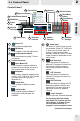
2-1 Control Panel
Control Panel 1
Volume
Controls
Record button
TimeShifting
Button
Software
Settings
Twinview
Controls
Various
functions
Power
off
Video Input
Channel
Controls
8
11
Power off
Click to close the application.
FM Switch
Click to switch to the FM radio mode.
LiveBroadcast Switch
Click to broadcast on-going TV show
via internet.
Various functions:
Open Media File
Click to open an explorer window to
browse for the media file you want to
play. Double-click the file to play.
Snapshot
Click to take a snapshot and save it as
a .bmp, .JPG, .PNG and .TIFF formats
(it usually saves as a .jpg file in
Windows XP).
Switch Skin
Click to switch to different control
panels.
Switch audio
Click to switch between different
languages if multi-lanuages are
available.
Video Input
For some TV cards 3 input sources
are available: Digital TV, CVBS and
S-Video. And for some cards, an
Analog TV input source is also
included. Whether CVBS or S-Video
mode is shown is dependent on the
device used.
POP Twinview
Select this option to display two
different TV programs in picture-on-
picture style. Users can select
various sub-channels in the sub-
screen.
PIP Twinview
Select this option to display two
different TV programs in picture-in-
picture style.
Select this option to display two TV
different programs in picture-and-
picture style.
(Continued next page)
PAP Twinview
Use the scroll bar to
adjust the volumes of adjacent
screens.
Close Twinview
Click to close the Twinview windows.
For the three twinview modes,
only digital TV supports two live
TV programs. In analog TV, you
can only watch one live TV
program, and one playback video.
1
5
5 7
4
6
1
4
6
12
9
10
DirectBurn
button
Channel list
14
FM Switch
2
LiveBroadcast Switch
3
5
2 2
3
Signal Indicator
13
7