
User`s manual





WinFast PVR2 Software Manual
2
Introduction Features
WinFast PVR2 Software Manual
2
2-12 Screen Popup Menu
TV MODE
Screen Popup Menu
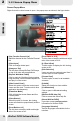
Right-click on the virtual screen to open the popup menu as shown in the figure below.
[Use Favorite Channel List]
Add this channel to the Favorite Channel
list.
[Video Input]
Click to change video input.
[Always on Top]
Tick this item to keep WinFast PVR2 stays
on top of all other active applications.
[Explore WorkArea Folder]
Click to open the WorkArea folder explorer.
Drag-and-drop a saved media/snapshot file
and play it on the screen.
[Hide Control Panel]
Select this option to hide the control panel.
Users can then view TV and work on other
application simultaneously.
[Frameless Mode]
Click to hide the screen frame and the
Control panel.
[Video Stretch]
When this option is chosen, the viewing
screen will maximize proportionally with the
screen.
[Force Ratio to 4:3]
Tick this item to keep the width and height
ratio of the screen at 4:3.
[Force Ratio to 16:9]
Tick this item to keep the width and height
ratio of the screen at 16:9.
[4:3 Pan &Scan]
Tick this option to display the full viewing-
screen at 4:3.
[Skin Selection]
Users can select a preferred panel from 3
various styles of control panels.
[Channel Surf]
Tick this option to scan for all available
channels.
[Subtitle]
Select this function to show subtitle.
[LiveBroadcast]
Click to open LiveBroadcast setting
window.
[WinFast PVR2 Help File]
Click to access the online help file.
[About WinFast PVR2]
It provides current version number
information for WinFast PVR2.
[Language Selection]
Various languages are available for the
interface.
32