
User`s manual





2
TV MODE
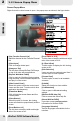
2-10 Schedule
You can use this function by clicking on
the button on the Control Panel (See
page 7). All scheduled events are listed
with their starting time, ending time,
channel name, lapse time and capture
format.
[Add] button
Click this button to open the TV
Schedule Setting dialog box as Fig. 25
and add a new event.
[Edit] button
Select an event and then click this
button to change its settings in the TV
Schedule Setting dialog box.
[Delete] button
Select an event first and then click this
button to remove it.
Schedule
[Starting/Ending Time]
You can preset the starting/ending time of
the recording and initializing live TV by
selecting appropriate time.
[Silent Record]
Tick this option to set a scheduled
recording to proceed silently.
[Comments]
You can type in the program name,
comments, or notes as desired. Information
input here often serves as a reminder.
[After the task is finished]
Tick this option to have your computer
automatically execute your preferred action
after the scheduled event is completed.
You can choose the following options: Log
off, Turn off monitor, Standby or Hibernate.
Note: Under Standby or Hibernate mode, the
computer will automatically awake for
pre-scheduled events.
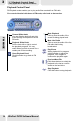
Schedule Setting
The Schedule Setting Dialog box (Fig. 25)
is shown when pressing the Add button in
Fig. 24.
[Device]
The system will automatically search for
the current device.
[Action]
When scheduling an event, select an
action from the options that include: TV
Record, TV Show, CVBS Record, and S-
Video Record.
[Channel]
Select a channel name from the drop-down
list for the event being scheduled.
[Capture Format Profile]
Select a capture format profile
from the drop-down list.
[Audio]
Select either language 1 or language 2 for
the audio option.
[Captured Filename]
Type a
in the box.
[Duration]
The length of the scheduled event.
[Weekly Task]
You can select a specific day for a
scheduled weekly event, such as to record
or view a particular TV program.
for the
recording
desired name for the recorded
program
Fig.24
Fig.25
DIMO
29