
User`s manual



2
2-3 Analog TV
2-3-3-1 Audio Setting
(Only Applicable to Specific Products)
WinFast PVR2 Software Manual
TV MODE
16
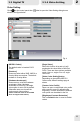
Audio Setting
Click on the control panel, then label to open the Device Setting dialog box as
shown in the figure below.
If you use the external connection (please refer to Fig. 12, connecting the audio cable to
the Line in connector of the motherboard/sound card.) for audio out, please change both
Audio-Out and Recording Control Line to Line In. If you use internal connection, please
connect the cable in Fig. 13 to the Aux-in/CD-in connector on your motherboard, and
change both setting to "Aux-in/CD-in". The Aux-in and CD-in connectors on the
motherboard show as Fig. 14, and you can find the indications on the board in most cases.
Fig. 14
“H” Key for Video Format Switch / “A” Key for BG/DK Audio Switch
1. If some channels have strange colors or become black and white, press "H" on
the keyboard to change the video format (toggle SECAM/PAL).
2. If some channels do not sound correctly or are completely mute, press "A" on
the keyboard to change the sound format. When the format is correct, press "S"
to toggle Stereo/Mono.
When the setup is completed, the setting will be saved in the software.
Fig. 13
AUX-in
AUX-in
Line in Connector (Blue)
Fig. 11
Fig. 12