BVP 8882 SIP VIDEOPHONE USER'S MANUAL
Copyright 2004 Leadtek Research Inc. All rights reserved. No part of this document may be copied or reproduced in any form or by any means without the prior written consent of Leadtek Research Inc. Leadtek makes no warranties with respect to this documentation and disclaims any implied warranties of merchantability, quality, or fitness for any particular purpose. The information in this document is subject to change without notice.
Table of Contents 1 Getting Started .............................................................. 1 Overview ........................................................................... 1 Feature highlights ............................................................. 1 Hardware specifications ................................................... 2 LED Status ..................................................................................... 2 Network connection (modem).....................................
Table of Contents 5 System Setup ............................................................... 16 ADSL/Constant ADSL/Single, Public, & Fixed IP ....... 17 When the IP is used exclusively by BVP 8882 SIP ..................... 17 ADSL/Constant ADSL/Multiple, Public, & Fixed IP .... 18 When BVP 8882 SIP uses one of the IPs (without a DHCP server connected) ........................................... 18 ADSL/Timing ADSL/Single, Public, & Dynamic IP ... 19 When the ADSL is used exclusively by BVP 8882 SIP .
Table of Contents 7 Using OSD Menus ..................................................... 31 Password Checking ...................................................... 31 Configuration ............................................................... 32 System Setup .................................................................. 32 Network Setup ............................................................... 32 Server Setup ....................................................................
1 Getting Started Overview The BVP 8882 SIP is designed to avoid complicated installation. And with the buttons on the keypad, you are able to access the userfriendly on screen display menu (OSD), easily control the functions and make adjustments. The BVP 8882 SIP has a built-in high quality CCD camera and an active matrix liquid crystal display. Images are transmitted through the Internet at up to 24 frames per second (fps) (@ CIF resolution).
Hardware Specifications LED Status VideoPhone BVP 8882 SIP is ON and in standby mode The "En Service" LED is on permanently. Network unavailability If VideoPhone BVP 8882 SIP of end users is not connected to the network, the LED "En Service" (in use) blinks (until the user receives his DHCP address). Video connection indication If the video connection is establish, the Vidéo LED turns on. When the video connection terminates, this Vidéo LED turns off.
Network connections(modem) The system is connected to an external ADSL modem. The characteristics are: · IP : 2 Ethernet ports (RJ-45) of 10/100 Mb/s, one of them with the red line marking indicates that the Ethernet cable connector (in red color) should be plugged into it. Video Input The video input features are: · Internal CCD camera ·Focal length is adjustable to cover 2.
VideoPhone BVP 8882 SIP packaging description The VideoPhone BVP 8882 SIP package includes: - VideoPhone BVP 8882 SIP user manual. - An integrated 5 inch LCD display which can be folded and rotated. - An integrated CCD camera for capturing images. - An integrated microphone for sound capturing and intelligence are also required to allow for Videophony service. - 3 LEDs on the keypad: one yellow "Vidéo" LED which is active(on) when video is transmitted by the terminal (i.e.
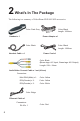
2 What's In The Package The following is a summary of VideoPhone BVP 8882 SIP accessories: Color: Black Length: 1600mm Color: Dark Grey Handset x 1 Power Adapter x1 Color: Black Color: Black Length: 1830mm Handset Cable x 1 Power Cord x1 Color: Black (Brown tags- A/V Input, Green tags- A/V Output) Length: 230+ -10mm Audio/Video Convert Cable x 1 set (4 lines) Connectors: Mini-DIN 8(Male) x 1: Color: Yellow RCA(Female) x 2: Color: Yellow RCA(Female) x 2: Color: White Color: Beige Ethernet
3 Getting to Know Your BVP 8882 SIP Front view CCD Camera: The input source of local video image, a miniature built-in CCD camera. Mic: Microphone can be used instead of handset. LCD Screen: Shows the video images of callers. En Service indicator: The green LED light is on when the VideoPhone is well-connected to the network. Video indicator: It lights in yellow color when the phone is in Video mode. When "Video Privacy" is on, the LED is off.
Front view (cont.'d) Cursor Panel When used with OSD menus; it is used to move the cursor up. During a call, it is used for turning the volume of the speaker phone up. OK: Used with OSD menus; to pop up the OSD menu, to enter the sub menu, or to confirm the selection. OK Used with OSD menus; it is used to move the cursor left or to go back to the previous menu. During a video call, it is used for reducing the incoming video bit rate.
Menu key(Black): The "Menu" key is accessible only during offline state (even if the terminal is not connected - it is possible to enter the configuration menu without having any network connection). The screen displays entries such as phone book management, Inbox/Outbox menu, and adjustments menu. From the "Menu" function: sub-menu such as phone book, adjustments, Inbox/Outbox...etc are displayed.
"Source" key (Orange): The user can change the video source during the call or enter a standby state by pressing this key. In offline state, this off/on external video source function is applicable for one call only (by default, the external video source is off: it is the local video which is sent to the distant party). The user can activate the external video source before launching a call.
The LED on the cover of LCD Panel gives an indication of incoming calls /new messages when the LCD panel is closed and lights in red color: - The LED flashes as at the same time as soon as an incoming call is received - The LED flashes at the same time as "Message" LED as soon as a new message is received by the messaging service - The LED flashes at the same time as incoming calls when incoming calls and new messages are received simultaneously The LED flashes in the following sequences: - Video privacy (V
Front view (cont.'d) Numeric Keypad 1 to 9 keys In numeric field : only numbers are shown. In alphanumeric field: 1: display 1 and blank space. 2: display A, B, C, 2 . Push "#" to switch to lower case letters. 3: display D, E, F, 3. Push "#" to switch to lower case letters. 4: display G, H, I, 4 . Push "#" to switch to lower case letters. 5: display J, K and L then 5. Push "#" to switch to lower case letters.
Rear view Power Switch (Black) A push button style power switch Power Input (Black) A Mini-Din 6(Female) Power input connector Serial Port (Purple) A Mini-Din 7 (Female) serial port connector which can be used as data control Side view LCD Panel Users can easily adjust the viewing angle of the LCD panel.
4 Installation Installing the unit Step 1 Pick a good spot Stability Place your BVP 8882 SIP on top of a counter, desk, or table with the CCD camera opening in front. Lighting condition Make sure the lighting is sufficient and does not shine directly into camera lenses. View of camera Avoid using BVP 8882 SIP in a room with brightly painted walls or flamboyant wallpaper. Soft and evenly painted background provides the best results.
Installing the unit (cont'd) Step 3 Connect the Ethernet cable Plug one end of the Ethernet cable in one port of the jacks marked " " on BVP 8882 SIP. Plug the other end of the Ethernet cable in the RJ-45 jack of the Ethernet device (hub, router, or ATU-R). Connect Ethernet cable to the Ethernet device Step 4 Plug in for power Connect the power cord between the wall outlet and the power adapter. Plug the free end of the power adapter into the power connector (DC IN) on Videophone.
Using external devices (Optional) External Microphone Ethernet connection A/V Output (Green tags) Television A/V Input (Brown tags) CCD Camera OR OR DVD/VCD (for recording) DVD/VCD (for playing) BVP 8882 SIP User's Manual 15
5 System Setup The System Setup section gives instructions on how to set up your BVP 8882 SIP system under some mostly used interconnection types. There is a condition bar on each page (as shown in the figure), indicating what type of connection the setup guide on that page is for. Look for the type of connection you use with your BVP 8882 SIP to find the setup instructions you need.
System Setup (Cont'd) Connection ADSL Type Constant ADSL IP Single, Public, & Fixed When the IP is used exclusively by BVP 8882 SIP Internet BVP 8882 SIP ATU-R BVP 8882 SIP System Setup Configuration Password Phonebook System Setup Network Setup Service Setup Server Setup Bandwidth Setup Terminal Setup Remote Update NTP Setup Connect Type: STATIC IP address: see note Subnet Mask: see note Gateway: see note PPPoE Username( ) PPPoE Password( ) Note : IP address, Subnet Mask and Gateway are
System Setup (Cont'd) Connection ADSL Type Constant ADSL IP Multiple, Public, & Fixed When BVP 8882 SIP uses one of the IPs (without a DHCP server connected) Internet ATU-R Hub BVP 8882 SIP General PC 1, 2, ...
System Setup (Cont'd) Connection ADSL Type Timing ADSL IP Sin gle , Pu blic , & Dyn am ic When the ADSL is used exclusively by BVP 8882 SIP Internet BVP 8882 SIP ATU-R BVP 8882 SIP System Setup Configuration Password Phonebook System Setup Network Setup Service Setup Server Setup Bandwidth Setup Terminal Setup Remote Update NTP Setup Connect Type: PPPoE IP address: see note Subnet Mask: see note Gateway: see note PPPoE Username( ) PPPoE Password( ) Note : IP, Subnet Mask and Gateway are a
System Setup (Cont'd) Connection Cable Type -- IP Single, Public, & Dynamic When the IP is used exclusively by BVP 8882 SIP Internet BVP 8882 SIP Cable modem BVP 8882 SIP System Setup Configuration Password Phonebook System Setup Network Setup Service Setup Server Setup Bandwidth Setup Terminal Setup Remote Update NTP Setup Connect Type: DHCP IP address: see note Subnet Mask: see note Gateway: see note PPPoE Username( ) PPPoE Password( ) Note : IP, Subnet Mask and Gateway are assigned by
System Setup (Cont'd) Connection LAN Type Firewall NAT Packet Filter With a DHCP server connected Internet Router BVP 8882 SIP General PC 1, 2, ...
System Setup (Cont'd) Connection LAN Type Firewall NAT Packet Filter Without a DHCP server connected Internet Router BVP 8882 SIP General PC 1, 2, ...
System Setup (Cont'd) Connection LAN Type Firewall NAT Packet Filter With a DHCP server connected Internet Router BVP 8882 SIP General PC 1, 2, ...n DHCP Server Firewall You can put BVP 8882 SIP into DMZ, or open all ports of BVP 8882 SIP if your router supports this function.
System Setup (Cont'd) Connection LAN Type Firewall NAT Packet Filter Without a DHCP server connected Internet Router BVP 8882 SIP General PC 1, 2, ...n Firewall You can put BVP 8882 SIP into DMZ, or open all ports of BVP 8882 SIP if your router supports this function.
System Setup (Cont'd) Connection LAN Type Firewall NAT Packet Filter With a DHCP server connected Internet Router BVP 8882 SIP General PC 1, 2, ...n DHCP Server Firewall You can put BVP 8882 SIP into DMZ, or open all ports of BVP 8882 SIP if your router supports this function. The DHCP Server must be able to support dynamic-fixed IP allocation.
System Setup (Cont'd) Connection LAN Type Firewall NAT Packet Filter Without a DHCP server connected Internet Router BVP 8882 SIP General PC 1, 2, ...n Firewall You can put BVP 8882 SIP into DMZ, or open all ports of BVP 8882 SIP if your router supports this function.
6 Making a Call Before making a video call Here are a few things you need to consider before making a video call. a distance of 0.5 meters away having lights behind you that 1 Keep 3 Avoid from BVP 8882 SIP. might shine into the camera lens. 0.5 m 2 Make sure of the most appropriate lighting source, preferably from the front with the beam on your face. not point the BVP 8882 SIP at a 4 Do mirror or bright light. having a lot of movement in 5 Avoid the background and try not to move around excessively.
Making a video call Step 1 Turn on the power of the unit. The LCD screen shows the bootup screen. Bootup screen Step 2 Press before entering the specific phone numbers. When a key is pressed, the bootup screen disappears and the input numbers are displayed. Please input phone number Press button before dialling. Step 3 Step 4 Step 5 28 The other party answers the phone, and the video connection is established. You will be able to see the person you are talking to.
Icon explanations When BVP 8882 SIP is powered on, a bootup screen will be displayed, as the figure shown below. There are icons around the screen indicating various statuses of the unit, as explained below. SIP Registration Fail LAN Disconnected SIP Registration OK LAN Connected (Privacy) (Still) (Register) (Network) Privacy On Privacy Off Still On (CFW) MM/DD/YYYY HH:MM (CW) Note: Date and time will not be available until BVP 8882 SIP gets the information from NTP server.
Icon explanations After the connection is established, the Up/Down information is displayed on the upper left corner of the screen, and it will disappear in a few seconds. The antenna icon on the lower right corner indicates the connection status. The sun icon means the Ethernet cable is connected to the unit. If the sun icon disappears, it means the Ethernet cable is not connected.
7 Using OSD Menus Password Checking and : Item selection Configuration Password Phonebook You can enter a combination of up to 64 letters (upper case or lower case) and numbers as the password. Please input password: | System Setup Service Setup Bandwidth Setup Remote Update Note: Only after you enter the correct password can you change the settings in the OSD menu.
Using OSD menus Configuration System Setup Network Setup Connect Type: (note) IP address: 192.168.1.1 Subnet Mask: 255.255.255.0 Gateway: 192.168.1.254 PPPoE Username ( ) PPPoE Password ( ) Connect Type: STATIC: IP address/Subnet Mask/Gateway have to be assigned (Consult your ISP). DHCP: IP address/Subnet Mask/Gateway will be assigned by DHCP server. PPPoE: PPPoE Username/PPPoE Password have to be assigned (Consult your ISP).
Using OSD menus Configuration System Setup Server Setup SIP Server: ********* Port: **** Domain: ********* Re-Reg.(1~24h): 1 DNS: 172.16.0.2 NTP Server: 204.152.184.72 Update Server: 0.0.0.0 SIP Server: SIP Server: Please contact your SIP service provider to get the IP of the SIP server. Port: Please contact your SIP service provider (the default port number is 5060). Domain: Please contact your SIP service provider to get the domain name. Re-Reg.(1~24h): Please contact your SIP service provider.
Using OSD menus Configuration System Setup Terminal Setup CallerID: **** Phone No.: Bjiot3 Login Name ( ) Login Password ( ) Phone No.: Consult your SIP Service Provider for Phone No. Login Name/Login Password: Consult your SIP Service Provider.
Using OSD menus Configuration System Setup NTP Setup Timer Zone: GMT 00:00 Daylight savings: OFF Time Zone: Please set the time zone according to the place you are using the phone. If there is daylight saving in your area, please set Daylight saving to ON.
Using OSD menus Configuration Service Setup Call Service Setup Call Forward: OFF Forward No.( ) Call Waiting: OFF Audio Priority: G.711UA,G.729 Video: ON Call Forward: OFF: Forward No. does not have to be assigned. No Answer: A call will be forwarded after a number of rings (the same as "Num. Of Rings" in Option menu). Please assign Forward No. Busy: When you are in a call and another call comes in, it will be forwarded. Please assign Forward No. Always: Every call will be forwarded.
Using OSD menus Configuration Service Setup Call Service Setup (cont'd) Video: ON: BVP 8882 SIP can be used to make a video call. OFF: BVP 8882 SIP can only be used to make a voice call.
Using OSD menus Configuration Service Setup Auto Answer Setup Auto Answer: OFF Password: Num. Of Rings: 1 Ringer: Low Auto Answer (ON/OFF): ON: BVP 8882 SIP will automatically pick up the phone. If you set Auto Answer to ON but would like to retain security, please set a Password. The other party has to enter the password to establish the connection. The password is limited to a maximum of eight characters. Currently the function is only applicable to Leadtek SIP Phones. Num.
Using OSD menus Configuration Service Setup Advanced Setup QoS Mode( ) Country Tone: Taiwan Auto Provision: OFF Timer(1~24h): 1 QoS Mode: QoS Type (DSCP/TOS/OFF): Please contact your ISP (Internet Service Provider) to determine which QoS to use. Country Tone: Taiwan/HK/China: Please set according to where you are using BVP 8882 SIP.
Using OSD menus Configuration Service Setup Option Video TX/RX Info: ON Language: English Media Detection: ON Video TX/RX Info: ON: In a video call, you can monitor the bandwidth of incoming and outgoing video. Language: English/Traditional Chinese/Simplified Chinese: Choose the language for the OSD Menu. Media Detection (ON/OFF): If you plan to keep BVP 8882 SIP connected for a long period of time, please set to OFF.
Using OSD menus Configuration Bandwidth Setup Bandwidth Setup Video Bandwidth: 1. 40 Kbps 2. 64 Kbps 3. 90 Kbps 4. 128 Kbps 5. 192 Kbps 6. 256 Kbps 7. 384 Kbps 8. 512 Kbps Please set the bandwidth according to the bandwidth your ISP provides. Note: Do not set the bandwidth to higher than what your ISP provides to avoid the instability of video quality.
Using OSD menus Configuration Remote Update Remote Update System Setup Start the Remote Update Bandwidth Setup Yes Remote Update No Network software Update proceeding. Please wait. Note: If BVP 8882 SIP has the same software version as the Update Server, the software will not be updated, and BVP 8882 SIP will return to the standby screen.After the update is completed, BVP 8882 SIP will automatically reboot.
Using OSD menus Password and : Item selection Old Password: Configuration New Password: Password Phonebook New Password Confirm: 9 There will be a number 9 on the bottom left corner of the screen, indicating the current input mode. Press button to cycle through 9 (numbers), A (upper case letters), and a (lower case letters) for your desired input mode. Incorrect Password Invalid and : move cursor : backspace Change Password? Yes No Check inputs Valid New Password Saving.
Using OSD menus Phonebook Add Adding to the phonebook and : Item selection and : Item selection Add Configuration Search Password In Box Phonebook Out Box Speed Dial press **** to clear phonebook and and : Item selection : move cursor Name: : backspace There will be a number 9 on the bottom left corner of the screen, indicating the current input mode. Press button to cycle through 9 (numbers), A (upper case letters),and a (lower case letters) for your desired input mode.
Using OSD menus Phonebook Search Search for a number and : Item selection Add Search In Box Out Box Speed Dial press **** to clear phonebook and : move cursor : backspace Searching by Name: Joe 9 There will be a number 9 on the bottom left corner of the screen, indicating the current input mode. Press button to cycle through 9 (numbers), A (upper case letters), and a (lower case letters) for your desired input mode.
Using OSD menus Phonebook Search Search for a number (cont'd) Dial the searched number and Edit the phonebook record : Item selection and : Item selection Dial Dial Edit Edit Delete Delete Add to Speed Dial Add to Speed Dial Name: 123456 Joe Phone: Dialing ... 123456 9 and and : Item selection : move cursor : backspace Call progressing If you cannot dial out with BVP 8882 SIP, please hang up or press button to return to local view, and try to dial again.
Using OSD menus Phonebook Search Search for a number (cont'd) Delete the phonebook record and : Item selection Add the record to Speed Dial and : Item selection Dial Dial Edit Edit Delete Delete Add to Speed Dial Add to Speed Dial 0. (None) Delete This Record? 1. (None) Yes 2. (None) 3. (None) No 4. (None) and : Item selection Press the item number (0-9) to assign the record to the number.
Using OSD menus Phonebook InBox InBox contains the numbers of the last 30 received calls.
Using OSD menus Phonebook OutBox OutBox contains the numbers of the last 30 dialed calls.
Using OSD menus Copyright Information In local view screen, pressing "0000" will bring out a status screen with some information displayed, including the company name, copyright statement, and software version, including main s/w and LAN s/w. 0000 Copyright (c) 2004 Leadtek Research Inc. All rights reserved.
Using OSD menus Restore Factory Settings In local view screen, pressing "********" (eight asterisks) will bring out a dialog window, asking if you want to restore all settings to factory default (see below). Press to begin the process. Press to cancel. Restore all settings ******** to factory default? Yes No Restoring all settings. Please wait... Settings restored. Restarting. Reboot.
8 OSD Menu Tree Configuration System Setup Network Setup Server Setup Terminal Setup NTP Setup Password Service Setup Call Service Setup Bandwidth Setup Auto Answer Setup Remote Update Advanced Setup Option Phonebook Add Search InBox OutBox Speed Dial 52
9 Trouble Shooting Your BVP 8882 SIP is reliable and easy to use. If you encounter any problem while using this product, please refer to the table below for possible solutions. Power Indicator OFF Plug power adapter in the unit. Plug the power cord in the power outlet in the wall. Turn on the power switch. Video of local view is dark Increase light on the image and reduce back lighting. Video in local view has a red cast No image is displayed on LCD screen Make sure the power indicator is ON.
10 Tech Support In the event of not finding the solution to your problem, please contact your local distributor. You may also contact our technical support staff; E-mail to with the following information: Product name: It will be easier for our staff to answer your question if you know the name of the product.
11 Limited Warranty Leadtek warrants to the original purchaser of this product that it shall be free of defects resulting from workmanship or components for a period of one (1) year from the date of sale. Defects covered by this Limited Warranty shall be corrected either by repair or, at Leadtek's discretion by replacement. In the event of replacement, the replacement unit will be warranted for the remainder of the original one (1) year period or thirty (30) days, whichever is longer.
12 FCC Statement This device complies with Part 15 of the FCC Rules. Operation is subject to the following two conditions: ·This device may not cause harmful interference. ·This device must accept any interference received, including interference that may cause undesired operation. This equipment has been tested and found to comply with the limits for a Class B digital device pursuant to Part 15 of FCC Rules.