
Operation Manual





Printer Settings
3-5
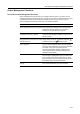
Interface Configuration
This device includes as standard equipment a parallel interface, a USB interface, and a network
interface. An optional serial interface or network interface can be installed as needed.
Emulation and font environments may
be set individually for each of these
interfaces.
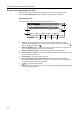
NOTE: Selection of the interface tab does not specify which interface is used for receiving data. The
interface is automatically selected when receiving data.
Parallel Interface Mode Configuration
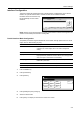
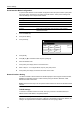
The parallel port interface supports bidirectional communication and high-speed mode. For normal
usage, leave the default setting as [Auto].
NOTE: Use a parallel interface cable compliant with the IEEE1284 specification.
1
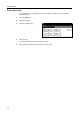
Press the Printer key.
2
Press [Printer Menu].
3
Press [Interface].
4
Press [Parallel] and press [Change #].
5
Select the desired mode.
6
Press [Close]. The display is returned to the Printer menu screen.
Interface
Send & receive mode
Parallel Network
Setting Item Value
Auto
USB
Printer menu
Serial Option
Change #
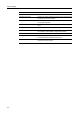
Mode Description
Auto Automatically switches the mode to match the connected
computer. For normal usage, there is no need to change this
setting.
Normal Perform standard communication over the Centronics interface.
High Speed Data can be transferred between this device and the computer in
high speed mode. (Select this mode if data is not correctly printed
when the copier is connected to a workstation)
Nibble (High) Sends and receives data in a high speed mode compliant with
IEEE1284 specification.
Printer menu
Print Sta-
tus Page
Interface
Emulation
Page Set
Print
Paper
RAM DI SK
Mode
Select item.
Font
Color Mode
Handling
Quality
Others