
Operation Manual






Document and Output Management Functions
2-12
Using the Output Management Functions
Manage jobs using the [Prt Status] ([Prnt Status]) screen for output management function.
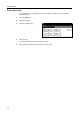
Press the Output Management key. [Prt Status] ([Prnt Status]) screen is displayed.
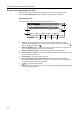
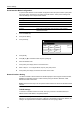
[Prt Status] Screen
Displays information about current printing status and queued jobs.
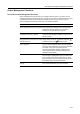
1Job List – Shows job information. The job currently in progress is listed on top, with
subsequent jobs listed below in the order they will be finished. Job items are indicated by ,
print jobs by , and fax jobs by .
2 [Move Ahead] ([Move up]) – Increases the print priority of the selected job. (Copy jobs may
not be moved to a higher priority than print jobs or fax jobs.)
3 [Move Behind] ([Move down]) – Decreases the print priority of the selected job.
4 [Interrupt Print] – Cancels the current print operation and begins printing the selected job. The
job is moved to the top of the list.
5 [Cancel/Delete] – Deletes the selected copy job.
6 [Document Properties] ([Check/Rev. Details]) – Displays the Check/Correct Details
(Check/Revise Details) screen. From this screen, you can check the content of the selected
job, change the print quantity, and other details.
7[S]/[T] – Use to select the desired job.
8[End] – Close the Output Management Function. Pressing this key displays the [Basic] screen
or shows the current progress.
Print Management
End
Printing
Document
Job Input Source Original Set Registration State
Waiting
Prt Status
Properties
Interrupt
Print
MoveMove Ca ncel/
BehindAhead Delete
Copy
Copy
1
2
3 4 5 6
7
8