
Operation Manual



Copy Functions
1-61
Step 5: Leave Back Side of Original C Blank
16
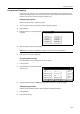
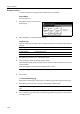
Press [Print from Front page].
The back side of the page will be left
blank and copying will continue from the
next page.
Step 6: Complete the Settings for Original D
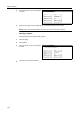
Select Cassette 1 (standard paper) for
paper setting.
17
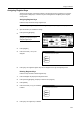
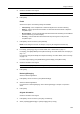
Press [Select Paper].
18
Select Cassette 1 and press [Close].
19
Place the Original D and press the Start key. Scanning of the original begins.
Step 7: Specify Blank Colored Paper for the Back Cover
For paper selection, set MP tray (color
paper).
20
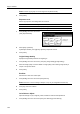
Press [Select Paper].
21
Select the MP tray and press [Close].
22
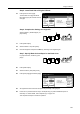
Press [Insert page] ([Insert blank page]).
23
All originals have been scanned. Press [Scanning finished]. Printing begins.
24
If there are no problems with the output, use Repeat Copy to produce additional copies as
necessary. For further details, refer to Repeat Copy on page 1-36.
This completes the steps for the above operation.
r
iginals and press start key.
Set
Cancel
1 sided
Quality
Reduce
Top Edge
Orig. Set
2 sided Copy
Edit
Insert
2 sided copy-Left
Finished page #:
Step
Auto %
Original
Front page
Print from
n
ning finished" key when starting copy.
riginal(s).
1 sided/
Next copy page: Rear
finished
Scanning
Type 2 sided
/Enlarge Direction
-
page
r
iginals and press start key.
Set
Cancel
1 sided
Quality
Reduce
Top Edge
Orig. Set
2 sided Copy
Edit
Insert
2 sided copy-Left
Finished page #:
Step
Auto %
Original
Rear page
Print from
n
ning finished" key when starting copy.
riginal(s).
1 sided/
Next copy page: Front
finished
Scanning
Type 2 sided
/Enlarge Direction
-
page