
Operation Manual





Copy Functions
1-27
3
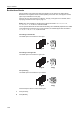
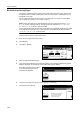
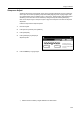
Press [Booklet].
4
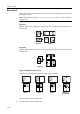
Select binding orientation for Original and Finished.
If the message Cannot copy with these settings. Modify settings according to the original and
finishing is displayed, verify that you are selecting the correct original orientation (shown at the right
of the touch panel) and the correct settings for the original and finished copies.
5
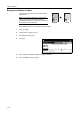
If the optional 3000 sheet document finisher and folding unit are installed, [Saddle stitch] ([Centre
Staple]) is displayed. To set bind&fold, press [Saddle stitch] ([Centre Staple]).
Press [Bind & Fold] and press [Close].
Up to 16 sheets (64 pages) can be
processed with bind&fold.
6
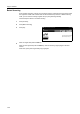
To insert a cover page, press [Stitching Front Cvr] ([Stitching Front cov.]).
Press [On] and press [Close].
7
Place the original and press the Start key.
NOTE: When using the platen, be sure to place the originals in page order.
If the original has been placed on the optional document processor, copying begins automatically.
If the original is placed on the platen, Scan next original(s) is displayed. Place the next original and
press the Start key.
If all original pages have been scanned, press [Scanning finished]. Copying begins.
Paper Size
Back
Select Original I
Off
Booklet
1 sided
Shortcut
Direction.
Top Edge
Original
J
Booklet
Book
Left/Right
2-sided
Top/Bottom
2-sided
Finished Stitching
Off
Off
Stitching
Stitch
Saddle
Booklet
100%
2 sided mode.
Open from
right
Open from
top
Open from
left Front cvr
( )Full-Color
11×
1
BackSaddle Stitch
No cover
Bind &
Paper Size
100%
2 sided mode. ( )Full-Color
Fold
11×
1
Stitching Front Cvr
Off
On
Back
Paper Size
Automatically adds covers in book
binding mode using paper (color
o
thick) fed from a different cassette
Load the paper for covers in th
e
specified cassette.
100%
2 sided mode. ( )Full-Color
11×
1