
Operation Manual




Copy Functions
1-21
4
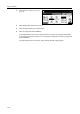
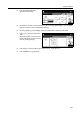
Press [Individual BordrErase]
([Individual Erase Mode]).
5
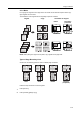
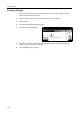
Depending on orientation of the placed original, select [Top Edge] ([Back Edge]) or [Left Top Edge]
([Left top corner]) from Select Original Image Direction.
6
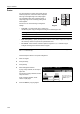
From [Top], [Bottom], [Left] and [Right], select the desired border to adjust the border width.
7
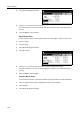
Press [+] or [–] to set the border erase
width.
With metric models, you can enter the
border width directly using the numeric
keys afer pressing [#-Keys].
8
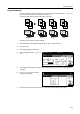
Press [Close]. To specify widths of other borders to erase, repeat steps 6 - 8.
9
Press the Start key. Copying begins.
Paper Size
Back
Select Original I
Off
Shortcut
Direction.
Top Edge
Bottom
Border Erase
Left
Top
Right
Book
Erase
Individual
BordrErase
Sheet
Erase
¼" ¼"
¼" ¼"
100%
Ready to copy. ( )Full-Color
11×
8
Back
Select Original I
Direction.
Top Edge
Individual Border Erase
Paper Size
100%
Top
( 0~2 )
"
Ready to copy.
.
¼
( )Full-Color
11×
8