
Operation Manual





Job Accounting
8-5
10
Specify restrictions on copying as desired.
See Restricting Usage for how to set usage restrictions.
11
Press [Registr.] to finalize settings.
To make settings on another department, press [Register] and repeat steps 4 to 11.
12
Press [Close]. The touch panel will return to the Job Accounting screen.
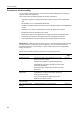
Restricting Usage
Set usage restrictions to restrict copier/printer/scanner functions to specific departments or set page
count limitations.
For Copy/Printer Output Management under Job Accounting default settings, select [All] or [Each] to
change the setting items for usage restriction. For further details, refer to Copy/Printer Output
Management on page 8-19.
When [All] is set under copier/printer output management (factory default)
Manage copier and printer output count together. The items that may be configured are as follows.
• Restricting Copying...8-5
• Restricting Printing...8-6
• Limitation (All)...8-6
• Limitation (Full Color)...8-7
• Restricting Transferring Scanned Image...8-7
• Restricting FAX Usage...8-8
When [Each] is set under copier/printer output management
Manage copier and printer output count individually. The items that may be configured are as
follows.
• Restricting Copy Usage (Overall)...8-8
• Restricting Copy Usage (Full-Color)...8-9
• Restricting Printer Usage (All)...8-9
• Restricting Printer Usage (Full Color)...8-10
• Restricting Transferring Scanned Image...8-7
• Restricting FAX Usage...8-8
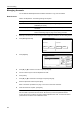
Restricting Copying
Specify whether to allow copying. The setting items are as follows.
NOTE: This item is not shown when Job Account default setting Copy Job Accounting (see
page 8-17) is set to [Off].
1
Refer to steps 1 to 9 of New Account on page 8-4 on page to display the usage restriction screen.
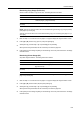
Item Description
Permitted Allows copying.
Is not permitted (Is not
permited)
Prevents copying.