
Operation Manual





System Menu
7-19
Setting Handling for Special Paper Types
When printing on prepunched, preprinted, or letterhead paper, depending on the original placement
method or combination of copier functions, the hole positions may not align or images may be
printed upside-down. Use this setting to change the direction of the finished output. The setting
items are as follows.
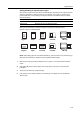
When [Adj. Print Direction] is enabled, load paper according to the following method.
Example: Copying on letterhead paper
NOTE: When loading paper into the cassette and MP tray, place the surface to be printed facing up.
When [Adj. Print Direction] is enabled, the printing speed decreases slightly.
1
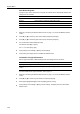
Referring to Accessing the Machine Default Screen on page 7-13, access the Machine Default
screen.
2
Press [S] or [T] to select Special paper action mode (Specif. paper action mode) and press
[Change #].
3
Select [Adj. Print Direction] or [Speed Priority].
4
Press [Close] to save settings or [Back] to cancel settings. The display returns to the Machine
Default screen.
Item Description
Adj. Print Direction Print with aligned finish direction.
Speed Priority Releases the [Adj. Print Direction] setting.
Original
Original
Finished
Finished
Cassette
Cassette
MP tray
MP tray
Paper
Paper