
Operation Manual



System Menu
7-8
1
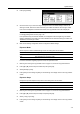
Referring to Accessing the Copy Default screen on page 7-2, access the Copy Default screen.
2
Press [S] or [T] to select Density Adjustment (Auto) and press [Change #].
3
Press [Lighter] or [Darker] to adjust the density.
4
Press [Close] to save settings or [Back] to cancel settings. The display returns to the Copy Default
screen.
Adjusting Manual Exposure
Adjusts the overall lightness or darkness when copying in manual exposure mode. The setting items
are as follows.
1
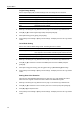
Referring to Accessing the Copy Default screen on page 7-2, access the Copy Default screen.
2
Press [S] or [T] to select Density Adjust. (Manual) and press [Change #].
3
Press [Lighter] or [Darker] to adjust the density.
4
Press [Close] to save settings or [Back] to cancel settings. The display returns to the Copy Default
screen.
Selecting Default Zoom
Set the reduce/enlarge setting in default settings mode. The setting items are as follows.
1
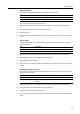
Referring to Accessing the Copy Default screen on page 7-2, access the Copy Default screen.
2
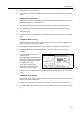
Press [S] or [T] to select Reduce/Enlarge and press [Change #].
3
Select [Auto %] or [100%].
4
Press [Close] to save settings or [Back] to cancel settings. The display returns to the Copy Default
screen.
Item Description
Lighter Lightens the overall density when copying in manual exposure mode.
Darker Darkens the overall density when copying in manual exposure mode.
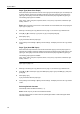
Item Description
Auto % Automatically sets zoom to fit the paper size.
100% Sets zoom to equal (100%).