
Operation Manual



System Menu
7-5
Setting EcoPrint
Set EcoPrint for default settings mode. The setting items are as follows.
For more information on EcoPrint, see page 1-43.
1
Referring to Accessing the Copy Default screen on page 7-2, access the Copy Default screen.
2
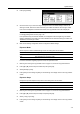
Press [S] or [T] to select EcoPrint and press [Change #].
3
Select [Off] or [On].
4
Press [Close] to save settings or [Back] to cancel settings. The display returns to the Copy Default
screen.
Select Paper
In default settings mode, set the paper selection method for when an original is set. The setting
items are as follows.
1
Referring to Accessing the Copy Default screen on page 7-2, access the Copy Default screen.
2
Press [S] or [T] to select Select Paper and press [Change #].
3
Select [APS] or [Default cassette].
4
Press [Close] to save settings or [Back] to cancel settings. The display returns to the Copy Default
screen.
Setting Auto Paper Selection
Set the paper selection method for Auto Paper Selection mode when changing the zoom ratio. The
setting items are as follows.
1
Referring to Accessing the Copy Default screen on page 7-2, access the Copy Default screen.
2
Press [S] or [T] to select APS Setting and press [Change #].
3
Select [Most Suit Size] or [Same as Orig. Size].
4
Press [Close] to save settings or [Back] to cancel settings. The display returns to the Copy Default
screen.
Item Description
Off Do not enable EcoPrint.
On Enable EcoPrint.
Item Description
APS Selects the cassette loaded with the same size paper as the original.
Default cassette Selects the cassette configured as the default cassette (see page 7-6).
Item Description
Most Suit Size Changes the paper size to match the size after zooming.
Same as Orig. Size Leaves the paper size the same size as the original, even after
zooming.