
Operation Manual





Included Scanner Utilities
6-22
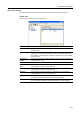
Sender List
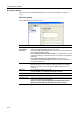
Configure the Sender (User) List for use with network scanner functions ( Send E-mail, Scan to PC).
Skip sender (user)
select
On, Off When using this scanner, a sender
(user) must be first selected. Set to ON
to force the sender (user) to User No.
001 and skip sender (user) selection.
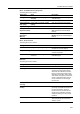
Color setting Full Color, Auto Color, Black/White Set the color mode for default settings
mode.
B&W setting Black&White, Grayscale When scanning in B&W, select
between B&W and grayscale.
Setting Item Value Description
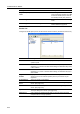
Item Description
Name As the sender, displays the name displayed at the top of the scanner
operation panel.
E When the address associated with the destination list (E-mail) has been
registered, a * is shown in this field. When editing, the destination list (E-mail)
is also modified.
P When the address associated with the destination list (PC) has been
registered, a * is shown in this field. When editing, the destination list (PC) is
also modified.
Registration
Number
Displays the sender data registration numbers. The registration numbers are
shown as a list on the scanner operation panel. Up to 40 items may be
registered.
E-mail Address Shows the sender e-mail address.
New address
Button
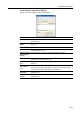
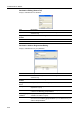
Click this button to create a new sender data. The sender editing dialog box is
shown. (See page 6-23)
Edit Button Click this button to modify sender data. The sender editing dialog box is
shown. (See page 6-23)
Import Button Click this button to import sender data from an Address Editor file or CSV file.
The Import dialog box is shown. (See page 6-29)
Delete Button Click to delete the selected sender data. You can also select and delete
multiple senders in a single operation.