
Operation Manual







Copy Functions
1-4
4
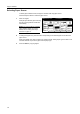
Press [Other stand.Size] ([Others
stand.Size]).
5
Select the original size.
6
Press the Start key. Copying begins.
Input Original Size
Follow the steps as below to enter the original size when not listed in the standard sizes.
1
Place the original.
2
Press [Function].
3
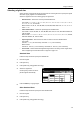
Press [Select Orig. Size] ([Select Size Orig.]).
4
Press [Input size].
5
Press [+] or [–] to set the Y (height) and X (width) sizes.
With the metric models, you may enter the size directly using the numeric keys by pressing
[#-Keys].
6
Press the Start key. Copying begins.
Custom Size
Follow the steps as below to specify one of the custom sizes.
1
Place the original.
2
Press [Function].
3
Press [Select Orig. Size] ([Select Size Orig.]).
4
Select the original size from Custom
Size (Use regist).
Input size A5 B5
B5
A3
Other
B4
A5
B6
B6
Folio
Back
P.Card
Select
A6
Select Original Size
Paper Siz
e
Shortcut
stand.Size
100%
Ready to copy.
size
( )Full-Color
8K
16K
16K
OUFUKU
HAGAKI
11×
1
BackSelect Original Size
Paper Size
Set original on platen an
scanning range. (Y side,
Shortcut
Select
Other
Input size
stand.Size
XY" "
100%
( 2~11
5/8
) ( 2~17)
Ready to copy.
size
.2 .2
( )Full-Color
11×
8
Close
11×8½"
8½×5½"
5½×8½"11×17"
Auto 8½×14"
8½×11"
11×15"
8½×13½"
8½×13"
A4
BackSize
Set
A4
Custom Size
Shortcut
Paper Size
100%
11
11/ 16
×16
9/16
"
to copy. ( )Full-Color
11×8½"
11
11/ 16
×16
9/16
"
11
11/ 16
×16
9/16
"
11
11/ 16
×16
9/16
"