
Operation Manual




Scanner Settings
4-13
Original Density
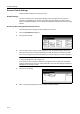
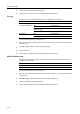
Set the image quality for default settings mode. The setting items are as follows.
For further details on original image quality, see page 4-7.
1
Referring to Accessing the Setting default function Screen on page 4-12, access the Setting default
function screen.
2
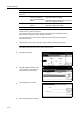
Press [S] or [T] to select Original density and press [Change #].
3
Select [Text+Photo], [Photo], [Text] or [OCR].
4
Press [Close]. The display returns to the Setting default function screen.
Density Adjustment (Auto)
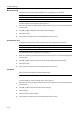
Adjusts the overall dark/light balance when density adjustment is set to [Auto]. The setting items are
as follows.
For further details about density adjust, see page 4-6.
1
Referring to Accessing the Setting default function Screen on page 4-12, access the Setting default
function screen.
2
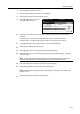
Press [S] or [T] to select Density Adjustment (Auto) and press [Change #].
3
Press [Lighter] or [Darker] to adjust the density.
4
Press [Close]. The display returns to the Setting default function screen.
Density Adjustment. (Manual)
Adjusts the overall dark/light balance when density adjustment is set to [Manual]. The setting items
are as follows.
For further details about density adjust, see page 4-6.
1
Referring to Accessing the Setting default function Screen on page 4-12, access the Setting default
function screen.
2
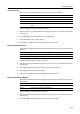
Press [S] or [T] to select Density Adjust. (Manual) and press [Change #].
Item Description
Text+Photo When scanning originals with mixed text and photos.
Photo To reproduce depth of photo originals.
Text To clearly reproduce penciled or fine lines.
OCR For use with OCR applications (software to convert optical characters to text
data).
Item Description
Lighter Lightens the overall density adjustment.
Darker Darkens the overall density adjustment.
Item Description
Lighter Lightens the overall density adjustment.
Darker Darkens the overall density adjustment.