
Operation Manual




Scanner Settings
4-8
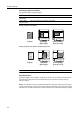
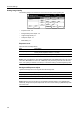
Border Erase
Removes black borders from around the edges of originals.
NOTE: See Border Erase on page 1-19 for how to configure Border Erase.
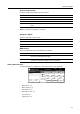
Batch Scanning
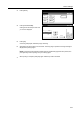
After scanning an original, you can continue scanning a new original. When this feature is enabled,
after an original is scanned, a selection screen prompts whether to continue scanning originals.
NOTE: For TWAIN image scanning, batch scanning is available when Wait for Scan is enabled.
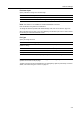
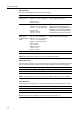
Auto Selection
Scan differently sized originals in one operation when placed in the optional document processor.
NOTE: For Auto Selection operation, see Auto Selection Mode on page 1-46.
Function Value Description
Sheet Erase
(Border Erase)
Inch models
Border: 0 - 2" (1/8" increments)
Metric models
Border: 0 - 50 mm
Use this mode to erase black borders
around single sheet originals.
Book Erase Inch models
Border: 0 - 2" (1/8" increments)
Center: 0 - 2" (1/8" increments)
Metric models
Border: 0 - 50 mm
Center: 0 - 50 mm
Use this mode to erase black borders that
develop around the edges and in the
middle when scanning originals such as
thick books. You can specify the widths
individually to erase the borders around
the edges and in the center of the book.
Individual
BorderErase
(Individual Erase
Mode)
Inch models
Top: 0 - 2" (1/8" increments)
Bottom: 0 - 2" (1/8" increments)
Left: 0 - 2" (1/8" increments)
Right: 0 - 2" (1/8" increments)
Metric models
Top: 0 - 50 mm
Bottom: 0 - 50 mm
Left: 0 - 50 mm
Right: 0 - 50 mm
Use this mode to individually specify
border widths to erase on all sides.
Off Do not erase borders.
Item Description
On Enables batch scanning.
Off Disables batch scanning.
Item Description
On Enables Auto Selection.
Off Disables Auto Selection.