
Operation Manual



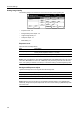

Scanner Settings
4-7
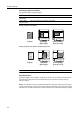
Original Image Quality
Choose the image quality suited to the type of original.
NOTE: For Send E-mail, [Photo] is not available.
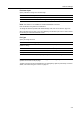
Sharpness Adjust
Adjust the sharpness of image outlines.
B&W Setting
When scanning in B&W, select between B&W and grayscale.
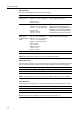
Setting Edit Functions
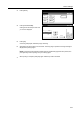
The following settings are available from the scanner function screen’s [Edit] tab.
• Border Erase...4-8
• Batch Scanning...4-8
• Auto Selection...4-8
• One Page Per File...4-9
• Auto Center...4-9
• Original Type...4-9
Item Description
Text+Photo When scanning originals with mixed text and photos.
Photo To reproduce depth of photo originals.
Text To clearly reproduce penciled or fine lines.
OCR For use with OCR applications (software to convert optical characters to text
data).
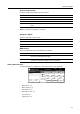
Item Description
Sharpen Sharpens image outlines. Sharpens text or lines.
Unsharpen Softens image outlines. Reduces moire affect.
Item Description
Black&white Each pixel is represented by either a white or black dot. File sizes are smaller
than color or B&W grayscale images.
Gray scale Each pixel is represented by gradations of black and white, but without color
information. Reproduces images smoothly and sharply.
Place the original and select destination.
Send
CancelScan to PC-Sending
Destination
Original
11×8½"
Address
8½×11"
Border
Off
One Page
Basic
Quality Edit
Off
Batch
Scanning
1 sided
Original
Type
Off
Auto
08/08/’05 14:00
Book
Erase Selection
Per File
Ready to scan. ( )Full-Color
Cont. TX toRegister Prgrm
Off
Off
Auto
Center
Save at
User PC
Delete