
Operation Manual




Scanner Settings
4-6
Setting Image Quality
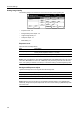
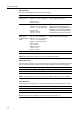
The following settings are available from the scanner function screen’s [Quality] tab.
• Exposure Level...4-6
• Background Exposure Adjust...4-6
• Original Image Quality...4-7
• Sharpness Adjust...4-7
• B&W Setting...4-7
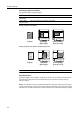
Exposure Level
Adjust the scanned image density.
NOTE: [Auto] is available only when selecting [Black&white] under B&W Setting and color mode is
set to either Black&White or Auto Color. Additionally, when performing a full color scan with Auto
Color, even if [Auto] is selected, scan density is corrected according to the default [Manual] value.
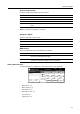
Background Exposure Adjust
Lightens the background of color originals with dark backgrounds.
NOTE: Background exposure adjust is not available when B&W setting is set to [Black&white].
Additionally, background exposure adjust does not function when scanning in [Black&white] under
Auto Color mode.
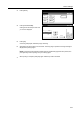
Place the original and select destination.
Send
CancelScan to PC-Sending
Destination
Original
11×8½"
Address
8½×11"
Scanning
Density 4
Sharp
Basic
Quality Edit
Off
Background
exp. adj.
File Type
Text + Photo
Orig.Image
08/08/’05 14:00
Book
Density Quality
-ness
Ready to scan. ( )Full-Color
Cont. TX toRegister Prgrm
Off
Save at
User PC
Delete
B&W
setting
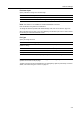
Item Description
Manual (1 - 7) Manually adjust the scanned image density.
Density can be adjusted in either 7 or 13 steps.
Auto The appropriate density is set by detecting the density of the original.
Item Description
On (1 - 5) Adjust the background with presets (1 - 5).
Off Do not adjust the background exposure.