
Operation Manual




Printer Settings
3-43
3
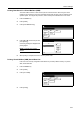
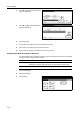
Press [Others].
4
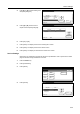
Press [S] or [T] to select Auto Continue
and press [Change #].
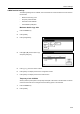
5
Press [On] or [Off].
6
If [On] is pressed, press [+] or [–] to set
the Auto Continue delay time.
7
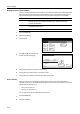
Press [Close]. The display returns to the Others screen.
8
Press [Close]. The display is returned to the Printer menu screen.
Setting Stapling Error Detection
Set whether to show an error message during stapling when the staple supply is exhausted.
1
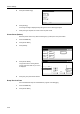
Press the Printer key.
2
Press [Printer Menu].
3
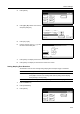
Press [Others].
Page Set
Print
Paper
RAM DI SK
Mode
Close
item.
Font
Color Mode
Handling
Quality
Others
Others
Printer menu
Off
Service
ValueSetti ng Item
Form Feed Time Out
Resour ce Protect
Auto Continue
Finishing Error
Permanent
30.
Change #
Sec.
Auto continue
When error occurs, auto timing for processing can be set.
Off
On
Back
(5)
Seconds
Printer menu Others-
(5)
Mode Description
On Displays an error message.
Press [GO] to clear the error message and continue printing without stapling.
Press [Cancel] to cancel printing.
Off No error message is shown and printing continues without stapling.
Page Set
Print
Paper
RAM DI SK
Mode
Close
item.
Font
Color Mode
Handling
Quality
Others