
Operation Manual



Printer Settings
3-15
Courier/Letter Gothic Font Thickness Setting
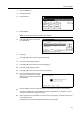
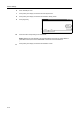
Select the Courier/Letter Gothic font Thickness.
1
Refer to steps 1 - 5 of Font Selection on page 3-13 to display the Select the font screen.
2
Press [Internal] or [Dark] in the Courier
area.
3
Press [Internal] or [Dark] in the Letter Gothic area.
4
Press [Close]. The display returns to the Font screen.
Code Set Selection
When emulation is set to PCL6 and the internal font is selected as the default font, select the
character code set. The available code sets depend on which font is currently selected.
1
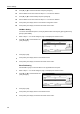
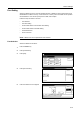
Press the Printer key.
2
Press [Printer Menu].
3
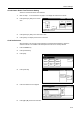
Press [Font].
4
Press [Code Set].
5
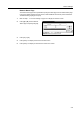
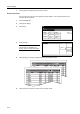
Press the interface to be configured.
6
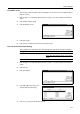
Press [S] or [T] to select the Code Set.
Close
Font ID
Network
Dark
Back
Internal Internal
Dark
Detail
USB
Font-
I000.
Courier Letter Gothic
Printer menu
Print Sta-
tus Page
Interface
Emulation
Page Set
Print
Paper
RAM DI SK
Mode
Select item.
Font
Color Mode
Handling
Quality
Others
Close
A4
Back
Code Set Internal
Option
Code Set Printing list
Code Set
Printer menu Font
Up
Down
Code Set
-
IBM PC-8.
PC-855 Serbia
ISO Cyrillic
Parallel Network USB
PC-863 Canada
PC-861 Iceland
PC-860 Portugal
Back