
Operation Manual



Printer Settings
3-14
6
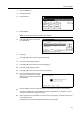
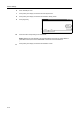
Press [S] or [T] to select the Font ID.
For internal font numbers, refer to Print List of Fonts on page 3-16. The alphabet characters
preceding the font number are shown as below according to the font type.
7
Press [Close]. The display returns to the Select the font screen.
Font Size Setting
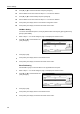
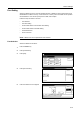
Set the default font size. When the default font is set to Courier or Letter Gothic, the text pitch
setting is shown instead of this menu.
1
Refer to steps 1 - 5 of Font Selection on page 3-13 to display the Select the font screen.
2
Press [Detail].
3
Press [+] or [–] to set the font size.
Set between 4.00 - 999.75 points in 0.25 point increments.
4
Press [Close]. The display returns to the Select the font screen.
5
Press [Close]. The display returns to the Font screen.
Courier/Letter Gothic Font Character Pitch Setting
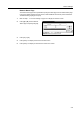
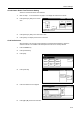
Set the character pitch for Courier or Letter Gothic fonts.
1
Refer to steps 1 - 5 of Font Selection on page 3-13 to display the Select the font screen.
2
Press [Detail].
3
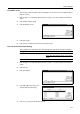
Press [+] or [–] to set the pitch size.
Set between 0.44 - 99.99 pitch in 0.01 pitch increments.
4
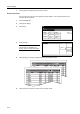
Press [Close]. The display returns to the Select the font screen.
5
Press [Close]. The display returns to the Font screen.
Display Description
I Internal Font
SO Soft font (downloaded)
MO Font stored on memory card
HO Font stored or RAM disk or hard disk
Select the font.
Font ID
UserA
Parallel Network
Dark
Back
Internal
Detail
USB
Printer menu Font-
I000.
Courier
L
Select the font.
Font ID
UserA
Parallel Network
Dark
Back
Internal
Detail
USB
Printer menu Font-
I000.
Courier
L