4581-7773-01 KM-C2030 KM-C3130 OPERATION GUIDE (Advanced Operations) Please read the Operation Guide before using the copier. Keep it close to the copier for easy reference.
Contents Introduction Structure of the Manual This manual is divided into three parts: Administrator Operations, Basic Operations and Advanced Operations. G The Administrator Operations volume of this User Manual contains precautions on the use of this copier. Be sure to read this volume before using the machine. The Basic Operations and Advanced Operations volumes of the User Manual contain information on the many functions available.
Contents Contents The topics listed below are described in the “Advanced Operations” volume. For details on other topics, refer to the “Administrator Operations” volume and the “Basic Operations” volume. Available Features “Color Image Adjust” Function...................................................... 4 “Creation” Functions .................................................................... 18 1 ii Auxiliary Functions 1.1 Improving Color Copy Quality (“Color Image Adjust” Function) ..............
Contents 2 1.5 Adjusting the Image To Fit the Paper Size (“Image Adjust” Function) .........................................................1-30 To make settings for the “Image Adjust” function..........................1-30 1.6 Tiling Copies (“Image Repeat” Function) .................................1-32 To make settings for the “Image Repeat” function ........................1-32 1.7 Inserting Pages Between Copies of Transparencies (“OHP Interleaving” Function) ......................................
Contents Administrator Operations For details on the following topics, refer to the Administrator Operations volume of this User Manual. 1 Introduction 2 Safety Information 3 Precautions 4 Part Names and Their Functions 5 Utility Mode Operations 6 Touch Panel Messages 7 Troubleshooting 8 Appendix Basic Operations For details on the following topics, refer to the Basic Operations volume of this User Manual.
Available Features This chapter contains many useful copy samples that will give you a better understanding of the wide range of applications for the various functions available with this full-color copier. These functions are explained in an easy-to-understand way using the many copy samples. For more details on the operating procedures for these functions, refer to chapter 1 “Auxiliary Functions”.
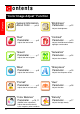
ont ent s “Color Image Adjust” Function Contents General Information About Color . . . . . p.4,5 “Brightness” Parameter . . . . . . p.12 Adjusts the brightness “Red” Parameter . . . . . . . p.6 Adjusts the level of red “Green” Parameter . . . . . . . p.7 Adjusts the level of green “Blue” Parameter . . . . . . . p.8 Adjusts the level of blue “Portrait” Parameter . . . . . . . p.9 Adjusts the tint of fresh color “Color Balance” Parameter . . . p.
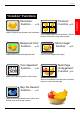
Contents “Monotone” Function . . . . . p.18 “Postcard” Function. . p.22 Copies using only one selected color (monotone) Prints multiple copies of the document, reduced to postcard size, on a single sheet of paper “Background Color” Function . . . . . p.19 Copies with the selected background color “Color Separation” Function . . . . . p.20 “Mirror Image” Function. . . . . p.22 Prints a mirror image of the original “Multi-Page Enlargement” Function. . p.
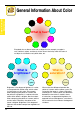
General Information About Color General Information About Color What is hue? Everybody has an idea of what hue an object has, for example, an apple is red, a lemon is yellow, and the sky is blue. Hue is the tint by which the color of an object is classified as red, yellow, blue, etc. What is brightness? Darker Lighter Brightness is the degree of lightness in a color, as compared with another color, which makes it a light color or a dark color.
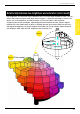
“Color Image Adjust” Function Hue, brightness and saturation are the elements that we call the “three attributes of color”. We can think of their affects using the solid object shown in figure 1, where the outer edge is the hue, the vertical axis is the brightness, and the horizontal axis from the center is the saturation. Assigning colors to the solid object, representing the three attributes of color, shown in figure 1 produces the color model shown in figure 2.
“Red” Parameter p.1-7 “Red” Parameter This parameter can be used to adjust the degree of red in the image to one of seven levels.
“Color Image Adjust” Function “Green” Parameter p.1-7 “Green” Parameter This parameter can be used to adjust the degree of green in the image to one of seven levels.
“Blue” Parameter p.1-8 “Blue” Parameter This parameter can be used to adjust the degree of blue in the image to one of seven levels.
“Color Image Adjust” Function “Portrait” Parameter p.1-10 “Portrait” Parameter This parameter can be used to adjust the tint of flesh color to one of seven levels.
“Color Balance” Parameter (CMYBK color adjustment) “Color Balance” Parameter By mixing the four toner colors (yellow, magenta, and cyan in addition to black) in a full-color copy, the colors of the document can be reproduced. Changing the amount of each color of toner enables the tints in the copy to be finely adjusted. Each color can be adjusted to a level within a range of 0% and 200% (in 1% increments).
“Color Image Adjust” Function “Color Balance” Parameter p.
“Brightness” Parameter “Brightness” Parameter This parameter can be used to finely adjust the brightness of the image to one of 19 levels. Original –3 12 Sample images +3 p.
“Color Image Adjust” Function “Contrast” Parameter p.1-5 “Contrast” Parameter This parameter can be used to finely adjust the image to one of 19 levels between soft/smooth and crisp.
“Saturation” Parameter “Saturation” Parameter This parameter can be used to finely adjust the vividness of the image to one of 19 levels. Original –3 14 Sample images +3 p.
“Color Image Adjust” Function “Sharpness” Parameter p.1-6 “Sharpness” Parameter This parameter can be used to adjust the amount of contours in text and images to one of seven levels.
“Hue” Parameter p.1-10 “Hue” Parameter This parameter can be used to finely adjust the hue of the image to one of 19 levels.
“Color Image Adjust” Function “Density” Parameter p.1-11 “Density” Parameter This parameter can be used to finely adjust the light and shading of the image to one of 19 levels.
“Monotone” Function “Monotone” Function This function allows you to copy a document using only one of the 20 colors available. Yellow Sepia 1 Magenta Sepia 2 Cyan Camel Red Brown Forest Green Green Maroon Orange Plum Pumpkin Yellow Green Purple Blue Pink Teal 18 Aquamarine p.
“Creation” Function “Background Color” Function p.1-15 “Background Color” Function This function allows you to copy a document using one of the 18 colors available as the color of the background (blank areas).
“Color Separation” Function “Color Separation” Function This function allows you to copy a document while separating its colors into yellow, magenta, cyan and black. In addition, copies of the separated colors can also be printed in just black. Original Copies of the separated colors Yellow Magenta Cyan Copies of the separated colors in black 20 Black p.
“Creation” Function “Neg. Pos. Reverse” Function p.1-16 “Neg. Pos. Reverse” Function This function allows you to copy a document with the light-colored areas and the dark-colored areas of the image inversed.
“Postcard” Function p.1-23 “Postcard”“Mirror Image” Function This function allows you to reduce the document to the size of a postcard, and print four copies on one sheet of paper. Original “Mirror Image” Function This function allows you to copy a mirror image of the original document. Original 22 p.
“Creation” Function “Multi-Page Enlargement” Function p.1-17 “Multi-Page Enlargement” Function This function allows you to copy a document automatically split into parts with each part printed enlarged. These copies can then be pasted together to make a large poster.
Auxiliary Functions 1 Auxiliary Functions Chapter 1 1
1.1 Improving Color Copy Quality (“Color Image Adjust” Function) 1 1.1 Improving Color Copy Quality (“Color Image Adjust” Function) By making various color adjustments, you can adjust the quality of color copies as desired. ✎ Tip Samples for the “Color Image Adjust” function can be seen in “Available Features”. The procedure for making practical copies using the “Color Image Adjust” function is described below. Position the document(s) to be copied.
1.1 Improving Color Copy Quality (“Color Image Adjust” Function) 1 Select the parameter that you wish to change. • For details on each parameter, refer to page 1-5 through page 1-11. Touch , , and to select the desired setting, and then touch [Enter].
1.1 Improving Color Copy Quality (“Color Image Adjust” Function) 1 To make test prints You can make test prints of your document to see how it would appear with each of the settings for the current parameter combined with the other currently specified color adjustment settings. 1 Load Letter C-size paper into the 1st drawer. ❍ The paper that is loaded can be 11×17 L, A3 L or A4 C. 2 Display the screen for the desired Color Image Adjust parameter.
1.1 Improving Color Copy Quality (“Color Image Adjust” Function) 1 7 Touch [Enter]. The specified settings are applied, and the Color Adjustments screen appears again. 8 Correctly position the document for normal printing. To adjust the “Brightness” parameter This parameter can be used to make the image either lighter or darker. Chapter 1 1 In the Color Adjustments screen, touch [Brightness]. 2 Touch Auxiliary Functions , , and to select the desired setting, and then touch [Enter].
1.1 Improving Color Copy Quality (“Color Image Adjust” Function) 1 To adjust the “Saturation” parameter This parameter can be used to adjust the vividness of the colors in the image. 1 In the Color Adjustments screen, touch [Saturation]. 2 Touch Auxiliary Functions Chapter 1 , , and to select the desired setting, and then touch [Enter]. To adjust the “Sharpness” parameter This parameter emphasizes the edges of text so that they can be read more easily.
1.1 Improving Color Copy Quality (“Color Image Adjust” Function) 1 To adjust the “Red” parameter This parameter is used to adjust the level of red in the image, for example, if you wish to increase the redness of flowers. 1 In the Color Adjustments screen, touch [Red]. 2 Touch To adjust the “Green” parameter This parameter can be used to adjust the level of green in the image, for example, when you wish to emphasize the green of forests and trees. 1 In the Color Adjustments screen, touch [Green].
1.1 Improving Color Copy Quality (“Color Image Adjust” Function) 1 To adjust the “Blue” parameter This parameter is used to adjust the level of blue in the image, for example, if you wish to add blue to water or the sky. 1 In the Color Adjustments screen, touch [Blue]. 2 Touch Auxiliary Functions Chapter 1 and to select the desired setting, and then touch [Enter].
1.1 Improving Color Copy Quality (“Color Image Adjust” Function) 1 To adjust the “Color Balance” parameter This parameter can be used to adjust the balance in the concentration of cyan (C), magenta (M), yellow (Y) and black (BK). Each color can be adjusted to a level within a range of 0% to 200% (in 1% increments).
1.1 Improving Color Copy Quality (“Color Image Adjust” Function) 1 To adjust the “Portrait” parameter This parameter can be used to adjust the tint of flesh tones. 1 In the Color Adjustments screen, touch [Portrait]. Auxiliary Functions Chapter 1 2 Touch and to select the desired setting, and then touch [Enter]. To adjust the “Hue” parameter The hue is divided into magenta, yellow and cyan. By adjusting the hue, the image can be made either more reddish or more bluish.
1.1 Improving Color Copy Quality (“Color Image Adjust” Function) 1 To adjust the “Density” parameter This parameter can be used to finely adjust the copy density to any of 19 levels between -3 and +3. 1 In the Color Adjustments screen, touch [Density]. 2 Touch Auxiliary Functions Chapter 1 , , and to select the desired setting, and then touch [Enter].
1.2 Editing Images (Creation Functions) 1 1.2 Editing Images (Creation Functions) Using the Creation functions, the image can be simply edited so that a particular copy can be created. ✎ Tip Samples for the Creation functions can be seen in “Available Features”. To set a Creation function Chapter 1 The procedure for making practical copies using a Creation function is described below. Auxiliary Functions Position the document(s) to be copied.
1.2 Editing Images (Creation Functions) 1 Select the function that you wish to set. • For details on each function, refer to page 1-14 through page 1-23. Select the desired setting, and then touch [Enter]. The specified setting is applied. (Example: Setting the “Monotone” function) Chapter 1 In the Creation screen, touch [Enter]. The Auxiliary screen appears again. Auxiliary Functions Specify any other necessary settings. Press the [Start] key.
1.2 Editing Images (Creation Functions) 1 To make settings for the “Monotone” function This function allows you to copy a document using only one of the 20 colors available, regardless of the original document colors. 1 In the Creation screen, touch [Monotone]. 2 Select the desired color, Auxiliary Functions Chapter 1 and then touch [Enter]. ❍ ❍ The colors are listed on two screens. Touch [Monotone 2] in the lower-right corner to display the next screen.
1.2 Editing Images (Creation Functions) 1 To make settings for the “Background Color” function This function allows you to copy a document using one of the 18 colors available as the color of the background (blank areas). 1 In the Creation screen, touch [Background Color]. 2 Select the desired color, and then touch [Enter]. Chapter 1 The colors are listed on two screens. Touch [Background Color 2] in the lowerright corner to display the next screen.
1.2 Editing Images (Creation Functions) 1 To make settings for the “Color Separation” function This function allows you to copy a document while separating its colors into cyan (C), magenta (M), yellow (Y) and black (BK). In addition, copies of the separated colors can be printed in just black. 1 In the Creation screen, touch [Color Separation]. 2 Touch either [Each] or [Black], and Chapter 1 then touch [Enter].
1.2 Editing Images (Creation Functions) 1 To make settings for the “Multi-Page Enlargement” function This function allows you to copy a document automatically split into parts with each part printed enlarged. These copies can then be pasted together to make a large poster. 1 In the Creation screen, touch [Multi-Page Enlargemt.]. 2 Normally, the document size is Auxiliary Functions ❍ Chapter 1 automatically detected; however, the document size can be specified, if you wish.
1.2 Editing Images (Creation Functions) 1 ❍ To specify a document size in metric measurements, touch [Size Input], and then touch [Metric]. Auxiliary Functions Chapter 1 Specify the size of the original, and then touch [Enter] to return to the MultiPage Enlargemt. screen. 3 Specify how the original image will be enlarged according to the following methods. ❍ ❍ ❍ To specify the final image size ☞ Continue with step 4. To specify an enlargement ratio ☞ Skip to step 6.
1.2 Editing Images (Creation Functions) ❍ 1 For a paper size other than the standard sizes listed on the screen, touch [Custom Size], touch , , , and to specify the size of the final image, and then touch [Enter]. Chapter 1 This concludes the setting procedure for the “Multi-Page Enlargement” function. Auxiliary Functions 6 Touch [Zoom Ratio]. 7 Using the keypad, enter the desired zoom ratio, and then touch [Enter]. This concludes the setting procedure for the “Multi-Page Enlargement” function.
1.2 Editing Images (Creation Functions) 1 Auxiliary Functions Chapter 1 8 Touch [Paper Size]. 9 Select the paper size for the various parts of the enlarged image, and then touch [Enter]. ❍ For paper sizes in metric measurements, touch [Metric], select the desired paper size, and then touch [Enter]. ✎ Tip To cancel the “Multi-Page Enlargement” function, touch [Cancel] in the Multi-Page Enlargemt. screen.
1.2 Editing Images (Creation Functions) 1 To make settings for the “Mirror Image” function This function allows you to copy a mirror image of the original document. 1 In the Creation screen, touch [Mirror Image]. 2 Normally, the document size is Auxiliary Functions Chapter 1 automatically detected. However, if you wish to specify the document size, touch [Size Input]. 3 Select the document size, and then touch [Enter].
1.2 Editing Images (Creation Functions) 1 For document sizes in metric measurements, touch [Metric], select the desired paper size, and then touch [Enter]. 4 In the Mirror Image screen, touch [Enter]. ✎ Tip To cancel the “Mirror Image” function, touch [Cancel] in the Mirror Image screen.
1.2 Editing Images (Creation Functions) 1 To make settings for the “Postcard” function The document can be reduced to the size of a postcard, and up to four copies can be printed on one sheet of Letter-size postcard paper. Document sizes that can be selected Preset sizes Photo sizes Custom sizes 11×17 L, 11×14L, Legal L, Letter C, Letter L, 5-1/2×8-1/2 C, 5-1/2×8-1/2 L, Executive C, Executive L 3×5 L, 3×5 C, 4×6 L, 4×6 C, 2-1/4×3-1/4 C, 2-1/4×3-1/4L X: 2 to 17 in. Y: 2 to 11-11/16 in.
1.2 Editing Images (Creation Functions) 1 ❍ Auxiliary Functions Chapter 1 ❍ To specify a photo size or a nonstandard size, touch [Size Input], and then touch [Photo Size or Custom Size]. Select a photo size, or touch , , , and to specify the size of the original, and then touch [Enter]. For document sizes in metric measurements, touch [Metric]. Select the desired paper size, and then touch [Enter]. 4 In the Postcard screen, touch [Enter].
1.3 Making Copies for Filing (“File Margin” Function) 1.3 1 Making Copies for Filing (“File Margin” Function) So that copies can easily be stored in filing binders, copies can be made with a file margin. Two positions for the binding margin are available. Select the binding margin position suitable for the document. Description Original Copy Copies are printed with the contents of the document slightly shifted to the right in order to create a binding margin at the left.
1.3 Making Copies for Filing (“File Margin” Function) 1 5 Select the desired setting, and then touch [Enter]. Auxiliary Functions Chapter 1 ❍ If the document is not positioned as indicated in the screen, touch [OrigÖCopy], and then touch [Original Direction]. Specify the orientation of the original, and then touch [Enter] to return to the Basic screen. 6 Specify any other necessary settings. 7 Press the [Start] key.
1.4 Erasing Sections of Copies (“Edge/Frame Erase” Function) 1.4 1 Erasing Sections of Copies (“Edge/Frame Erase” Function) Frames can be erased around copies that you make. Three locations for erasing the edge/frame of the document are available. Select the erasing location suitable for the document. Description Original Copy Copies are printed with the left side of the document erased. Original Copy Copies are printed with the top of the document erased.
1.4 Erasing Sections of Copies (“Edge/Frame Erase” Function) 1 4 Touch [Edge/Frame Erase]. 5 Select the desired location to be erased. 6 Touch and to specify the width that is to be erased. Chapter 1 ✎ Auxiliary Functions Note The specified width of the area to be erased is the width before copying. Therefore, be careful when selecting this setting while making enlarged or reduced copies.
1.4 Erasing Sections of Copies (“Edge/Frame Erase” Function) Select a photo size, or touch , , , and to specify the size of the original, and then touch [Enter]. For document sizes in metric measurements, touch [Metric]. Chapter 1 ❍ To specify a photo size or a nonstandard size, touch [Size Input], and then touch [Photo Size or Custom Size]. Auxiliary Functions ❍ 1 Select the desired paper size, and then touch [Enter]. 8 In the Edge/Frame Erase screen, touch [Enter].
1.5 Adjusting the Image To Fit the Paper Size (“Image Adjust” Function) 1 1.5 Adjusting the Image To Fit the Paper Size (“Image Adjust” Function) To make settings for the “Image Adjust” function 1 Position the document(s) to be copied. ❍ For more details, refer to “Feeding the Document” of chapter 4 “Original Documents” in the Basic Operations volume. 2 Select the desired Color setting.
1.5 Adjusting the Image To Fit the Paper Size (“Image Adjust” Function) 1 6 Normally, the document size is automatically detected. However, if you wish to specify the document size, touch [Size Input]. Select the document size, and then touch [Enter]. ❍ Chapter 1 To specify a photo size or a nonstandard size, touch [Size Input], and then touch [Photo Size or Custom Size]. Select a photo size, or touch , , , and to specify the size of the original, and then touch [Enter].
1.6 Tiling Copies (“Image Repeat” Function) 1 1.6 Tiling Copies (“Image Repeat” Function) Multiple copies of the original can be printed at the desired zoom ratio to fill the page. The zoom ratio is specified in the Basic screen. In addition, the number of times that the copy is repeated is calculated based on the Zoom and Paper settings specified in the Basic screen and the original size and repeating arrangement specified in the Image Repeat screen.
1.6 Tiling Copies (“Image Repeat” Function) 1 7 Normally, the document size is automatically detected. However, if you wish to specify the document size, touch [Size Input]. Select the document size, and then touch [Enter]. ❍ Chapter 1 To specify a photo size or a nonstandard size, touch [Size Input], and then touch [Photo Size or Custom Size]. Select a photo size, or touch , , , and to specify the size of the original, and then touch [Enter]. For document sizes in metric measurements, touch [Metric].
1.7 Inserting Pages Between Copies of Transparencies (“OHP Interleaving” Function) 1 1.7 Inserting Pages Between Copies of Transparencies (“OHP Interleaving” Function) After each overhead transparency is copied, a page from a different paper source can be added to the stack of transparencies as an overleaf. In order to use this function, the overhead transparencies should be loaded into the multipurpose paper drawer (1st drawer).
1.7 Inserting Pages Between Copies of Transparencies (“OHP Interleaving” Function) 1 6 Specify any other necessary settings. 7 Press the [Start] key. ✎ Auxiliary Functions Chapter 1 Tip To cancel the “OHP Interleaving” function, touch [Cancel] in the OHP Interleaving screen.
1.8 Storing the Scanned Image in the Memory (“Scan to Memory” Function) 1 1.8 Storing the Scanned Image in the Memory (“Scan to Memory” Function) This function allows the scanned image to be stored in the memory and printed only after it is deleted from the memory. This is useful, for example, when you wish to combine the job with another to print multiple jobs as one. To set the “Scan to Memory” function 1 Position the document(s) to be copied.
1.8 Storing the Scanned Image in the Memory (“Scan to Memory” Function) 1 3 Select the job that you wish to combine other jobs with. 4 Select the other job that you wish to combine with the first job selected. ❍ ❍ To combine more than two jobs, repeat the above step until all jobs that you wish to combine are selected. Up to five jobs can be selected. 5 Touch [OK]. The selected jobs are combined into one.
1.9 Scanning the Document in Separate Batches (“Separate Scan” Function) 1 1.9 Scanning the Document in Separate Batches (“Separate Scan” Function) A document can be divided and scanned in a number of batches, then be combined and treated as a single copy job. The maximum number of document pages that can be loaded into the duplexing document feeder is 100. However, by copying using the “Separate Scan” function, a document exceeding 100 pages can be scanned and treated as a single copy job.
1.9 Scanning the Document in Separate Batches (“Separate Scan” Function) 1 7 After all pages of the document Auxiliary Functions Chapter 1 have been scanned, touch [Finish], and then press the [Start] key.
1.10 Printing Control Numbers on Copies (“Distribution” Function) 1 1.10 Printing Control Numbers on Copies (“Distribution” Function) Each copy set can be printed with a control number in the background. Chapter 1 Original Copy ✎ Note The “Distribution” function is only available if the optional hard disk and extended memory are installed. Auxiliary Functions To make settings for the “Distribution” function 1 Position the document(s) to be copied.
1.10 Printing Control Numbers on Copies (“Distribution” Function) 1 6 Select either [First Page Only] or [All Pages]. ❍ ❍ If [First Page Only] is selected, the control number is only printed on the first page of each copy set. If [All Pages] is selected, the control number is only printed on all pages of each copy set. 7 Select the desired color for the control number. 8 Touch [Enter]. ❍ If the first control number is not set, the control numbers start from 001.
Auxiliary Functions Chapter 1 1 1-42 1.
Scanning Operations 2 Scanning Operations Chapter 2 2
2.1 Available Scanning Features 2 2.1 Available Scanning Features If the optional printer controller is installed and a network is connected, data scanned with this copier can be attached to electronic mail (e-mail) and sent to a computer or Internet fax terminal through an intranet or the Internet. In addition, scanned data can also be uploaded to an FTP server.
2.1 Available Scanning Features 2 Operation Description For more details on functions and operating procedures, refer to the manual for the printer controller. 1 Press the [Scan] key. The Destination screen appears. ✎ Note If the printer controller is not installed, the Destination screen does not appear when the [Scan] key is pressed, and the copier does not enter Scan mode. 2 Specify the appropriate settings.
Scanning Operations Chapter 2 2 2-4 2.
KYOCERA MITA AMERICA, INC. Headquarters: 225 Sand Road, P.O. Box 40008 Fairfield, New Jersey 07004-0008 TEL : (973) 808-8444 FAX : (973) 882-6000 Western Region: 14101 Alton Parkway, Irvine, California 92618-7006 TEL : (949) 457-9000 FAX : (949) 457-9119 New York Show Room: 1410 Broadway 23rd floor New York, NY 10018 TEL : (917) 286-5400 FAX : (917) 286-5402 Southeastem Region: 1500 Oakbrook Drive, Norcross, Georgia 30093 TEL : (770) 729-9786 FAX : (770) 729-9873 Northeastern Region: 225 Sand Road, P.O.