
User Manual






1.3.1 Record, Playback and TimeShifting
A. Record Function
TV programs can be recorded live when clicking the record button on main panel or choose
"Capture" on pop-up menu.
During capture mode, click the stop button on control panel to stop recording or choose "Stop" on
pop-up menu. Recorded files can be reviewed from the playback list after recording.
B. Media Player Control
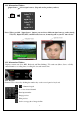
Video files can be reviewed by clicking the play button on the main panel. The playback windows
will pop up and show all captured files that have been recorded previously and recently played files. More
than one video files can be selected to playback. TVR then shows the selected files in the play list.
:Rewind
:Pause
:Fast forward
:Stop
:Snapshot
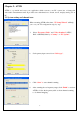
There is another way to play video file. Please click the “Open Media File” button of Basic Tool.
z Add: Add selected item to play list. Double click the
selected item to add to play list.
z Delete: Delete selected item.
z Delete All: Delete all items.
z Rename: Rename selected item.
z Import: Import file(s) to play list.
z Clear: Clear all items on play list.
C. Time Shifting Function
During live mode, choose “Time shifting” function by clicking on main panel or choose "Time
Shifting" on pop-up menu. When in time-shifting mode, you need to wait for a few seconds before starting
playing. While in “Time Shifting” mode, current video and time-shifting video window can be switched by
clicking "Real Screen" button on pop-up menu.
7