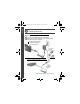
urg_01090.book Page 1 Tuesday, March 2, 2010 11:11 AM ENGLISH Loading the rechargeable battery KODAK Li-Ion Rechargeable Digital Camera Battery, KLIC-7000 Notch Charge the battery see page 2 Purchase extra batteries for your trip or event www.kodak.com/go/sliceaccessories See the Extended user guide www.kodak.com/go/slicesupport www.kodak.
urg_01090.book Page 2 Tuesday, March 2, 2010 11:11 AM ENGLISH Charging the battery If your package includes an adapter: 1 Turn OFF the camera. the KODAK Camera USB Cable, 2 Connect Micro B / 5-Pin and charger. (Use only the cable included with this camera!) Battery Charging light: • Blinking: charging • Steady: finished Your adapter may differ. If your package includes a charger: Your adapter may differ. 2 www.kodak.
Storing pictures on a microSD/SDHC Card You must purchase a microSD or microSDHC Card to store more pictures and videos. CAUTION: Inserting or removing a card when the camera is on may damage the pictures, card, or camera. 1 Turn off the camera. 2 Insert or remove the card. 3 Turn on the camera. NOTE: Avoid touching the card’s metal contacts. To clean the contacts, use a dry cotton swab or a lint-free cloth. Notch Turning on the camera www.kodak.com/go/slicesupport 3 ENGLISH urg_01090.
urg_01090.book Page 4 Tuesday, March 2, 2010 11:11 AM ENGLISH Setting the language, date/time 1 Drag or swipe to scroll. 2 Tap your language. 3 Tap X to accept. 1 Tap Set Date/Time. to change date 2 format, date, and time. (Tap/hold to scroll quickly.) 3 Tap X to accept. To learn more about using the touchscreen, see page 13. 4 www.kodak.
urg_01090.book Page 5 Tuesday, March 2, 2010 11:11 AM ENGLISH Taking a picture When you turn on the camera, it’s ready to take pictures in Smart Capture mode . 1 Press the Shutter button halfway to lock the focus. the framing marks turn green, 2 When press the Shutter button completely down.
urg_01090.book Page 6 Tuesday, March 2, 2010 11:11 AM ENGLISH Using picture-taking shortcuts If shortcuts are hidden, tap the top of the LCD to show them. Self timer/Burst Exposure Compensation Focus mode Flash mode Menu Tag Capture mode Hide shortcuts Battery level IMPORTANT: Know when your battery needs charging. The battery level icon works like the gas gauge in your car but appears only when the battery requires your attention. Charge the battery whenever necessary.
urg_01090.book Page 7 Tuesday, March 2, 2010 11:11 AM ENGLISH Reviewing pictures 1 previous/ 2 For next picture... tap the left/right side of the LCD or swipe If the microSD Card icon is displayed, the newest picture/video from the card appears. (If the SLICE Album icon is displayed, tap it, then tap the microSD Card icon.) www.kodak.
urg_01090.book Page 8 Tuesday, March 2, 2010 11:11 AM ENGLISH Using the review shortcuts If shortcuts are hidden, tap the top of the LCD to show them. Share Select Delete Tag Edit Menu Card or SLICE Album Hide shortcuts Battery level Thumbnail Bar See the Extended user guide 8 www.kodak.com/go/slicesupport www.kodak.
urg_01090.book Page 9 Tuesday, March 2, 2010 11:11 AM ENGLISH Transferring pictures to your computer Download KODAK Software—so it’s easy to transfer and share pictures and videos. Make sure the computer is connected to the Internet. When you connect the camera to the computer, the KODAK Software Downloader automatically runs. Follow the prompts to download and install KODAK Software.* 1 Turn off the camera. 2 Use the KODAK Camera USB Cable, Micro B / 5-Pin to connect camera to computer.
urg_01090.book Page 10 Tuesday, March 2, 2010 11:11 AM ENGLISH Using on-camera Help 1 Tap the Menu 2 On a main menu, Tap/hold a menu item. icon is available, tap it.) (Or, when an 3 Drag or swipe to scroll through a Help topic. icon. Sharing via social networking sites IMPORTANT: To use the social networking features, you need to download KODAK Software. 1 Press the Review button 2 Tap the Share 3 Tap one or more social networking sites so a check mark appears.
ENGLISH urg_01090.book Page 11 Tuesday, March 2, 2010 11:11 AM Keep learning about your camera! Keep learning! Finish reading this book, so you can take and share your best pictures! Go to www.kodak.com/go/slicesupport for: • the Extended user guide • Step-by-Step Solutions & Repair • interactive tutorials • FAQs • downloads • accessories • printing information • product registration Front view Power Shutter Zoom Review Flash Video Recording/ AF Assist light Lens Microphone www.kodak.
urg_01090.book Page 12 Tuesday, March 2, 2010 11:11 AM ENGLISH Back view LCD touchscreen Strap post USB port Battery compartment 12 microSD, microSDHC Card slot www.kodak.
ENGLISH urg_01090.book Page 13 Tuesday, March 2, 2010 11:11 AM Using the touchscreen Tap Swipe Drag www.kodak.
urg_01090.book Page 14 Tuesday, March 2, 2010 11:11 AM 1 Taking pictures/videos Taking a video 1 Tap the Capture icon. 2 Tap the Video icon 3 Press the Shutter button completely down and release. (To stop recording, press and release again.) . Reviewing the picture/video just taken After you take a picture/video, the LCD displays a quickview for several seconds. (To dismiss the quickview sooner, press the Shutter button halfway or touch the screen.
urg_01090.book Page 15 Tuesday, March 2, 2010 11:11 AM Taking pictures/videos Capture modes Tap the Capture icon, then tap the mode that suits your subjects and surroundings. Capture mode Smart Capture Program (P) Video Scene For General picture taking—it offers excellent image quality and ease of use. More creative control. (See the Extended user guide at www.kodak.com/go/manuals.) Video with sound. (See page 14.) Point-and-shoot simplicity when taking pictures under special conditions. (See page 16).
urg_01090.book Page 16 Tuesday, March 2, 2010 11:11 AM Taking pictures/videos Scene modes Scene modes are preset for a variety of unique situations. 1 Tap the Capture icon (see page 15), then tap Scene . 2 Tap a Scene mode to read its description. NOTE: If the description turns off before you finish reading it, tap it again.
urg_01090.book Page 17 Tuesday, March 2, 2010 11:11 AM Taking pictures/videos Using the flash Use the flash when you take pictures at night, indoors, or outdoors in heavy shadows. Flash settings are limited in some capture modes. 1 Tap the Flash icon to view flash modes. 2 Tap the desired Flash mode. Flash modes Flash fires Auto When the lighting conditions require it. Fill Every time you take a picture. NOTE: Not available in Smart Capture mode.
urg_01090.book Page 18 Tuesday, March 2, 2010 11:11 AM 2 Using your SLICE Album Your camera stores a copy of every picture you take, so your collection—your SLICE Album—is always complete and portable! When you take pictures, your camera saves: ■ full-size pictures on your card, and ■ smaller copies in the SLICE Album To view your SLICE Album, press and hold the Review button—even if the camera is off—or tap the card or SLICE Album icon, then tap SLICE Album.
urg_01090.book Page 19 Tuesday, March 2, 2010 11:11 AM Using your SLICE Album Tagging pictures so they are easy to find Tag pictures to make them easy to find, later. You can tag people, locations, or keywords. For example, the camera can find pictures that contain “Mary” or “Boston” or “Dad’s 60th.” Assigning people tags to pictures 1 Press the Review button. Tap the left/right side of the screen (or swipe) to find a picture that contains faces. 2 Tap the Tag icon, tap Tag People, then tap Apply Tags.
urg_01090.book Page 20 Tuesday, March 2, 2010 11:11 AM Using your SLICE Album Assigning keyword tags to pictures 1 Press the Review button, then find a picture to tag. 2 Tap the Tag icon, then tap Keyword Tag. 3 Tap an existing keyword or tap Add New. Using the Search feature to find pictures Tag pictures to make them easy to find, later. (See page 19.) All By faces By date 1 Press the Review button. 2 Tap the microSD Card or SLICE Album icon.
urg_01090.book Page 21 Tuesday, March 2, 2010 11:11 AM Using your SLICE Album More details about the SLICE Album ■ When you transfer pictures to your computer, only the full-size versions are transferred. ■ If you delete a picture during a quickview, that picture is not created in the SLICE Album. ■ If you delete a picture from a card or internal memory, that picture is not deleted from the SLICE Album.
urg_01090.book Page 22 Tuesday, March 2, 2010 11:11 AM 3 Getting help For product support, go to www.kodak.com/go/slicesupport and choose Step-by-Step Solutions & Repair. If the camera does not turn on/off: If battery power is extremely low, the camera may turn off. In most cases, this is normal and can be corrected by recharging the battery. In the U.S. and other countries where the Step-by-Step Solutions & Repair tool is available: ■ Recharge the battery or install a new one. See page 1.
urg_01090.book Page 23 Tuesday, March 2, 2010 11:11 AM 4 Appendix Upgrading your software and firmware Download the latest versions of KODAK Software and the camera firmware (the software that runs on the camera). See www.kodak.com/go/slicedownloads. FCC compliance and advisory This equipment has been tested and found to comply with the limits for a Class B digital device, pursuant to Part 15 of the FCC Rules.
urg_01090.book Page 24 Tuesday, March 2, 2010 11:11 AM Appendix VCCI Class B ITE Eastman Kodak Company | Rochester, NY 14650 | Kodak, 2010 All screen images are simulated. Kodak and Slice are trademarks of Eastman Kodak Company. Navteq is a trademark in the U.S. and other countries. microSD and microSDHC are trademarks of the SD Card Association. P/N 4H5258_en 24 www.kodak.