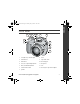
ENGLISH urg_00741.book Page 1 Monday, July 23, 2007 10:27 AM Installing the software Before connecting any cables, install the software that was included with your camera. Follow the on-screen instructions. After installing the software, return to this Getting Started Guide. Attaching the lens cap and strap www.kodak.
urg_00741.book Page 2 Monday, July 23, 2007 10:27 AM ENGLISH Loading the battery Kodak lithium digital camera battery CRV3 (non-rechargeable) 2 Kodak Ni-MH rechargeable digital camera battery (KAA2HR) AA batteries (rechargeable or non-rechargeable) www.kodak.
ENGLISH urg_00741.book Page 3 Monday, July 23, 2007 10:27 AM Turning on the camera Setting the language and date/time 1 Language: to change. 2 OK 1 Date/Time: At the prompt, press OK. 2 to accept. to change. for previous/next field. OK OK to accept. NOTE: To change the date/time and language in the future, use the Menu button. www.kodak.
urg_00741.book Page 4 Monday, July 23, 2007 10:27 AM ENGLISH Taking a picture/video Pictures Videos 1 1 2 Press the EVF/LCD button to turn on LCD or EVF (electronic viewfinder). EVF LCD EVF LCD AF/AE indicator 3 Press the Shutter button halfway to focus and set exposure. When the AF/AE indicator turns green, press the Shutter button completely down. 4 3 Press the Shutter button completely down and release. To stop recording, press the Shutter button again. www.kodak.
ENGLISH urg_00741.book Page 5 Monday, July 23, 2007 10:27 AM Reviewing pictures/videos 1 Press Review. (Press again to exit.) 2 View previous/next. Videos: Play/Pause. 2X, 4X forward 2X, 4X reverse Adjust the volume. Press and hold for 4 seconds to jump to a bookmark Transferring pictures/videos USB cable 1 Kodak EasyShare printer dock or camera dock (May be sold separately.) 2 For dock compatibility, visit www.kodak.com/go/dockcompatibility. To purchase accessories, visit www.kodak.
urg_00741.book Page 6 Monday, July 23, 2007 10:27 AM ENGLISH Keep learning about your camera! Congratulations! You have: • set up your camera • taken pictures • transferred pictures to your computer Keep learning! Finish reading this book, so you can take and share your best pictures! Visit www.kodak.com/go/zd710support and www.kodak.
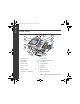
ENGLISH urg_00741.book Page 7 Monday, July 23, 2007 10:27 AM Front view 3 4 5 6 7 8 9 2 10 1 11 12 13 1 Low-light assist, Self-timer light 8 Flash 2 Shutter button 9 Open Flash switch 3 Flash button 10 Neck strap post 4 Focus (Close-up/Landscape) button 11 Microphone 5 Drive (Self-timer/Burst) button 12 Lens 6 Power/Favorites switch 13 DC-In (3V) for optional AC adapter 7 Speaker www.kodak.
urg_00741.book Page 8 Monday, July 23, 2007 10:27 AM ENGLISH Back view 8 9 10 7 11 12 6 13 5 14 4 15 3 2 8 16 1 1 Review button 9 EVF/LCD button 2 Menu button 10 Zoom (Wide Angle/Telephoto) 3 Delete button 11 Share button 4 Tripod socket 12 Joystick/OK button 5 Dock connector 13 Mode dial 6 LCD 14 USB, A/V Out 7 Help/Info button 15 Optional SD card 8 EVF (Electronic viewfinder) 16 Battery compartment www.kodak.
urg_00741.book Page 9 Monday, July 23, 2007 10:27 AM 1 Doing more with your camera Storing pictures on an SD card Your camera has internal memory. You can purchase SD cards to store more pictures and videos. NOTE: When using the card for the first time, format it in this camera before taking pictures. 1 Turn off the camera. 2 Insert or remove the optional card. 3 Turn on the camera. CAUTION: A card can only be inserted one way; forcing it may cause damage.
urg_00741.book Page 10 Monday, July 23, 2007 10:27 AM Doing more with your camera Using optical zoom Use optical zoom to get up to 10X closer to your subject. (You can use optical zoom before taking a video, but you can’t zoom while recording.) 1 Use the EVF or LCD to frame your subject. 2 Press Telephoto (T) to zoom in. Press Wide Angle (W) to zoom out. The zoom indicator shows zoom status. 3 Take the picture or video.
urg_00741.book Page 11 Monday, July 23, 2007 10:27 AM Doing more with your camera Using the Flash button 1 Turn on the camera to open the flash. 2 Press the flash button repeatedly to scroll through flash modes. The current flash mode appears on the LCD/EVF. NOTE: To open the flash anytime, use the Open Flash switch. Mode Icon The flash fires Auto Flash When the lighting conditions require it. Off Never Fill Every time you take a picture, regardless of the lighting conditions.
urg_00741.book Page 12 Monday, July 23, 2007 10:27 AM Doing more with your camera Using the Focus button Press the Focus button Close-up/ Macro, Landscape to have more control over camera focusing. 1 Turn the Mode dial to P, A, S, or M mode (see page 16). 2 Press the Focus button repeatedly until appears in the status bar. or 3 Take a picture. NOTE: After you take the picture, the camera stays in the Close-up/Macro or Landscape setting. To exit, button until the icon turns off or turn off the camera.
urg_00741.book Page 13 Monday, July 23, 2007 10:27 AM Doing more with your camera Using the Drive button Mode Self-timer Icon(s) 10 2 2X Burst Normal (none) Using the self-timer 1 Place camera on a tripod or flat surface. 2 3 In any Still mode, press the Drive button. • Once for a 10-sec. delay (so you have time to get into the scene) • Again for a 2-sec. delay (for a steady, shutter release on a tripod) • Again for 2 pictures (after a 10- and 18-second delay) Compose the scene.
urg_00741.book Page 14 Monday, July 23, 2007 10:27 AM Doing more with your camera Capture modes Choose the mode that best suits your subjects and surroundings. Capture mode For General picture taking—offers an excellent balance of image quality Smart Scene and ease of use. When the Shutter button is pressed halfway, faces are detected, the scene is analyzed, and the best settings are applied. More creative control. (See page 16.) Program, Aperture priority, P, A, S, M Shutter priority, and Manual mode.
urg_00741.book Page 15 Monday, July 23, 2007 10:27 AM Doing more with your camera Using the Help/Info button Repeatedly press info In To turn on/off picture-taking mode status icons, histogram review mode status icons, histogram, and picture/video information any menu Help (Press to scroll.
urg_00741.book Page 16 Monday, July 23, 2007 10:27 AM Doing more with your camera P, A, S, and M modes PASM modes control the aperture (f-number, also known as f-stop), shutter speed, exposure compensation, and ISO. Use the Menu button to control all other settings. Use this mode For Program Controlling exposure compensation (how much light enters the camera) and ISO speed. The camera automatically sets the shutter speed and aperture (f-stop) based on the scene lighting.
urg_00741.book Page 17 Monday, July 23, 2007 10:27 AM Doing more with your camera Changing P, A, S, or M mode settings PASM Options White—selectable Grey—non-selectable Yellow—changeable value Red—out of range ISO Exposure compensation Shutter speed Aperture PASM mode 1 Turn the Mode dial to PASM. 2 Press 3 Press to choose P, A, S, or M. to move between settings, open a setting, or change a setting. Aperture—(also known as f-stop) control the size of the lens opening, depth of field.
urg_00741.book Page 18 Monday, July 23, 2007 10:27 AM 2 Working with pictures/videos Magnifying a picture 1 Press Review. 2 View previous/next. W/T Magnify 1X - 8X. View other parts of the picture. W Return to 1X. Deleting pictures and videos 1 2 Press Review. View previous/next. 3 Press Delete. 4 Follow the screen prompts. Using the undo delete feature If you accidentally delete a picture/video, you may be able to use Undo Delete to retrieve it.
urg_00741.book Page 19 Monday, July 23, 2007 10:27 AM Working with pictures/videos What the review icons mean Print tag/number of prints Protected Favorite tag Email tag Perfect Touch tech. Mode indicator Album Sound tag Picture number Image storage location Battery level Scroll arrows Video length Protected Favorite tag Email tag Mode indicator Album Video number Image storage location Scroll arrows www.kodak.
urg_00741.book Page 20 Monday, July 23, 2007 10:27 AM 3 Solving camera problems For step-by-step product support, visit www.kodak.com/go/zd710support and select Interactive Troubleshooting & Repairs. If Try one or more of the following Camera does not turn on Camera does not turn off and the lens does not retract Camera buttons and controls do not function Lens does not extend when camera turns on or does not retract ■ Insert a new or charged battery.
urg_00741.book Page 21 Monday, July 23, 2007 10:27 AM 4 Appendix CAUTION: Do not disassemble this product; there are no user-serviceable parts inside. Refer servicing to qualified service personnel. Kodak AC adapters and battery chargers are intended for indoor use only. The use of controls, adjustments, or procedures other than those specified herein may result in exposure to shock and/or electrical or mechanical hazards. If the LCD breaks, do not touch the glass or liquid.
urg_00741.book Page 22 Monday, July 23, 2007 10:27 AM Appendix Limited warranty coverage Kodak warrants Kodak consumer electronic products and accessories (“Products”), excluding batteries, to be free from malfunctions and defects in both materials and workmanship for one year from the date of purchase. Retain the original dated sales receipt. Proof of the date of purchase will be required with any request for warranty repair.
urg_00741.book Page 23 Monday, July 23, 2007 10:27 AM Appendix Your rights Some states or jurisdictions do not allow exclusion or limitation of incidental or consequential damages, so the above limitation or exclusion may not apply to you. Some states or jurisdictions do not allow limitations on how long an implied warranty lasts, so the above limitation may not apply to you. This warranty gives you specific rights, and you may have other rights which vary from state to state or by jurisdiction.
urg_00741.book Page 24 Monday, July 23, 2007 10:27 AM Appendix Any changes or modifications not expressly approved by the party responsible for compliance could void the user’s authority to operate the equipment. Where shielded interface cables have been provided with the product or specified additional components or accessories elsewhere defined to be used with the installation of the product, they must be used in order to ensure compliance with FCC regulation.
urg_00741.book Page 25 Monday, July 23, 2007 10:27 AM Appendix China RoHS Korean Class B ITE Russian GOST-R Eastman Kodak Company Rochester, NY 14650 AIO-40 www.kodak.
urg_00741.book Page 26 Monday, July 23, 2007 10:27 AM Appendix Eastman Kodak Company Rochester, New York 14650 © Eastman Kodak Company, 2007 Kodak and EasyShare are trademarks of Eastman Kodak Company. 4J6236_en 26 www.kodak.