KODAK EASYSHARE Z980 Digital Camera Extended user guide www.kodak.com For interactive tutorials, visit www.kodak.com/go/howto For help with your camera, visit www.kodak.
Eastman Kodak Company Rochester, NY 14650 © Kodak, 2008 All screen images are simulated. Kodak, EasyShare, and Perfect Touch are trademarks of Eastman Kodak Company.
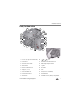
Product features Back, bottom view 1 2 3 4 17 16 5 15 6 14 7 13 8 12 11 9 10 18 1 Hot shoe (for optional external flash) 10 2 Power button 11 Delete/Menu/Info/Review buttons 3 On/Off for Portrait mode 12 Wide Angle/Telephoto button 4 Shutter button 13 Jog dial 5 Flash/Focus/Drive buttons 14 Mode dial 6 Strap post (1 of 2) 15 LCD 7 5V DC-In/USB/AV out 16 EVF (Electronic viewfinder) 8 Portrait Shutter button 17 EVF/LCD button 9 Share button 18 SD/SDHC Card slot; battery compartme
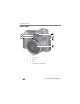
Product features Front view 1 5 2 2 3 4 ii 1 Flash 2 Microphones (2) 3 Speaker 4 Lens 5 Self-timer/Video/AF Assist light www.kodak.
Table of contents 1 1 Setting up your camera .........................................................................1 Charging and loading the rechargeable batteries ........................................... 1 Turning on the camera .................................................................................. 2 Setting the language, date/time..................................................................... 2 Attaching the strap ..................................................................
Table of contents Using the RAW Develop feature .................................................................. 29 Editing videos ............................................................................................. 30 Making a multimedia slide show ................................................................. 35 Viewing pictures as thumbnails ................................................................... 37 Selecting multiple pictures/videos ............................................
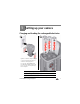
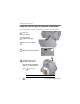
1 Setting up your camera Charging and loading the rechargeable batteries 1 2 Lights are on while the charger is plugged in. (See the charger documentation for instructions and charging times.) For longer life, charge KODAK Ni-MH Pre-Charged Rechargeable Batteries AA prior to use, and occasionally discharge them to depletion. See other power options see page 7 Extend battery life see page 67 Purchase accessories www.kodak.com/go/z980accessories www.kodak.
Setting up your camera Turning on the camera Setting the language, date/time Language: to change. OK to accept. Date/Time: At the prompt, press OK. to change current field. for previous/next field. OK to accept. NOTE: To change language or date/time in the future, use the Setup menu (see page 43). 2 www.kodak.
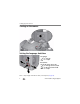
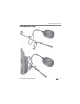
Setting up your camera Attaching the strap 1 2 www.kodak.
Setting up your camera Using the vertical grip (for portrait orientation) The vertical grip makes it easier to take pictures in the vertical, portrait orientation. 1 Turn off the camera. 2 Attach and tighten the grip. 3 Turn on the camera. 4 Slide the Portrait switch. 5 Take pictures in the portrait orientation. Use the Portrait Shutter button to take pictures. Use to zoom. Learn more about taking focused pictures see page 8 4 www.kodak.
Setting up your camera Storing pictures on an (accessory) SD or SDHC Card Your camera has internal memory. You can purchase an SD or SDHC Card to store more pictures and videos. (Maximum supported card size is 32 GB.) CAUTION: A card can only be inserted one way; forcing it may cause damage. Inserting or removing a card when the camera is on may damage the pictures, the card, or the camera. 1 Turn off the camera. 2 Insert or remove the card. 3 Turn on the camera. Purchase accessories www.kodak.
Setting up your camera Using an (accessory) KODAK P20 Zoom Flash 1 Turn off the camera. 2 Remove the hot shoe cover from the camera. 3 Attach the KODAK P20 Zoom Flash. 4 Turn on the camera and the flash. 6 For more information See the flash documentation Purchase accessories www.kodak.com/go/z980accessories www.kodak.
Setting up your camera Using other (accessory) power options Use the KODAK 5-Volt AC Adapter to save battery power. NOTE: The AC adapter does not charge the batteries. Purchase accessories www.kodak.com/go/support www.kodak.
2 Taking pictures/videos Taking a picture 1 Turn the Mode dial to Smart Capture . 2 Press the Shutter button halfway to lock the focus. When the framing marks turn green, press the Shutter button completely down. EVF/LCD button To save battery power, press the EVF/LCD button and use the electronic viewfinder. NOTE: For more information on Smart Capture and other modes, see page 11. Framing marks do not appear in some SCN (scene) and Video modes. 8 www.kodak.
Taking pictures/videos Using the framing marks Framing marks Framing marks indicate the camera focus area. 1 Press the Shutter button halfway. If the camera is not focusing on the desired subject, release the Shutter button and recompose the scene. 2 Press the Shutter button completely down to take the picture. NOTE: Framing marks do not appear in all modes. Multiple framing marks may appear when faces are detected.
Taking pictures/videos Reviewing the picture/video just taken After you take a picture/video, the LCD or EVF displays a quickview for several seconds. (To dismiss the quickview sooner, press the Shutter button halfway.) The picture/video is saved unless you press the Delete button. Delete Play a video To review pictures/videos anytime, see page 23. 10 www.kodak.
Taking pictures/videos Capture modes Choose the mode that best suits your subjects and surroundings. Capture mode Smart Capture For General picture taking—it offers excellent image quality and ease of use. ■ Faces are detected. ■ The scene is analyzed for other content and for lighting. ■ KODAK PERFECT TOUCH Technology is applied, for better pictures. You can choose the best picture size and aspect ratio for your needs—just press the Menu button and choose Picture Size.
Taking pictures/videos Scene modes 1 Turn the Mode dial to Scene . 2 Press to display Scene modes. NOTE: If the mode description turns off before you finish reading it, press OK. 3 Press OK to choose a Scene mode. SCN mode For High ISO People indoors, in low-light scenes. Night Portrait Reducing red eye of people in night scenes or low-light conditions. Place the camera on a flat, steady surface or use a tripod. Landscape Far-away scenes. The camera uses infinity auto-focus.
Taking pictures/videos SCN mode For Stage People on a lit stage. Fast shutter speed, high ISO. Flash and sounds are off. (Flash setting can be changed.) Using the zoom Use optical zoom to get up to 24X closer to your subject while taking pictures/videos. IMPORTANT: If the camera is in portrait mode (see page 4), press to zoom. 1 Use the LCD or EVF to frame your subject. (For focus distances, see Camera specifications, page 63.) 2 Press Telephoto (T) to zoom in. Press Wide Angle (W) to zoom out.
Taking pictures/videos Using the flash Use the flash when you take pictures at night, indoors, or outdoors in heavy shadows. Flash settings are limited in some capture modes. NOTE: You can also attach an external flash. See page 6. Press the flash button repeatedly to scroll through flash modes. The current flash mode is shown on the LCD or EVF. Flash modes Flash fires Auto When the lighting conditions require it. Fill Every time you take a picture, regardless of the lighting conditions.
Taking pictures/videos Using the Drive button Press the Drive button repeatedly to scroll through self-timer and burst modes. The current flash mode is shown on the LCD. Using the self-timer Use the self-timer when you want to be included in a picture, or to ensure a steady Shutter button press. Place the camera on a tripod or flat surface. 1 In any picture-taking mode, press the Drive button until the desired self-timer icon is displayed on the LCD.
Taking pictures/videos Taking burst pictures Press the Drive button repeatedly to scroll through self-timer and burst modes. The current flash mode is shown on the LCD. 1 In most Still modes, press the Drive button until the desired burst icon is displayed on the LCD: Mode Icon Burst Highspeed Burst Description Example Camera takes 1 picture per second A child blowing out birthday up to 6 pictures while the Shutter candles. button is pressed. 5/s A person swinging a golf club.
Taking pictures/videos Using the Focus button Press the Focus button repeatedly to scroll through Normal, Landscape, Macro, and Super Macro modes. The current flash mode is shown on the LCD. 1 In most Still modes, press the Focus button until the desired focus icon is displayed on the LCD: Mode Icon For Auto Focus (AF) No icon. Normal picture taking. Landscape Distant scenery, or for taking pictures through a window. Macro Subjects that are 10–100 cm (3.9–39.4 in.) from the lens.
Taking pictures/videos Taking panoramic pictures Use panorama to “stitch” up to 3 pictures into a panoramic scene. NOTE: Individual picture sizes are approximately 3.1 MP (but may vary depending on scene content). Individual pictures are not saved, even if panorama capture is cancelled before stitching occurs. (Exposure Compensation, White Balance, Exposure Metering, AF Zone, AF Control, Color Mode, and Sharpness are set with the first picture. The flash is set to Off.
Taking pictures/videos P, A, S, and M modes Use these modes when you want more control over your camera and pictures. Jog dial Mode When to use Press Jog dial to control Program mode offers the ease of auto shooting with full access to all menu options. The camera automatically sets the shutter speed and aperture (f-stop) based on the scene lighting.
Taking pictures/videos Changing P, A, S, or M mode settings PASM modes control the aperture (f-number, also known as f-stop), shutter speed, exposure compensation, flash compensation, and ISO. Use the Menu button to control all other settings. 1 Turn the Mode dial to P, A, S, or M. 2 Turn the Jog dial Turn the Jog dial to highlight a setting, then press it to edit the setting. to change a setting, then press it to save it. (See page 19.) NOTE: A yellow setting indicates possible unsatisfactory results.
Taking pictures/videos Using exposure compensation to adjust brightness In P, A, S, and Panorama modes, you can adjust exposure compensation before you take a picture to make your pictures darker or lighter. Only the first picture in Panorama mode can be adjusted—that adjustment is applied to the remaining pictures. (For more about the Jog dial, see page 19. For more about Exposure Compensation, see page 20.) 1 Turn the Jog dial to highlight Exposure Compensation, then press it to edit the setting.
Taking pictures/videos Using the histogram to view picture brightness Use the histogram to evaluate the distribution of light before or after you take a picture. Optimal exposure is achieved when the peak is in the middle of the histogram. The flash may affect a picture’s light and shadow. To show the histogram in P, A, S, M modes or in Review, press the Info the histogram appears.
3 Working with pictures/videos Reviewing pictures/videos Press the Review button to view and work with your pictures/videos. Press Review again to exit. 1 Press the Review 2 Press button. for previous/next picture/video. ■ Press the Shutter button halfway down to return to Capture mode. ■ To view pictures/videos as thumbnails, see page 37. Magnifying a picture during review 1 Press Telephoto (T) to zoom in. 2 Press picture. ■ www.kodak.
Working with pictures/videos Playing a video 1 Press the Review 2 Press button. to locate previous/next video. 3 Press OK to play a video. Playback speed 4X 2X 1X 2X 4X Forward Reverse ■ Press volume. during playback to adjust the ■ Press OK to pause/resume. (Press pause to go to previous/next frame.) ■ Press during playback to play at 2X speed; press again for 4X. (Press during 4X to jump to a bookmark. See page 32.) ■ Press during playback to reverse at 2X speed; press again for 4X.
Working with pictures/videos Protecting pictures/videos from deletion 1 Press the Review 2 Press the Menu button, then to find a picture. button. 3 Press to highlight Protect, then press OK. The Protect icon appears with the protected picture/video. ■ Press the Menu button to exit the menu. CAUTION: Formatting internal memory or an SD or SDHC Card deletes all (including protected) pictures/videos. (Formatting internal memory also deletes email addresses, tag names, and favorites.
Working with pictures/videos Adding sound tags You can add a recording (up to 1 minute long) to a picture. NOTE: Only one sound tag can be added to each picture (not to videos). Recording a sound tag 1 Press the Review 2 Press the Menu 3 Press button, then button, then to find a picture. to highlight the Edit tab. to highlight Sound Tag, then press OK. 4 Follow the screen prompts. The sound tag is applied to your picture. ■ Press the Menu button to exit the menu.
Working with pictures/videos Cropping pictures You can crop a picture so that only the desired portion of the picture remains. (You cannot crop these pictures: panoramic, 16:9, video action prints, pictures from a video, or pictures that are already cropped.) 1 Press the Review picture. Picture 3 Press Cropped picture button, then 2 Press the Menu button, then highlight the Edit tab. to find a to to highlight Crop, then press OK. 4 Press Telephoto (T) to zoom in, or to move the crop box. Press OK.
Working with pictures/videos Using KODAK PERFECT TOUCH Technology KODAK PERFECT TOUCH Technology helps ensure better, brighter pictures. PERFECT TOUCH Technology is automatically applied to pictures taken in Smart Capture mode. (You cannot enhance videos, panoramic pictures, or pictures that are already enhanced.) 1 Press the Review 2 Press the Menu button, then button, then to find a picture. to highlight the Edit tab. 3 Press to highlight Perfect Touch tech, then press OK.
Working with pictures/videos Using the RAW Develop feature In P, A, S, M, Sport, Portrait, and SCN modes, you can take pictures as the RAW file type. The RAW Develop feature lets you develop, edit (picture size, quality, exposure compensation, color mode, sharpness, and white balance), and save RAW files as Fine, Standard, or Basic. (The original RAW file is preserved.) You can edit RAW files in KODAK EASYSHARE Software. 1 Press the Review 2 Press the Menu button, then button, then to find a picture.
Working with pictures/videos Editing videos Making a picture from a video You can choose a single frame from a video, then make a picture suitable for printing. 1 Press the Review video. Video Picture button, then 2 Press the Menu button, then highlight the Edit tab. 3 Press OK. to find a to to highlight Make Picture, then press 4 Press to highlight the Play icon, then press OK to play the video. (Press OK to pause. Press to navigate through video frames.
Working with pictures/videos Trimming a video You can delete an unwanted portion from the beginning or end of a video. 1 Press the Review video. button, then 2 Press the Menu button, then highlight the Edit tab. Video Trimmed video 3 Press to find a to to highlight Trim, then press OK. 4 Follow the screen prompts. The video is trimmed. (You can save it as a new video or replace the original.) ■ Press the Menu button to exit the menu. IMPORTANT: Your camera offers an on-board Help system.
Working with pictures/videos Using video bookmarks You can set bookmarks at interesting places in your video, then jump from one bookmark to another. Setting bookmarks 1 Press the Review video. button, then to find a 2 Press the Menu button, then to highlight the Edit tab. Highlight Bookmark, then press OK. 3 Press to highlight Create/Edit, then press OK. 4 Press to highlight the Play icon, then press OK to play the video. (Press OK to pause. Press to navigate through video frames.
Working with pictures/videos Using bookmarks 1 Press the Review video. button, then to find a 2 Press to play the video. To jump to the first bookmark, press and hold for 4 seconds while the video is playing. www.kodak.com/go/support ■ After you jump to a bookmark, press jump to other bookmarks. to ■ To view all bookmarked video frames, press the Wide Angle (W) button. To return to normal view, press the Telephoto (T) button.
Working with pictures/videos Making a video action print From a video, you can make a 4-, 9-, or 16-up picture, suitable for a 4 x 6-inch (10 x 15 cm) print. 1 Press the Review video. Video 4-, 9-, or 16-up picture button, then 2 Press the Menu button, then highlight the Edit tab. to find a to 3 Press to highlight Action Print, then press OK. Choose an option, then press OK: ■ Auto options: The camera includes the first and last frames, then 2, 7, or 14 equally spaced frames.
Working with pictures/videos Making a multimedia slide show Use Multimedia Slide Show to display your pictures/videos on the LCD or EVF. You can play all pictures/videos, or select pictures to include in the slide show. You can customize your slide show to include music and your choice of transitions. You can even save a slide show. Make a multimedia slide show that you can save 1 Press the Review button. Select 2-100 pictures (see page 37). 2 Press the Menu button, then to highlight the Review tab.
Working with pictures/videos Displaying pictures/videos on a television You can display pictures/videos on a television, computer monitor, or any device equipped with a video input. To connect the camera to a television, use an A/V cable (may be sold separately). NOTE: Ensure that the Video Out setting (NTSC or PAL) is correct (see page 45). (Image quality on a television screen may not be as good as on a computer monitor or when printed.) 36 www.kodak.
Working with pictures/videos Viewing pictures as thumbnails 1 Press the Review button. 2 Press the Wide Angle (W) button to change from single-picture view to multi-up thumbnails. 3 Press Telephoto (T) to return to single-picture view. ■ To select multiple pictures/videos, see Selecting multiple pictures/videos. ■ Press the Review button to exit Review. NOTE: This feature is available as a shortcut. See page 38.
Working with pictures/videos Using shortcuts For quick access to the most popular functions: 1 Press the Info button. The shortcuts appear. 2 Press to choose Select Photo, Tag, View Thumbnails, or Play Video. To hide the shortcuts again, press . Select picture Add text tag View thumbnails Play video 38 www.kodak.
Working with pictures/videos Copying pictures/videos You can copy pictures/videos from a card to internal memory or from internal memory to a card. NOTE: Before you copy, make sure that a card is inserted in the camera. Copy pictures/videos: 1 Press the Review 2 Press button, then the Menu button. to highlight Copy, then press OK. 3 Press to highlight an option, then press OK. NOTE: Pictures/videos are copied, not moved.
4 Using the menu button Using the Capture menu You can change settings to get the best results from your camera. NOTE: Some modes offer limited settings. Some settings remain until you change them; others, until you change modes or turn off the camera. 1 Press the Menu 2 Press button. to highlight a tab. (You may need to press to highlight a tab.) ■ Capture/Video for the most common picture/video-taking settings ■ Setup for other camera settings 3 Press to highlight a setting, then press OK.
Using the menu button Press Menu, , , Capture Options and OK to access settings Color Mode High Color Choose color tones for pictures. Natural Color Low Color Black & White Sepia NOTE: KODAK EASYSHARE Software also lets you change a color picture to black-and-white or sepia. Picture Quality Choose how much compression is applied to pictures. Not available in Smart Capture mode. Fine—least compression; best quality, and largest file size. Standard—medium compression; medium quality, and medium file size.
Using the menu button Using the Capture + menu Press Menu, , , and OK to access settings Capture + Options White Balance Choose your lighting condition. Available only in P/M and Panorama modes. Auto—automatically corrects white balance. Ideal for general picture taking. Daylight—for pictures in natural lighting. Tungsten—corrects the orange cast of household light bulbs. Ideal for indoor pictures under tungsten or halogen lighting without flash.
Using the menu button Press Menu, , , and OK to access settings Capture + Options Exposure Bracketing Interval Choose the difference in exposure compensation while using exposure bracketing. Available only in P/M mode. Off +/- 0.3 EV +/- 0.7 EV +/- 1.0 EV See page 21. Sharpness Control picture sharpness. Available only in P/M and Panorama modes.
Using the menu button Press Menu, , , and OK to access settings Setup Options Image Storage Choose a storage location for pictures/videos. Auto—the camera uses the card if one is in the camera. If not, the camera uses internal memory. Internal Memory—the camera uses internal memory, even if a card is installed. Set Tag Assign tag names to pictures/videos. Select tag name(s) before you take pictures or videos. Then, new pictures/ videos are assigned that tag name(s).
Using the menu button Press Menu, , , and OK to access settings Setup Options Advanced Digital Zoom Zoom using optical, then digital zoom. Not available in Smart Capture mode. Pause—zooming pauses at the optical zoom maximum. To use digital zoom, release then press the Telephoto (T) zoom button. None—digital zoom is off. Orientation Sensor On Orient pictures so that they are On Transfer (when used with KODAK EASYSHARE displayed with the correct side up.
Using the menu button Press Menu, , , and OK to access settings Setup Options Format Memory Card—deletes everything on the card; formats the card. Cancel—exits without making a change. Internal Memory—deletes everything in internal memory including email addresses, and tag names; formats the internal memory. CAUTION: Formatting deletes all pictures/videos, including those that are protected. About View camera firmware version. 46 www.kodak.
5 Transferring, printing, and sharing pictures Installing the software CAUTION: Install EASYSHARE Software before connecting the camera to the computer. Failure to do so may cause the software to load incorrectly. 1 Close all software applications that are open on your computer (including anti-virus software). 2 Place the EASYSHARE Software CD into the CD-ROM drive. 3 Load the software: WINDOWS OS—if the install window does not appear, choose Run from the Start menu and type d:\setup.
Transferring, printing, and sharing pictures Transferring pictures with the USB cable 1 Turn off the camera. 2 Connect the KODAK USB Cable, Model U-8. 3 Turn on the camera. KODAK EASYSHARE Software opens on your computer and prompts you through the transfer process. Learn more about connecting 48 www.kodak.com/go/howto www.kodak.
Transferring, printing, and sharing pictures Transferring pictures using other options You can also use a card reader to transfer your pictures/videos. Printing pictures Direct printing with a KODAK All-in-One Printer Your camera is compatible with PICTBRIDGE Technology, so you can print directly to PICTBRIDGE Technology enabled Printers. You need a camera with fully charged battery, a PICTBRIDGE Technology enabled Printer, and a USB cable. 1 Turn off the printer. Turn on the camera.
Transferring, printing, and sharing pictures Using a printer that is not PICTBRIDGE Technology enabled After you transfer pictures from the camera to your computer, you can print them from EASYSHARE Software. For details, see Help in EASYSHARE Software. Ordering prints online KODAK Gallery (www.kodakgallery.com) is one of the many online print services offered in EASYSHARE Software. You can easily: ■ Upload your pictures. ■ Edit, enhance, and add borders to your pictures.
Transferring, printing, and sharing pictures Tagging your pictures You can tag your pictures so they are easy to: ■ Print ■ Email ■ Organize with a favorite tag ■ Organize with a tag name that you create Tagging pictures for printing 1 Press the Review 2 Press the Menu 3 Press button. Press button. Press to locate a picture. to highlight Print, then press OK. to select the number of copies. Optional: You can apply a print quantity to other pictures. Press for previous/next.
Transferring, printing, and sharing pictures Tagging pictures/videos for emailing It’s simple to tag pictures so that they’re ready to email using KODAK EASYSHARE Software. First, create a new email address. (See Add a new email address or tag name.) 1 Press the Review button. Press to locate a picture, then press OK. 2 Press to highlight Email, then press OK. 3 Press to locate an email address, then press OK. To tag other pictures/videos with the same address, scroll through them.
Transferring, printing, and sharing pictures Assigning the favorite tag to pictures/videos To make your favorite pictures/videos easier to locate in EASYSHARE Software, you can assign the favorite tag. 1 Press the Review button, then to locate a picture/video. 2 Press the Share button. The favorite tag appears with the picture. When you transfer the tagged pictures/videos to your computer, EASYSHARE Software opens and categorizes your pictures/videos with a 5-star rating tag.
Transferring, printing, and sharing pictures Assigning a tag to the pictures/videos you take next Use the Set Tag feature to assign a tag name to the next pictures/videos you take. First, create a new tag name (see page 52). 1 Press the Menu button. 2 Highlight the Setup tab. 3 Highlight Set Tag, then press OK. 4 Highlight a tag name, then press OK. 5 Press the Menu button to exit the menu. The selected tag is displayed on the LCD or EVF. The tag is applied to new pictures/videos.
6 Troubleshooting For step-by-step product support, visit www.kodak.com/go/z980support and select Step-by-Step Solutions and Repair. Camera problems If Try one or more of the following Shutter button does not work. ■ Turn on the camera (see page 2). ■ If the Portrait switch is in the Portrait position, only the Portrait Shutter button works. See page 4.
Troubleshooting If Try one or more of the following In Review mode, ■ Check the image storage location setting (page 44). you do not see a picture (or the expected picture) on the LCD or EVF. In Review mode, a ■ Transfer the picture to the computer (see page 48), then format the card or internal memory (see page 46). blue or black screen is displayed CAUTION: Formatting a card deletes all pictures and videos, including protected files. instead of a picture. Slide show does ■ Check the cable connections.
Troubleshooting If Try one or more of the following Camera does not recognize SD/SDHC Card. ■ Purchase a certified SD/SDHC Card. ■ Format the card (see page 46). CAUTION: Formatting a card deletes all pictures and videos, including protected files. ■ Insert a card into the slot, then push to seat (see page 5). Camera freezes up ■ Turn the camera off, then back on. Make sure the camera is turned off before inserting or removing a card. when a card is inserted or removed. Memory card full.
Troubleshooting Camera/computer communications If Try one or more of the following Cannot transfer pictures. (The Add New Hardware Wizard cannot locate drivers.) ■ Disconnect the USB cable. Close all open applications. The computer does not communicate with the camera. ■ Turn on the camera (see page 2). Re-install the software (see page 47). ■ Install new batteries (see page 1) or charge rechargeable batteries. ■ Connect the USB cable to camera and computer port (see page 48).
Troubleshooting LCD/EVF messages If Try one or more of the following No images to display ■ Change image storage location setting (see page 44). Memory card requires ■ Insert a new card (see page 5) or format the card (see page 46). formatting CAUTION: Formatting a card deletes all pictures and videos, including protected files.
7 Getting help Getting help from your camera You want the most from your camera. You want to understand: ■ What it can do for you ■ And how to take the best possible pictures and videos Great news! Your camera offers a built-in Help system. It describes every setting for every menu choice. If you learn nothing else about your camera, learn how to use on-camera Help.
Getting help Helpful links Camera Email, write, or phone customer support www.kodak.com/go/contact Get support for your product (FAQs, arrange for www.kodak.com/go/z980support repairs, troubleshooting information, etc.) Purchase camera accessories (lenses, cards, etc.) www.kodak.com/go/z980accessories Download the latest camera firmware and software www.kodak.com/go/z980downloads See online demonstrations of your camera www.kodak.com/go/howto Software Get information on EASYSHARE Software www.kodak.
Getting help NOTE: If you have questions concerning this product, you may speak with Kodak customer support.
8 Appendix Camera specifications For more specifications, visit www.kodak.com/go/z980support. CCD—1/2.3-type (4:3 aspect ratio) Effective Pixels—4112 x 3032 (12 MP) Lens—24X optical zoom lens, 26–624 mm (35 mm equivalent); f/2.8–f/8.0 Image stabilizer—CCD-shift Lens barrier—Automatic built-in Digital zoom—5.0X continuous Combined zoom—120X Shutter speed—Smart Capture: 1/2–1/2000 sec.; P, A, S, M: 16–1/2000 sec. Color display—7.6 cm (3 in.
Appendix ISO speed—Smart Capture mode: Auto, ISO 64–1600 P mode: Auto: 64–400; Manual: 64, 100, 200, 400, 800, 1600, 3200, 6400 (3200 and 6400 available at 3.1 MP and lower.) A, S, M modes: ISO 64, 100, 200, 400, 800, 1600, 3200, 6400 (3200 and 6400 available at 3.1 MP and lower.) Exposure metering—TTL-AE; Multi-pattern, Center-weighted, Center spot Exposure compensation—+/-2.0 EV with 1/3 EV steps Exposure bracketing—3 images with selectable +/- 0.
Appendix Self-timer—2 seconds, 10 seconds, or 2-shot Microphones—Stereo Speaker—2 Output image size—Smart Capture mode 12 MP (4:3): 4000 x 3000 pixels 10.7 MP (3:2): 4000 x 2664 pixels 9.0 MP (16:9): 4000 x 2256 pixels 6.0 MP (4:3): 2832 x 2128 pixels 3.1 MP (4:3): 2048 x 1536 pixels 2.2 MP (3:2): 1800 x 1200 pixels 2.1 MP (16:9): 1920 x 1080 pixels 1.2 MP (4:3): 1280 x 960 pixels Communication with computer—USB 2.
Appendix Storage capacities The LCD displays the number of pictures (or minutes/seconds of video) remaining. For average SD Card capacities, visit www.kodak.com/go/SDcapacities. Actual storage capacity varies depending on subject composition, card size, and other factors. You may be able to store more or fewer pictures and videos.
Appendix ■ Do not allow batteries to touch metal objects, including coins. Otherwise, a battery may short circuit, discharge energy, become hot, or leak. ■ Do not disassemble, install backward, or expose batteries to liquid, moisture, fire, or extreme temperature. ■ Remove the battery when the product is stored In the unlikely event that battery fluid leaks inside the product, contact Kodak customer support.
Appendix Care and maintenance ■ If you suspect water has gotten inside the camera, remove the battery and card. Allow all components to air-dry for at least 24 hours before using the camera. ■ Blow gently on the lens or LCD to remove dust and dirt. Wipe gently with a soft, lint-free cloth or an untreated lens-cleaning tissue. Do not use cleaning solutions unless designed specifically for camera lenses. Do not allow chemicals, such as suntan lotion, to contact painted surfaces.
Appendix used in making repairs, those parts may be remanufactured, or may contain remanufactured materials. If it is necessary to replace the entire Product, it may be replaced with a remanufactured Product. Remanufactured Products, parts and materials are warranted for the remaining warranty term of the original Product, or 90 days after the date of repair or replacement, whichever is longer. Limitations This warranty does not cover circumstances beyond Kodak's control.
Appendix Your rights Some states or jurisdictions do not allow exclusion or limitation of incidental or consequential damages, so the above limitation or exclusion may not apply to you. Some states or jurisdictions do not allow limitations on how long an implied warranty lasts, so the above limitation may not apply to you. This warranty gives you specific rights, and you may have other rights which vary from state to state or by jurisdiction.
Appendix technician for additional suggestions. Any changes or modifications not expressly approved by the party responsible for compliance could void the user’s authority to operate the equipment. Where shielded interface cables have been provided with the product or specified additional components or accessories elsewhere defined to be used with the installation of the product, they must be used in order to ensure compliance with FCC regulation.
Appendix Waste Electrical and Electronic Equipment/Battery disposal In Europe: For human/environmental protection, it is your responsibility to dispose of this equipment and batteries at a collection facility established for this purpose (separate from municipal waste.) For more information, contact your retailer, collection facility, or appropriate local authorities; or visit www.kodak.com/go/recycle. Product weight: 415 g (14.6 oz) Korean Class B ITE VCCI Class B ITE China RoHS 72 www.kodak.
Appendix Class 1 LED Product (EN 60825-1 and IEC 60825-1) This class is eye-safe under all operating conditions. Russian GOST-R Eastman Kodak Company Rochester, NY 14650 AIO-40 www.kodak.
1 Index A A/V out, 36 about this camera, 46 AC adapters, 7 accessories, 49 battery, 67 buying, 61 SD/SDHC card, 5 advanced digital zoom, 45 AF control, 40 aperture priority, 19 appendix, 63 auto enhancement, 28 flash, 14 focus framing marks, 9 B backlight, 12 battery life, 67 loading, 1 beach, 12 bookmarks, 32 burst, using, 16 button burst, 16 delete, 10 flash, 14 review, 23 shutter, i telephoto, i 74 wide angle, i zoom, 13 C cable audio/video, 36 USB, 48 camera sounds, 45 candle light, 12 capture frame g
Index doing more with your camera, 40 download pictures, 47 high ISO, 11 histogram, 22 E EASYSHARE Software, installing, 47 emailing pictures, videos, 52 error messages, 59 exposure bracketing interval, 43 compensation, 19, 21 long time, 43 metering, 42 external flash, 6 external video device viewing pictures, videos, 36 I icons mode dial, 11 image stabilizer, 44 image storage, 44 installing batteries, 1 SD/SDHC card, 5 software, 47 internal memory, storage capacity, 66 F favorites tagging, 53 firework
Index M MACINTOSH Computers, installing software on, 47 magnify a picture, 23 maintenance, camera, 68 make picture from video, 30 manner/museum, 12 manual, 19 memory inserting card, 5 storage capacity, 66 mode dial, 11 modes aperture priority, 19 manual, 19 shutter priority, 19 modes, capture high ISO, 11 SCN (scene), 11 smart capture, 11 video, 11 multiple picture selections, 37 multi-up, 37 N night landscape, 12 night portrait, 12 O online prints, ordering, 50 optical zoom, 13 orientation sensor, 45 P P2
Index Q quickview setting, 44 using, 10 R RAW file format, 29 recycling, disposal, 68, 72 red-eye, flash, 14 regulatory information, 70 repair, 61 reset camera, 45 review button, 23 reviewing pictures/videos after taking, 23 as you take them, 10 deleting, 24 protecting, 25 slide show, 35 running a slide show, 35 S scene modes, 12 backlight, 12 beach, 12 candle light, 12 fireworks, 12 flower, 12 landscape, 12 manner/museum, 12 night landscape, 12 night portrait, 12 panorama, 18 portrait, 11, 12 www.kodak.
Index quickview, 44 reset camera, 45 self-timer, 15 sharpness, 43 sound volume, 45 tag, 44 video out, 45 video size, 40 white balance, 42 Share button, 43 sharpness, 43 shutter button, i priority, 19 self-timer delay, 15 speed, 19 single AF, 40 slide show continuous loop, 35 problems, 56 running, 35 smart capture, 11 snow, 12 software installing, 47 upgrading, 66 sound volume, 45 sounds, camera, 45 specifications, camera, 63 stage, 13 storage capacity, 66 strap, 3 sunset, 12 support, technical, 61, 62 78
Index action print, 34 copying, 39 emailing tagged, 52 out, 45 protecting, 25 review icons, 39 reviewing, 23 size, 40 storage capacities, 66 transfer, 47 viewing, 23 video bookmarks, 32 viewing by multi-up, 37 viewing picture/video after taking, 10, 23 volume, adjusting, 45 W warranty, 68 WEEE, 72 white balance, 42 wide angle button, i WINDOWS OS-based computers installing software, 47 Z zoom optical, 13 www.kodak.