Kodak EasyShare Z650 zoom digital camera User’s guide www.kodak.com For interactive tutorials, www.kodak.com/go/howto For help with your camera, www.kodak.
Eastman Kodak Company Rochester, New York 14650 © Eastman Kodak Company, 2005 All screen images are simulated. Kodak and EasyShare are trademarks of Eastman Kodak Company. Schneider-Kreuznach and C-Variogon are trademarks of Jos. Schneider Optische Werke GmbH used under license by Eastman Kodak Company.
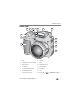
Product features Front view 4 5 6 7 9 8 10 3 2 11 12 1 13 14 1 Grip 8 Speaker 2 Low-light assist, Self-timer light 9 Flash 3 Shutter button 10 Open Flash switch 4 Flash button 11 Neck strap post 5 Close-up/Landscape button 12 Microphone 6 Self-timer/Burst button 13 Lens 7 Power/Favorites switch 14 DC-In (3V) www.kodak.
Product features Back view 8 9 10 11 7 12 6 13 5 14 4 15 3 ii 2 16 1 1 Review button 9 2 Menu button 10 Zoom (Wide Angle/Telephoto) EVF/LCD button 3 Delete button 11 Share button 4 Tripod socket 12 Joystick/OK button 5 Dock connector 13 Mode dial 6 LCD 14 USB, A/V Out 7 Info button 15 Slot for optional SD or MMC card 8 EVF (Electronic viewfinder) 16 Battery compartment www.kodak.
Table of contents 1 1 Setting up your camera .........................................................................1 Installing the software................................................................................... 1 Attaching the lens cap and strap ................................................................... 1 Loading the batteries .................................................................................... 2 Turning on the camera ...............................................
Table of contents Viewing picture/video information ............................................................... 34 Copying pictures and videos ........................................................................ 35 Adjusting exposure compensation ............................................................... 36 Using the histogram to view picture brightness............................................ 36 P, A, S, and M modes...........................................................................
1 Setting up your camera Installing the software IMPORTANT: Before connecting any cables, install the software that was included with your camera. For details, see Transferring and printing pictures, page 14. Follow the on-screen instructions. We recommend Complete or Easy Install. Attaching the lens cap and strap 1 2 www.kodak.
Setting up your camera Loading the batteries 1 2 CRV3 lithium (non-rechargeable) Ni-MH 2 AA lithium or Ni-MH To replace batteries and extend battery life, see page 60. To recharge rechargeable batteries, see page 61. 2 www.kodak.
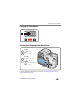
Setting up your camera Turning on the camera Setting the language and date/time 1 2 1 Language: to change. OK to accept. Date/Time: At the prompt, press OK. 2 to change. for previous/next field. OK to accept. OK To set the language and date/time at a later time, see Changing picture-taking settings starting on page 28. www.kodak.
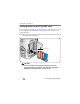
Setting up your camera Storing pictures on an SD or MMC card Your camera has internal memory. You can purchase SD or MMC cards to store more pictures and videos. (Visit www.kodak.com/go/z650accessories. See page 57 for storage capacities.) NOTE: When using the card for the first time, format it in this camera before taking pictures (see page 33). We recommend Kodak SD or MMC cards. Notched corner CAUTION: A card can only be inserted one way; forcing it may cause damage.
2 Taking pictures and videos Taking a picture 1 2 Press the EVF/LCD button to turn on: • LCD or • EVF (electronic viewfinder) 3 Press the Shutter button halfway to focus and set exposure. EVF LCD When the AF/AE indicator turns green, press the Shutter button completely down. AF/AE indicator: Green—successful Red—failed Failed focus Failed exposure NOTE: After you take a picture, the EVF/LCD displays a quickview for approximately 5 seconds. The picture is saved unless you press the Delete button.
Taking pictures and videos Taking a video 1 2 3 Press the EVF/LCD button to turn on: • LCD or • EVF (electronic viewfinder) EVF LCD Press the Shutter button completely down and release. To stop recording, press and release the Shutter button again. NOTE: After you take a video, the EVF/LCD displays a quickview for approximately 5 seconds. To play/pause the video during the quickview, press the OK button. The video is saved unless you press the Delete button. 6 www.kodak.
Taking pictures and videos Using the auto-focus framing marks (pictures) When using the LCD or EVF as a viewfinder, framing marks indicate the camera focus area. The camera attempts to focus on foreground subjects, even if the subjects are not centered in the scene. 1 Press the Shutter button halfway. When the framing marks turn green, focus is accomplished.
Taking pictures and videos Using optical zoom Use optical zoom to get up to 10X closer to your subject. Optical zoom is effective when the lens is no closer than 24 in. (60 cm) to the subject or 5 in. (13 cm) in Close-up mode. You can change optical zoom before (but not during) video recording. 1 Use the viewfinder or LCD to frame your subject. 2 Press Telephoto (T) to zoom in. Press Wide Angle (W) to zoom out. The zoom indicator shows zoom status. 3 Take the picture or video.
Taking pictures and videos Using the flip-up flash Use the flash when you take pictures at night, indoors, or outdoors in heavy shadows. Make sure you are within flash range. The flash unit must be open to use the flash and to change flash modes. To change flash settings, see page 20. To turn off the flash, close it. Flash-to-subject distance Zoom position Flash distance Wide angle Telephoto 2–16.1 ft (0.6–4.9 m) 6.6–12.1 ft (2.0–3.
Taking pictures and videos What the capture icons mean Capture modes—no buttons pressed Self-timer Flash Landscape/ Close-up Picture size Pictures/time remaining Date stamp Storage location Album name AF mode Zoom Focus zone Exposure metering White Balance Histogram ISO Low battery PASM Setting Camera mode Aperture Shutter speed Exposure compensation Capture modes—shutter pressed halfway Slow shutter speed warning Open flash reminder Auto Focus/ Auto Exposure (AF/AE indicator) ISO Apertur
Taking pictures and videos Reviewing pictures and videos Press the Review button to view and work with your pictures and videos. 1 Review. (Press again to exit.) 2 for previous/next. Videos: OK Play/pause. Adjust the volume. Rewind to beginning (during playback). Next picture/video (during playback). To save battery power, use an optional Kodak EasyShare dock or Kodak 3-volt AC adapter. (See www.kodak.com/go/z650accessories.) NOTE: Pictures taken at the 5.
Taking pictures and videos Videos Video length Protected Favorite tag Picture number Email tag Image storage location Play or Pause Review mode Scroll arrows Magnifying a picture during review 1 W/T 2 3 Magnify 1X - 8X. View other parts of the picture. OK Return to 1X. Viewing multi-up (thumbnails) during review 1 View multi-up thumbnails. 2 3 12 View previous/next row or thumbnail. OK View single picture. www.kodak.
Taking pictures and videos Deleting pictures and videos 1 Press Review. 2 View previous/next. 3 Press Delete. 4 Follow the screen prompts. PICTURE or VIDEO—deletes the displayed picture or video. EXIT—exits the Delete screen. ALL—deletes all pictures and videos from your current storage location. NOTE: To delete protected pictures and videos, remove protection before deleting. Protecting pictures and videos from deletion 1 Press Review. 2 3 View previous/next. Press Menu.
3 Transferring and printing pictures Installing the software CAUTION: Install Kodak EasyShare software before connecting the camera or optional dock to the computer. Failure to do so may cause the software to load incorrectly. 1 Close all software applications that are open on your computer (including anti-virus software). 2 Place the Kodak EasyShare software CD into the CD-ROM drive. 3 Load the software: Windows OS—if the install window does not appear, choose Run from the Start menu and type d:\setup.
Transferring and printing pictures Transferring pictures IMPORTANT: If your camera was packaged with a Kodak EasyShare dock, use the dock to transfer pictures to your computer. (See page 19 and the dock user’s guide for details.) If your camera was not packaged with an EasyShare dock, use the USB cable (U-8) that came with your camera. 1 Turn off the camera. 2 Plug the labeled end of the USB cable into the labeled USB port on your computer. See your computer user’s guide for details.
Transferring and printing pictures Printing pictures Printing with a Kodak EasyShare printer dock Dock your camera to the Kodak EasyShare printer dock and print directly—with or without a computer. Purchase this and other accessories at a dealer of Kodak products or www.kodak.com/go/z650accessories. Direct printing with a PictBridge enabled printer Your camera features PictBridge technology, so you can print directly to PictBridge enabled printers.
Transferring and printing pictures Printing from a PictBridge enabled printer 1 Turn on the printer. Turn on the camera. The PictBridge logo is displayed, followed by the current picture and menu. (If no pictures are found, a message is displayed.) If the menu interface turns off, press any button to redisplay it. 2 Press to choose a printing option, then press the OK button. Current Picture—Press to choose a picture. Choose the number of copies.
Transferring and printing pictures Ordering prints online Kodak EasyShare Gallery is one of the many online print services offered in EasyShare software. You can easily: ■ Upload your pictures. ■ Edit, enhance, and add borders to your pictures. ■ Store pictures, and share them with family and friends. ■ Order high-quality prints, photo greeting cards, frames, and albums—and have them delivered to your door.
Transferring and printing pictures Dock compatibility for your camera Dock Docking configuration Kodak EasyShare: Custom dock insert ■ printer dock series 3 ■ camera dock series 3 Dock Kodak EasyShare: Custom dock insert ■ printer dock ■ printer dock plus ■ printer dock 6000 Kodak dock adapter D-22 ■ camera dock 6000 Dock Other docks: ■ printer dock 4000 ■ camera dock II Not compatible ■ LS420, LS443 camera dock Purchase camera docks, printer docks, and other accessories at a dealer of Kodak p
4 Doing more with your camera Changing the flash settings 1 Open the flash. 2 Press the flash button repeatedly to scroll through flash modes. The current flash mode is depicted in the LCD/EVF status area. Flash modes Flash fires Auto Flash When the lighting conditions require it. Fill Every time you take a picture, regardless of the lighting conditions. Use when the subject is in shadow or is “backlit” (when light is behind the subject). In low light, hold the camera steady or use a tripod.
Doing more with your camera Using the self-timer 1 Place camera on a tripod or flat surface. 2 In any Still mode, press : • Once for a 10-sec. delay (so you have time to get into the scene) • Again for a 2-sec. delay (for a steady, shutter release on a tripod) • Again for 2 pictures (after a 10- and 18-second delay) 3 Compose the scene. 4 Press the Shutter button halfway, then completely down. The picture is taken after the delay.
Doing more with your camera Capture modes Choose the mode that best suits your subjects and surroundings. Use this mode For Auto General picture-taking—offers an excellent balance of image quality and ease of use. Sport Subjects that are in motion. Shutter speed is fast. The camera pre-settings are f/2.8–f/3.7, Multi-Pattern Exposure Metering, Multi-Zone Focus, ISO 100–ISO 200. Full-frame portraits of people. Allows the subject to be sharp and the background to be indistinct.
Doing more with your camera Scene modes 1 Turn the Mode dial to Scene . 2 Press to display Scene mode descriptions. NOTE: If the Scene mode description turns off, press the OK button. 3 Press the OK button to choose a Scene mode. Use this For SCN mode Camera pre-settings Children f/2.8–f/3.7, Multi-Pattern Exposure Metering, Multi-Zone Focus f/2.8–f/3.7, Multi-Pattern Exposure Metering, Multi-Zone Focus, Red Eye Flash f/2.8–f/3.
Doing more with your camera Use this For SCN mode Camera pre-settings Night Portrait f/2.8–f/3.7, Multi-Pattern Exposure Metering, Multi-Zone Focus Landscape Night Landscape Manner/ Museum Text SelfPortrait Reduces red eye of people in night scenes or low-light conditions. Place the camera on a flat, steady surface or use a tripod. Distant scenery. Flash does not fire. Auto-focus framing marks (page 7) are not available in Landscape. Distant scenery at night. Flash does not fire.
Doing more with your camera Taking close-up and landscape pictures Use the Close-up/Landscape button close or very far away. to take pictures of scenes that are very 1 Set the Mode dial to Auto or a PASM mode. (For PASM mode, see page 37.) Close-up/ Landscape 2 Press the Close-up/Landscape button repeatedly until the or icon appears in the status bar. 3 Take a picture. NOTE: After you take the picture, the camera stays in the Close-up or Landscape setting.
Doing more with your camera Using burst Option Description Purpose Camera takes up to 4 pictures (2 per second) while the Shutter Capture an button is pressed. expected event. First Burst Last Burst Example: A person swinging a golf club. First 4 pictures are saved. Camera takes up to 30 pictures (2 per second for up to 15 seconds) while the Shutter button is pressed. When the Shutter button is released, only the last 3 pictures are saved. Last 3 pictures are saved.
Doing more with your camera Starting the slide show 1 Press the Review button, then press the Menu button. 2 Press to highlight Slide Show , then press the OK button. 3 Press to highlight Begin Show, then press the OK button. Each picture and video is displayed once. To interrupt the Slide Show, press the OK button. Changing the slide show display interval The default interval setting displays each picture for 5 seconds. You can set the display interval from 3 to 60 seconds.
Doing more with your camera Displaying pictures and videos on a television You can display pictures and videos on a television, computer monitor, or any device equipped with a video input. (Image quality on a television screen may not be as good as on a computer monitor or when printed.) NOTE: Ensure that the Video Out setting (NTSC or PAL) is correct (see page 33).
Doing more with your camera Setting Options Video Size Choose a video resolution. Available only in Video mode. This setting remains until you change it. White Balance Choose your lighting condition. This setting remains until you turn the Mode dial or turn off the camera. Available only in PASM mode. 640 x 480—higher resolution and file size; video plays in a 640 x 480 pixel window (VGA). 320 x 240—lower resolution and file size; video plays in a 320 x 240 pixel window (QVGA).
Doing more with your camera Setting Options AF Control Choose an auto-focus setting. This setting remains until you change it. Continuous AF (default)—uses external AF sensor and TTL-AF (Through-The-Lens). Because the camera is always focusing, there is no need to press the Shutter button halfway down to focus. Single AF—uses external AF sensor and TTL-AF when the Shutter button is pressed halfway down. Color Mode High Color Choose color tones.
Doing more with your camera Setting Options Video Length Choose a video length. Available only in Video mode. This setting remains until you change it. Image Storage Choose a storage location for pictures and videos. This setting remains until you change it. Setup Menu Choose additional settings. Continuous (default) 5, 15, 30 seconds Auto (default)—the camera uses the card if one is in the camera. If not, the camera uses internal memory.
Doing more with your camera Setting Options Advanced Digital Zoom Choose how digital zoom is employed. Continuous—no pause between optical and digital zoom. Pause (default)—after reaching 10X optical zoom, the zoom button must be released, then activated again to begin digital zoom. None—digital zoom is disabled. Print Warning Pause (default)—when the slider on the zoom indicator pauses during digital zoom, the zoom must be released and reactivated.
Doing more with your camera Setting Options Video Out Choose the regional setting that lets you connect the camera to a television or other external device. Orientation Sensor Orient pictures so that they are displayed with the correct side up. Date Stamp Imprint the date on pictures. NTSC (default)—used in North America and Japan; most common format. PAL—used in Europe and China. Red Eye Preflash Choose if the Red Eye flash fires automatically before a picture is taken.
Doing more with your camera Cropping pictures 1 Press Review. 2 for previous/next. 3 Press Menu, choose Crop 4 Press Telephoto (T) to zoom in, or 5 Follow the screen prompts. , then press OK. to move the crop box. The picture is copied, then cropped. The original picture is saved. A cropped picture cannot be cropped again on the camera. Press the Menu button to exit the menu. Viewing picture/video information 1 Press Review. 2 Press Info. 3 for previous/next.
Doing more with your camera Copying pictures and videos You can copy pictures and videos from a card to internal memory or from internal memory to a card. Before you copy, make sure that: ■ A card is inserted in the camera. ■ The storage location is set to the location from which you are copying (see page 31). Copy pictures or videos: 1 Press the Review button, then press the Menu button. 2 Press to highlight Copy 3 Press to highlight an option: , then press the OK button.
Doing more with your camera Adjusting exposure compensation Use exposure compensation to make pictures lighter or darker. 1 In Auto mode, press . Exposure compensation information appears on the LCD or EVF. (To change exposure compensation in P, A, S, and M modes, see page 37.) 2 To make pictures lighter, press . To make pictures darker, press . The setting remains until you change it or turn off the camera.
Doing more with your camera P, A, S, and M modes Use this mode For Program Controlling exposure compensation (how much light enters the camera). The camera automatically sets the shutter speed and aperture (f-stop) based on the scene lighting. Program mode offers the ease of auto shooting with full access to all menu options. Press to select settings. Press the Menu button to change other settings. (See page 38.) Aperture Controlling aperture, exposure compensation, and ISO speed.
Doing more with your camera Changing P, A, S, or M mode settings PASM modes control the aperture (f-number, also known as f-stop), shutter speed, and exposure compensation. Use the Menu button to control all other settings. ISO PASM Options White—selectable Grey—non-selectable Yellow—changeable value Red—out of range Exposure compensation Shutter speed Aperture 1 Turn the Mode dial to PASM. The mode options are displayed. 2 Press to choose P, A, S, or M.
Doing more with your camera Pre-tagging for album names Use the Set Album (Still or Video) feature to pre-select album names before you take pictures or videos. Then, all the pictures or videos you take are tagged with those album names. First—on your computer Use Kodak EasyShare software (V 3.0 or higher, see page 14) to create album names on your computer. Then copy up to 32 album names to the album name list the next time you connect the camera to the computer. See EasyShare software help for details.
Doing more with your camera Tagging pictures/videos for albums Use the Album feature in Review mode to tag the pictures and videos in your camera with album names. First—on your computer Use Kodak EasyShare software to create album names on your computer, then copy up to 32 album names to the camera’s internal memory. See EasyShare software Help for details. Second—on your camera 1 Press the Review button, then for previous/next picture or video. 2 Press the Menu button.
Doing more with your camera Sharing your pictures Press the Share button to “tag” your pictures and videos. When they are transferred to your computer, you can share them. ■ Any time. (The most recent picture/video taken is then displayed.) ■ Just after you take a picture/video, during Quickview. ■ After pressing the Review button (see page 11). Tagging pictures for printing 1 Press the Share button. Press 2 Press to highlight Print for previous/next picture. , then press the OK button.
Doing more with your camera Tagging pictures and videos for emailing First—on your computer Use Kodak EasyShare software to create an email address book on your computer. Then, copy up to 32 email addresses to the camera’s internal memory. For details, see EasyShare software help. Second—tag pictures/videos on your camera 1 Press the Share button. Press for previous/next picture/video. 2 Press to highlight Email , then press the OK button. The Email icon appears in the status area.
Doing more with your camera Tagging pictures as favorites You can preserve your favorite pictures in the Favorites section of your camera’s internal memory, then share them with friends and family. NOTE: When you transfer pictures from your camera to your computer, all pictures (including favorites) are stored on your computer at full size. Favorite pictures—smaller copies of your originals—are loaded back to your camera, so you can share and enjoy more. 1. Tag pictures as 1 Press the Share button.
Doing more with your camera Optional settings In Favorites mode, press the Menu button to access optional settings. Slide Show (page 26) Remove all favorites (Removing all favorites from your camera, page 44) Multi-up (page 12) Setup Menu (page 31) Picture Information (page 34) NOTE: Pictures taken at the 5.3 MP (3:2) picture size are displayed at a 3:2 aspect ratio with a black bar at the top of the screen. (See page 28.
Doing more with your camera Printing and emailing favorites 1 Move the Power/Favorites switch to Favorites picture. . Press for previous/next 2 Press the Share button. 3 Highlight Print or Email , then press the OK button. NOTE: Favorites that were taken on this camera (not imported from another source) are good for prints up to 4 x 6 in. (10 x 15 cm). www.kodak.
5 Troubleshooting Camera problems For step-by-step product support, visit www.kodak.com/go/z650support and select Interactive Troubleshooting & Repairs. If... Try one or more of the following Camera does not turn on Camera does not turn off and the lens does not retract Camera buttons and controls do not function Lens does not extend when camera turns on or does not retract ■ Insert a new or charged battery. ■ Connect the camera to a Kodak 3-volt AC adapter (sold separately), then try again.
Troubleshooting If... Try one or more of the following Picture orientation is not accurate Flash does not fire ■ Set the Orientation Sensor to ON (see page 33). ■ Open the flash unit (page 9). ■ Check the flash setting and change as needed (page 20). NOTE: The flash does not fire in all modes. Storage location is almost or entirely full ■ Transfer pictures to the computer (page 15). ■ Delete pictures from the card (page 13) or insert a new one.
Troubleshooting Computer/connectivity problems If... Try one or more of the following Computer does not communicate with the camera ■ Insert a charged battery (page 2). ■ Turn on the camera. ■ Make sure proper USB cable is connected on camera and computer port (page 15). (If using an EasyShare dock, check all cable connections. Make sure the camera is seated on the dock.) ■ Make sure the EasyShare software is installed (page 14).
Troubleshooting If... Try one or more of the following Picture is too light ■ Reposition camera to reduce the amount of available light. ■ Turn flash off (page 9). ■ Move so that the distance between you and the subject is within the effective flash range (page 9). ■ To automatically set exposure and focus, press the Shutter button halfway. When the AF/AE indicator turns green, press the Shutter button completely down to take the picture. ■ Use P mode to adjust the Exposure.
Troubleshooting Direct printing (PictBridge) problems Status Solution Cannot locate desired picture. ■ Turn on the camera. Make sure the camera is not in The Direct print menu interface turns off. Cannot print pictures. Favorites mode. ■ Use the Direct print menu to change the image storage location. Press any button to redisplay the menu. ■ Ensure that there is a connection between camera and printer (page 15). ■ Ensure the printer and camera have power.
6 Getting help Helpful links Camera Email Kodak customer support Get support for your product (FAQs, troubleshooting information, arrange for repairs, etc.) Purchase camera accessories (camera docks, printer docks, lenses, cards, etc.) Download the latest camera firmware and software See online demonstrations of your camera www.kodak.com/go/z650support www.kodak.com/go/z650support www.kodak.com/go/z650accessories www.kodak.com/go/z650downloads www.kodak.
Getting help Telephone customer support If you have questions concerning this product, you may speak with Kodak customer support: Australia Austria Belgium Brazil Canada China Denmark Ireland Finland France Germany Greece Hong Kong India Italy 1800 147 701 0179 567 357 02 713 14 45 0800 150000 1 800 465 6325 800 820 6027 3 848 71 30 01 407 3054 0800 1 17056 01 55 1740 77 069 5007 0035 00800 44140775 800 901 514 91 22 617 5823 02 696 33452 Netherlands New Zealand Norway Philippines Poland Portugal Singapo
7 Appendix Camera specifications CCD—1/2.5 in. CCD, 4:3 aspect ratio Picture size— 6.0 MP: 2832 x 2128 pixels 5.3 MP (3:2): 2832 x 1888 pixels 4.0 MP: 2304 x 1728 pixels 3.1 MP: 2048 x 1536 pixels 1.7 MP: 1496 x 1122 pixels Color display—2.0 in. (5 cm) color hybrid LCD; 480 x 240 (110 K) pixels Color electronic viewfinder—LCD and EVF (not simultaneous); 0.2 in. (5.1 mm) 201 K pixels Preview (LCD/EVF)—Frame rate: 27 fps Taking lens—10X optical zoom, aspheric all-glass lens, f/2.8–3.
Appendix Exposure metering—TTL-AE, Multi-pattern, Center-spot, Center-weighted (available in PASM modes only) Exposure compensation—+/-2.0 EV with 0.5 EV step Shutter speed— Auto: 1/8–1/1700 sec. Shutter priority: 1/8–1/2000 sec. @ Wide Selectable: 0.7–8 sec. ISO speed— Auto: 80 to 160 Selectable: 80, 100, 200, 400, 800 (800 available only in 1.7 MP picture quality.) Electronic flash—Guide no. 10.6 (@ ISO 100); auto flash with pre-flash control. Working range @ ISO 168: 2–16 ft (0.6–4.9 m) @ Wide; 6.
Appendix Internal storage capacity—32 MB internal memory (28 MB available for image storage. 1 MB equals one million bytes.) Quickview—Yes Video output—NTSC or PAL Power—CRV3; 2-AA lithium; 2-AA Ni-MH; Kodak Ni-MH rechargeable digital camera battery (KAA2HR); 3V AC adapter Communication with computer—USB 2.
Appendix Capture modes Default setting Available settings P, A, S, or M Auto* Auto, Off, Fill Flash, Red Eye Night Auto* Auto, Off, Fill Flash, Red Eye Children Auto* Auto, Off, Fill Flash, Red Eye Party Red Eye* Auto, Off, Fill Flash, Red Eye Beach Auto* Auto, Off, Fill Flash, Red Eye Flower Off Off, Fill Flash Fireworks Off Off Snow Auto* Auto, Off, Fill Flash, Red Eye Backlight Fill Fill Close-up Off Off, Fill Flash Night Portrait Red Eye* Auto, Off, Fill Flash, Red Eye
Appendix Storage capacities Picture storage capacity File sizes vary. You may be able to store more or fewer pictures and videos. Favorites take up additional space in internal memory. Number of pictures 6.0 MP 5.3 MP (3:2) 4.0 MP 3.1 MP 1.7 MP Internal memory 14 16 21 27 46 32 MB SD/MMC 16 18 24 30 51 64 MB SD/MMC 33 37 48 60 103 128 MB SD/MMC 66 74 97 121 208 242 416 256 MB SD/MMC 133 149 196 512 MB SD/MMC 266 298 392 485 832 1 GB SD/MMC 532 596 784 970 1664 www.
Appendix Video storage capacity Internal memory 32 MB SD/MMC 64 MB SD/MMC 128 MB SD/MMC 256 MB SD/MMC 512 MB SD/MMC 1 GB SD/MMC Minutes/seconds of video VGA (640 x 480) QVGA (320 x 240) 1 min. 47 sec. 3 min. 23 sec. 1 min. 52 sec. 3 min. 46 sec. 3 min. 59 sec. 7 min. 32 sec. 7 min. 59 sec. 15 min. 4 sec. 15 min. 58 sec. 30 min. 8 sec. 31 min. 57 sec. 60 min. 17 sec. 63 min. 54 sec. 120 min. 34 sec.
Appendix Battery safety and handling CAUTION: When removing the battery, allow it to cool; it may be hot. ■ Read and follow all warnings and instructions supplied by the battery manufacturer. ■ Use only batteries approved for this product to avoid risk of explosion. ■ Keep batteries out of the reach of children. ■ Do not allow batteries to touch metal objects, including coins. Otherwise, a battery may short circuit, discharge energy, become hot, or leak.
Appendix Battery life Use these Kodak batteries. (Battery types are also molded into battery door.) CRV3 lithium battery 348 - 391 AA (2) lithium batteries 248 - 348 Ni-MH rechargeable battery 2300 mAh (per charge) 236 - 265 AA (2) Ni-MH rechargeable batteries (per charge) 236 - 265 0 500 Battery life per CIPA testing method (Approx. number of pictures). Actual life may vary based on usage. We do not recommend or support alkaline batteries.
Appendix Battery charging options Visit www.kodak.com/go/z650accessories for: Kodak EasyShare camera dock series 3—powers your camera, transfers pictures, and charges the Kodak Ni-MH rechargeable digital camera battery. Kodak EasyShare printer dock series 3—powers your camera, makes 4 x 6-in. (10 x 15 cm) prints with or without a computer, transfers pictures, and charges the Kodak Ni-MH rechargeable digital camera battery. Kodak 3-volt AC adapter—powers your camera.
Appendix Warranty Limited warranty Kodak warrants Kodak EasyShare digital cameras and accessories (excluding batteries) to be free from malfunctions and defects in both materials and workmanship for one year from the date of purchase. Retain the original dated sales receipt. Proof of the date of purchase will be required with any request for warranty repair.
Appendix This warranty does not apply when failure is due to shipping damage, accident, alteration, modification, unauthorized service, misuse, abuse, use with incompatible accessories or attachments, failure to follow Kodak’s operation, maintenance or repacking instructions, failure to use items supplied by Kodak (such as adapters and cables), or claims made after the duration of this warranty. Kodak makes no other express or implied warranty for this product.
Appendix Regulatory compliance FCC compliance and advisory Kodak EasyShare Z650 zoom digital camera This equipment has been tested and found to comply with the limits for a Class B digital device, pursuant to Part 15 of the FCC Rules. These limits are designed to provide reasonable protection against harmful interference in a residential installation.
Appendix Waste Electrical and Electronic Equipment labeling In the European Union, do not discard this product as unsorted municipal waste. Contact your local authorities or go to www.kodak.com/go/recycle for recycling program information. VCCI Class B ITE English translation: This is a Class B product based on the standard of the Voluntary Control Council for Interference from Information Technology Equipment (VCCI).
1 Index A A/V out, 28 about picture, video, 34 about this camera, 33 AC adapter, 61 accessories, 15 AC adapter, 61 battery, 60 buying, 51 camera dock, 61 printer dock, 16, 61 SD/MMC card, 4 AF control, 30 album set, 30 albums tagging pictures for, 39 aperture priority, 37 auto, 22 flash, 9 focus framing marks, 7 B backlight, 23 batteries expected life, 60 extending life, 60 loading, 2 safety, 59 types, 60 beach, 23 burst, using, 26 66 button burst, 26 close-up/landscape, i, 25 delete, ii EVF/LCD, ii flash
Index card to memory, 35 memory to card, 35 to computer via USB cable, 14 cropping pictures, 34 CRV3 battery, loading, 2 customer support, 52 customizing camera settings, 31 D date & time, 32 date setting, 3 date stamp, 33 DC-in, i delete button, ii deleting from internal memory, 13 from SD/MMC card, 13 protecting pictures, videos, 13 digital zoom, using, 8 displaying slide show, 26 disposal, recycling, 61 distant scenes, 25 dock camera, 61 connector, ii printer, 16, 61 downloading pictures, 14 E emailing
Index information about pictures, videos, 34 installing batteries, 2 SD/MMC card, 4 software, 14 internal memory storage capacity, 57 J joystick, ii K Kodak EasyShare software installing, 14 upgrading, 61 Kodak Web sites, 51 L landscape, 24, 25 language, 33 LCD, ii reviewing pictures, 11 reviewing videos, 11 lens, i cap, 1 cleaning lens, 61 liveview, 31 loading batteries, 2 SD/MMC card, 4 software, 14 M Macintosh, installing software on, 14 68 maintenance, camera, 61 manner, 24 manual, 37 memory inserting
Index night portrait, 24 O online prints, ordering, 18 open flash switch, i optical zoom, 8 orientation sensor, 33 P party, 23 PASM mode screen options, 37 PictBridge printer, 16 picture quality, 28 pictures checking settings, 11 copying, 35 cropping, 34 deleting, 13 emailing tagged, 42 printing, 18 printing tagged, 41 protecting, 13 reviewing, 11 storage capacity, 57 tagging, 39 taking, modes, 22 transfer via USB cable, 14 portrait, 23 power camera, 3 switch, i printer dock, 16, 61 printing www.kodak.
Index inserting, 4 printing from, 18 slot, ii storage capacities, 57 self-portrait, 24 self-timer with pictures, 21 self-timer/burst button, i service and support telephone numbers, 52 setting AF control, 30 album, 30 camera sounds, 32 color mode, 30 date & time, 32 date and time, 3 date stamp, 33 exposure metering, 29 flash, 9 focus zone, 29 image storage, 31 language, 33 liveview, 31 orientation sensor, 33 picture quality, 28 picture taking mode, 22 self-timer, 21 sharpness, 30 video date display, 32, 33
Index transfer, via USB cable, 14 tripod socket, ii turning camera on and off, 3 U upgrading software, firmware, 61 URLs, Kodak Web sites, 51 USB (universal serial bus) transferring pictures, 14 USB, A/V out, ii Windows computers installing software, 14 Z zoom button, ii digital, 8 optical, 8 V VCCI compliance, 65 video checking settings, 11 copying, 35 date display, 32, 33 deleting, 13 emailing tagged, 42 length, 31 out, 33 protecting, 13 reviewing, 11 size, 29 storage capacities, 57 transfer to compute