urg_01281.
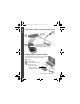
urg_01281.book Page 2 Thursday, May 12, 2011 9:56 AM ENGLISH 1Getting started with your camera Loading and charging the battery All batteries lose power over time–even if they’re not being used. For longer life, fully charge the battery prior to use. 1 2 Push aside the battery lock with the battery. 2 Charge the battery See page 3 Purchase extra batteries www.kodak.com/go/accessories www.kodak.
urg_01281.book Page 3 Thursday, May 12, 2011 9:56 AM ENGLISH If your camera includes an in-camera charger Maximize the number of pictures you can take–fully charge the battery before using. (All rechargeable batteries lose power over time, even if they’re not being used.) You can charge the Li-Ion battery whenever necessary. 1 Turn off the camera. 2 Connect a KODAK Camera USB Cable, Micro B / 5-Pin and charger. (Use only the cable included with this camera.
urg_01281.book Page 4 Thursday, May 12, 2011 9:56 AM ENGLISH If your camera includes an external battery charger Your charger and plugs may differ. 1 Battery Charging light: • Flashing green: charging • Steady On green: finished charging 2 Charging via your computer’s USB port The camera charges when the computer is on and awake. Turn off the computer’s hibernation, sleep, and standby modes. 1 Turn off the camera. 2 Connect a KODAK Camera USB Cable, Micro B / 5-Pin.
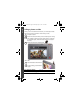
Using an accessory MICROSD/SDHC Card Your camera has internal memory. We recommend purchasing a MICROSD/SDHC Card (Class 4 or higher) to store more pictures/videos. CAUTION: A card can only be inserted one way; forcing it may cause damage. Inserting or removing a card while the camera is on may damage the pictures, the card, or the camera. 1 Turn off the camera, then open the door. 2 Insert a card until it clicks. Accessory 3 Turn on the camera. To remove a card, press and release it.
urg_01281.book Page 6 Thursday, May 12, 2011 9:56 AM ENGLISH Turning on the camera 6 www.kodak.
urg_01281.book Page 7 Thursday, May 12, 2011 9:56 AM ENGLISH Setting the language, date/time Set the language 1 Drag or swipe to view your language. 2 Tap your language. Set the date/time 1 Tap the Month, Date, or Year, then tap to change it. (Tap MDY to change the date format.) 2 Tap the Hour or Minutes, then to change it. 3 Tap Done. See the Extended user guide www.kodak.com/go/M5370manuals See How-To videos www.kodak.com/go/M5370demos www.kodak.
urg_01281.book Page 8 Thursday, May 12, 2011 9:56 AM ENGLISH Taking a picture or video When you turn on the camera for the first time, it’s in Smart Capture mode. (After that, the camera “remembers” the last mode you used.) 1 Compose the picture. 2 Press the Shutter button halfway to focus and set exposure. Framing 3 marks indicate the camera focus area. (If the camera is not focusing on the desired subject, release the Shutter button and recompose the scene.) Press the Shutter button completely down.
urg_01281.book Page 9 Thursday, May 12, 2011 9:56 AM ENGLISH Understanding the picture-taking icons Icons vary by mode. Touch Shutter Self-timer/Burst Flash Capture mode Exposure compensation ISO White balance Focus/Exposure zone Color mode Sharpness Settings Swipe to see these tools. Battery Most recent picture/video level Number of pictures/ video time remaining See the Extended user guide www.kodak.com/go/M5370manuals See How-To videos www.kodak.com/go/M5370demos www.kodak.
urg_01281.book Page 10 Thursday, May 12, 2011 9:56 AM ENGLISH Customizing your camera Sometimes, you want to see everything available. (Other times, you want everything out of your way!) Tap anywhere on the LCD to change between Clean view and Tools view. Clean view Tools Tools view (Tools vary by camera mode.) 10 www.kodak.
urg_01281.book Page 11 Thursday, May 12, 2011 9:56 AM ENGLISH Using Tools to choose actions, preferences Tools In Liveview, tap a tool at the top of the LCD to adjust settings. Tap the most recent picture thumbnail to see it in Review. or Most recent picture In Review, tap a tool or swipe to see the previous or next picture/video. , NOTE: If you choose you get a scrollable menu. Tap a setting to view and choose its options. www.kodak.
urg_01281.book Page 12 Thursday, May 12, 2011 9:56 AM ENGLISH Reviewing pictures/videos 1 Press the Review button to enter Review. 2 Tap All, People, Date, Keywords, or Videos. Paging bar 3 If you chose People, Date, or Keywords, tap a name, date, or keyword. Review You can review the most recent picture/video by: • Tapping the thumbnail (bottom left of LCD) in Liveview, or • Pressing during Quickview, while reviewing a new picture/video 12 www.kodak.
urg_01281.book Page 13 Thursday, May 12, 2011 9:56 AM ENGLISH Other things you can do in Review • Swipe a picture to see the previous or next. (Touch and hold one side of the LCD to fast-forward or fast-reverse.) • Tap Play to play videos. • Tap to delete pictures/videos. Tag Edit Print Delete Multi-up Home Back Settings Info Picture has been marked for sharing Battery level Picture/video number Watch the battery level Full Three quarters Half Critical AC Power www.kodak.
urg_01281.book Page 14 Thursday, May 12, 2011 9:56 AM ENGLISH Sharing pictures and videos IMPORTANT: To use the sharing and social networking features, you must install the KODAK Share Button App. (See page 15.) 1 In Liveview: Press the Share button. Tap Select Images, then tap the pictures/videos you want to share. (To share only the most recent picture/video, tap the thumbnail in the bottom left corner of the LCD.) In Quickview: During a Quickview, press the Share button. Then go to Step 3.
urg_01281.book Page 15 Thursday, May 12, 2011 9:56 AM ENGLISH Installing software, transferring pictures IMPORTANT: To use the sharing and social networking features, you must install the KODAK Share Button App. 1 Make sure the computer is connected to the Internet. 2 Turn off the camera. 3 Using the KODAK Camera USB Cable, Micro B / 5-Pin, connect the camera to the computer. (Use only the cable included with this camera.) The camera turns on.
urg_01281.book Page 16 Thursday, May 12, 2011 9:56 AM ENGLISH Keep learning about your camera Congratulations! You have: • set up your camera • taken pictures • transferred pictures to your computer Keep learning! Finish reading this book, so you can take and share your best pictures! Go to www.kodak.
urg_01281.book Page 17 Thursday, May 12, 2011 9:56 AM 2 Product overview, features Front, top views AF Assist/ Self-timer/ Video light Flash Lens Power Power/Battery Charging light Shutter button (for pictures) Zoom Record Video www.kodak.
urg_01281.book Page 18 Thursday, May 12, 2011 9:56 AM Product overview, features Side, bottom views LCD Tripod socket Speaker Micro USB/ AV Out Strap post MICROSD/SDHC Card (accessory) Review Share Slot for MICROSD/SDHC Card (accessory) Battery compartment See the Extended user guide www.kodak.com/go/M5370manuals See How-To videos www.kodak.com/go/M5370demos 18 www.kodak.
urg_01281.book Page 19 Thursday, May 12, 2011 9:56 AM 3 Doing more with your camera Using the flash Use the flash when you take pictures at night, indoors, or outdoors in heavy shadows. Flash settings are limited in some capture modes. 1 Tap Flash to view flash modes. 2 Tap the desired flash mode. Flash modes The flash fires Auto When the lighting conditions require it. Fill Every time you take a picture, regardless of the lighting conditions.
urg_01281.book Page 20 Thursday, May 12, 2011 9:56 AM Doing more with your camera Using different modes Tap Then tap the mode that suits your subject. Capture mode For Smart Capture Film Effects General picture taking—it offers excellent image quality and ease of use. Film-like effects that make your pictures/videos more interesting. Scene Modes Point-and-shoot simplicity when taking pictures under special conditions.
urg_01281.book Page 21 Thursday, May 12, 2011 9:56 AM Doing more with your camera Using Program mode Program Scene mode gives access to the greatest number of settings. 1 Tap , then tap Scene Modes. 2 Tap Program. Touch Shutter Self-timer/Burst Flash Capture mode Exposure compensation ISO White balance Settings Sharpness Color mode Focus/Exposure zone NOTE: Settings that you change in Program mode apply only to pictures taken in Program mode.
urg_01281.book Page 22 Thursday, May 12, 2011 9:56 AM Doing more with your camera Adding a date stamp to your next pictures You can add a stamp—showing the date taken—to pictures you take next. IMPORTANT: You cannot add a date stamp to pictures already taken. Once a date stamp is applied, it cannot be removed on the camera. 1 Tap Date Stamp Off . 2 Tap Date Stamp On . The Date Stamp On icon appears in the tool bar. The date is stamped on pictures you take next.
urg_01281.book Page 23 Thursday, May 12, 2011 9:56 AM 4 Solving camera problems Go to www.kodak.com/go/M5370support for the Extended user guide, firmware updates, and answers to your questions. Status Camera does not turn on/off or function Solution LCD is too dark. ■ Adjust the LCD Brightness setting in the ■ Make sure the battery is charged and installed correctly (see page 2). Settings menu (see page 11). Short battery life ■ Make sure the battery is charged (see page 2).
urg_01281.book Page 24 Thursday, May 12, 2011 9:56 AM 5 Appendix CAUTION: Do not disassemble this product; there are no user-serviceable parts inside. Refer servicing to qualified service personnel. KODAK AC Adapters and Battery Chargers are intended for indoor use only. The use of controls, adjustments, or procedures other than those specified herein may result in exposure to shock and/or electrical or mechanical hazards. If the LCD breaks, do not touch the glass or liquid.
urg_01281.book Page 25 Thursday, May 12, 2011 9:56 AM Appendix ■ Do not charge non-rechargeable batteries. Limited Warranty Kodak warrants its digital cameras and accessories (excluding batteries) to be free from malfunctions and defects in both materials and workmanship for the warranty period specified on your KODAK Product packaging. Retain the original dated sales receipt. Proof of purchase date is required with any request for warranty repair.
urg_01281.book Page 26 Thursday, May 12, 2011 9:56 AM Appendix refund is Kodak’s only obligation. Kodak will not be responsible for any special, consequential or incidental damages resulting from the sale, purchase, or use of this product regardless of the cause.
urg_01281.book Page 27 Thursday, May 12, 2011 9:56 AM Appendix Canadian DOC statement DOC Class B Compliance—This Class B digital apparatus complies with Canadian ICES-003. Observation des normes-Classe B—Cet appareil numérique de la classe B est conforme à la norme NMB-003 du Canada. China RoHS VCCI Class B ITE Australian C-Tick N137 Korean Class B ITE www.kodak.
urg_01281.book Page 28 Thursday, May 12, 2011 9:56 AM Appendix Korean Li-Ion Regulatory Eastman Kodak Company Rochester, New York 14650 © Kodak, 2011 Kodak, EasyShare Touch, and Pulse are trademarks of Eastman Kodak Company. 4H8632_en 28 www.kodak.