KODAK EASYSHARE M575 Digital Camera Extended user guide www.kodak.com For interactive tutorials: www.kodak.com/go/howto For help with your camera: www.kodak.
Eastman Kodak Company Rochester, New York 14650 © Eastman Kodak Company, 2009 All screen images are simulated. Kodak, EasyShare, and Pulse are trademarks of Eastman Kodak Company.
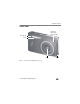
Product features Front view Self-timer/ Video light/ AF Assist Light Microphone Flash Lens Speaker NOTE: To access your camera’s Help system, see page 43. www.kodak.
Product features Back view Power button Flash button Mode button Shutter button Wide Angle/Telephoto button USB port Strap post OK, LCD Delete, Menu, Info buttons Review button Share button Tripod socket Battery compartment SD/SDHC Card slot NOTE: To access your camera’s Help system, see page 43. ii www.kodak.
Table of contents 1 1 Setting up your camera .........................................................................1 Attaching the strap ....................................................................................... 1 Loading the KLIC-7006 battery...................................................................... 1 Charging the battery ..................................................................................... 2 Turning on the camera ...............................................
Table of contents Understanding the review icons................................................................... 26 Using the menu button in review................................................................. 27 Cropping pictures........................................................................................ 27 Editing videos ............................................................................................. 28 Selecting multiple pictures/videos ....................................
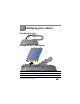
1 Setting up your camera Attaching the strap Loading the KLIC-7006 battery Purchase extra batteries for your special event www.kodak.com/go/m575accessories Charge the battery see page 2 Know when your battery needs charging see page 8 www.kodak.
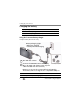
Setting up your camera Charging the battery If your package included Then see An in-camera battery charger Using the in-camera battery charger An external battery charger Using the external battery charger Using the in-camera battery charger Charge the battery whenever necessary. Battery Charging light: • Blinking: charging • Steady: finished charging 1 Turn OFF the camera. 2 Connect the KODAK Camera USB Cable, Micro B / 5-Pin and charger.
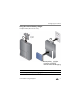
Setting up your camera Using the external battery charger Charge the battery whenever necessary. 1 Your plug may differ. 2 Battery Charging light: • Orange: charging • Green: finished charging Purchase extra batteries www.kodak.com/go/m575accessories Know when your battery needs charging see page 8 www.kodak.
Setting up your camera Turning on the camera Setting the language and date/time Language: to change. OK to accept. Date/Time: At the prompt, press OK. to change current field. for previous/next field. OK to accept. NOTE: To change language in the future, use the Setup Menu (see page 36). 4 www.kodak.
Setting up your camera Storing pictures on an optional SD or SDHC Card Your camera has internal memory. We recommend purchasing an SD or SDHC Card to conveniently store more pictures/videos. CAUTION: A card can only be inserted one way; forcing it may cause damage. Inserting or removing a card while the camera is on may damage the pictures, the card, or the camera. 1 Turn off the camera. 2 Insert or remove the optional card. 3 Turn on the camera. Purchase accessories www.kodak.com/go/support www.kodak.
2 Taking pictures/videos Taking pictures To get clear, focused pictures: 1 The camera turns on in Smart Capture mode. (If it’s in a different mode, press the Mode button, then until the LCD displays Smart Capture mode , then press OK.) 2 Compose the picture. 3 Press the Shutter button halfway to focus and set exposure. When the framing marks turn green, press the Shutter button completely down. Using the framing marks Framing marks Framing marks indicate the camera focus area.
Taking pictures/videos Taking a video 1 Press the Mode button, then until the LCD , then press OK. displays Video 2 Press the Shutter button completely down, then release it. To stop recording, press and release the Shutter button again. To review and work with videos, see page 22. Reviewing the picture/video just taken After you take a picture/video, the LCD briefly displays the picture or the first frame of a video. (To take new pictures/videos sooner, press the Shutter button halfway.
Taking pictures/videos Adjusting LCD brightness To adjust the LCD brightness for your environment, see page 36. Understanding the picture-taking icons Focus mode Self timer Exposure compensation Flash mode Pictures/time remaining Capture mode Zoom indicator Keyword tag Battery level Know when your battery needs charging The battery level icon works like the gas gauge in your car, but appears only when the battery requires your attention.
Taking pictures/videos Using the optical zoom 1 Use the LCD to frame your subject. 2 To zoom in, press Telephoto (T). To zoom out, press Wide Angle (W). 3 Take the picture. NOTE: For focus distances, see Specifications starting on page 49. Using digital zoom Use digital zoom to get up to 5X magnification beyond optical zoom. (Digital zoom is not available in Smart Capture mode.) Press Telephoto (T) until the slider on the LCD is at the end of the optical zoom range.
Taking pictures/videos Using the flash Press the Flash button repeatedly until the LCD displays the desired flash mode. Flash button Flash modes Flash fires Auto When the lighting conditions require it. Fill (Flash On) Every time you take a picture, regardless of the lighting conditions. Use when the subject is in shadow or is “backlit” (when the light is behind the subject). NOTE: (Not available in Smart Capture mode.) Red-eye Reduction Choose a setting in the Setup menu, page 36.
Taking pictures/videos Using different modes Press the Mode button, then until the LCD displays the mode that best suits your subjects and surroundings, then press OK. (When you turn on the camera, it is in Smart Capture mode.) Mode button Use this mode For General picture taking—it offers excellent image quality and ease of use. ■ Faces get focus and exposure priority. Smart Capture ■ The scene is analyzed for other content and for lighting.
Taking pictures/videos Using Scene (SCN) modes Choose a Scene mode—for great pictures in practically any situation. 1 Press the Mode button, then 2 Press until the LCD displays SCN, then press OK. to view scene mode descriptions. 3 Press OK (or let the description turn off) to enter the highlighted Scene mode. The camera is now in the highlighted scene mode. To read a mode description after it has turned off, press OK to see it again. SCN mode For Portrait Full-frame portraits of people.
Taking pictures/videos SCN mode For Fireworks Fireworks. For best results, place the camera on a steady surface or tripod. Self-Portrait Close-ups of yourself. Assures proper focus and minimizes red eye. Night Portrait Reduces red eye of people in night scenes or low-light conditions. Night Landscape Distant scenery at night. Flash does not fire. Panning Shot Emphasizing horizontal motion, with a sharp subject and blurred background.
Taking pictures/videos Using the self-timer Use the self-timer when you want to be included in a picture or to ensure a steady Shutter button press. For best results, place the camera on a tripod or steady surface. You can turn on the self-timer using a shortcut (see page 13) or these steps: 1 Press the Menu OK. 2 Press button. Press to choose Self-timer/Burst, then press to choose a Self-timer setting: 10 Seconds— 10 A picture is taken after a 10-second delay (so you have time to get into the scene).
Taking pictures/videos Taking panoramic pictures Use panorama to “stitch” up to 3 pictures into a panoramic scene. NOTE: For best results, use a tripod. Only the panoramic picture is saved; individual pictures are not. (Exposure and white balance are set with the first picture. The flash is set to Off.) 1 Press the Mode button, then until the LCD displays SCN, then press OK. 2 Press to choose Panorama Left-Right or Panorama Right-Left (depending on the direction you want to pan), then press OK.
3 Sharing and tagging pictures Sharing pictures through social networks It’s never been easier to share pictures on your favorite social networking sites. IMPORTANT: To use the camera’s social networking features, you need to download KODAK Software. (See page 39.) 1 Press the Review button, then to find a picture. 2 Press the Share button. If it’s your first time, a Help screen appears. 3 Press to choose a social networking site, then press OK. A check mark appears.
Sharing and tagging pictures Choose which social networking sites to display on your camera You can show/hide networking sites on your camera so that only your favorite sites appear. 1 In Review, press the Menu button. 2 Press to choose the Setup tab, then then press OK. to choose Share Button Settings, 3 Press to choose a social networking site, then press to choose Show or Hide. Repeat this step until you have chosen Show/Hide for each social network.
Sharing and tagging pictures Tagging pictures Tag pictures to make them easy to find, later. You can tag pictures in 2 ways: ■ People, and then find all pictures of “Mary.” ■ Keywords, and then find all pictures from “Dad’s 60th Birthday.” Tagging people When you tag faces, you’re helping your camera to recognize people by name. Then it matches names and faces in pictures you’ve taken—and those you take in the future! 1 Press the Review 2 Press the Menu 3 Press button, then button.
Sharing and tagging pictures Need to update a name? What happens if you meet a new friend—James—but you already have pictures tagged with your old friend, James? You can: ■ Tag the new James with “James Smith” and/or ■ Update the old James to “James Monroe” Here’s how: 1 Press the Review 2 Press the Menu button. button. Press to choose Tag People, then press OK. 3 Press to choose Modify Names List, then press OK. 4 Press to choose the name you want to modify, then press OK.
Sharing and tagging pictures Using the keyboard The keyboard appears when you need to add names or keywords. 1 Press to choose a letter, then press OK. 2 When finished, press to choose OK, then press OK. 3 If you’ve added a new name, the camera prompts you to update all faces to match assigned names. Choose Yes, then press OK. The name is assigned to all faces that match this one.
Sharing and tagging pictures Marking pictures/videos for emailing It’s simple to mark pictures so that they’re ready to email when you transfer them to your computer. First, create a new email address. (See page 20.) 1 Press the Review button. Press to find a picture. 2 Press the Share button. 3 Press to choose an email address, then press OK. To mark other pictures/videos with the same address, press , then press OK. To send the pictures/videos to more than one address, repeat step 4.
4 Reviewing and editing Reviewing pictures/videos 1 Press the Review 2 Press button. for previous/next picture/video. ■ To exit, press the Review button or press the Shutter button halfway down. ■ To view pictures/videos as thumbnails, press the Wide Angle (W) button. (For more information, see page 24.) Find your pictures like a pro... See “A smarter way to find and enjoy your pictures” on page 25. Playing a video Press OK to play a video. Press OK to pause/resume.
Reviewing and editing Deleting pictures/videos 1 Press the Review 2 Press button. for previous/next picture/video. 3 Press the Delete button. 4 Follow the screen prompts. NOTE: To delete protected pictures/videos, remove protection before deleting. (See Protecting pictures/videos from deletion.) Using the undo delete picture feature If you accidentally delete a picture, you may be able to use Undo Delete to retrieve it. This feature is only available immediately after you delete a picture.
Reviewing and editing Viewing pictures/videos in different ways Magnifying a picture 1 Press the Review button. The camera shows the last picture that was taken. 2 Press Telephoto (T) to magnify 1X–8X. 3 Press ■ to view other parts of a picture. Press OK to return to 1X. Viewing as thumbnails 1 Press the Review button. The camera shows the last picture that was taken. 2 Press the Wide Angle (W) button to view pictures/videos as thumbnails. (Press it again to see more, smaller thumbnails.
Reviewing and editing A smarter way to find and enjoy your pictures Tag pictures—by people or keywords—to make them easy to find, later. For example, the camera can find all pictures that contain “Mary” or “Dad’s 60th Birthday.” (See Tagging people, page 18 or Tagging with keywords, page 19.) 1 Press the Review button. 2 Press the Wide Angle (W) button to view pictures by thumbnail (or choose View Thumbnails shortcut). 3 Press or Keyword.
Reviewing and editing Understanding the review icons Print/number of prints Protected Email Video duration Picture/Video number Select picture/video Shortcuts* Add text tag View thumbnails Play video Battery level Upload Favorite Text tag * For more about shortcuts, see page 13. Know when your battery needs charging The battery level icon works like the gas gauge in your car, but appears only when the battery requires your attention.
Reviewing and editing Using the menu button in review 1 Press the Review 2 Press button. to choose a tab: ■ Review ■ Edit ■ Setup 3 Press button, then press the Menu to choose a setting, then press OK. 4 Choose an option, then press OK. To access your camera’s Help system, see page 43. Cropping pictures You can crop a picture so that only the desired portion of the picture remains. 1 Press the Review picture to crop.
Reviewing and editing Editing videos You can do incredible things with your videos. Making a picture from a video You can choose a single frame from a video, then make a picture suitable for a 4 x 6-inch (10 x 15 cm) print. 1 Press the Review video. Video Picture button, then to find a 2 Press the Menu button, then to choose the Edit tab. Choose Make Picture, then press OK. 3 Follow the screen prompts. A picture is created. (The original video is saved.
Reviewing and editing Selecting multiple pictures/videos Use the multi-select feature when you have two or more pictures to print, share, delete, protect/unprotect, tag with keyword, etc. Multi-select is used most effectively in thumbnail view. See Viewing as thumbnails. 1 Press the Review button, then (and if you’re in thumbnail view) to find a picture/video. 2 Press OK to select pictures/videos. A check mark appears on the picture. (Press OK again to remove a check mark.
Reviewing and editing Creating a multimedia slide show Use Multimedia Slide Show to display your pictures/videos on the LCD. You can play all pictures/videos, or select pictures to include in the slide show. You can customize your slide show to include music and your choice of transitions. You can even save a slide show. Make a slide show that you can save 1 Press the Review button. Select pictures (see page 29). If you select no pictures, then all will play in the slide show.
Reviewing and editing Displaying pictures/videos on a television You can display pictures/videos on a television, computer monitor, or any device equipped with a video input. To connect the camera directly to a television, use an A/V cable (may be sold separately). Purchase accessories www.kodak.com/go/m575accessories NOTE: Ensure that the Video Out setting (NTSC or PAL) is correct (see page 37). The slide show stops if you connect or disconnect the cable while the slide show is running.
5 Doing more with your camera To access your camera’s Help system, see page 43. Using the menu button to change settings You can change settings to get the best results from your camera. NOTE: Some modes offer limited settings. For the most creative control, use P mode. (See page 11.) Some settings remain until you change them; others, until you change modes or turn off the camera. 1 Press the Menu 2 Press button.
Doing more with your camera Using the capture tab Setting More information Picture Size Choose a picture resolution. See Camera Specifications, starting on page 49. Self-timer/Burst Choose Self-timer or Burst feature. See page 14. Preset Keyword Tag Create keywords (page 19) and assign them to all pictures/videos that you take next. (Example: Italy Trip) New Keyword Delete Keyword IMPORTANT: This feature assigns your chosen keyword until you uncheck it.
Doing more with your camera Setting More information White Balance Choose your lighting condition. (Available in Program and Panorama modes.) Auto—Automatically corrects white balance. Ideal for general picture taking. Daylight—For pictures in natural lighting. Tungsten—Corrects the orange cast of incandescent light bulbs. Ideal for indoor pictures under tungsten or halogen lighting without flash. Fluorescent—Corrects the green cast of fluorescent lighting.
Doing more with your camera Setting More information Sharpness Control picture sharpness or softness. Sharp Normal Soft Video settings To access your camera’s Help system, see page 43. Setting More information Video Size Choose a video resolution. See Camera Specifications, starting on page 49. AF Control (Video) Continuous AF—Camera is always focusing. Choose an auto-focus setting. Single AF—Camera focuses once, when the Shutter button is pressed. Self-timer Choose Self-timer feature. See page 14.
Doing more with your camera Using the Setup menu Use Setup to customize other camera settings. To access your camera’s Help system, see page 43. Setting More information Image Storage Choose a storage location for pictures/videos. Auto—The camera uses the card if one is in the camera. If not, the camera uses internal memory. Internal Memory—The camera always uses internal memory, even if a card is installed. Red-eye Reduction The Red-eye flash fires automatically before a picture is taken.
Doing more with your camera Setting More information Camera Sounds Exit Choose volume, and choose sound effects Sound Volume: High, Medium, Low, Mute for certain functions. Focus Lock: On/Off Shutter: On/Off Self-timer: On/Off Error: On/Off Power On: On/Off Date & Time Set date and time. NTSC—Used in North America and Japan; most Video Out Choose the regional setting that lets you common format. connect the camera to a television or other PAL—Used in Europe and China. external device.
Doing more with your camera Setting Format More information Memory Card—Deletes everything on the card; formats the card. CAUTION: Exit—Exits without making a change. Formatting deletes all Internal Memory—Deletes everything in pictures/videos, internal memory including email addresses and including those that are keyword tags; formats the internal memory. protected. Removing a card during formatting may damage the card. About View camera information. 38 www.kodak.
6 Transferring, printing pictures Transferring pictures to your computer When you connect the camera to the computer, it prompts you to run the KODAK Software Downloader on your computer. Make sure the computer is connected to the Internet. When you connect the camera to the computer, the KODAK Software Downloader automatically runs. Follow the prompts to download and install KODAK Software.* 1 Turn off the camera. 2 Use the KODAK Camera USB Cable, Micro B / 5-Pin to connect camera to computer.
Transferring, printing pictures Printing pictures Direct printing with a KODAK All-in-One Printer Your camera is compatible with PICTBRIDGE Technology, so you can print directly to PICTBRIDGE enabled Printers. You need a camera, a PICTBRIDGE enabled Printer, and a USB cable. Connecting the camera to a KODAK All-in-One Printer 1 Turn off the camera and printer. 2 Connect the appropriate USB cable from the camera to the printer. Printing from a KODAK All-in-One Printer 1 Turn on the printer.
Transferring, printing pictures Ordering prints online KODAK Gallery (www.kodakgallery.com) makes it easy to: ■ Upload your pictures. ■ Edit, enhance, and add borders to your pictures. ■ Store pictures, and share them with family and friends. ■ Have prints, photo greeting cards, frames, and albums delivered to your door. Printing from an optional SD or SDHC Card ■ Automatically print tagged pictures when you insert your card into a printer with an SD/SDHC Card slot.
Transferring, printing pictures Marking your pictures for print 1 Press the Review 2 Press the Menu button. Press to find a picture. button. 3 Press to choose Print, then press OK. 4 Press to choose the number of copies, then press OK. ■ Press the Shutter button halfway down to return to Capture mode. To access your camera’s Help system, see page 43. 42 www.kodak.
7 Troubleshooting Getting help from your camera You want the most from your camera. You want to understand: ■ What it can do for you ■ And how to take the best possible pictures and videos Great news! Your camera offers a built-in Help system. It describes every setting for every menu choice. If you learn nothing else about your camera, learn how to use on-camera Help. Turning on camera Help button, 1 Press the Menu then highlight a menu choice. 2 Press the Info button.
Troubleshooting Troubleshooting Camera problems Status Solution Camera does not turn on ■ Make sure the battery is charged and installed correctly (see page 1). Camera does not turn off Camera buttons and controls do not function LCD is too dark. ■ Adjust the LCD Brightness setting (see page 36). In Review, a blue or black screen is displayed instead of a picture ■ Transfer all pictures to the computer (see page 39). ■ Take another picture. Pictures remaining ■ Continue taking pictures.
Troubleshooting Status Solution You cannot take a picture ■ Turn the camera off, then on again. ■ Depress the Shutter button all the way (see page 6). ■ Insert a new/charged battery (see page 1). ■ Memory is full. Transfer pictures to the computer (see page 39), delete pictures (see page 23), or insert another card. Memory card not ■ Card may be corrupted. Format the card in the camera (see page 38). recognized or camera freezes with card ■ Use another memory card. Only SD or SDHC Cards are supported.
Troubleshooting Picture quality problems Status Solution Picture is not clear ■ To automatically set exposure and focus, press the Shutter button ■ ■ ■ ■ ■ Picture is too dark halfway. When the framing marks turn green, press the Shutter button completely down to take the picture. Clean the lens (see page 51). Make sure the camera is not in Macro mode (see page 34). For focus ranges, see “Camera specifications” on page 49.
Troubleshooting Direct printing (PICTBRIDGE enabled printer) problems Status Solution Cannot find the desired picture ■ Use the Direct printing menu to change the image storage location. The Direct printing ■ Press any camera button to redisplay the menu. menu interface turns off Cannot print pictures ■ Make sure there is a connection between the camera and the printer (see page 40). ■ Make sure the printer and the camera have power.
Troubleshooting Getting help on the Web Camera Get support for your product (FAQs, troubleshooting www.kodak.com/go/m575support information, arrange for repairs, etc.) See step-by-step solutions and repair information www.kodak.com/go/itg Purchase camera accessories www.kodak.com/go/m575accessories Download the latest camera firmware and software www.kodak.com/go/m575downloads See online demonstrations of your camera www.kodak.com/go/howto Register your camera www.kodak.
8 Appendix Camera specifications CCD—1/2.33-type Effective pixels—14 MP (4314 x 3242) LCD—3.0 in. (7.6 cm) LCD; 230K pixels; 4:3 aspect ratio Image storage—Optional SD/SDHC Card (The SD logo is a trademark of the SD Card Association.) Maximum supported card size: 32 GB Internal storage capacity—32 MB internal memory (27 MB available for image storage. 1 MB equals one million bytes.) Taking lens—5X optical zoom; f/3.5–f/6.
Appendix Exposure metering—TTL-AE; Multi-Pattern, Center-Weighted, Center Spot Exposure compensation—+/-2.0 EV with 1/3 EV step White Balance—Auto, Daylight, Tungsten, Fluorescent, Open Shade Electronic Flash—Auto flash; Auto, Fill, Red Eye, Off; Guide No. 7; working range @ ISO 100: 0.3–3.5 m (1–11.5 ft) @ wide; 0.5–2 m (1.6–6.6 ft) @ telephoto Self-timer mode—10-second, 2-second, 2-picture timer Burst mode—Maximum 3 pictures @ 1.
Appendix PICTBRIDGE support—Yes Power—KODAK Li-Ion Rechargeable Digital Camera Battery KLIC-7006; 5V DC-to-USB battery charging Tripod mount—1/4 inch Size—99 x 58 x 18.5 mm (3.9 x 2.3 x 0.7 in.) @ power off Weight—132 g (4.7 oz) without card or battery Operating temperature—0–40° C (32–104° F) Care and maintenance ■ If you suspect water has gotten inside the camera, remove the battery and card. Allow all components to air-dry for at least 24 hours before using the camera.
Appendix Storage capacities The LCD displays the approximate number of pictures (or minutes/seconds of video) remaining. For average SD Card capacities, visit www.kodak.com/go/SDcapacities. Actual storage capacity varies depending on subject composition, card size, and other factors. You may be able to store more or fewer pictures and videos. Important safety instructions CAUTION: Do not disassemble this product; there are no user-serviceable parts inside. Refer servicing to qualified service personnel.
Appendix ■ Remove the battery when the product is stored for an extended period of time. In the unlikely event that battery fluid leaks inside the product, contact Kodak customer support. ■ In the unlikely event that battery fluid leaks onto your skin, wash immediately with water and contact your local health provider. For additional health-related information, contact your local Kodak customer support. ■ Go to www.kodak.
Appendix Limited warranty Kodak warrants its digital cameras and accessories (excluding batteries) to be free from malfunctions and defects in both materials and workmanship for the warranty period specified on your KODAK Product packaging. Retain the original dated sales receipt. Proof of purchase date is required with any request for warranty repair. Limited warranty coverage Warranty service is only available from within the country where the Products were originally purchased.
Appendix specified on your Kodak product packaging. The option of repair, replacement, or refund is Kodak's only obligation. Kodak will not be responsible for any special, consequential or incidental damages resulting from the sale, purchase, or use of this product regardless of the cause.
Appendix interference will not occur in a particular installation.
Appendix CE Hereby, Eastman Kodak Company declares that this KODAK Product is in compliance with the essential requirements and other relevant provisions of Directive 1999/5/EC. Australian C-Tick N137 VCCI Class B ITE Russian GOST-R Eastman Kodak Company Rochester, NY 14650 China RoHS www.kodak.
Appendix Korean Class B ITE Korean Li-Ion Regulatory 58 www.kodak.
1 Index A A/V out, 31 about this camera, 38 accessories battery, 53 buying, 48 SD/SDHC Card, 5 add keywords, names, 20 AF control (Still), 34 AF control (video), 35 AF zone, 34 auto, 11 focus control, 34, 35 focus framing marks, 6 auto focus (AF) zone, 34 B backlight, 12 battery charging, 2 expected life, 53 loading, 1 purchase, 8, 26 status, 8, 26 types, 53 beach, 12 brightness, LCD, 8 burst, 14 button delete, 7 telephoto/zoom, 9 www.kodak.
Index download KODAK Software, 39 download pictures, 39 E edit videos, 28 emailing pictures, videos, 21 expected battery life, 53 exposure long time, 33, 37 exposure compensation, 33 external video device viewing pictures, videos, 31 F faces, tagging, recognition, 18 favorites tagging, 20 FCC compliance, 55 find pictures, 25 fireworks, 13 firmware, upgrading, 51 flash, using, 10 flower, 12 focus framing marks, 6 focus mode, 34 format, 38 framing marks, 6 G guidelines, battery, 53 H help camera help, 43 Web
Index maintenance, camera, 51 make picture from video, 28 manner/museum, 12 marking for email, 21 memory inserting card, 5 menu settings, 32 modes, 11 auto, 11 backlight, 12 beach, 12 children, 12 fireworks, 13 flower, 12 high ISO, 12 manner/museum, 12 night landscape, 13 night portrait, 13 scene (SCN), 12 self-portrait, 13 snow, 12 text, 12 modes, capture smart capture, 11 multiple selections, 29 multi-up, 24 N night landscape, 13 night portrait, 13 O online prints, ordering, 41 www.kodak.
Index R recycling, disposal, 51 regulatory information, 55 repair, 48 reset camera, 37 reviewing pictures/video as you take them, 7 deleting, 23 LCD, 22 protecting, 23 slide show, 30 running slide show, 30 S safety, 52 scene modes (SCN), 12 SD/SDHC Card inserting, 5 printing from, 41 search pictures, 25 select multiple pictures/videos, 29 self-portrait, 13 self-timer, 14 set tag, 33, 35 setting AF zone, 34 auto-focus, 34, 35 camera sounds, 37 color mode, 33 date and time, 4 image storage, 36 ISO, 33 langua
Index people, faces, 18 taking pictures, videos, 6 television, slide show, 31 text, 12 time, setting, 4 timer, shutter delay, 14 tips battery guidelines, 53 care & maintenance, 51 transfer pictures, 39 trash can, deleting, 7 trimming a video, 28 troubleshooting, 43 turning camera on and off, 4 typing, 20 transfer to computer, 39 viewing, 22 video out, 37 video size, 35 viewing by multi-up, 24 picture, after taking, 7, 22 W warranty, 54 white balance, 34 Z zoom digital, 9 optical, 9 U undelete, undo, 23 u