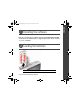
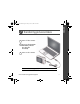
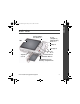
ENGLISH urg_01074.book Page 1 Friday, June 19, 2009 7:38 AM Installing the software Before connecting any cables, download KODAK EASYSHARE Software from www.kodak.com/go/easysharesw. Then install it on your computer. Loading the batteries See the Extended user guide www.kodak.com/go/cd82support www.kodak.
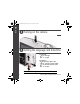
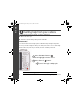
urg_01074.book Page 2 Friday, June 19, 2009 7:38 AM ENGLISH Turning on the camera Setting the language and date/time Language: to change. OK to accept. Date/Time: At the prompt, press OK. to change current field. for previous/next field. OK to accept. See the Extended user guide 2 www.kodak.com/go/cd82support www.kodak.
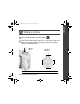
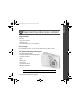
ENGLISH urg_01074.book Page 3 Friday, June 19, 2009 7:38 AM Taking a picture 1 Turn the Mode dial to Smart Capture . 2 Press the Shutter button halfway to focus and set exposure. When the framing marks turn green, press the Shutter button completely down. Mode dial See the Extended user guide www.kodak.com/go/cd82support Framing marks www.kodak.
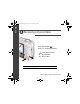
urg_01074.book Page 4 Friday, June 19, 2009 7:38 AM ENGLISH Reviewing pictures/videos Press the Review button to enter/exit Review. View previous/next picture/video. OK Play a video. Review See the Extended user guide 4 www.kodak.com/go/cd82support www.kodak.
ENGLISH urg_01074.book Page 5 Friday, June 19, 2009 7:38 AM Transferring pictures/videos 1 Turn off the camera. 2 Connect the KODAK USB Cable, Model U-8 (may be included). 3 Turn on the camera. See the Extended user guide www.kodak.com/go/cd82support www.kodak.
urg_01074.book Page 6 Friday, June 19, 2009 7:38 AM ENGLISH Getting help from your camera You want the most from your camera. You want to understand: ■ What it can do for you ■ And how to take the best possible pictures and videos Great news! Your camera offers a built-in Help system. It describes every setting for every menu choice. If you learn nothing else about your camera, learn how to use on-camera Help. Because the more you know your camera, the more confident you become.
Keep learning about your camera! Congratulations! You have: • set up your camera • taken pictures • transferred pictures to your computer Keep learning! Finish reading this book, so you can take and share your best pictures! Visit www.kodak.com/go/cd82support: • the extended user guide • interactive troubleshooting and repairs • interactive tutorials • FAQs • downloads • accessories • printing information • product registration See the Extended user guide www.kodak.com/go/cd82support www.kodak.
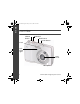
urg_01074.book Page 8 Friday, June 19, 2009 7:38 AM ENGLISH Front View Shutter button Mode dial Flash button Power button Flash Selftimer light Lens/ Cover Microphone 8 www.kodak.
ENGLISH urg_01074.book Page 9 Friday, June 19, 2009 7:38 AM Back View Delete, Menu, Info buttons LCD Zoom (Telephoto, Wide Angle) buttons USB port Strap post Tripod socket OK button Share button Review button SD/SDHC Card slot/ Battery compartment www.kodak.
urg_01074.book Page 10 Friday, June 19, 2009 7:38 AM 1 Doing more with your camera Turn the Mode dial to the mode that best suits your subjects and surroundings. Use this mode Smart Capture Close-Up For General picture taking—it offers excellent image quality and ease of use. The scene is analyzed for other content and for lighting. Close range. Use available light instead of flash, if possible. Sport Subjects that are in motion. Scene Point-and-shoot simplicity in practically any situation.
urg_01074.book Page 11 Friday, June 19, 2009 7:38 AM Doing more with your camera Taking a video 1 Turn the Mode dial to Video . 2 Press the Shutter button completely down, then release it. To stop recording, press and release the Shutter button again. NOTE: Sound cannot be played on the camera. Sound is heard after the video is transferred to your computer. Using Scene (SCN) modes Choose a Scene mode—for great pictures in practically any situation! 1 Turn the Mode dial to SCN.
urg_01074.book Page 12 Friday, June 19, 2009 7:38 AM Doing more with your camera SCN mode For Sunset Subjects at dusk. Backlight Subjects that are in shadow or “backlit.” Candle Light Subjects illuminated by candle light. Children Action pictures of children in bright light. Manner/ Museum Quiet occasions, like a wedding or lecture. Flash and sound are disabled. Place the camera on a steady surface or tripod. Text Documents. Place the camera on a steady surface or tripod.
urg_01074.book Page 13 Friday, June 19, 2009 7:38 AM Doing more with your camera Using the optical zoom 1 Use the LCD to frame your subject. 2 To zoom in, press Telephoto (T). To zoom out, press Wide Angle (W). 3 Take the picture. Using digital zoom Use digital zoom to get up to 5X magnification beyond optical zoom when taking pictures/videos. Press Telephoto (T) until the slider on the LCD is at the end of the optical zoom range. Release Telephoto (T), then press it again.
urg_01074.book Page 14 Friday, June 19, 2009 7:38 AM Doing more with your camera Using the flash Press the flash button repeatedly to scroll through flash modes. The current flash mode is shown on the LCD. Flash modes Auto Flash fires When the lighting conditions require it. Fill (Flash On) Every time you take a picture, regardless of the lighting conditions. Use when the subject is in shadow or is “backlit” (when the light is behind the subject). In low light, hold the camera steady or use a tripod.
urg_01074.book Page 15 Friday, June 19, 2009 7:38 AM Doing more with your camera Using shortcuts Your camera has a clean, uncluttered interface. For quick access to the most popular functions: 1 Press the Info button. The shortcuts appear. 2 Press to access functions like Exposure Compensation, Self-timer, and Auto focus. (You’ll see different functions in different modes.) 3 Press to choose a setting. To hide the shortcuts, press . Shortcuts www.kodak.
urg_01074.book Page 16 Friday, June 19, 2009 7:38 AM Doing more with your camera Using the menu button to change settings IMPORTANT: Your camera offers a built-in Help system. To get the most from your camera, see page 6. You can change settings to get the best results from your camera. 1 Press the Menu 2 Press button. to highlight a tab: ■ Capture/Video for the most common picture/video-taking settings ■ Setup for other camera settings 3 Press to highlight a setting, then press OK.
urg_01074.book Page 17 Friday, June 19, 2009 7:38 AM Doing more with your camera Understanding the picture-taking icons Focus mode Self timer Exposure compensation Flash mode Capture mode Pictures/time remaining Zoom slider Tag name Battery level Date www.kodak.
urg_01074.book Page 18 Friday, June 19, 2009 7:38 AM 2 Working with pictures/videos Deleting pictures/videos 1 Press the Review 2 Press ■ button. for previous/next picture/video. Press the Shutter button halfway down to return to Capture mode. Understanding the review icons Video duration Print tag/number of prints Protected Email mark Picture/Video number Select picture Shortcuts Add text tag View thumbnails Play video Upload mark Battery level Favorite mark Date stamp Text tag name 18 www.
urg_01074.book Page 19 Friday, June 19, 2009 7:38 AM 3 Share your stories! A thousand ways to tell a story... and each begins with a picture. How do you tell yours? Prints • 4 x 6 pictures • Enlargements, posters • Collages • Photo books Photo gifts • Cards • Calendars • Mugs • Ties • Shirts www.kodak.com/go/cd82support Digitally • EASYSHARE Digital Picture Frame • HDTV devices • Email ...
urg_01074.book Page 20 Friday, June 19, 2009 7:38 AM Share your stories! Pictures start here! 1 3 2 Load KODAK EASYSHARE Software. Take pictures. Transfer pictures to your computer. Pictures become stories here! At home KODAK All-in-One Printers Online At a local photo retailer KODAK Picture Kiosk www.kodak.com/go/tips 20 www.kodak.
urg_01074.book Page 21 Friday, June 19, 2009 7:38 AM 4 Solving camera problems Status Camera does not turn on/off Camera buttons and controls do not function In Review, a blue or black screen is displayed instead of a picture Pictures remaining number does not decrease after taking a picture Flash does not fire Solution ■ Make sure the batteries are charged and installed correctly (see page 1). ■ Transfer all pictures to the computer (see page 5). ■ Take another picture. ■ Continue taking pictures.
urg_01074.book Page 22 Friday, June 19, 2009 7:38 AM 5 Appendix CAUTION: Do not disassemble this product; there are no user-serviceable parts inside. Refer servicing to qualified service personnel. KODAK AC Adapters and Battery Chargers are intended for indoor use only. The use of controls, adjustments, or procedures other than those specified herein may result in exposure to shock and/or electrical or mechanical hazards. If the LCD breaks, do not touch the glass or liquid.
urg_01074.book Page 23 Friday, June 19, 2009 7:38 AM Appendix Limited Warranty Kodak warrants Kodak consumer electronic products and accessories (“products”), excluding batteries, to be free from malfunctions and defects in both materials and workmanship for the warranty period specified on your KODAK Product packaging. Retain the original dated sales receipt. Proof of the date of purchase will be required with any request for warranty repair.
urg_01074.book Page 24 Friday, June 19, 2009 7:38 AM Appendix Outside the United States and Canada In countries other than the United States and Canada, the terms and conditions of this warranty may be different. Unless a specific Kodak warranty is communicated to the purchaser in writing by a Kodak company, no warranty or liability exists beyond any minimum requirements imposed by law, even though defect, damage, or loss may be by negligence or other act.
urg_01074.book Page 25 Friday, June 19, 2009 7:38 AM Appendix Australian C-Tick N137 Korean Class B ITE China RoHS www.kodak.
urg_01074.book Page 26 Friday, June 19, 2009 7:38 AM Appendix Eastman Kodak Company Rochester, New York 14650 © Kodak, 2009 Kodak and EasyShare are trademarks of Eastman Kodak Company. 26 www.kodak.