Kodak EasyShare C533/C503 zoom digital camera User's guide www.kodak.com Forinteractivetutorials, www.kodak.com/go/howto Forhelp with yourcamera,www.kodak.com/go/cB33support or www.kodak.
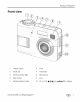
Product features Front view 1 Shutter button 6 Flash 2 Mode dial 7 Viewfinder 3 Self-timer/Videolight 8 Microphone 4 Flashbutton 9 Lens 5 Self-timer/Burstbutton 10 DC-In (3V) _l_C_-@,for optional www.
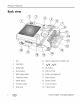
Product features Back view ii 1 LCD 2 Viewfinder 3 Readylight 4 Sharebutton 3 USB,A/VOut 5 Wide angle button 4 Batterycompartment 6 Telephotobutton 5 Menu button 7 Deletebutton 6 Reviewbutton 8 LCD/Infobutton 7 Dockconnector 9 Strappost 8 Tripod socket @ 10 Slot for optional SD or MMC card 12 OK button www.
Table of contents Setting up your camera ......................................................................... 1 Attachingthe strap .......................................................................................1 Loadingthe battery.......................................................................................1 Turningon the camera..................................................................................2 Settingthe language,date/time...............................................
Table of contents 5 Troubleshooting .................................................................................. 35 Cameraproblems........................................................................................35 Camerareadylight status............................................................................37 Camera/computercommunications..............................................................38 LCDscreenmessages........................................................................
Setting up your camera Attaching the strap Loading the battery __li_!ii!,il iiliii '¸_ili_ i,!,'ili_i_!i ii J Ni-MH (rechargeable) CRV3lithium (nomrechargeable) 2 AA (rechargeableor nomrechargeable) Forbatterytypes,seepage46. Toextend batterylife, seepage 50. www.
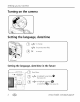
Setting up your camera Turning on the camera Setting the language, date/time (_ _/,_,_ to change, _/_ for previous/next field. (_OK to accept, OK(press) Setting the language, .. c::D ::: (_ in the future Press Menu, (_) (_) 2 date/time _/_ ,_/'_ to highlight Setup Menu then press OK, to highlight Language or Date/Time !_, then press OK, www.
Settingupyourcamera Storing pictures on an SD or MMC card Yourcamerahas 16 MB of internal memory,Youcan purchasean SDor MMC cardto convenientlystore morepicturesand videos. NOTE: When using thecardforthefirsttime,format it inthiscamera before takingpictures (see Format on page25).Werecommend Kodak SDorMMCcards. Notched corner (optional) CAUTION: A card can only be inserted one way; forcing it may cause damage.
Taking pictures and videos Taking a picture ® @ LCD/Info Usethe LCDor viewfinder, PressLCD/Info I010 for: • LCDon, status iconson • LCDon, status iconsoff • LCDoff (usethe viewfinder) Press the Shutter button halfway to focus and set exposure, When the Ready light turns green, press the Shutter button completely down, J Taking a video @ Pressthe Shutterbutton completelydown and release, To stop recording,pressand releasethe Shutterbutton again J 4 ebb www.
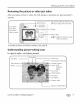
Taking pictures and videos Reviewing the picture or video just taken After you take a picture or video,the LCDdisplaysa quickviewfor approximately5 seconds. Tag a pkture/video -- Delete -- Playa video, for email or Video Out device,) Toreview picturesand videosanytime,seepage 8.
Taking pictures and videos In capture mode--shutter pressedhalfway f Exposure/ Auto Focus warning Low battery __ Exposure compensation J Using the auto-focus framing marks (to take pictures) Whenusingthe LCDas a viewfinder,framing marksindicatethe camerafocusarea. Thecameraattemptsto focuson foregroundsubjects,evenif the subjectsare not centeredin the scene. 1 Pressthe Shutterbutton halfway. Whentheframingmarksturngreen,focusisaccomplished. Framingmarks i. i_1.
Taking pictures and videos 2 If the camerais not focusingon the desiredsubject(or if the framing marks disappear),releasethe Shutterbutton, recomposethe scene,and repeatstep 1. 3 Pressthe Shutterbutton completely down to take the picture. NOTE: Framing marks donotappear in Landscape orVideomode. When youuseFocus Zone(seepage22)andsetCenter Zone, theframing marksarefixedatCenter Wide. Using the flash Use the flash when you take pictures at night, indoors, or outdoors in heavy shadows. i _,.
Taking pictures and videos Reviewing pictures and videos on your camera Pressthe Reviewbutton to view and work with your picturesand videos. Videos: CDi i:_e c_) 4/111" for previous/next, OK Play/pause, 4 Rewindto beginning(during playback). _,,. Nextpicture/video(during playback). i_! /Press again toexit.) (_ Review. %,, ,,, Tosavebatterypower, usean optional KodakEasyShare dock or Kodak3-volt AC adapter.(Seewww.kodak.com/go/c533accessories or www.kodak.com/go/c503accessories.
Taking pictures and videos Understanding review icons Pictures of number Videos fVideo length Favorite tag Email location Playback time counter - Volumecontrol (for VideoOut device) Date/Time-k..Scrollarrows www.kodak, com/go/support .
Taking pictures and videos Deleting pictures and videos during review (_ PressReview, (_) 4/11,,,'for previous/next, (_ PressDelete, _ Followthe screenprompts, Using the undo delete feature If you accidentallydeletea picture,youcan useUndo Deleteto retrieveit. Thisfeature is only availableimmediatelyafter you deletea picture. NOTE: Youcannot useUndoDelete if yourpicture islargerthan20MB. Protecting pictures and videos from deletion (_ (_/_ (_ _) Press Review. for previous/next, Press Menu.
Transferring and printing pictures Installing the software CAUTION: Install EasySharesoftware before connecting the camera to the computer. Failure to do so may causethe software to load incorrectly. 1 Closeall softwareapplicationsthat are open on your computer(including anti-virussoftware). 2 Placethe EasySharesoftwareCD into the CD-ROMdrive. 3 Loadthe software: Windows OS--if the install window doesnot appear,chooseRunfrom the Start menuand type d:\setup.exe whered is the driveletter that containsthe CD.
Transferring and printing pictures Transferring pictures with the USB cable r (_) Turn off camera_ (_ ConnectUSBcable (U-8). (_ Turn on camera. Kodak EasyShare software opens on your computer and prompts you through the transfer process. NOTE: Visitwww.kodak.com/go/howtoforanonlinetutorialonconnecting. Also available for transferring Youcan alsousethese Kodakproductsto transferyour picturesand videos.
Transferring and printing pictures Direct printing with a PictBridge enabled printer Your camera is compatible with PictBridge technology, so you can print directly to PictBridge enabled printers. You need: Camerawith fully chargedbatteries _ PictBridgeenabledprinter USBcable (may be sold separately) Connecting the camera to a PictBridge enabled printer 1 Turn off the camera and printer. 2 Connect the appropriate USBcable from the camera to the printer. (See your printer user guide or visit www.
Transferring and printing pictures Disconnecting the camera from a PictBridge enabled printer 1 Turnoff the cameraand printer. 2 Disconnectthe USBcablefrom the cameraand the printer. Using a printer that is not PictBridge enabled Fordetails on printing picturesfrom your computer,clickthe Helpbutton in EasyShare software. Ordering prints online KodakEasyShare Gallery(www.kodakgallery.com) is one of the manyonline print servicesoffered in the KodakEasyShare software.Youcaneasily: Uploadyour pictures.
Transferring and printing pictures Dock compatibility for your camera Kodak EasySharedock printer dock plus series3 __ printer docksand cameradocks series3 Custom dock insert Dock printer dock Custom dock insert printer dock plus printer dock 6000 cameradock 6000 __ Kodakdock adapter kit D-22 Dock printer dock 4000 cameradock II Not compatible LS420,LS443cameradock Purchasecameradocks,printer docks,and otheraccessoriesat a dealerof Kodak productsor www.kodak.com/go/c533accessories or www.
Doing more with your camera Using optical zoom Useoptical zoom to get up to 3X closerto your subject.Opticalzoom is effective when the lensis no closerthan 24 in. (60 cm) to the subjector 5 in. (12.7 cm) in Close-upmode.Youcanchangeoptical zoombefore(but not during)video recording. 1 Usethe viewfinderor LCDto frame your subject. 2 PressTelephoto(T)to zoom in. PressWideAngle (W)to zoom out. Thezoomindicatorshowszoomstatus. Zoom indicator Optical Digital zoom zoom range range Takethe picture or video.
Doing more with your camera Picture-taking modes Choosethe modethat bestsuits yoursubjectsand surroundings. i ii iiiii!!!ii a AUTO Auto Generalpicture-taking--offers an excellentbalanceof image quality and easeof use. all.Landscape Far-awayscenes.Thecamerausesinfinity auto-focus.Auto-focusframing marksare not availablein Landscape. Close-up Closerange.Useavailablelight insteadof flash if possible. The camera automaticallysetsthe focus distancedependingon the zoom position.
Doing more with your camera Scene modes 1 Turn the Mode dial to Scene SCN. 2 Press 4/_ to display Scene mode descriptions. NOTE:Ifthe Helptextturnsoff, pressthe OKbutton. 3 Pressthe OK button to choose a Scene mode. (_ _) 18 (_ Portrait Full-frameportraits of people. Sport Subjectsthat arein motion. Children Action picturesof childrenin bright light. Party Peopleindoors.Minimizesred eye. Beach Bright beachscenes. Snow Bright snow scenes. Fireworks Fireworksdisplays.Flashdoes not fire.
Doingmorewithyourcamera Using exposure compensation to adjust brightness in Auto, Landscape,or Close-upmode,you can adjust exposurecompensationto makeyour picturesdarkeror lighter. Press _ to decreaseexposurecompensation and _ to increaseexposurecompensation. Theexposurecompensation levelisshownon theLCD dimmeror brighter andtheLCDgets Using the self-timer Place camera on a tripod or flat surface.
Doing more with your camera Using burst _ Cameratakesupto 3 pictures(3 persecond)whilethe Capturean expected event. Shutterbuttonispressed. Burst _ LH Example: A personswinging a golf club. First 3 pictures are saved. 1 in mostStill modes,pressthe Burstbutton repeatedlyto choosean option. 2 Pressthe Shutterbutton halfway to focusand set exposure. 3 Pressthe Shutterbutton completely down and hold it to take pictures.
Doingmorewithyourcamera NOTE: Some settings areunavailable in some modes. Exposure Compensation -2.0 to +2.0 (in0.5 increments) Control how muchlight enters the camera. Thissettingremainsuntilyou turn the Modedial. Picture Size Choosea picture resolution. Thissettingremainsuntilyou changeit. 5.0 MP (default)--for printing up to 20 x 30 in. (51 x 76 cm); picturesare highestresolutionand largestfile size. 4.4 MP (3:2)--ideal for printing 4 x 6 in. (10x 15 cm)printswithout cropping.
Doing more with your camera i i !!ilil Auto (default) ISO Speed Controlthe camera'ssensitivity ISO 80, 100, 200, 400, 800 (800 availableonly for to light. smallestpicture sizesetting). Thissettingremainsuntilyou turn Choosea lower ISOsetting in brightly lit scenes;use a off the camera. higherISOfor low-light scenes. NOTE:ISOreturnsto AutoduringLongTimeExposure. Unavailablein Video mode. FocusZone Selecta large or concentrated area of focus.
Doingmorewithyourcamera i i !!ilil Set Album ChooseAlbum names. On (when Album name is selected) Off Thissettingremainsuntilyou Pre-selectalbum namesbeforeyou take picturesor videos. changeit. Youcanapplydifferent Then,all the picturesor videos you take are taggedwith SetAIbumchoicesto videosandto thosealbum names.Seepage29. pictures. Image Storage Choosea storagelocation for pictures/videos. Thissettingremainsuntilyou changeit. Auto (default)--the camerausesthe cardif one is in the camera.
Doing more with your camera Customizing your camera UseSetupto customizeyourcamerasettings. 1 In any mode,pressthe Menu button. 2 Press_/_ to highlight Setuptr!il, then pressthe OK button. 3 Press_/_ to highlightthe settingyouwish to change,then pressthe OK button. 4 Choosean option, then pressthe OK button. 5 Pressthe Menu button to exit. NOTE: These settings remain untilyouchange them. Return to previousmenu. Liveview Changeliveview default to on or off.
Doing more with your camera N, Video Out NTSC (default)--used Choose the regional setting that lets you connect the camera to a television or other external device (see page 27). Japan: most common format. PAL--used in Europe and China. Orientation Sensor Orient pictures so that they are displayed with the correct side up. On (default) Off Date Stamp Off (default) Imprint the date on pictures. YYYY MM DD, MM DD YYYY, DD MM YYYY Video Date Display DisplayDate/Timeat the start of video playback.
Doing more with your camera Running a slide show Usethe SlideShowto displayyourpictures/videoson the LCD.Torun a slideshow on a televisionor on anyexternal device,seepage 27. To savebatterypower,usean optional Kodak3V ACadapter.(Visit www.kodak.com/go/c533accessories or www.kodak.com/go/c503accessories.) Starting the slide show 1 Pressthe Reviewbutton, then pressthe Menu button. 2 Press_/_ to highlight SlideShowI_, then pressthe OK button. 3 Press_/_ to highlight BeginShow,then pressthe OK button.
Doingmorewithyourcamera 2 Press._i_ to highlight On, then pressthe OK button. Theslideshowrepeatsuntilyoupressthe OKbutton or untilbatterypoweris exhausted.TheLoopfeatureremainsuntilyou changeit. Displaying pictures and videos on a television Youcan displaypictures/videoson a television,computermonitor,or anydevice equippedwith a video input. (Imagequality on a televisionscreenmaynot be asgood as on a computermonitor or when printed.
Doing more with your camera Viewing picture/video (_ Press Review, (_) Press LCD/Info, information Toexit Review,pressthe Reviewbutton. Copying pictures and videos Youcancopypictures/videosfrom a cardto internal memoryor from internalmemory to a card. Before you copy, make sure that: A card is insertedin the camera. Thecamera'spicture storagelocation is set to the locationfrom which you are copying.(SeeImageStorageon page 23.
Doingmorewithyourcamera Pre-tagging for album names Usethe SetAlbum (Still or Video) featureto pre-selectalbumnamesbeforeyoutake picturesor videos.Then,all the picturesor videosyou take are tagged with those album names. First--on your computer Usethe EasyShare softwarethat was packagedwith your camerato createalbum nameson your computer.Thenexttime you connectthe camerato the computer,copy up to 32 albumsto the album namelist. SeeEasySharesoftwareHelpfor details.
Doing more with your camera Tagging pictures/videos for albums Usethe Albumfeature in Reviewmodeto tag the pictures/videosin your camerawith album names. First--on your computer UseEasyShare softwareto createalbumson your computer,then copyup to 32 album namesto the camera'sinternal memory.SeeEasyShare software Helpfor details. Second--on your camera 1 Pressthe Reviewbutton, then locate the picture or video. 2 Pressthe Menu button. 3 Press_/_ to highlight Album _, then pressthe OK button. 4 Press_/.
Doing more with your camera Justafter you take a picture/video,during quickview. After pressingthe Reviewbutton. Tagging pictures for printing 1 Pressthe Sharebutton. Press_/1_,,,. to locate a picture. 2 Press_/_. to highlight Print _, then pressthe OK button.* 3 Press._/_. to selectthe numberof copies(0-99). Zeroremovesthe tag for that picture. Optional: Youcanapply a print quantityto other pictures.Press,
Doing more with your camera Tagging pictures and videos for emailing First--on your computer UseKodakEasyShare softwareto createan email addressbook on your computer. Thencopyup to 32 email addressesto the camera'sinternalmemory.Fordetails,click the Help button in EasyShare software. Second--tag pictures/videos on your camera 1 Pressthe Sharebutton. Press
Doingmorewithyourcamera NOTE: When youtransfer pictures fromyourcamera toyourcomputer, all pictures (including favorites) are stored onyourcomputer atfullsize. Favorite picturessmaller copies ofyouroriginalsareloaded backtoyourcamera, soyoucanshare andenjoymore. 1. Tag pictures as 1 Pressthe Sharebutton. Press4/1_,,.to locatea picture. favorites 2 Press_/_' to highlight Favorite_, then pressthe OKbutton. TheFavoriteicon_ appearsin the statusarea.Toremovethetag,press the OK,buttonagain.
Doing more with your camera NOTE: Pictures takenatthe4.4MP(3:2)qualitysetting aredisplayed ata 3:2aspect ratiowithblackbars atthetopofthescreen. Removing all favorites from your camera 1 Turnthe Modedial to Favorites_1. 2 Pressthe Menu button. 3 Highlight RemoveFavoritesI_1, then pressthe OK button. Atlpicturesstoredin theFavorites sectionof internalmemoryareremoved.Favorites are restoredthenexttimeyou transferpicturesto thecomputer 4 Pressthe Menu button to exit the menu.
Troubleshooting Forstep-by-stepproductsupport,visit www.kodak.com/go/c533supportor www.kodak.com/go/c503supportand selectInteractiveTroubleshooting& Repairs. Camera problems Try one or more the following Cameradoes not turn on. Install new batteries(page 1). Cameradoes not turn off. Removethe battery,then reinsertor replaceit. Picturesremaining numberdoesnot decreaseafter taking a picture. The camerais operatingnormally.Continuetaking pictures. Chargerechargeablebatteries.
Troubleshooting If... In Reviewmode,a @ blue or black screenis displayed instead of a Transferthe picture to the computer(page12), thenformat the cardin the camera(page25). Caution: Formatting a card deletes all pictures and videos, including protected files. picture. Shutter button doesnot work. Turnon the camera(page2). Wait until the ready light stops blinking red beforeattempting to take another picture.
Troubleshooting If... Cameradoes not Purchasea certified SD/MMCcard. recognize SD/MMCcard. Reformatthe card (page25). Camerafreezesup when a card is insertedor removed. Turnthe cameraoff, then back on. Makesurethe camerais turned off beforeinsertingor removinga card. Memorycardfull. Inserta new card(page 3), transfer picturesto the computer (page12), or delete pictures(page 10). Caution: Formatting a card deletes all pictures and videos, including protected files.
Troubleshooting If... Readylight glows steadyred. Transferpicturesto the computer(page 12),delete picturesfrom the camera(page 10), switchimage storagelocations(page 23), or insert a cardwith availablememory(page3). Wait. Resumepicture takingwhen the light turns green. Changethe image storagelocationto internalmemory(page 23), or usea different card. Readylight glows _ steadygreen. Camerais operatingnormally.
Troubleshooting LCD screen messages Nopictures or videos to display Memorycard requires formatting Changeimage storagelocation setting (page23). Inserta new card(page 3) or format the card(page 25). Caution: Formatting a card deletes all pictures and videos, including protected files. Memorycard cannot be read (Pleaseformat memorycard or insert another card) Onlyone USB connection allowed.
Troubleshooting If... Memorycardis locked(Insertnew memorycard) Inserta new card(page3), movethe switch on the cardto unlockthe card,or changethe imagestoragelocation to internal memory (page23). Readonly memory card. Removewrite protectionto captureor write to card. Memorycardis _ Inserta new card(page 3) or format the card(page 25). unusable(Insert Caution: Formatting a card deletes all pictures and videos, new memorycard) including protected files. Dateand time havebeenreset _ Resetthe clock(page2).
Troubleshooting If... Can only mark pictureor video with 32 album names.Onlythe first 32 album nameswill be saved Deleteone or morealbum namesassociatedwith the image (page29). Unrecognizedfile format Transferthe picture to the computer(page 12), or delete it (page 10). Cameraerror #XXXX.Seeuser's guide. Turncameraoff, then backon. www.kodak.
Getting help Helpful links Camera Email,write, or phonecustomersupport www.kodak.com/go/contact Get supportfor your product(FAQs, www.kodak.com/go/c533supportor troubleshootinginformation, arrangefor repairs, www.kodak.com/go/cS03support etc.) Purchasecameraaccessories(cameradocks, brinterdocks, lenses,cards,etc.) www.kodak.com/go/c533accessories or www.kodak.com/go/cS03accessories Downloadthe latest camerafirmware and software www.kodak.com/go/c533downloadsor www.kodak.
Gettinghelp Telephone customer support If you have questions concerning this product, contact your customer support representative and have this information available: Operatingsystem Exacterror messageyou received Processorspeed(MHz) Versionof KodakEasySharesoftwareCD Cameraserial number Computer model Amount of memory(MB) Australia 1800 147701 Netherlands 020 346 9372 New Zealand 0800 440 786 Belgium 027131445 Norway 23162133 Brazil 0800 150000 Philippines 1 800 1 888 9600 canada 1800465
Appendix Camera specifications For more specifications, visit www.kodak.com/go/c533support www.kodak.com/go/c503support. or i i_i_i_i_i_i_i_i_i_i_i_i_i_i_i_i_i_i_i_i_i_i_i_ .... CCD(charge-coupleddevice)............................... CCD 1/2.5 in. CCD,4:3 aspectratio Output image size 5.0 MP: 2576 x 1932 pixels 4.4 MP (3:2): 2576 x 1716 pixels 3.1 MP: 2048 x 1536 pixels 2.1 MP: 1656x 1242 pixels 1.1 MP: 1200 x 900 pixels Displays Color display 4_ cm (1.
Appendix ii Digitalzoom !!! !!! !!!! !!!!!!!!!!!!!!!!!!!!!!!!!!!!!!!!!! .... 5.0X continuouswith 0.6X increments [Not supportedfor move capture Exposure Exposuremetering TTL-AE;Center-weighted Exposurecompensation +/-2.0 EVwith 0.5 EVstep Shutter speed Mechanicalshutterwith CCDelectrical Auto: 4 - 1/1400 sec.
Appendix ii ....
Appendix Storage capacities Actual storage capacity varies depending on subject composition, card brand, and other factors. You may be able to store more or fewer pictures and videos. Favorites take up additional space in internal memory. Picture storage capacity 5.0MP ,,t ,,tMp (_:7_ 3.1MP 211MP 1.
Appendix Video storage capacity Minutes/seconds of video VGA(640 x 480)QVGA (320 x 240) Internal memory 14sec. 34 sec. 16 MBSD/MMC 20 sec. 50 sec. 32 MBSD/MMC 39 sec. 1 min.39 sec. 64 MBSD/MMC 1 min.18 sec. 3 min.18sec. 128 MB SD/MMC 2 rain.36 sec. 6 rain.24sec. 256 MB SD/MMC 5 min.55 sec. 14 min.29 sec. 512 MB SD/MMC 11rnin.49 sec. 28 rnin.57 sec. 1 GBSD/MMC 23 min.39 sec. 57 min.57 sec.
Appendix Using this product Theuseof an accessoryattachmentthat is not recommendedbyKodak,suchas an ACadapter,may causefire, electricshock,or injury. Useonly a USB-certifiedcomputer.Contactyour computermanufacturerif you havequestions. If usingthis product in an airplane,observeall instructionsof the airline. Battery safety and handling CAUTION: When removing the battery, allow it to cool; it may be hot.
Appendix Battery life Usethese Kodakbatteries.(Batter typesare alsomoldedinto the battery door.) CRV3lithium battery AA (2)lithium batteries Ni-MH rechargeable digital camera battery (per charge) AA (2) Ni-MH rechargeable batteries (per charge) AA (2) oxy-alkaline non-rechargeablebatteries AA (2) alkaline non-rechargeable batteries 400 700 Battery life per ClPA testing method (Approx, number of pictures in Auto mode, using 128 MB SD card.). Actual life may vary based on usage.
Appendix @ Batteryperformanceis reducedat temperaturesbelow41° F (5° C). Whenusing yourcamerain coldweather,carrysparebatteriesand keepthem warm. Donot discardcold batteriesthat do not work; when they return to room temperature, they may be usable. Upgrading your software and firmware Downloadthe latestversionsof the software includedon the KodakEasyShare softwareCD and the camerafirmware(the softwarethat runson the camera).See www.kodak.com/go/c533downloads or www.kodak.com/go/c503downloads.
Appendix batteries)to be free from malfunctionsand defectsin both materialsand workmanshipfor one yearfrom the date of purchase. Retainthe original datedsalesreceipt.Proofof the date of purchasewill be required with any requestfor warranty repair. Limited warranty coverage Thislimited warrantywill be honoredonlywithin the geographicallocationthat Kodakdigital camerasand accessorieswerepurchased.
Appendix Kodakmakesno other expressor impliedwarrantyfor this product. In the event that the exclusionof any impliedwarrantyis ineffectiveunder the law, the duration of the impliedwarrantywill be one yearfrom the purchasedate. Theoption of replacementis Kodak'sonly obligation. Kodakwill not be responsible for anyspecial,consequentialor incidentaldamagesresultingfrom the sale,purchase, or useof this product, regardlessof the cause.
Appendix Regulatory compliance FCC compliance [_ and advisory KodakEasyShare C533/C503zoom digital camera Thisequipmenthasbeentested and found to complywith the limitsfor a ClassB digital device,pursuantto Part 15 of the FCCRules.Theselimits are designedto providereasonableprotectionagainstharmful interferencein a residential installation.
Appendix Canadian DOC statement DOC Class B Compliance--This ICES-003. Class B digital apparatus complies with Canadian Observation des normes-Class B--Cet appareil num_rique de la classe B est conforme a la norme NMB-003 du Canada. Waste Electrical ' i Korean and Electronic Equipment labeling Contactyour localauthorities go to www.kodak.com/go/recycle for recycling n the European Union, do not or discardthis product asunsortedmunicipalwaste. programinformation.
Index A A/V out, 27 AA battery, loading, 1 about picture,video, 28 about this camera,25 accessories,12 battery, 50 buying,42 printer dock, 12 SD/MMCcard,3 album set, 23 tagging pictures,29 appendix,44 AustralianC-Tickregulation,54 auto, 17 flash, 7 focusframing marks,6 B backlight, 18 batteries expectedlife, 50 extendinglife, 50 loading, 1 types,46, 50 battery safety,49 batterycompartment,ii battery life, 50 beach, 18 burst button, i 56 (_ burst, using, 20 button burst, i, 20 delete, ii, 5 flash,flash but
Index color mode, 22 compatibility,dock, 15 copypictures cardto memory,28 memoryto card, 28 to computer, 11 croppingpictures,27 CRV3battery loading, 1 customizingcamerasettings,24 D date setting, 2 date stamp, 25 DC-in,i deletebutton, ii deleting during quickview,5 pictures,videos,10 protectingpictures,videos,10 digital zoom, using, 16 displayingslide show, 26 disposal,recycling,51, 55 dock connector,ii printer, 12 dock compatibility, 15 doing morewith your camera,16 downloadpictures, 11 E EasySharesoftware
Index picture-taking,5 reviewingpictures,9 icons,modedial, 17 imagestorage,23 info button, ii information about pictures,videos,28 installing batteries, 1 SD/MMCcard,3 software,11 internal memory storagecapacity,47 interval,slideshow, 26 K KodakEasyShare software upgrading,51 Kodakweb sites,42 KoreanClassB ITE,55 / LCD,ii LCD/Infobutton, ii lens cleaninglens, 51 light ready,37 liveview, 24 loading batteries, 1 SD/MMCcard,3 software,11 long time exposure,22 58 loop, slideshow, 26 M MacintoshOS-basedcompute
Index orientation sensor,25 protectingpictures,videos,10 P party, 18 PictBridgeenabledprinter, 13 picture magnify,8 picture size,21 pictures copying,28 cropping,27 deleting, 10 emailingtagged, 32 printing, 14 protecting, 10 reviewing,8 storagecapacity,47 tagging, 29 taking, modes,17 transfer, 11 picture-takingsettings,20 power camera,2 power light, i printer dock, 12 printing from a card, 14 from computer, 14 optimizingprinter, 42 order online, 14 PictBridgetechnology, 13 taggedpictures, 14 with EasyShare
Index self-timer with pictures, 19 setting about, 25 album, 23 camerasounds,24 color mode, 22 date and time, 2 date stamp, 25 exposurecompensation,21 flash, 7 focuszone, 22 imagestorage,23 liveview, 24 long time exposure,22 orientation sensor,25 picture size,21 picturetaking mode, 17 return, 24 self-timer,19 setup menu,23 videodate display,25 videoout, 25 videosize,23 white balance,21 settings picturetaking, 20 setup menu,23 setup mode,using, 24 Sharebutton, ii sharingpictures,videos,30 shutter problems,36
Index trash can, deleting, 5 tripod socket,ii troubleshooting,35 camera,35 camera/computer communications,38 error messages,39 readylight status,37 turning cameraon and off, 2 U undelete, 10 undo, 10 upgradingsoftware,firmware, 51 URLs,Kodakweb sites, 42 USBcable, 12 USB,A/V out, ii viewing picture after taking, 5, 8 W warranty, 51 WEEE,55 white balance,21 wide angle button, ii WindowsOS-basedcomputers installing software,11 wrist strap, 1 wrist strap post, ii Z zoom digital, 16 optical, 16 V VCCIcomplian
EastmanKodakCompany Rochester,New York14650 © EastmanKodakCompany,2005 All screenimagesare simulated. Kodakand EasyShare are trademarksof EastmanKodakCompany.