
Operation Manual



6
Dante Bridge Operation Manual rev 2.1.0
7. Connecting a computer
7. Connecting a computer
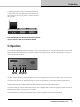
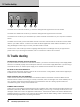
You can connect your computer to the Dante Bridge in one of two ways:
• By direct connection from the Ethernet port of your computer to the Dante Bridge
• By connecting your computer to an Ethernet switch, and connecting the same switch (or another switch on
the same network) to the Dante Bridge
1
Computer Devices
VNET
In Link
VNET
In Link
AB
Ethernet
Dante
Bridge
Power
supply
2
Computer Devices
VNET
In Link
VNET
In Link
PoE Ethernet
Interface
Dante
Bridge
Ethernet
EXT
Dante VNETAudio 1Audio 2
EXT
Dante VNETAudio 1Audio 2
Manual IP addressing is not required with the Dante Bridge. It is set by default to DHCP, so your DHCP server
will automatically allocate the IP address. If there is no DHCP server, it will use “zero cong”. In either case,
addressing is fully automatic. For more information on this topic, please refer to information pertaining to
automatic conguration on the Audinate web site.
8. PodWare setup
The PodWare application uses a direct connection via Ethernet to communicate with the connected devices via
the Dante Bridge.
Using PodWare V5.68 or later, select and add the Dante Bridge network under the Networks -> Add Networks
dialogue.
You can connect multiple Dante bridges to PodWare via Ethernet. The Bridges will be transparent to PodWare
and the devices will appear under the Dante Bridge network in the device tree.