Cover[B]_UX-S59.
Safety[B].fm Page 1 Wednesday, February 16, 2005 5:47 PM Warnings, Cautions and Others IMPORTANT for the U.K. DO NOT cut off the mains plug from this equipment. If the plug fitted is not suitable for the power points in your home or the cable is too short to reach a power point, then obtain an appropriate safety approved extension lead or consult your dealer. BE SURE to replace the fuse only with an identical approved type, as originally fitted.
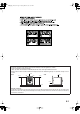
Safety[B]_UX-S59.fm Page 2 Tuesday, March 8, 2005 4:01 PM Caution: Proper Ventilation To avoid risk of electric shock and fire, and to prevent damage, locate the apparatus as follows: 1. Front: No obstructions and open spacing. 2. Sides/ Top/ Back: No obstructions should be placed in the areas shown by the dimensions below. 3. Bottom: Place on the level surface. Maintain an adequate air path for ventilation by placing on a stand with a height of 10 cm or more.
Safety[B].fm Page 3 Wednesday, February 16, 2005 5:47 PM SAFETY INSTRUCTIONS “SOME DOS AND DON’TS ON THE SAFE USE OF EQUIPMENT” This equipment has been designed and manufactured to meet international safety standards but, like any electrical equipment, care must be taken if you are to obtain the best results and safety is to be assured. Do read the operating instructions before you attempt to use the equipment.
1_UX-S59[B]TOC.fm Page 1 Friday, March 4, 2005 9:22 AM Contents Introduction........................................................ 2 Precautions.......................................................................... 2 How to Read This Manual.................................................. 2 Getting Started ................................................... 3 Step 1: Unpack.................................................................... 3 Step 2: Prepare the Remote Control .....................
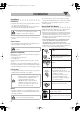
2_Introduction.fm Page 2 Wednesday, February 16, 2005 5:45 PM Introduction Precautions Installation • Install in a place which is level, dry and neither too hot nor too cold—between 5°C and 35°C. • Install the System in a location with adequate ventilation to prevent internal heat buildup inside the System. DO NOT install the System in a location near heat sources, or in a place subject to direct sunlight, excessive dust or vibration. • Leave sufficient distance between the System and the TV.
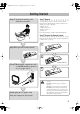
2_Introduction.fm Page 3 Wednesday, February 16, 2005 5:45 PM Getting Started Step 1: Unpack Step 1:Unpack the package and check the accessories. After unpacking, check to be sure that you have all the following items. The number in parentheses indicates the quantity of each piece supplied. • FM antenna (1) • AM loop antenna (1) • Remote control (1) • Batteries (2) If any item is missing, consult your dealer immediately.
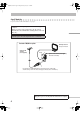
3_Connection.fm Page 4 Friday, February 25, 2005 1:24 PM Step 3: Hook Up If you need more detailed information, see page 6. Illustrations of the input/output terminals below are typical examples. When you connect other components, refer also to their manuals since the terminal names actually printed on the rear may vary. Turn the power off to all components before connections. For better FM/AM reception AM loop antenna Keep it connected.
3_Connection.fm Page 5 Monday, March 28, 2005 2:24 PM FM antenna (supplied) Extend it so that you can obtain the best reception. AM loop antenna (supplied) Turn it until the best reception is obtained.
3_Connection.fm Page 6 Wednesday, February 16, 2005 5:45 PM To assemble and connect the AM loop antenna To assemble the AM loop antenna To connect the AM loop antenna Make sure to connect the wire correctly: The white end to AM EXT, the black end to GND. 1 Hold 2 Insert 3 Release • If the AM loop antenna wire or speaker cords are covered with vinyl, remove the vinyl to expose the tip of the antenna by twisting the vinyl.
3_Connection.fm Page 7 Tuesday, March 8, 2005 3:14 PM Before Operating the System The indications on the display teach you a lot of things while you are operating the System. Before operating the System, be familiar with when and how the indicator illuminates on the display. 12 MP3 GR. 3 4 5 SOUND TURBO AHB PRO MONO ST REC 1CD ALL PRGM RANDOM RDS TA News Info A.
4_Basic.fm Page 8 Wednesday, March 23, 2005 9:08 AM Daily Operations—Playback 1 Turn on the power. The STANDBY lamp on the main unit turns off. • Without pressing STANDBY/ON , the System turns on by pressing one of the source selecting buttons in the next step. 1 Numeric buttons SET RDS DISPLAY /DISPLAY PRESET UP, PRESET DOWN 4/1, 7,¡/¢ 2 Disc selection buttons FM MODE/ MP3 2 Select the source. Playback automatically starts if the selected source is ready to start.
4_Basic.fm Page 9 Wednesday, February 16, 2005 5:45 PM Listening to the Radio To preset the stations To select the band (FM or AM) FM Remote ONLY You can preset 30 FM and 15 AM stations. 1 Tune in to a station you want to preset. 2 Activate the preset number entry mode. AM SET REC To tune in to a station While FM or AM is selected... Remote control: Main unit: 1 sec. 3 1 sec. • Finish the following process while the indication on the display is flashing.
4_Basic.fm Page 10 Tuesday, March 8, 2005 3:15 PM To tune in to a preset station Remote ONLY To select a disc to be played back 1 Select a band (FM or AM). FM 2 3 4 5 6 7 8 9 10 10 CD 2 CD 4 CD 5 CD 3 AM 2 Select a preset number for the station you store. 1 CD 1 To start: To pause: To stop: • You can also use the PRESET UP or PRESET DOWN. To release, press again. To select a track/group* Increases the track/group* numbers. Decreases the track/group* numbers.
4_Basic.fm Page 11 Tuesday, March 8, 2005 3:15 PM For MP3 playback Playing Back Other Equipment According to the MP3 playback mode, 4/1 / ¡/¢ or number buttons work for the group selection or the track selection. To connect other equipment Examples: When the MP3 play back mode is “GROUP.” By using an stereo mini plug cord (not supplied), you can connect equipment with analog audio output jacks such as an MD player, or a TV, etc. Stereo mini plug cord (not supplied) GR. (Group) indicator AUX MP3 GR.
4_Basic.fm Page 12 Wednesday, February 16, 2005 5:45 PM Daily Operations—Sound & Other Adjustments Adjusting the Volume Remote control You can adjust the volume level from level 0 (VOL-MIN) to level 31 (VOL-MAX). Remote control: Main unit: VOLUME CLOCK/ TIMER SET CANCEL RDS DISPLAY /DISPLAY 4/1, 7,¡/¢ PRESET UP, PRESET DOWN DIMMER A.
4_Basic.fm Page 13 Wednesday, February 16, 2005 5:45 PM Changing the Display Brightness—DIMMER You can dim the display window. DIMMER DIMMER-2 DIMMER-1 DIM OFF Turning Off the Power Automatically (Canceled) DIMMER-1 Dims the display illumination. DIMMER-2 Erases the display illumination. Setting the Clock If there is a power failure The clock loses the setting and is reset to “0:00.” You need to set the clock again. Remote ONLY To turn off the System after playback is over— Auto Standby A.
5_AdvancedRadio.fm Page 14 Tuesday, March 8, 2005 3:16 PM Advanced Radio Operations To show the RDS information While listening to an FM station... Remote control RDS DISPLAY /DISPLAY TA/News/Info PTY SELECT +/– PS Station names is displayed. “NO PS” will appear if no signal is sent. PTY The broadcast program type is displayed. “NO PTY” will appear if no signal is sent. RT Text messages the station sends is displayed. “NO RT” will appear if no signal is sent.
5_AdvancedRadio.fm Page 15 Wednesday, March 23, 2005 9:13 AM 3 Start searching. How the Enhanced Other Networks function actually works: PTY SEARCH CASE 1 Ex.: When “NEWS” is selected The receiver searches 30 preset FM stations, stops when it finds the one you have selected, and tunes in to that station. • If no program is found, “NOT” and “FOUND” appear alternately on the display. • To stop searching any time during search, press PTY SEARCH.
6_AdvancedDisc.fm Page 16 Tuesday, March 1, 2005 5:41 PM Advanced Disc Operations Programming the Playing Order— Remote control Remote ONLY Program Play Numeric buttons You can arrange the playing order of the tracks (up to 32) before you start playback. • You cannot enjoy MP3 discs for program play. • You can repeat all the programmed tracks by pressing REPEAT. CANCEL 1 Before starting playback, press PROGRAM.
6_AdvancedDisc.fm Page 17 Wednesday, February 16, 2005 5:46 PM To check the programmed contents While the PRGM indicator is shown on the display and before playback... In the programmed order. In the reverse order. Playing at Random—Random Play Remote ONLY You can play back all the tracks on the selected disc at random. • You can repeat the current disc by pressing REPEAT. 1 2 Select a disc by pressing CD 1 – CD 5. Press RANDOM.
6_AdvancedDisc.fm Page 18 Wednesday, February 16, 2005 5:46 PM Remote ONLY Playing Repeatedly—Repeat Play You can repeat playback. 1 CD Canceled While the disc trays are closed... ALL (No indication) 1 CD ALL (No indication) GR. 1 Canceled CD ALL (No indication) CD GR. ALL 18 (at the same time) • Only CD 1 0 can work for this function. To cancel the prohibition, repeat the same procedure. “UNLOCKED” appears on the display.
7_Timer.fm Page 19 Wednesday, February 16, 2005 5:46 PM Timer Operations Setting the Timer Remote control STANDBY/ON SET CANCEL CLOCK/ TIMER PRESET UP, PRESET DOWN Remote ONLY Using Daily Timer, you can wake up with music, etc. • You can store three Daily Timer settings; however, you can activate only one of Daily Timers at the same time. • To exit from the timer setting, press CLOCK/TIMER as required. • To correct a misentry during the process, press CANCEL. You can return to the previous step.
7_Timer.fm Page 20 Friday, February 25, 2005 1:25 PM 2 Make the timer setting as you want. 1 Set the hour then the minute for on-time. PRESET UP SET To turn off the Timer after its setting is done Since Daily Timer is activated at the same time everyday, you may need to cancel it on some particular days. 1 Select the Timer you want to cancel. PRESET DOWN CLOCK /TIMER 2 Select the playback source—“TUNER FM,” “TUNER AM,” “CD,” or “AUX IN.
8_AdditonalInfo.fm Page 21 Tuesday, March 8, 2005 3:16 PM Additional Information Learning More about This System Daily Operations—Playback (see pages 8 to 11) Listening to the Radio: Setting the Clock: • “0:00” will flash on the display until you set the clock. • The clock may gain or lose 1 to 2 minutes per month. If this happens, reset the clock.
8_AdditonalInfo.fm Page 22 Wednesday, February 16, 2005 5:47 PM Troubleshooting If you are having a problem with your System, check this list for a possible solution before calling for service. General: Adjustments or settings are suddenly canceled before you finish. ] There is a time limit. Repeat the procedure again. Operations are disabled. ] The built-in microprocessor may malfunction due to external electrical interference. Unplug the AC power cord and then plug it back in.
8_AdditonalInfo.fm Page 23 Wednesday, March 23, 2005 9:15 AM Specifications Parts Index Amplifier section Refer to the pages to see how to use the buttons and controls. Output Power: Speakers/Impedance: Audio Input 120 W (60 W + 60 W) at 6 Ω (10% THD) 6 Ω – 16 Ω AUX: 400 mV/50 kΩ Remote control Tuner section FM tuning range: 87.50 MHz – 108.
8_AdditonalInfo.
Cover[B].