
Operation Manual




GB-36
DTV SOFTWARE UPDATE (IN DIGITAL TV MODE ONLY)
In order to maintain proper performance of the TV, it is essential to have
the most up-to-date software.
NOTE: YoucanaccessthismenuonlyinDigitalTVinputmode.
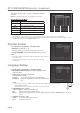
How to Navigate the Menu
Button Action
MENU
Displays the menu.
▲/▼ Moves among menus or items.
OK or
► Selects (Enters) a menu or confirms a selection.
BACK or
◄ Goes back to the previous screen.
NUMBER
Enters the number (0~9).
NOTE:
The default PIN code is 0000. If you have forgotten the PIN code, please contact your local TV distributor.
YoucaneasilynavigatetheDTVSetupmenususingtheassignednumericforeachmenu.Pressthe1-2 buttons in order
at DTV Setup menu to select Language Setting menu.
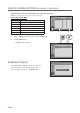
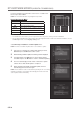
Select DTV Setup > Installation > Software Update menu.
NOTE: This menu is enabled only when there is new software to update.
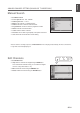
1 A message for searching new software will be displayed. Select
Cancel and press the OK button to finish search.
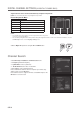
2 Whendetectingsoftwareupdate,thefollowingresultisdisplayed.
3 Select Yes and press the OK button to start to update software.
Select No and press the OK button to return to exit without updating.
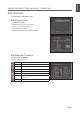
4 The TV is automatically powered off and on and starts to update
software. Please wait until the update is completed.
5 Whencompletingsuccessfullythesoftwareupdate,theTVis
automatically powered off and on again.
NOTE: If new software is found over the air when powering the TV on or during
watching a programme, the TV will be automatically powered off and on and
start to update software immediately.
▪
▪
Sub-menus Items Options
Installation
Channel Search
Software Update
Default Setting
/ Move to the selected submenu
/ Move to the selected submenu
Installation
Channel Search
Software Update
Default Setting
Information
Waiting for OTA Signal...
Cancel
Installation
Channel Search
Software Update
Information
Time - 0 : 10 : 0
New System Software is available.
Do you want to upgrade it now?
Yes
No