
Owner's Manual


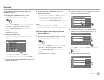

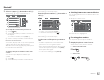

Table Of Contents
- Instruction Manual
- Reset
- Clock Set
- Initial Settings
- Bluetooth PIN (0000)
- Table of Contents
- Compatibility
- Parts & Controls
- Basic Operations
- Getting Started
- Various Screens and Operations
- Disc
- Video
- USB
- Android / iPod / iPhone
- Tuner
- SiriusXM Satellite Radio
- Pandora
- iHeartRadio
- Spotify
- Other External Components
- Bluetooth
- Settings
- Optional Remote Control
- Connection / Installation
- Maintenance
- Troubleshooting
- Specs
- Warranty

Spotify
Spotify
1 Displays/hides other available operation keys*2
2 Picture data
3 Track information
• Touching [
H ] scrolls the text if not all of the text
is shown.
• Touching [
]/[ ] changes the displayed
information between artist (
) and album ( ).
4 Operation keys*2
5 Playing time/playback status
6 Progress bar
7 Only for KW-V350BT: Playback source items shown
on the Home screen.
• Touching the playback source item changes the
playback source.
*1 For KW-V250BT/KW-V25BT/KW-V350BT Region 1: Purchase
optional remote controller, RM-RK258.
*2 See the following “Operation keys on source control screen”.
Operation keys on source control screen
• The following explanations state the operation keys
for KW-V250BT/KW-V25BT, unless stated otherwise.
• The appearance of the operation keys may differ,
however the similar operation keys have the same
operations.
• See also “Common operation keys on source control
screen” on page8.
Touching the operation keys performs the following
actions:
1
[ ]*1
Thumbs down to the current track and
skips to the next track.
[
]*1
Registers the current track as a favorite.
[
]*2 *3
Activates/deactivates the shuffle
playback mode.
[
]*2
Repeats all tracks/cancels the repeat
playback.
[
]*2 *3
Repeats the current track/cancels the
repeat playback.
[
]
Creates a new station.
[
]
Switches the device on <Smartphone
Setup> screen. (Page47)
4
[ ]
Displays the Spotify menu screen.
[
]*3 [ ]
Selects a track.
[
][ ]
Starts (
I)/pauses (W) playback.
[
]
Saves the current track/artist to <Your
Library>.
*1 Not available for tracks in a playlist.
*2 Not available for tracks in the Radio.
*3 Available only for premium account users.
Creating your station (Start Radio)
Start Radio is to start a radio channel based on the
currently played track.
Create your station.
On the source control screen, touch as follows:
Station is created and playback starts automatically.
• You can personalize your station using thumb up
([
]) or thumb down ([ ]).
– You cannot thumb up or down while playing tracks
in a playlist.
– Personalizing stations may not be available
depending on the track.
31
ENGLISH
03_KWV_2019ST_KR_Body01.indd 31 25/6/2018 8:11:45 AM