
Compact Component System Instruction Manual
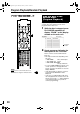

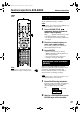
Table Of Contents
- J version
- Warnings, cautions and others
- Table of contents
- Special cautions
- About discs
- Description of parts
- Using the remote control
- Connecting up
- Playing discs
- Playing audio/video files
- Resume Playback
- Select the scene to be played
- Program Playback/Random Playback
- Repeat Playback
- Other convenient functions
- Functions specific to DVD AUDIO
- Using the menu bar
- Preferences
- Country/Area codes
- Listening to a radio broadcast
- Tuning in to a preset station
- Listening to the sound of other audio device
- Setting the Various Timer
- Tray Lock
- Troubleshooting
- Language codes
- Specifications
- LIMITED WARRANTY
- C version
- Warnings, cautions and others
- Table of contents
- Special cautions
- About discs
- Description of parts
- Using the remote control
- Connecting up
- Playing discs
- Playing audio/video files
- Resume Playback
- Select the scene to be played
- Program Playback/Random Playback
- Repeat Playback
- Other convenient functions
- Functions specific to DVD AUDIO
- Using the menu bar
- Preferences
- Country/Area codes
- Listening to a radio broadcast
- Tuning in to a preset station
- Listening to the sound of other audio device
- Setting the Various Timer
- Tray Lock
- Troubleshooting
- Language codes
- Specifications
25
Advanced operations
1 Press ZOOM during playback or
while paused.
• Each time you press the button, the picture
magnification will be changed.
• (For a JPEG) You cannot change the
picture magnification during slide-show
playback.
2 Select the portion you want to
see by using cursor 3/5/2/∞.
• To resume normal playback, select “ZOOM
OFF” in Step 1.
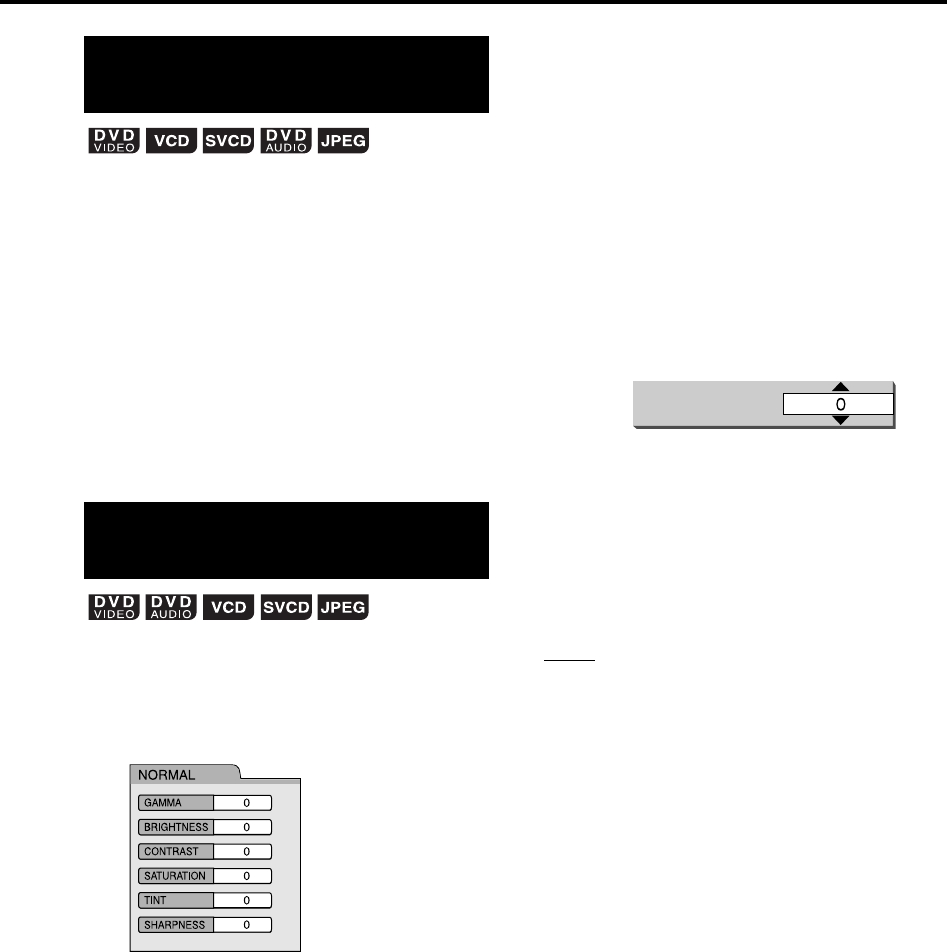
1 Press VFP during playback or
while paused.
The current setting will be displayed on the
TV screen.
• GAMMA: Adjust this if the neutral color is
bright or dark. The brightness of dark and
bright portion is maintained.
• BRIGHTNESS: Adjust this if the picture is
bright or dark on the whole.
• CONTRAST: Adjust this if the far and near
position is unnatural.
• SATURATION: Adjust this if the picture is
whitish or blackish.
• TINT: Adjust this if the appearance of flesh
tone is unnatural.
• SHARPNESS: Adjust this if the picture is
indistinct.
2 Press cursor 2/3 to select VFP
mode.
• It is recommended to select “NORMAL”
usually, or “CINEMA” in a dark room. When
either “NORMAL” or “CINEMA” is selected,
go to Step 7.
• When either “USER 1” or “USER 2” is
selected, the adjustment can be carried out
in detail in the operations after Step 3.
3 Press cursor 5/∞ to select an
item to be adjusted.
4 Press ENTER.
5 Press cursor 5/∞ to change the
value.
6 Press ENTER.
To adjust other items, go back to Step 3.
7 Press VFP to go off the window.
NOTE
• If no operation is made for several seconds during
the procedure, the settings made so far will be
automatically stored.
• “VFP” is an abbreviation of “Video Fine Processor”.
Enlarging the picture
(ZOOM)
Adjusting the picture
quality (VFP)
(only for moving image)
GAMMA
TV screen
Ex.:
FS-Y1[J].book Page 25 Monday, January 31, 2005 12:04 PM