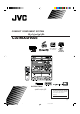
COMPACT COMPONENT SYSTEM CA-MXDVA5 PlayBack Control VIDEO CD DISC CHANGE STANDBY STANDBY/ON SOUND MODE SUBWOOFER LEVEL PHONES TUNING CLOCK / TIMER / DISPLAY REPEAT REC START CD /STOP REC START DUBBING TAPE A TAPE B INSTRUCTIONS For Customer Use: Enter below the Model No. and Serial No. which are located either on the rear, bottom or side of the cabinet. Retain this information for future reference. Model No. Serial No. LVT0748-001A [UG] CA-MXDVA5[UG]COVER_f 1 01.3.
Warnings, Cautions and Others Caution –– switch! Disconnect the mains plug to shut the power off comswitch in any position does not disconpletely. The nect the mains line. The power can be remote controlled. – G-1 – CA-MXDVA5[UG]SAFETY_f 1 01.3.
CAUTION To reduce the risk of electrical shocks, fire, etc.: 1. Do not remove screws, covers or cabinet. 2. Do not expose this appliance to rain or moisture. CAUTION • Do not block the ventilation openings or holes. (If the ventilation openings or holes are blocked by a newspaper or cloth, etc., the heat may not be able to get out.) • Do not place any naked flame sources, such as lighted candles, on the apparatus.
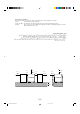
Caution: Proper Ventilation To avoid risk of electric shock and fire, and to prevent damage, locate the apparatus as follows: 1 Front: No obstructions and open spacing. 2 Sides/ Top/ Back: No obstructions should be placed in the areas shown by the dimensions below. 3 Bottom: Place on the level surface. Maintain an adequate air path for ventilation by placing on a stand with a height of 10 cm or more.
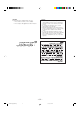
IMPORTANT FOR LASER PRODUCTS / REPRODUCTION OF LABELS / 1 CLASSIFICATION LABEL, PLACED ON REAR ENCLOSURE CLASS LASER 1 PRODUCT 2 WARNING LABEL, PLACED INSIDE THE UNIT DANGER: Invisible laser radiation when open and interlock failed or defeated. AVOID DIRECT EXPOSURE TO BEAM. (e) VARNING: Osynlig laserstrålning när denna del är öppnad och spärren är urkopplad. Betrakta ej strålen. (s) ADVARSEL: Usynlig laserstråling ved åbning, når sikkerhedsafbrydere er ude af funktion.
English Introduction We would like to thank you for purchasing one of our JVC products. Before operating this unit, read this manual carefully and thoroughly to obtain the best possible performance from your unit, and retain this manual for future reference. About This Manual Power sources This manual is organized as follows: • When unplugging from the wall outlet, always pull the plug, not the AC power cord. • The manual mainly explains operations using the buttons and controls on the unit.
English Contents Location of the Buttons and Controls ....................... 3 Special Effect Playback ............................................ 25 Front Panel ................................................................. 3 Remote Control .......................................................... 5 Still Picture/Frame-by-frame Playback .................... 25 Slow Motion Playback ............................................. 25 Zoom ...............................................................
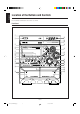
English Location of the Buttons and Controls Become familiar with the buttons and controls on your unit. Front Panel 1 DISC CHANGE STANDBY 2 y STANDBY/ON u i o 3 SOUND MODE 4 5 ; SUBWOOFER LEVEL 6 7 8 9 a s p q d f g PHONES TUNING w e CLOCK / TIMER DISPLAY REPEAT REC START CD /STOP REC START DUBBING TAPE A TAPE B h r j k l t –3– EN01-13.CA-MXDVA5[UG]_f 3 01.3.
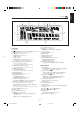
Display Window 1 2 3 4 5 6 w 8 9p q See pages in the parentheses for details. Front Panel 1 2 3 4 5 6 7 8 9 p q w e r t y u i o ; a Carrousel STANDBY/ON button and STANDBY lamp (10, 12) 7 (stop) button (15, 18, 21, 23, 36 – 38) SET button (10, 13, 42 – 44) CANCEL button (10, 42 – 44) DEMO button (9) Display window TAPE 2 3 button and lamp (10, 36 – 38) • Pressing this button also turns on the unit.
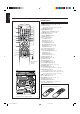
English Remote Control Remote Control e 1 r t y u i o ; a s d f 2 3 4 5 / 6 7 g h 8 9 j p k q w VOCAL MASKING l / « The front lid opens in the arrow direction. DISC CHANGE STANDBY STANDBY/ON SOUND MODE SUBWOOFER LEVEL PHONES TUNING CLOCK / TIMER DISPLAY REPEAT REC START CD /STOP REC START DUBBING TAPE A 1 STANDBY/ON button (10) 2 Number buttons (13, 16, 17, 20 – 22, 39) 3 AUX button (10) • Pressing this button also turns on the unit.
Continued Unpacking Connecting Antennas After unpacking, check to be sure that you have all the following items. The number in the parentheses indicates the quantity of the pieces supplied. • AM loop antenna (1) • FM antenna (1) • Remote control (1) • Batteries (2) • Composite video cord (1) • AC plug adaptor (1) If any is missing, consult your dealer immediately.
English Connecting Speakers AM antenna 2 1 1 ANTENNA FM [ 75 ] AM 2 Vinyl-covered wire (not supplied) Speaker cord (blue/black) Black MAIN SPEAKER [ 4-8 ] Speaker cord (red/black) SUBWOOFER [ 6-16 ] L L R R Blue Red Black Speaker cord (blue/black) AM loop antenna (supplied) From right main speaker’s terminals Speaker cord (red/black) From right subwoofer’s terminals 1 Press and hold the clamp of the AM terminals on the rear of the unit.
Connecting Other Equipment To connect audio equipment with an optical digital input terminal — such as digital decoder You can connect both analog and digital equipment. You can connect a digital decoder or MD recorder by using an optical digital cord (not supplied). • See “About sounds reproduced through the rear terminals” below. • DO NOT connect any equipment while the power is on. • DO NOT plug in any equipment until all connections are complete.
English To connect the TV NOW, you can plug in the unit and other connected equipment FINALLY! Connect your TV and this unit using the composite video cord (supplied) or an S-video cord (not supplied). • Using an S-video cord gives you a better quality pictures. When connecting the AC power cord into a wall outlet, the unit automatically starts display demonstration.
Continued 3 Press Turning On or Off the Power To turn on the unit, press STANDBY/ON so that the STANDBY lamp goes off. 4 or ¢ to adjust the minute, then press SET. PRESET STANDBY STANDBY/ON SET To turn off the unit (on standby), press STANDBY/ON again so that the STANDBY lamp lights up. STANDBY STANDBY/ON To check the clock time A little power is always consumed even while the unit is on standby. To switch off the power supply completely, unplug the AC power cord from the AC outlet.
English Adjusting the Volume Reinforcing the Bass Sound You can adjust the volume level only while the unit is turned on. This function only affects the playback sound, but does not affect your recording. Turn the VOLUME control clockwise to increase the volume or counterclockwise to decrease it. • The volume level can be adjusted in 32 steps (VOL MIN, VOL 1 — VOL 30, and VOL MAX). Turn the SUBWOOFER LEVEL control clockwise to increase the subwoofer sound or counterclockwise to decrease it.
English Selecting the Sound Modes Creating a Being-There Feeling This function only affects the playback sound, but does not affect your recording. By adding breadth and depth the reproduced sounds, this function (3D Sound) can create a being-there feeling while playing back software encoded with Dolby Digital or with MPEG Audio. • When the Digital Output setting is set to Bitstream on the Setup Menu (see page 31), this function does not work.
English Listening to FM and AM Broadcasts Before operating the tuner, make sure you have selected the correct AM spacing intervals (see page 12). On the unit ONLY: 1 Tune in the station you want to preset. • See “Tuning in a Station” on the left column. Tuning in a Station 1 Press FM/AM. 2 Press SET. The unit automatically turns on and tunes in the previously tuned station (either FM or AM). • Each time you press the button, the band alternates between FM and AM.
English DVD Introduction This unit has been designed to playback the following discs: DVD, Video CD, and Audio CD. Discs you can play: Disc Type Mark (Logo) Video Format Region Code Number* 3 ALL DVD Video NTSC or PAL Video CD S-Video CD Audio CD Disc structure — DVD, Video CD (VCD) and Audio CD (CD) A DVD disc consists of Titles, and each title may be divided into some Chapters. (See Example 1.
English Basic Disc Playback Before playing a DVD or VCD, select the color system as indicated on the disc. On the unit only: Press TAPE A while the unit is in standby mode. Each time you press the button, “PAL,” “NTSC,” and “SECAM” appear on the display in sequence. Playing Back the Entire Discs — Continuous Play You can play discs continuously. • While playing a DVD or VCD with the PBC function loaded on the disc trays, the continuous play will stop when a disc menu appears.
Basic Disc Operations Showing the On-Screen Display While playing a disc, you can do the following operations. You can show the following information on the TV screen while a disc is loaded, and change the title, chapter or track if you want on the screen. • When playing a VCD using the PBC function, the onscreen information cannot be shown. To exchange discs during playback of another Press DISC CHANGE to change the disc and the DISC CHANGE carrousel comes out.
English When a VCD without the PBC function or CD is loaded: T:501∞ TIME 0:03:27 1 3 Press the number buttons to select a desired title, chapter, track or playing time, then press ENTER . ENTER The unit starts playback of the selected item. 2 T:01 0:03:27 T:19 1:04:03 3 4 REMAIN \ Goes off. / 1 : Current Track number • 5/∞ indicates that you can move to another track by pressing 5/∞when the track number is highlighted. See below for details.
English Searching for a Particular Point Prohibiting Disc Ejection — Tray Lock You can search for a particular portion while playing a disc — Forward/Reverse Search. You can prohibit disc ejection from the unit and can lock discs. • This operation is possible only while the unit is on with disc selected as the source. Forward Search To fast-forward the chapter or track, press ¡ while playing a disc.
English DVD Playback Some DVDs contain several audio languages, subtitles, and multi-angle views. When you find the following marks on the DVD or its package, you can select these elements recorded on the DVD. 2 Press Cursor ∞ (or 5) to select a desired audio language. • Each time you press the button, the audio language changes. Subtitles are recorded on the disc. The number inside the mark indicates the total number of the recorded subtitles. 3 Signal encoding format also appears.
English Menu-Driven Playback Menu Operations Menu-driven playback is possible while playing back a DVD with menu-driven features or a VCD with the PBC function. While playing a DVD: How to select items using the number buttons • To select number 5, press 0, 5 (or press 5, then wait for a few seconds). • To select number 10, press 1, 0. • To select number 23, press 2, 3. DVD discs generally have their own menus or title lists.
English Selecting Playback Modes 4 Press Cursors 3 (or ∞, 2, Programming the Playing Order of the Chapters or Tracks — Program Play 5) to select (highlight) the chapter (or title) number, then press ENTER. You can arrange the order in which the titles, chapters, or tracks play before you start playing. You can program up to 20 steps. • To use Repeat play (see page 24) for Program play, press REPEAT after starting Program play.
To modify the program When making a program using a CD or VCD: Before playing, you can modify the program. To erase the last chapter (or title): press Cursor ∞ to select (highlight) “CLEAR LAST CHAPTER (or TITLE),” then press ENTER. • Each time you press ENTER, the last programmed chapter (or title) is erased from the program. To erase all the programed chapters (or titles): press Cursor ∞ to select (highlight) “CLEAR ALL CHAPTERS (or TITLES),” then press ENTER.
English 5 Repeat steps 4 to program You can cancel the program after play by pressing following buttons: 1. DISC CHANGE, Disc number buttons (DVD1, DVD2, DVD3), 0 or 7 (twice) on the unit, or 2. CLEAR on the remote control. other tracks you want. After 20 tracks are programed, “CLEAR LAST TRACK” is selected. • If you want to play back the programed tracks, go to step 6. • If you want to modify the program, see below. TRACKS Appears when you can go back to the previous page (track number list).
English 7 A-B Repeat Repeating Playback While playing, you can also select a portion you want to repeat. • When playing a DVD, A-B Repeat is not performed between different chapters or different titles. • A-B Repeat cannot be used on a VCD with the PBC function. 7 Repeat Play You can repeat a title, chapter, track, or disc. • Repeat play cannot be used on a VCD with the PBC function. • To use Repeat play for Program play and Random play, press REPEAT after starting playback.
English Special Effects Playback Still Picture/Frame-by-frame Playback Zoom You can advance the still picture frame by frame while playing back a DVD or a VCD. You can zoom up a particular portion of the picture while playing a DVD and VCD. On the remote control ONLY: On the remote control ONLY: 1 Press STILL once during play. 1 Press ZOOM. A still picture appears on the screen. The zoom scope appears on the center of the TV screen.
Continued 7 Locating Marked Scenes The following function is possible only using the remote control. You can locate marked scenes very easily by selecting one of the bookmarks. Marking the Scenes You Want — Bookmark 1 Press BOOK MARK during You can mark any scene while playback, and later go back to the marked scene. • This function can be used on a DVD or on a VCD without the PBC function. (This function may not work even on a DVD or on a VCD without the PBC function due to its disc structure.
English Viewing tracks of a VCD 3 Press Cursor ∞ (or 5, 3, 2) to select (highlight) a scene you want to start playback, then press ENTER. You can view the beginning of each track of a disc (Track View) or 9 scenes of the selected track on a disc (Index View) and locate it directly. • This function can be used on a VCD without the PBC function. Playback skips to the selected scene. If you press TITLE before starting play “TRACK VIEW” screen appears.
Continued Setting the Initial Disc Language You can store the initial selection for subtitle languages, audio languages (sound), and other settings using the Setup menu. • Setup menu can only be displayed while a disc is not playing. • You can only use the remote control for Setup menu operations. You can select the initial language for the disc menu. However, in the following cases, the original language will be selected as the initial language regardless of your setting.
English Setting the Initial Audio Language Setting the Initial Subtitle Language You can select the initial language for audio sound. However, in the following cases, the original language will be selected as the initial language regardless of your setting. – If the language you have selected is not recorded on the disc. – If the disc is programed to be played back in the original language. You can select the initial language for subtitles.
Setting the Parental Level 7 To change the password Using this function, you can restrict playback of DVD containing violent scenes (and those not suitable for your family members). • This function is only possible for the DVDs containing such rating level information (Level 1 to Level 8.) 1 Press SETUP. Setup menu appears on the TV screen. 2 Press Cursor ∞ (or 5) to select (highlight) “5 PARENTAL,” then press ENTER.
English Setting the Digital Audio Output Setting the DTS Signal Output When connecting an amplifier or a decoder to the DIGITAL OUT terminal, set it as recommended — Linear PCM or Bitstream. When connecting an amplifier or a decoder compatible with the DTS Digital Surround to the DIGITAL OUT terminal, set “DTS” setting to “ON.” To go back to the previous screen during the procedure, press RETURN. To go back to the previous screen during the procedure, press RETURN. 1 Press SETUP. 1 Press SETUP.
Setting the Dynamic Compression You can compress the dynamic range (difference between the maximum and minimum sound levels) while playing a source encoded with Dolby Digital. This is useful when listening at a low volume level. To go back to the previous screen during the procedure, press RETURN. Setting the Audio Output during 2X Speed Search You can turn on or off the sound during 2X Speed Search on a DVD. • Regardless of this setting, sound always comes out during 2X Speed Search on a CD.
English Setting the TV Aspect • 1 4:3 LETTER BOX: Select this when viewing on TV whose aspect ratio is 4:3. While viewing a wide screen picture, the black bars appear on the top and the bottom of the screen. Set the monitor type when you watch a wide screen picture. • This setting takes effect only when playing back a DVD recorded with 16:9 wide screen video signal. To go back to the previous screen during the procedure, press RETURN. 1 Press SETUP.
Setting the Angle Mark Setting the Still Picture Quality When playing a DVD containing multi-angle views, you can show the angle mark on the upper right corner of the TV screen. If the picture shakes or small letters cannot be shown clearly during still picture playback, set the still picture mode. To go back to the previous screen during the procedure, press RETURN. To go back to the previous screen during the procedure, press RETURN. 1 Press SETUP. 1 Press SETUP.
English Setting the Screen Messages Setting the Brightness During disc operation, it is recommended to set this function to “ON” so that you can confirm what you are doing on the TV screen. Using this function, you can change the brightness of the onscreen display. To go back to the previous screen during the procedure, press RETURN. To go back to the previous screen during the procedure, press RETURN. 1 Press SETUP. 1 Press SETUP. Setup menu appears on the TV screen.
English Playing Back Tapes Playing Back a Tape When the tape plays to the end, the deck automatically stops if the Reverse Mode is canceled. (See “To play both sides repeatedly — Reverse Mode.”) 1 Press EJECT (0) for the deck you want to use. To stop during play, press 7. To operate the other deck, press TAPE A or TAPE B (or TAPE A/B on the remote control), then TAPE 2 3. To fast wind to the left or to the right, press 1 / ¡ (1 or ¡ on the remote control.
English Recording Recording a Tape on Deck B IMPORTANT: • It may be unlawful to record or play back copyrighted material without the consent of the copyright owner. • The recording level is automatically set correctly, so it is not affected by the VOLUME control, the SOUND MODE control, and the SUBWOOFER LEVEL control. Thus, during recording you can adjust the sound you are actually listening to without affecting the recording level.
English Dubbing Tapes 3 Press one of the disc number buttons (DVD1, DVD2 or DVD3) to select the disc, then 7. On the unit ONLY: 1 Press TAPE 2 3, then 7. 4 Press CD REC START. recordable cassette into deck B. ART DUBBIN “CD REC” appears, and the REC (recording) indicator lights up on the display. 2 Put the source cassette in deck A, and a 3 Press DUBBING. ART CD P REC START DUBBING Dubbing starts. “DUBBING” appears, and the REC (recording) indicator lights up on the display.
English Enjoying Karaoke Play Singing Along Using Multiplex Karaoke Discs IMPORTANT: • Always set the MIC LEVEL to MIN when connecting or disconnecting the microphone. • When you do not use the microphone, keep the microphones unconnected. While playing a multiplex Karaoke disc — CD-G, VCD, and DVD, you can use the following functions.
7 Vocal Fader 7 Guide Melody By using Vocal Fader, you can mute the vocal part of a multiplex Karaoke disc during playback. • See also “Singing Along Using Multiplex Tapes — Multiplex Sound (MPX)” on page 41. By using Guide Melody signal contained on some DVD discs, you can follow the guide melody while singing. • This function can only be used on a DVD containing Guide Melody signal.
English 7 Key Control You can adjust the key of the source if it’s not suit to your key. • This function is available only of a multiplex Karaoke disc — CD-G, VCD, and DVD. On the remote control ONLY: 1 Press KARAOKE to turn on Karaoke Singing Along Using Multiplex Tapes — Multiplex Sound (MPX) In a multiplex karaoke tape, the instrumental part is recorded on the left channel and the vocal part is recorded on the right channel.
Continued There are three timers available — Daily Timer, Recording Timer, and Sleep Timer. 2 Press CLOCK/TIMER again. CLOCK / TIMER “ON TIME” appears for 2 seconds, then the unit enters on-time setting mode. Before using the timers, you need to set the clock built in the unit. (See “Setting the Clock” on page 10.) Using Daily Timer With Daily Timer, you can wake to your favorite music or radio program. You can set the timer whether the unit is on or off.
English 6 When you have selected Using Recording Timer PRESET “TUNER FM” or “TUNER AM” in step 5. Select a preset station number. With Recording Timer, you can make a tape of a radio broadcast automatically. You can set the timer whether the unit is on or off. Press 4 or ¢ to select the preset station number, then press SET. The unit enters volume setting mode.
English 4 Set the on-time you want the unit to turn on. 1) Press 4 or ¢ to set the hour, then press SET. 2) Press 4 or ¢ to set the minute, then press SET. “OFF TIME” appears for 2 seconds, then the unit enters off-time setting mode. Using Sleep Timer PRESET With Sleep Timer, you can fall asleep to music. You can set Sleep Timer when the unit is turned on. How Sleep Timer actually works The unit automatically turns off after the specified time length passes.
English Maintenance To get the best performance of the unit, keep your discs, tapes, and mechanism clean. Handling cassette tapes Handling discs • Remove the disc from its case by holding it at the edge while pressing the center hole lightly. • Do not touch the shiny surface of the disc, or bend the disc. • Put the disc back in its case after use to prevent warping. • Be careful not to scratch the surface of the disc when placing it back in its case.
English Glossary Dolby Digital This is a digital audio compression format that was developed by Dolby Laboratories. Dolby Digital encoding method (socalled discrete 5.1 channel digital audio format) records and compresses the left front channel, right front channel, center channel, left rear channel, right rear channel, and LFE channel (total 6 channels, but LFE channel is counted as 0.1 channel, therefore called 5.1 channels) signals digitally.
English Troubleshooting If you are having a problem with your unit, check this list for a possible solution before calling for service. If you cannot solve the problem from the hints given here, or the unit has been physically damaged, call a qualified person, such as your dealer, for service. Symptom Cause Action Unable to cancel the display demonstration. Other buttons are pressed to cancel the display demonstraton. Press DEMO on the unit. (See page 9.) No sound is heard.
English Specifications Amplifier section — CA-MXDVA5 Output Power SUBWOOFERS: 70 W per channel, min. RMS, driven into 6 Ω at 63 Hz with no more than 10% total harmonic distortion. MAIN SPEAKERS: 30 W per channel, min. RMS, driven into 4 Ω at 1 kHz with no more than 10% total harmonic distortion. Audio input sensitivity/Impedance (at 1 kHz, measured at MAIN SPEAKERS) AUX IN: 400 mV/50 kΩ MIC: 2.5 mV/5 kΩ Audio output level/Impedance LINE OUT: 400 mV/4.
Mains (AC) Line Instruction (not applicable for Europe, U.S.A., Canada, Australia, and U.K.