MXDK11_Cover.
MXDK11_Safety.fm Page 1 Friday, December 1, 2006 10:27 AM Warnings, Cautions and Others Caution–– (standby/on) button! Disconnect the mains plug to shut the power off completely (the STANDBY lamp goes off). When installing the apparatus, ensure that the plug is easily accessible. The (standby/on) button in any position does not disconnect the mains line. • When the System is on standby, the STANDBY lamp lights red. • When the System is turned on, the STANDBY lamp goes off.
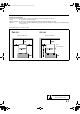
MXDK11_Safety.fm Page 2 Friday, December 1, 2006 10:27 AM Caution: Proper Ventilation To avoid risk of electric shock and fire, and to prevent damage, locate the apparatus as follows: 1. Front: No obstructions and open spacing. 2. Sides/ Top/ Back: No obstructions should be placed in the areas shown by the dimensions below. 3. Bottom: Place on the level surface. Maintain an adequate air path for ventilation by placing on a stand with a height of 10 cm or more.
MX_DK11.book Page 1 Wednesday, December 13, 2006 5:11 PM Introduction Precautions Playable Disc Types Installation • Install the System in a location with adequate ventilation to prevent internal heat buildup in the System. DO NOT install the System in a location near heat sources, or in a place subject to direct sunlight, excessive dust or vibration. • Install in a place which is level, dry and neither too hot nor too cold—between 5°C and 35°C. • Leave sufficient distance between the System and the TV.
MX_DK11.book Page 2 Wednesday, December 13, 2006 5:11 PM The System can play back the following digital audio formats. • LPCM (Linear PCM), DIGITAL (Dolby Digital), DTS (Digital Theater Systems) Caution for DualDisc playback The Non-DVD side of a “DualDisc” does not comply with the “Compact Disc Digital Audio” standard. Therefore, the use of Non-DVD side of a DualDisc on this product may not be recommended. IMPORTANT: Before playing a disc, make sure of the following...
MX_DK11.book Page 3 Wednesday, December 13, 2006 5:11 PM Connections Do not connect the AC power cord until all other connections have been made. • Connect VIDEO OUT directly to the video input of your TV. Connecting VIDEO OUT to a TV via a VCR may cause a monitor problem when playing back a copy-protected disc. You may also have a monitor problem when connecting the player to an integrated TV/Video system.
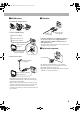
MX_DK11.book Page 4 Wednesday, December 13, 2006 5:11 PM ~ AM/FM antenna Ÿ TV/monitor To assemble the AM loop antenna To connect AM/FM antenna S-video cord (not supplied) Composite video cord (supplied) FM antenna (supplied) Extend it so that you can obtain the best reception. AM loop antenna (supplied) • Connect the VIDEO jack or S-VIDEO jack whichever you want to use. If your TV is equipped with the SVIDEO input jack, S-VIDEO connection gives you better quality pictures.
MX_DK11.book Page 5 Wednesday, December 13, 2006 5:11 PM @ Speakers Auxiliary equipment • When connecting the speaker cords, match the polarity of the speaker terminals: (+) to (+) and (–) to (–). Red Stereo audio cord (not supplied) White For the Australian model From right speaker Stereo mini plug (not supplied) From left speaker • Use only speakers with the same speaker impedance as indicated by the speaker terminals on the rear of the unit.
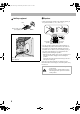
MX_DK11.book Page 6 Wednesday, December 13, 2006 5:11 PM ¤ Voltage Selector Use a screwdriver to rotate the voltage selector so that the voltage mark is pointing to the same voltage as where you are plugging in the unit. (See also the back cover page.) When your mains lead (AC) line voltage is 230-240 V If the range or effectiveness of the remote control decreases, replace both batteries. Caution Do not expose batteries to heat or flame.
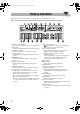
MX_DK11.book Page 7 Wednesday, December 13, 2006 5:11 PM Display Indication The indications on the display tell you a lot of things while you are operating the System. Before operating the System, be familiar with when and how the indicator illuminates on the display. 1 DVD LEV. 1/2/3 indicators • Lights to indicate the DVD increase level (see page 12). 2 MIC indicator • Lights when the Karaoke mode is activated (see page 28). 3 3D PHONIC indicator • Lights when 3D Phonic is activated (see page 13). 4 V.
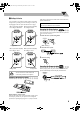
MX_DK11.book Page 8 Wednesday, December 13, 2006 5:11 PM Daily Operations—Playback In this manual, the operations using the remote control are mainly explained; however, you can use the buttons and controls on the main unit if they have the same (or similar) name and marks. ¥ Turn on the power. The STANDBY lamp on the main unit goes off. • Without pressing AUDIO, the System also turns on by pressing one of the source selecting buttons in the next step. ø Select the source.
MX_DK11.book Page 9 Wednesday, December 13, 2006 5:11 PM If the FM reception is poor To drop the volume in a moment To restore the volume, press again, or adjust the volume level. Listening to the Radio The MONO indicator lights on the display. Reception will improve though stereo effect is lost—monaural reception mode. To restore the stereo effect, press the button again (the MONO indicator goes off). To preset stations To select the AM tuner interval spacing You can preset 30 FM and 15 AM stations.
MX_DK11.book Page 10 Wednesday, December 13, 2006 5:11 PM Playing Back a Disc Before operating a disc, be familiar how a disc is recorded. • DVD Video/DVD-VR consist of “Titles” which include “Chapters,” MP3/WMA/MPEG-1/MPEG-2 consist of “Groups” which include “Tracks,” JPEG consist of “Groups” which include “Files,” and CD/SVCD/VCD consist of only “Tracks.” • For DVD-VR/MP3/WMA/JPEG/MPEG-1/MPEG-2 playback, see also “Operations on the Control Screen” on page 24.
MX_DK11.book Page 11 Wednesday, December 13, 2006 5:11 PM To select an item directly You can select a title/chapter/track directly and start playback. For DVD Video, you can select a title before starting playback, while you can select a chapter after starting playback. Examples: To select number 5, press 5. To select number 10, press 10. To select number 15, press h10, 1, then 5. To select number 30, press h10, 3, then 0.
MX_DK11.book Page 12 Wednesday, December 13, 2006 5:11 PM Daily Operations—Sound & Other Adjustments Reinforcing the Bass Sound Remote Control To change the bass level • You can also use ACTIVE BASS EXTENSION on the main unit. To reinforce the heavy sound—SOUND TURBO II You can boost the low and high frequency sound. Presetting Automatic DVD Video Sound Increase Level The DVD Video sound is sometimes recorded at a lower level than for other discs and sources.
MX_DK11.book Page 13 Wednesday, December 13, 2006 5:11 PM Creating 3-dimensional Sound Field —3D Phonic Creating Your Own Sound Modes —User Mode While playing a disc... You can create your own Sound Modes to make sounds suit your taste. The changed settings can be stored as the USER 1, USER 2 and USER 3 Modes. 1 Select one of the preset Sound Modes. On the TV screen 3D ACTION Suitable for action movies and sports programs. 3D DRAMA Creates natural and warm sound. Enjoy movies in a relaxed mood.
MX_DK11.book Page 14 Wednesday, December 13, 2006 5:11 PM 3 Adjust the parameter. Changing the Picture Tone While showing a playback picture on the TV, you can select the preset picture tone, or adjust it and store your own settings. To select a preset picture tone 1 While playing, display VFP setting screen. 4 Repeat steps 2 to 3 to adjust other parameters. To remove the setting screen, press VFP again while holding SHIFT.
MX_DK11.book Page 15 Wednesday, December 13, 2006 5:11 PM Unique DVD/VCD Operations Selecting the Sound Track Remote Control For DVD Video: While playing back a chapter containing audio languages, you can select the language to listen to. For DVD-VR or SVCD/VCD: When playing back a track, you can select the audio channel to play. • You can also select the audio track using the on-screen bar (see page 21). (While holding...) While playing a DVD Video... Ex.: While playing a DVD-VR or SVCD/VCD...
MX_DK11.book Page 16 Wednesday, December 13, 2006 5:11 PM Selecting the Subtitle Language For DVD Video: While playing back a chapter containing subtitles in different languages, you can select the subtitle language to display on the TV screen. For SVCD: While playing, you can select the subtitles even if no subtitles are recorded on the disc. For DVD-VR: While playing, you can turn the subtitle on or off. • You can also select the subtitle language using the on-screen bar (see page 21).
MX_DK11.book Page 17 Wednesday, December 13, 2006 5:11 PM Special Picture Playback To zoom in JPEG file, see page 25. Still picture playback To start still picture playback: Zoom To resume normal playback: 1 While playing... While playing... (While holding...) Frame-by-frame playback 1 While playing... Still picture playback starts. As the number increases, magnification also increases. 2 Move the zoomed-in position. 2 Advance the still picture frame by frame.
MX_DK11.book Page 18 Wednesday, December 13, 2006 5:11 PM Advanced Disc Operations Remote Control Number buttons Programming the Playing Order —Program Play You can arrange the playing order of the chapters or tracks (up to 99) before you start playback. • Program play cannot be used for DVD-VR/JPEG/ MPEG-1/MPEG-2 discs. • Resume does not work for Program Play. 1 Before starting playback, activate Program Play.
MX_DK11.book Page 19 Wednesday, December 13, 2006 5:11 PM To check the programmed contents Playing at Random—Random Play Before playback... in the reverse order You can play the contents of all chapters and tracks at random. • Random Play cannot be used for DVD-VR, JPEG, MPEG-1, MPEG-2 and some DVDs. 1 Before starting playback, activate Random Play. in the programmed order Canceled To modify the program Before or after playback... To erase the last chapter/ To erase the entire track: program: 2 sec.
MX_DK11.book Page 20 Wednesday, December 13, 2006 5:11 PM A-B Repeat Playing Repeatedly • You can also select the repeat mode using the on-screen bar (see page 22). • For DVD-VR/JPEG, see page 25. You can repeat playback of a desired portion by specifying the beginning (point A) and the ending (point B). • A-B Repeat cannot be used for MP3/WMA/MPEG-1/ MPEG-2 and for some DVDs. • For DVD Video: While playing... 1 While playing (without PBC for SVCD/VCD), select the start point (A).
MX_DK11.book Page 21 Wednesday, December 13, 2006 5:11 PM On-Screen Bar Operations Remote control On-screen Bar Information You can check the information on a disc (except for MP3/ WMA/JPEG disc) and use some functions through the on-screen bar. 1 Disc type Number buttons 2 Playback information Indication Meanings Dolby D, LPCM Audio format 3/2.1ch, 2/0.
MX_DK11.book Page 22 Wednesday, December 13, 2006 5:11 PM Operations Using the On-screen Bar Basic operation procedures through the on-screen bar are as follows: Ex.: Selecting a subtitle (French) for DVD Video: While a disc is selected as the source... 1 Display the on-screen bar with the pull-down menu. For detailed operations of the following functions, see also “Operations Using the On-screen Bar” on this page.
MX_DK11.book Page 23 Wednesday, December 13, 2006 5:11 PM 5 Finish the setting. A-B Repeat The System starts playing from the specified time. 1 Select “A-B” in step 3 of “Repeat Play” on page 22. Chapter Search 2 Select the start point (A). You can search for the chapter number to play. 1 While playing, display the on-screen bar with the pull-down menu. 3 • Before pressing ENTER/SET, you can search for the end point using y. Select the end point (B). A-B Repeat starts.
MX_DK11.book Page 24 Wednesday, December 13, 2006 5:11 PM Operations on the Control Screen For DVD-VR/MP3/WMA/JPEG/MPEG-1/MPEG-2: You can search for and play the desired items through the control screen. Control screen for DVD-VR Control screen for MP3/WMA/JPEG/MPEG-1/ MPEG-2 discs The control screen automatically appears on the TV screen when you load an MP3, WMA, JPEG, MPEG-1 or MPEG-2 disc. If files of different types are recorded on a disc, select the file type to play (see “FILE TYPE” on page 35).
MX_DK11.book Page 25 Wednesday, December 13, 2006 5:11 PM To repeat slide-show for JPEG While playing or before playback... To start playback For JPEG: The selected track (still picture) is displayed until you change it. Slide-show playback starts. Each track (still picture) is shown on the screen for a few seconds, then changes one after another. (Canceled) GROUP Repeats the current group. (REPEAT GROUP) ALL (REPEAT ALL) OFF For the other discs: Playback starts with the selected track.
MX_DK11.book Page 26 Wednesday, December 13, 2006 5:11 PM Recording Operations Main unit IMPORTANT It may be unlawful to record or play back copyrighted material without the consent of the copyright owner. Recording on a Tape You can use type I tapes for recording. • To play a tape, see page 11. 1 Insert a recordable cassette in deck B. Push Insert and close 2 Start playing the source—“FM,” “AM,” “DVD/CD,” “TAPE-A” or “AUX.
MX_DK11.book Page 27 Wednesday, December 13, 2006 5:11 PM Dubbing Tapes 1 Change the source to TAPE-B. 2 Insert the source cassette in deck A, and a recordable To record without creating 4-second blanks 1 Press DVD/CD 3, then press 8. 2 Press 4 to go back to the beginning of the track. 3 Press DISC REC to start recording. To protect your recording Cassettes have two small tabs on the back to protect from unexpected erasure or re-recording. To protect your recording, remove these tabs.
MX_DK11.book Page 28 Wednesday, December 13, 2006 5:11 PM Enjoying Karaoke NOTE • This function is not available in the Australian model. Remote control IMPORTANT • Always set MIC LEVEL to MIN when connecting or disconnecting the microphone. Number buttons DO NOT keep the microphone connected while it is not in use. Singing Along (Karaoke) Source Selecting buttons You can enjoy singing along (Karaoke) by using the microphone.
MX_DK11.book Page 29 Wednesday, December 13, 2006 5:11 PM 5 Select the desired audio channel (see page 15). Singing Along Using Stereo Discs —Vocal Masking You can enjoy singing along while playing a stereo disc. Vocal Masking reduces the lead vocal of a disc. (While holding...) 6 Sing into the microphone. 7 Adjust the MIC LEVEL and VOLUME. • You can use this function only with DVD/CD sources. • When playing a Karaoke disc in Vocal Masking Mode, the vocal may not be reduced or the volume may be lower.
MX_DK11.book Page 30 Wednesday, December 13, 2006 5:11 PM Microphone Mixing To use microphone only You can enjoy microphone mixing by using the microphone. 1 Turn MIC LEVEL to MIN. • By pressing REC START/STOP, you can record your singing-along. 1 Turn MIC LEVEL to MIN. 2 Connect the microphone (not supplied) to the MIC 3 jack. Select DVD/CD as the source, then stop playback. 2 Connect the microphone (not supplied) to the MIC jack.
MX_DK11.book Page 31 Wednesday, December 13, 2006 5:11 PM 7 Start playback. Reserving Karaoke Songs —Karaoke Program Play You can determine the playback order of up to 12 chapters or tracks on the disc player. Karaoke Program Play cannot be used for DVD-VR. 1 Turn MIC LEVEL to MIN. 8 Sing into the microphone. 9 Adjust the MIC LEVEL and VOLUME. 2 Connect the microphone (not supplied) to the MIC jack. 3 Change the source to the “DVD/CD.
MX_DK11.book Page 32 Wednesday, December 13, 2006 5:11 PM Timer Operations Remote Control You need to set the built-in clock before using timer functions (see page 14) except Sleep Timer. Setting the Timer Using Daily Timer, you can wake up with your favorite music. On the other hand, with Recording Timer, you can make a tape of a radio broadcast. • To go back to the previous step, press CANCEL while holding SHIFT. 1 Select one of the timer setting modes—ON for Daily Timer or Recording Timer.
MX_DK11.book Page 33 Wednesday, December 13, 2006 5:11 PM 3 Turn off the System (on standby) if you have set the 2 Turn off the selected timer. timer with the System turned on. (While holding...) The timer indicator ( How Daily Timer works Once the Daily Timer has been set, the timer indicator ( ) and DAILY indicator are lit on the display. Daily Timer is activated at the same time everyday until the timer is turned off manually (see below).
MX_DK11.book Page 34 Wednesday, December 13, 2006 5:11 PM Setup Menu Operations Initial Settings The Setup Menu cannot be activated during playback. How to set the Initial Settings 1 Press SET UP. 2 3 4 5 Press (or ) to select the menu. Press (or ) to move to select the item. Press ENTER/SET. Press (or ) to select the options, then press ENTER/SET. • For settings of the LANGUAGE menu, see “Language Code List” on page 41. To erase a preference display Press SET UP.
MX_DK11.book Page 35 Wednesday, December 13, 2006 5:11 PM Item Contents SCREEN SAVER You can set the screen saver function to ON or OFF. ON: The on-screen display on the TV becomes dark when no operation is done for about 5 minutes. OFF: To cancel the screen saver. FILE TYPE You can select the file type to play. AUDIO: To play MP3/WMA files. STILL PICTURE: To play JPEG files. VIDEO: To play MPEG-1/MPEG-2 files.
MX_DK11.book Page 36 Wednesday, December 13, 2006 5:11 PM Operating the TV Remote control Operating TV You can operate JVC’s TV using this remote control. To turn on or off the To select the input mode (either TV: TV or VIDEO): (While holding...) To adjust TV volume: (While holding...) To select the TV channel: (While holding...
MX_DK11.book Page 37 Wednesday, December 13, 2006 5:11 PM Additional Information Learning More about This System Introduction (see pages 1 and 2) Playable Disc Types: • If you play back an NTSC disc with the color system set to “PAL,” you can watch the playback picture (the disc will be reproduced using “PAL 60” format), but the TV screen may not display properly.
MX_DK11.book Page 38 Wednesday, December 13, 2006 5:11 PM Daily Operations—Sound & Other Adjustments Recording Operations (see pages 26 and 27) (see pages 12 to 14) Creating 3-dimensional Sound Field—3D Phonic: • While you use the headphones, 3D Phonic mode is canceled temporary. • When you activate the Karaoke Mode, 3D Phonic mode is canceled temporary. • 3D Phonic setting is also applied to the optical digital output signals through the OPTICAL DIGITAL OUTPUT terminal.
MX_DK11.book Page 39 Wednesday, December 13, 2006 5:11 PM Enjoying Karaoke (see pages 28 to 31) Setup Menu Operations (see pages 34 and 35) Singing Along Using Stereo Discs—Vocal Masking: • Vocal Masking Mode setting is also applied to the optical digital output signals through the OPTICAL DIGITAL OUTPUT terminal. • On some music, Vocal Masking does not provide the correct effect.
MX_DK11.book Page 40 Wednesday, December 13, 2006 5:11 PM Troubleshooting If you are having a problem with your System, check this list for a possible solution before calling for service. General: Adjustments or settings are suddenly canceled before you finish. sThere is a time limit. Repeat procedure again. Operations are disabled. sThe built-in microprocessor may malfunction due to external electrical interference. Unplug the AC power cord and then plug it back in.
MX_DK11.book Page 41 Wednesday, December 13, 2006 5:11 PM Maintenance To get the best performance of the System, keep your discs, tapes, and mechanism clean. Handling discs • Remove the disc from its case by holding it at the edge while pressing the center hole lightly. • Do not touch the shiny surface of the disc, or bend the disc. • Put the disc back in its case after use to prevent warping. • Be careful not to scratch the surface of the disc when placing it back in its case.
MX_DK11.book Page 42 Wednesday, December 13, 2006 5:11 PM Specifications Amplifier section General Output Power: 90 W per channel, min. RMS, driven into 6 Ω at 1 kHz with no more than 10% total harmonic distortion. Digital output: OPTICAL DIGITAL OUTPUT: –21 dBm to –15 dBm (660 nm ±30 nm) Audio input sensitivity/Impedance (Measured at 1 kHz, with tape recording signal 400 mV) AUX: 400 mV/47 kΩ MIC: 3.
MX_DK11.
MX_DK11.book Page 44 Wednesday, December 13, 2006 5:11 PM Parts Index Remote control Button AUDIO TV Page r 8, 33 t 36 o 6, 11, 13, 14, Button DVD/CD 3 8 9-11, 19 f 9, 10, 17 s 10, 11, 19, 25, 30, 31 8 Number buttons d 10, 17, 19, 25 1 9, 10, 11, 18, 23, 31 3D PHONIC A-B RPT AHB ANGLE AUDIO/MPX AUX CANCEL CLOCK/TIMER DIMMER DISPLAY DVD LEVEL +/– SLOW +/– h 13 9 20 q 12 1 16 1 15, 29 78 1 14, 19, 31, 32, 33 14,32,33 FADEMUTING FM MODE FM/AM KARAOKE*1 KEY / *1 MENU ON SCREEN PG PL PLAY MODE PREV.
MXDK11_Cover.fm Page 2 Friday, December 1, 2006 10:28 AM Mains (AC) Line Instruction (not applicable for Europe, U.S.A., Canada and U.K.