
Manual


Otherconvenientfunctions
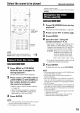
i i AUDIO SUBTITLE ANGLE
o Cursor
(A/v/.,t/_)
/ENTER
ZOOM
(only for moving image)
Press SUBTITLE during
playback of a disc containing
subtitles in several languages.
Example: TV screen
1
Press AU DIO during playback of
a disc containing several audio
languages.
Example: TV screen
2
• Each time you press the button, the audio
language will be alternated. Also, the audio
language can be changed by pressing
cursorA/v.
• For a language code such as "AA', refer to
"Language codes" (_." page 38).
• "ST", "1" and "R" displayed when playing a
VCD or SVCD respectively represent
"Stereo", "left sound" and "right sound".
Wait for a few seconds or press
ENTER.
NOTE
It is possible to operate by using the menu bar
page 28).
2
3
• Each time you press the button, the subtitle
will be alternated between ON/OFF.
Press cursorA/_'to select a
subtitle language.
• For a language code such as "AA", refer to
"Language codes" (: _ page 38).
• The manner of displaying subtitle
languages may be different depending on
the disc.
Wait for a few seconds or press
ENTER.
NOTE
• It is possible to operate by using the menu bar
(.page 28).
• For a SVCD, each time you press SUBTITLE in
Step 1, the subtitle type and ON/OFF will be
alternated.
1
(only for moving image)
Press ANGLE during playback
of a scene containing multi-view
angles.
Example: TV screen
2
• Each time you press the button, the angle
will be alternated. Also, the angle can be
changed by pressing cursorA/v.
Wait for a few seconds or press
ENTER.
NOTE
It is possible to operate by using the menu bar
page 28).
24