
User's Manual


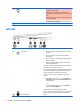
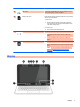


Table Of Contents
- Starting right
- Getting to know your computer
- Connecting to a network
- Enjoying entertainment features
- Navigating the screen
- Managing power
- Maintaining your computer
- Securing your computer and information
- Using Setup Utility (BIOS)
- Using HP PC Hardware Diagnostics (UEFI)
- Backing up, restoring, and recovering
- Specifications
- Electrostatic Discharge
- Accessibility
- Index

Component Description
(3) USB 2.0 port Connects an optional USB device, such as a keyboard, mouse,
external drive, printer, scanner or USB hub.
(4) Memory card reader Reads optional memory cards that enable you to store, manage,
share or access information.
To insert a card:
▲
Hold the card label-side up, with connectors facing the
slot, insert the card into the slot, and then push in on the
card until it is firmly seated.
To remove a card:
▲
Press in on the card it until it pops out.
(5) Volume button Controls speaker volume.
●
To decrease speaker volume, press the – edge of the
button.
●
To increase speaker volume, press the + edge of the
button.
(6) Hard drive light
●
Blinking white: The hard drive is being accessed.
●
Amber: HP 3D DriveGuard has temporarily parked the hard
drive.
NOTE:
For more information about HP 3D DriveGuard,
see Using HP 3D DriveGuard (select models only)
on page 37.
Display
Display 7