
User's Manual


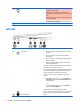
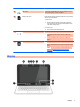


Table Of Contents
- Starting right
- Getting to know your computer
- Connecting to a network
- Enjoying entertainment features
- Navigating the screen
- Managing power
- Maintaining your computer
- Securing your computer and information
- Using Setup Utility (BIOS)
- Using HP PC Hardware Diagnostics (UEFI)
- Backing up, restoring, and recovering
- Specifications
- Electrostatic Discharge
- Accessibility
- Index

(7) AC adapter light
●
White: The computer is connected to external power and
the battery is fully charged.
●
Blinking white: The computer is disconnected from
external power and the battery has reached a low battery
level.
●
Amber: The computer is connected to external power and
the battery is charging.
●
Off: The battery is not charging.
(8) Power connector Connects an AC adapter.
Left side
Component Description
(1)
Power button
●
When the computer is off, press the button to turn on the
computer.
●
When the computer is on, press the button briefly to
initiate Sleep.
●
When the computer is in the Sleep state, press the button
briefly to exit Sleep.
●
When the computer is in Hibernation, press the button
briefly to exit Hibernation.
CAUTION: Pressing and holding down the power button will
result in the loss of unsaved information.
If the computer has stopped responding and Windows shutdown
procedures are ineffective, press and hold the power button
down for at least 5 seconds to turn off the computer.
To learn more about your power settings, see your power
options.
▲
From the Start screen, type power, select Power and
sleep settings, and then select Power and sleep from the
list of applications.
‒ or –
From the Windows desktop, right-click the Start button,
and then select Power Options.
(2) Security cable slot
Attaches an optional security cable to the computer.
NOTE: The security cable is designed to act as a deterrent, but
it may not prevent the computer from being mishandled or
stolen.
6 Chapter 2 Getting to know your computer