
User's Manual






5 PRINTER OPERATION
52
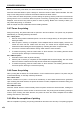
Figure 5. 19 Door lock button interface
To protect the safety of user, the printer will lock the front door and cap when it starts printing or the
chamber starts heating, and the front door and cap will be unable to be opened. To force unlocking in this
process, click the lock button to unlock the front door and cap.
Note: After forced unlocking, do not put your hand into the chamber for fear of scald or pinching.
5.5.7 Liquid cooler control
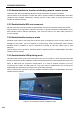
Liquid cooler control refers to enabling/disabling the liquid cooling system.
Click the switch on the right side of "Liquid cooler control" in System interface to enbale/disable, where
blue indicates liquid cooler enabled.
The liquid cooler is automatically enabled under the nozzle heating or chamber heating condition, and is
automatically disabled under certain temperature. This button is used to force enabling/disabling the liquid
cooling system. Do not operate this button in normal use.
Figure 5. 20 Liquid cooler control interface
5.5.8 Enable motor
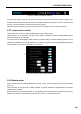
Motor enabled refers to enabling/disabling the X axis, Y axis, Z axis, extruding motor, auxiliary feeding
motor, etc.
Click the switch on the right side of "Motor enabled" in System interface to enbale/disable, where blue
indicates motor enabled.
Enabled means all motors are powered on, and disabled means all motors are powered off. After motor
disabled, the motors may be pushed by hand for free motion, for easier maintenance.